




Google Lens makes plant identification simple, accurate, and fast. Whether you want to identify a flower, a houseplant, a tree, or something you found on a hike, Google Lens uses AI image recognition to show you instant results. At the time of writing, it remains one of the most reliable plant identification tools for Android and iPhone.
This guide shows how to identify plants with Google Lens, how to scan plant photos from your gallery, and how to save your results for quick access. You will also see tips for improving accuracy when using Google Lens for plant ID.
What Is Google Lens?
Google Lens is a visual search tool that identifies objects using your phone’s camera. It recognizes plants, animals, landmarks, foods, and everyday items by comparing your photo to Google’s image database. For plant identification, Google Lens analyzes leaf shapes, flower patterns, colors, and textures to match the plant with the most accurate species results available.
The tool works on Android, iPhone, and through Google Photos. Because it uses AI, it gets more accurate over time, making it dependable for gardening, school projects, and outdoor exploration.
How To Access Google Lens
You can open Google Lens through several apps depending on your device. Choose the option that works best on your phone.
Use The Google App
This is the easiest method for most users.
- Open the Google app on your phone.
- Tap the Google Lens icon in the search bar.
- Allow camera access if prompted.
Use Google Lens In Google Photos
This method helps identify plants from pictures you already captured.
- Open the Google Photos app.
- Select a photo containing a plant.
- Tap the Google Lens icon at the bottom.
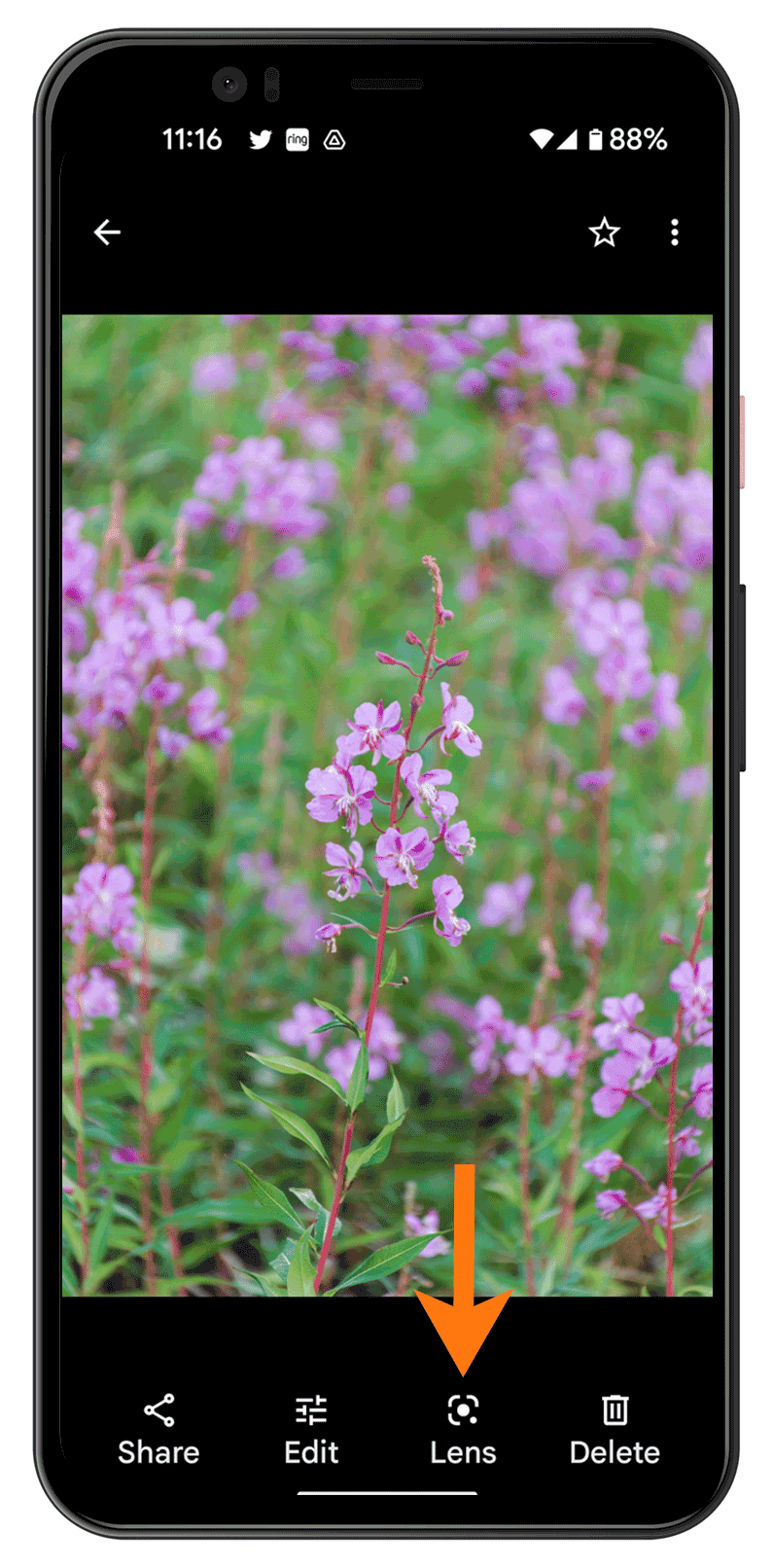
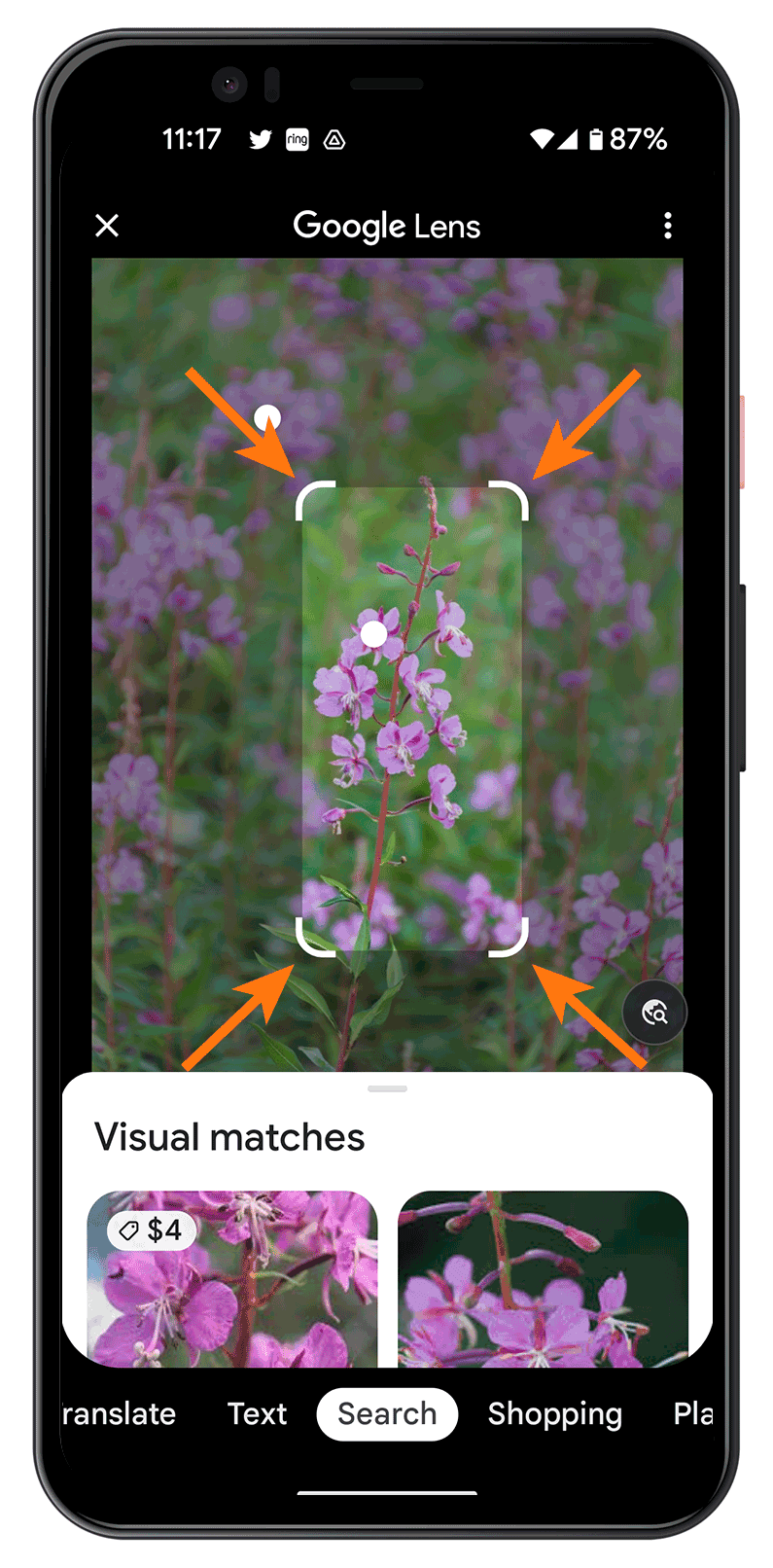
- To correctly identify your plant, try selecting a different part of the image in Google Lens. For best results, adjust the selection box in Google Lens to fit the plant closely.
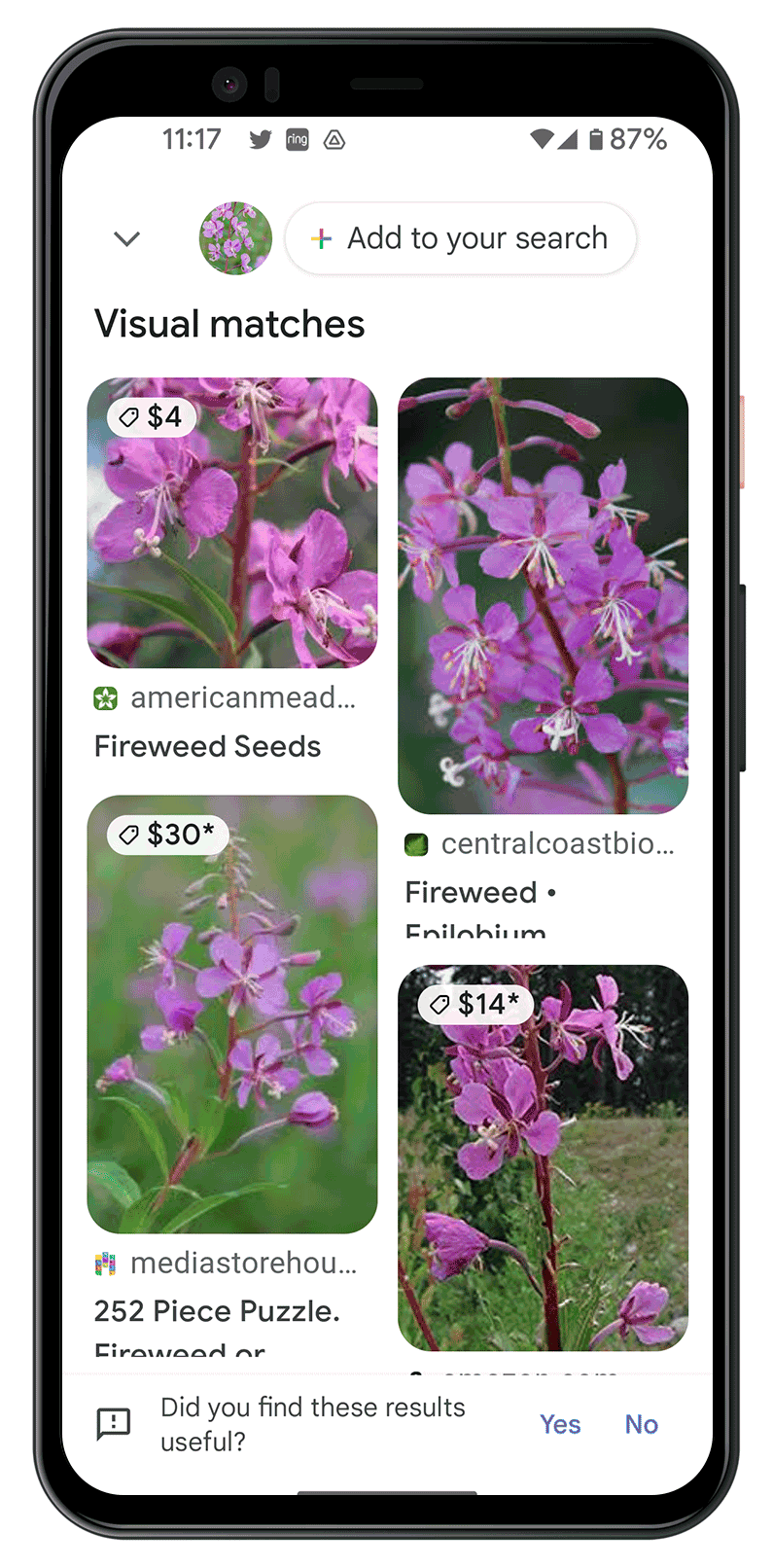
- Google will display a results page with images and information answering "What plant is this?
Use Your Phone’s Camera App (If Supported)
Some Android phones include Google Lens directly in the camera interface.
- Open the Camera app.
- Tap More or Modes.
- Select Google Lens.
How To Identify Plants With Google Lens
Once Google Lens is open, you can identify plants in real time or from saved photos. The steps below ensure the highest accuracy when identifying plant species.
Identify A Plant Using Your Camera
- Point your phone’s camera at the plant.
- Make sure the plant is well lit and centered.
- Tap the search button to scan the plant.
- Scroll through the results to view species names, descriptions, and care tips.
Identify A Plant From Your Photo Gallery
- Open Google Photos.
- Select a picture of the plant.
- Tap the Google Lens icon.
- Review the plant ID results and similar matches.
How To Save Plant IDs For Reference
Saving results helps track plants you discover during hikes or when researching houseplants.
- After you scan the plant, scroll down.
- Tap Save or Bookmark.
- Access saved results anytime through Google Collections.
Tips For More Accurate Plant Identification
- Photograph the plant in good lighting.
- Get close enough to show leaf or flower detail.
- Capture multiple angles if possible.
- Avoid blurry or shadowed images.
- Cross-check results using reputable gardening websites when needed.
Troubleshooting Common Problems
- Google Lens shows unrelated results → Adjust the focus box so it only covers the plant, not the background.
- Image will not scan → Check your internet connection; Lens requires online processing.
- Plant ID accuracy is low → Take clearer photos in bright, natural light and avoid shadows.
- Lens icon is missing → Update the Google app or Google Photos to the latest version.
- Camera permission denied → Go to your phone’s app permissions and enable camera access.
- Results not loading → Force-close the Google or Google Photos app and try again.
Tips
- Take multiple angles of leaves, stems, and flowers for better accuracy.
- Use Google Photos if you want to zoom in before scanning a specific plant part.
- Avoid scanning plants at night or in low light to prevent misidentification.
- Use Collections to organize and save all your plant IDs for later reference.
- Cross-check rare plants with a second source like a plant database or garden site.
FAQ
Is Google Lens Accurate For Plant Identification?
Google Lens is highly accurate for common plants, flowers, and trees, especially when the photo is clear and well lit.
Do I Need The Google App To Use Lens?
No. You can use Google Lens through the Google app, Google Photos, or some built-in Android camera apps.
Can Google Lens Identify Plants From Old Photos?
Yes. You can scan any saved photo in Google Photos using the Lens button.
Does Google Lens Work On iPhone?
Yes. You can use Lens through the Google app or Google Photos on iOS.
Does Google Lens Work Offline?
No. Lens requires an internet connection because it processes images using Google’s servers.
Summary
- Google Lens identifies plants using AI and your phone’s camera or photo gallery.
- You can access it through the Google app, Google Photos, or supported camera apps.
- Scan plants in real time or upload images for identification.
- Save plant results through Google Collections for later reference.
- Use bright lighting, clear photos, and close-up details for better accuracy.
- Google Lens provides fast, reliable plant ID for gardening, hiking, and everyday use.
Conclusion
Google Lens offers one of the easiest ways to identify plants using your smartphone. Whether you are checking a houseplant, exploring your backyard, or analyzing flowers on a trail, it provides fast and accurate information. With clear photos and good lighting, you can get reliable plant ID results in seconds and save each discovery for later.


Discussion (0)
Be the first to comment.