




Want visual search on desktop? Here’s how to use Google Lens in browser so you can identify products, translate text, and find similar images without leaving the page.
WHAT GOOGLE LENS DOES ON DESKTOP
On Chrome, Lens lets you ask questions about images, translate text from screenshots, identify landmarks, plants, or animals, and search for visually similar items in a side panel.
If you searched for “search with Google Lens in Chrome,” this is the built-in desktop version—no extra app required at the time of writing.
QUICK START: SEARCH WITH GOOGLE LENS IN CHROME
Use these steps on any website to trigger Lens from the page you’re viewing.
- Open Google Chrome on your computer.
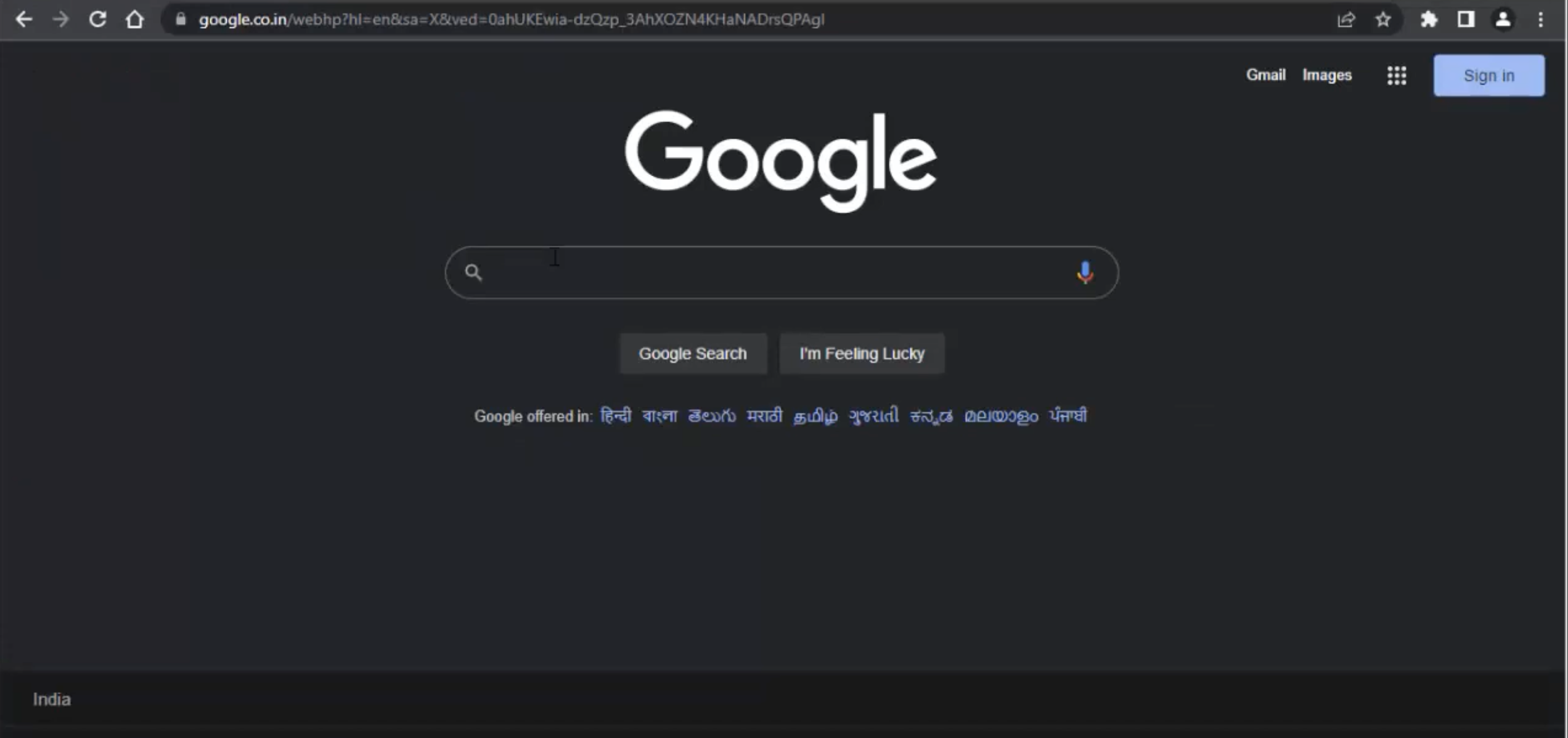
- Go to any web page with an image or text you want to analyze.

- Right-click an image and choose Search image with Google Lens.
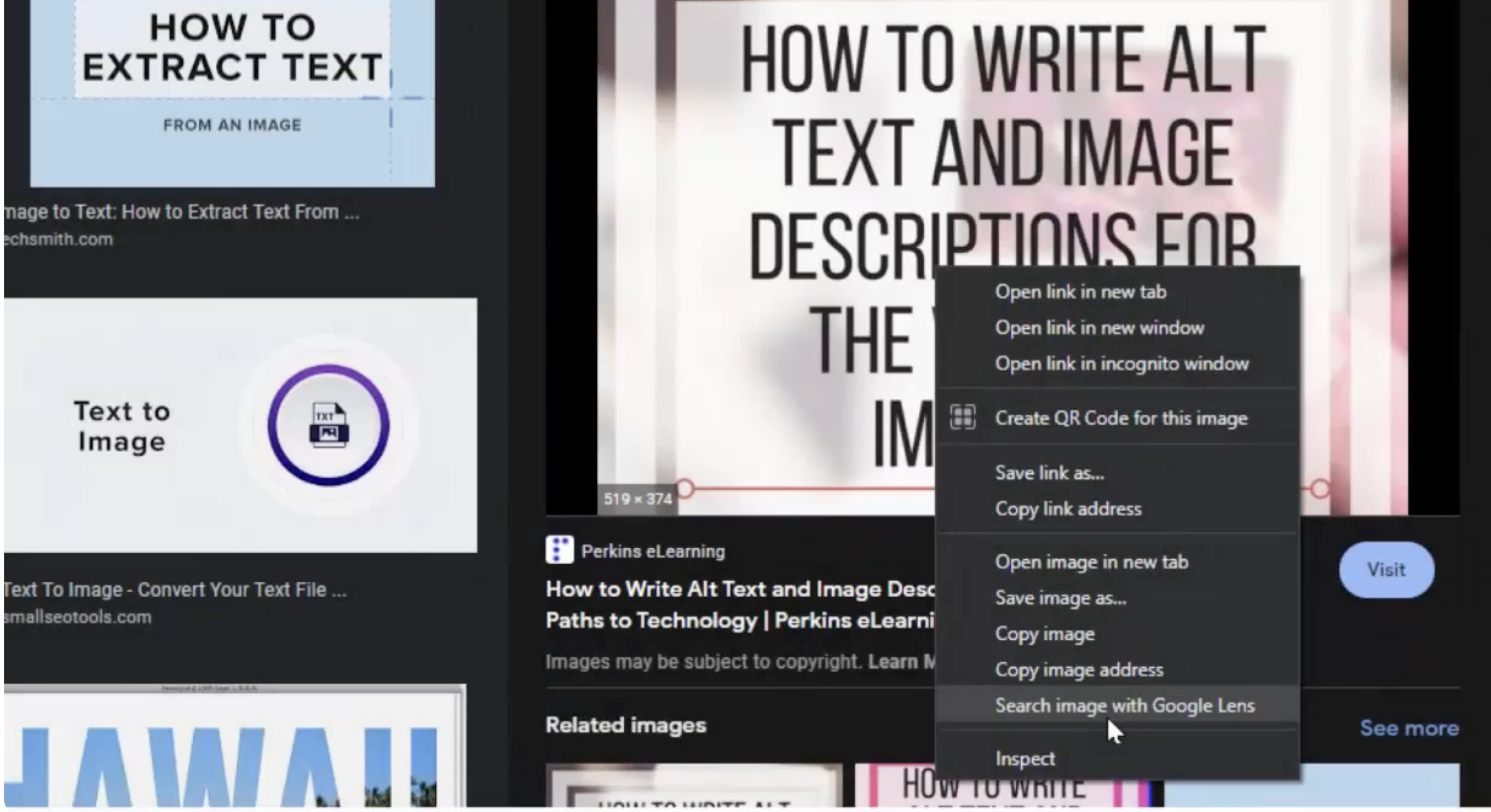
- Review results: visual matches, product listings, translations, and related pages appear in the side panel.
This covers the core “search with Google Lens in Chrome” workflow on desktop.
ENABLE THE TOOLBAR SHORTCUT (OPTIONAL)
If Chrome supports it on your system, you can pin a shortcut for faster access.
- Right-click the address bar.
- Select Always show Google Lens shortcut if available.
- Click the Lens icon in the toolbar whenever you need visual search.
TRANSLATE TEXT FROM IMAGES
Lens can instantly translate text found in images, PDFs, and screenshots you view in Chrome.
- Open the page with the image or screenshot that contains text.
- Right-click the image and choose Search image with Google Lens.
- Switch to Translate in the side panel.
- Pick your language and copy the translated text if you need it elsewhere.
IDENTIFY PRODUCTS AND FIND SIMILAR ITEMS
Use Google Lens in browser to shop visually from photos, lookbooks, or social posts.
- Open the page that shows the product.
- Use Search with Google Lens and crop exactly around the item.
- Browse product matches, prices, and similar styles in the side panel.
- Repeat the crop if you want to focus on different parts, like a logo or pattern.
ASK QUESTIONS ABOUT IMAGES
Lens can provide context for art, landmarks, plants, or animals seen in photos online.
- Activate Lens on an image that shows the subject clearly.
- Use the crop tool to isolate the object if the scene is busy.
- Scan results for names, background info, and related resources.
USE GOOGLE LENS ON ANDROID CHROME
You can also trigger Lens from Chrome on Android when you’re browsing.
- Open Chrome and tap the address bar.
- Tap the Google Lens icon.
- Choose Search with your camera and use the shutter to capture.
TROUBLESHOOTING WHEN LENS DOESN’T APPEAR
If you don’t see “Search with Google Lens,” try these fixes.
- Update Chrome to the latest version and relaunch.
- Right-click an image instead of the page background to reveal the Lens option.
- In the address bar, visit
chrome://flagsand search for Lens-related flags. Enable them if available, then restart the browser. - Disable conflicting extensions temporarily and test again.
FAQS
Is there a difference between Google Lens for Chrome and the mobile app? The core features are similar. On desktop, Lens appears in a side panel in Chrome, while the mobile app uses your camera directly.
Can I use Google Lens online without installing anything? Yes. Using Google Lens in browser on Chrome is built in; just right-click an image or select Search with Google Lens.
Does this work on other browsers? Results vary. The most reliable experience for Google Lens on PC is in Chrome.
SUMMARY
- Right-click any image in Chrome and choose Search image with Google Lens.
- Use the side panel to translate, shop, or find similar visuals.
- Pin the toolbar shortcut if supported for quicker access.
- If Lens is missing, update Chrome or enable Lens flags.
CONCLUSION
Now you know how to use Google Lens in browser to search visually, translate instantly, and shop smarter on desktop. Keep it handy in Chrome and use it whenever an image tells a story words can’t.


Discussion (0)
Be the first to comment.