




Google Chrome sometimes switches its search engine to something else, often after installing new extensions, software, or updates. If you notice your searches no longer go through Google, you can fix it in a few clicks. Here’s how to set Google as your default search engine again on any device.
1) Set Google as the default on desktop (Windows & macOS)
Open Chrome on your PC or Mac and click the three vertical dots in the top-right corner. Scroll down and select the Settings option. Now, choose the Search engine option in the left sidebar.

In the right pane, click the Change button next to the current Search engine, select Google, and click Set as default. You can also type chrome://settings/searchEngines in the address bar to go straight to this menu.

If Google doesn’t appear in the list, you can add it yourself by clicking Manage search engines and site search, then the Add button in the Site search section. Now, enter the following:
- Name: Google
- Shortcut: google
- URL:
https://www.google.com/search?q=%s
Finally, click Add, then the three dots next to Google, and select Make default.
2) Set Google as the default on Android & iPhone
Open the Chrome app on your phone and tap the three dots (top right corner for Android and bottom right corner for iPhone). Now, select Settings and tap the Search engine option. Finally, select Google from the list and tap Done.

To confirm the change, open a new tab and type something in the address bar. The results should appear from Google.
3) Set Google as the default on Chromebook
Chromebooks integrate Chrome’s search settings directly into system preferences. To make sure of it, click the time in the bottom-right corner of your screen and select the gear icon to open Settings.
In the left menu, select Search and Assistant. Lastly, choose Google as your default search engine.
4) Verify your default search engine
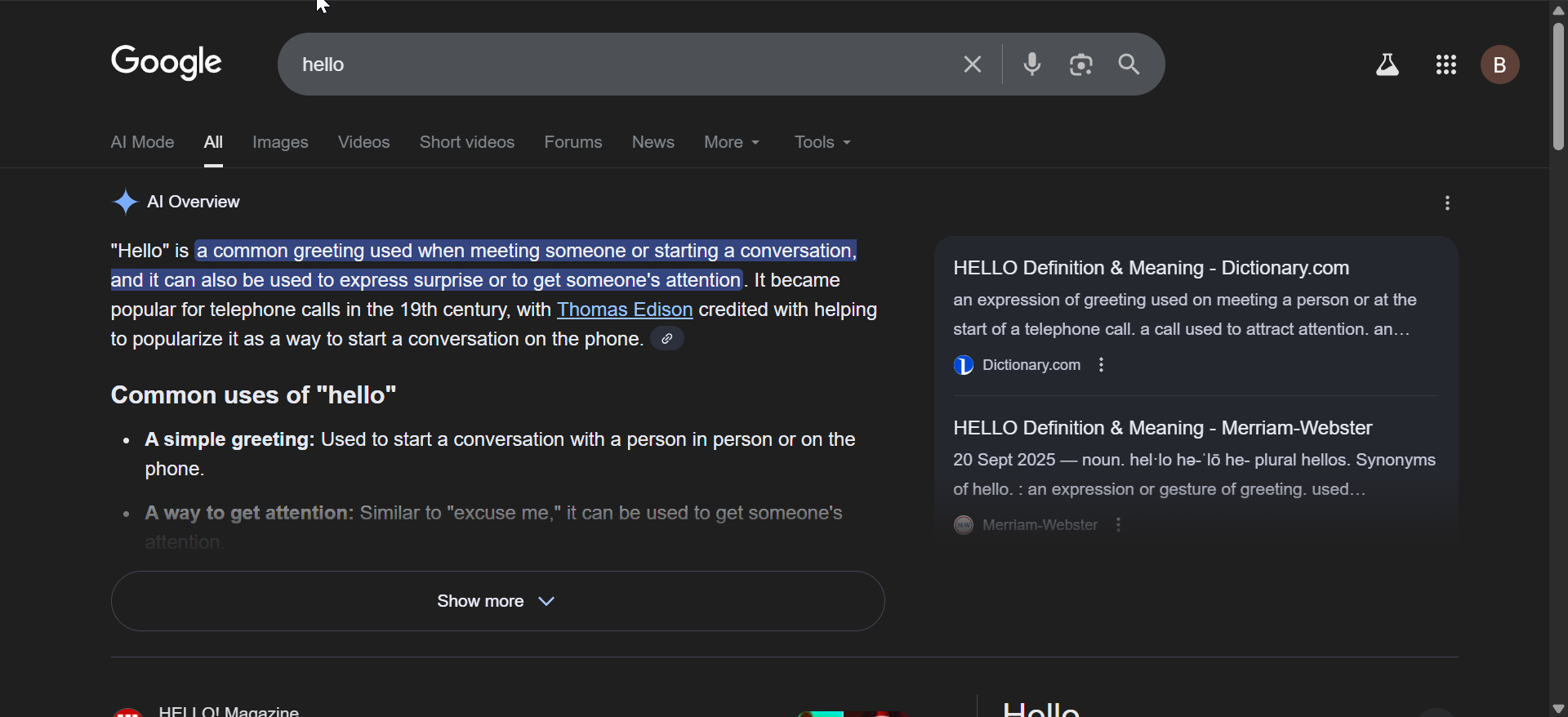
Open a new tab and search for anything. If your address bar shows google.com/search?q=, your change worked successfully. If not, repeat the steps or reset your settings.
5) Troubleshooting when Google search engine isn’t sticking
If Chrome keeps switching your search engine back or doesn’t save your choice, try these fixes.
- Check for extensions or malware: Some extensions can hijack your search settings. Go to chrome://extensions and disable suspicious add-ons. You can also use Chrome’s built-in Cleanup tool to remove harmful software.
- Reset Chrome settings: Open Settings → Reset settings → Restore settings to their original defaults. This resets your homepage and search engine while keeping your bookmarks and passwords intact.
- Check managed device policies: Type
chrome://managementin your address bar. If it says your browser is managed, you won’t be able to change the default search engine without admin rights. - Create a custom search engine for Google: If the default list doesn’t include Google, you can create your own search engine entry
Tips to keep Google as the default search engine
- Keep Chrome updated to avoid compatibility issues.
- Install extensions only from trusted sources.
- Check your search engine settings monthly if you use multiple profiles.
- Use Chrome Sync to apply your preferences across devices.
FAQs
Why did my search engine change automatically? A new extension or software may have modified Chrome’s configuration.
Can I set different defaults per profile? Yes. Each Chrome profile keeps separate settings, including its default search engine.
Does this setting sync across devices? Yes, if you enable Chrome Sync with your Google account.
What if my administrator locked the search setting? Only your IT department can modify this if Chrome is managed under enterprise policies.
Summary
- Open Chrome Settings.
- Select Search engine → Google.
- Add Google manually if missing.
- Fix hijacked settings via Extensions or Reset options.
- Confirm your change with a quick search test.
Conclusion
Setting Google as your default search engine in Chrome ensures you always get consistent, accurate results across devices. If the setting doesn’t save, reset Chrome or remove unwanted extensions. Once done, every search you make from the address bar will go straight to Google.

Discussion (0)
Be the first to comment.