




Keeping apps updated on Windows 11 is important, not only to access new features but also to fix bugs and security issues. App updates often close security gaps that could otherwise be misused, and they also improve stability and performance.
On Windows 11, apps are installed from two main sources. Some apps come from the Microsoft Store, while others are downloaded directly from developer websites. Because of this, the update process depends on where the app was installed from.
This guide explains the different ways to update apps on Windows 11, including Store apps and traditional desktop applications.
Update apps from the Microsoft Store
Apps installed from the Microsoft Store can be updated either manually or automatically.
Update apps manually
If you want to check for updates right away, you can update apps manually using these steps:
- Open Microsoft Store
- Click Downloads from the bottom-left menu
- Click the Check for updates button
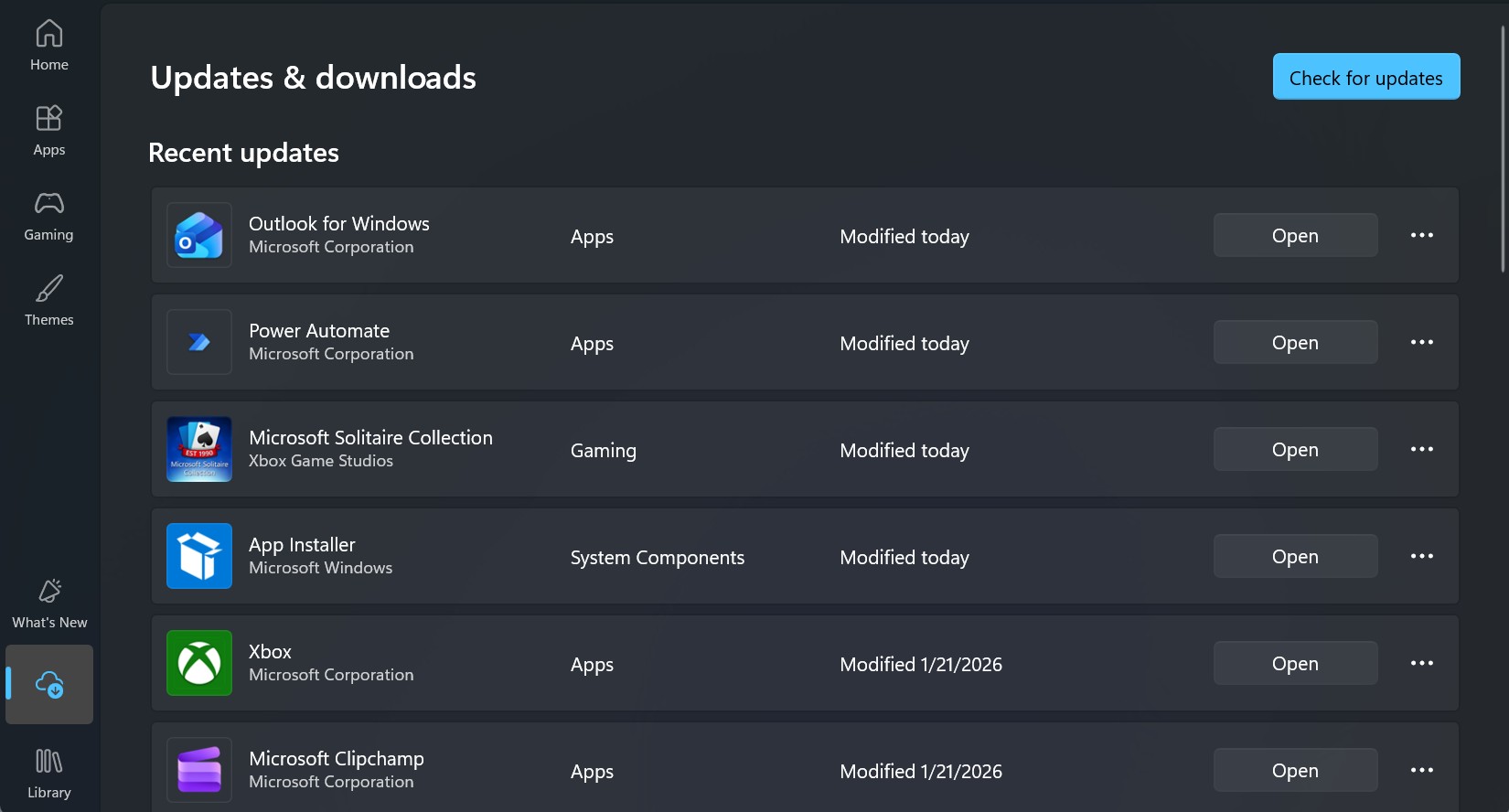

Once you complete the steps, Windows 11 will download and install any available updates for your apps.
Although automatic updates are enabled by default, Store apps do not update instantly after a new version is released. Checking manually helps ensure you are running the latest version.
Enable automatic app updates
To make sure Store apps update automatically in the future, use these steps:
- Open Microsoft Store
- Click your profile icon
- Select App settings
- Turn on the App updates toggle switch


After completing these steps, Windows 11 will update Store apps automatically in the background. Updates may still take some time to appear, depending on availability and system activity.
Update non-Store apps on Windows 11
Not all apps are available in the Microsoft Store. Many desktop apps are still downloaded from official websites, and these apps usually use their own update systems.
In most cases, you can update these apps from inside the app itself.
To update a traditional desktop app, follow these steps:
- Open the app
- Open the Help or Settings menu
- Select About, Check for updates, or Software Update
- Follow the on-screen instructions
Once the process finishes, the app will be updated to the latest version.
Update apps using Windows Package Manager (winget)
Windows 11 also includes the Windows Package Manager (winget), a command-line tool that can update certain apps automatically.
However, winget only works for apps that were originally installed using this tool. Apps installed from other sources will not be updated through winget. If you later update an app manually, it may also stop receiving updates through this method.
Windows 11 offers several ways to keep apps updated, depending on how they were installed. Microsoft Store apps can be updated manually or automatically, while traditional desktop apps usually manage updates through their own settings or support pages. Regularly updating your apps helps improve performance, fix bugs, and reduce security risks. By understanding the available update methods, you can ensure your system stays secure and up to date.

Discussion (0)
Be the first to comment.