File Explorer normally shows thumbnail previews for all kinds of files, like AVI, MKV, and even FLV video files. However, on some systems that have special configurations, as well as in older versions of Windows 10, File Explorer might be unable to display thumbnails for some media files. However, with the help of an app called Media Preview, you can enable thumbnail previews for all kinds of files. It works for video, audio, and image formats, and you can set what each thumbnail preview looks like. Without further ado, if you encounter the "thumbnails not showing" problem, here's how to make your File Explorer display them, including MKV or FLV thumbnails in Windows 10:
Step 1: Download and install the Media Preview app
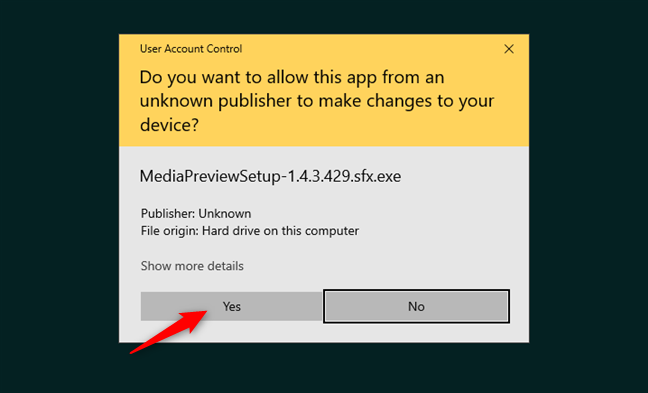
To be able to install Media Preview, you need a user account with administrative rights. When you run its installer file, it triggers a UAC Prompt. Click Yes to allow the installation when the prompt is shown.
Granting permission for the installation of the Media Preview app
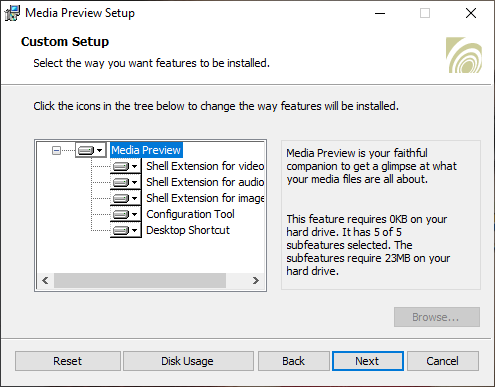
During the installation process, make sure that you select all shell extensions so that you can set the thumbnails for all types of supported files.
Configuring the installation of Media Preview
This application is free only for non-commercial use, and it works in Windows 7 and higher, including Windows 10.
Step 2: Run and configure Media Preview to show thumbnails in Windows 10
The Media Preview user interface is now loaded. You have several tabs to go through:
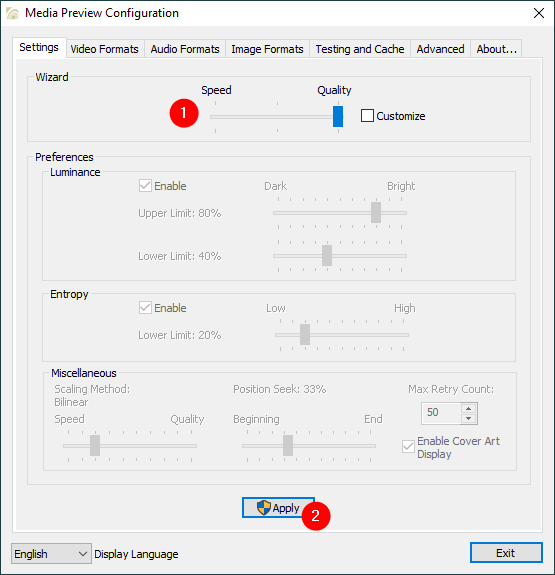
In the Settings tab, you can set the quality of the thumbnails generated by Media Preview. Some of these settings are hard to understand, so it is better to use the available presets and decide whether you prefer Speed vs. Quality. Then, click or tap on Apply and move on to the next tab.
The Settings tab of the Media Preview app
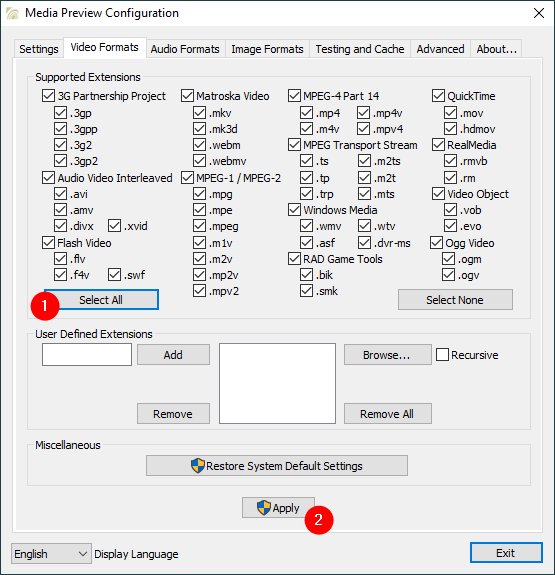
You can enable thumbnail previews for several video formats on the Video Formats tab, or you can Restore System Default Settings. Set everything as you wish and hit Apply.
Video Formats for which Media Preview generates thumbnails in File Explorer
TIP: Did you know that you can also customize what a folder looks like? Here's How to change a folder's view template in Windows 10's File Explorer, and also How to change a folder icon in Windows 10 in 3 easy steps.
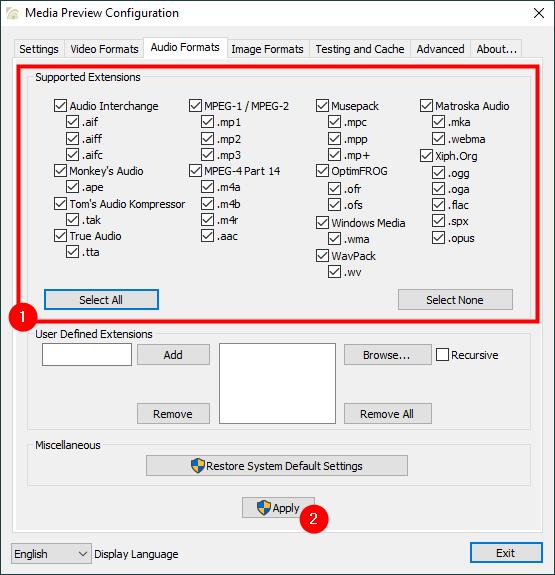
Similarly, on the Audio Formats tab, you can select the audio formats for which you want to enable the display of customized thumbnails. Once you've selected everything you wanted, click or tap on Apply. We found this tab less useful than the ones for setting video and image formats. Not that many users are interested in seeing custom thumbnails for their audio files since they are not really useful for these kinds of files.
Audio Formats for which Media Preview generates thumbnails in File Explorer
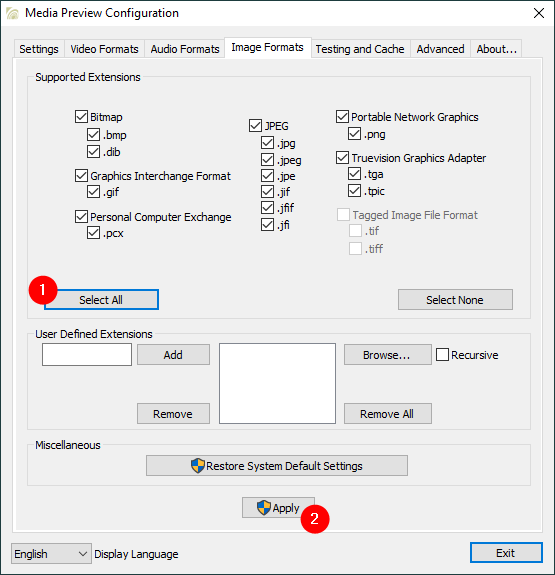
On the Image Formats tab, choose the file extensions for which you want to enable custom thumbnail previews and click or tap on Apply.
Image Formats for which Media Preview generates thumbnails in File Explorer
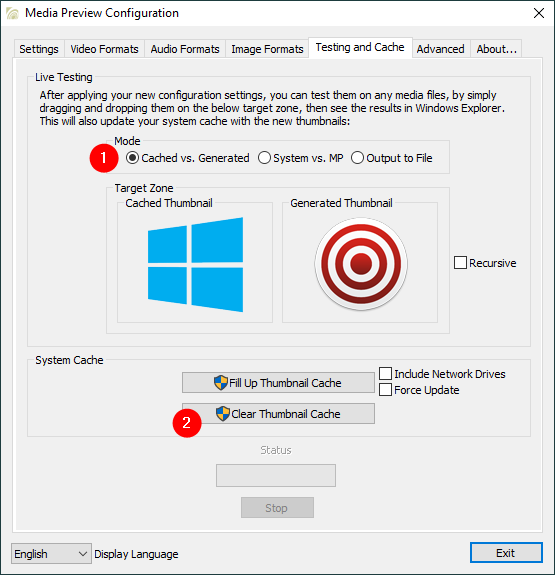
The Testing and Cache tab allows you to test your configuration settings and manage the thumbnail cache in Windows 10.
The Clear Thumbnail Cache option, which forces Windows 10 to delete all its thumbnails and generate new ones, based on your new settings, is especially useful. In fact, this is one of the best ways to make sure that you resolve "thumbnails not showing" issues in Windows 10.
Testing and Cache for File Explorer thumbnails
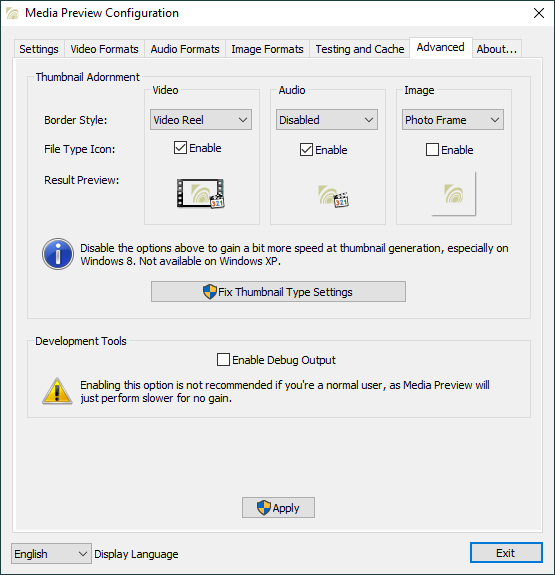
On the Advanced tab, you can set the border style for each type of file and enable debug output if you have problems with this application and want to do some troubleshooting. This option is recommended only to developers, though, not casual users.
Advanced options for Media Preview
The final tab - About - only shows you a few details about the Media Preview app.
Do you know other easy ways of making Windows 10 show media files thumbnails?
Don't hesitate to try Media Preview and share with us how well it works for you. If it doesn't work as expected, you can use this tool to restore the system default settings regarding thumbnails before uninstalling it. We hope that you will enjoy using it, and if you know another easy method of making File Explorer display thumbnails for all common types of media files, share it with us in the comments below.
Big Thanks for this tutorial !
It’s really fast to apply and it’s work instantly on Windows 10 !
Thanks !
Ciprian Adrian Rusen ·
You're welcome. Glad to have helped.
Craig ·
This was just what the doctor ordered, and only microsoft would consider flv and mkv lesser used codecs, flv is the lightweight standard for all web based video and mkv the heavyweight standard in many parts of the world and growing rapidly here right now. But Windows 7 has always handled MP4 fine for me, but still has a problem with some AVI which I figure are the MP4 based ones, so that will help for all those old videos on the hard drive:):) Not a file without a Thumb, nice lead!!!











Discussion (4)
Big Thanks for this tutorial !
It’s really fast to apply and it’s work instantly on Windows 10 !
Thanks !
You're welcome. Glad to have helped.
This was just what the doctor ordered, and only microsoft would consider flv and mkv lesser used codecs, flv is the lightweight standard for all web based video and mkv the heavyweight standard in many parts of the world and growing rapidly here right now. But Windows 7 has always handled MP4 fine for me, but still has a problem with some AVI which I figure are the MP4 based ones, so that will help for all those old videos on the hard drive:):) Not a file without a Thumb, nice lead!!!
Thanks