In Windows 10, you can use one of the five built-in view templates to have File Explorer display a folder's contents just the way you like them. This helps you optimize the way you see the files stored in that folder for increased efficiency and can also reduce the time it takes to open certain folders. This tutorial illustrates how to change the File Explorer view template of any folder in Windows 10:
First things first: About folder view templates in Windows 10
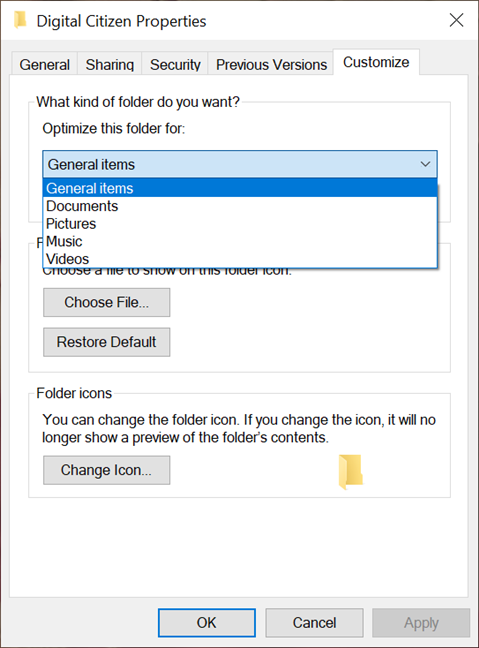
By default, Windows 10 detects the type of files in a folder and, based on the folder's contents, automatically sets a view template for it in File Explorer. There are five folder view templates in Windows 10: General items, Documents, Pictures, Music, and Videos. Each of them displays relevant details and options for the files they store.
There are five folder view templates in Windows 10
When a folder is created, it usually starts with the General items template or uses the same template as its location (e.g., folders created in the Music library use the Music view template). As you add more files to it, the folder's view template changes automatically based on the type of the majority of files included in it. Add images, and the folder view template becomes Pictures, add files that contain text, the template is set to Documents, and so on.
TIP: To learn more about different folder view templates and how to customize them, read our tutorial about configuring the default templates to suit your preferences.
While this is normally helpful, it can become a problem if folders with a lot of files are detected as Pictures or Videos - the templates that display large icons in File Explorer. Every time you open such a folder, Windows 10 also has to display thumbnails for each file stored in it, so the folder takes longer to open.
If accessing one of your folders takes time you don't have, or if you simply want to modify which details are shown when you open certain folders, you can easily switch how you view them by following the steps below.
How to change a folder's view template in Windows 10
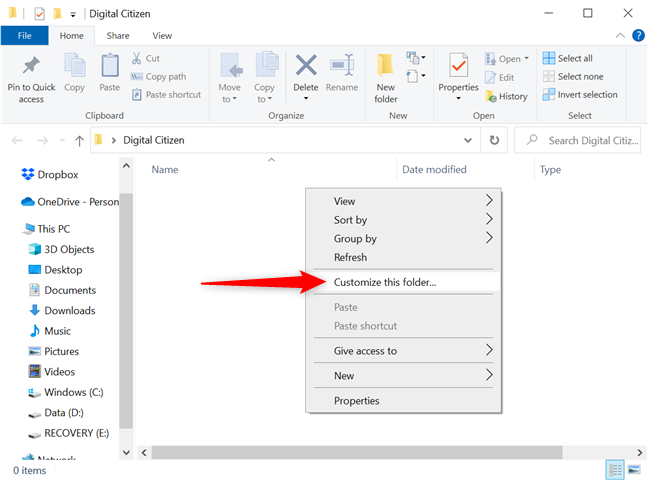
Use File Explorer to open the folder whose view template you want to change. Then right-click or press-and-hold on an empty area in that folder to open its contextual menu. Click or tap on "Customize this folder."
Customize the folder
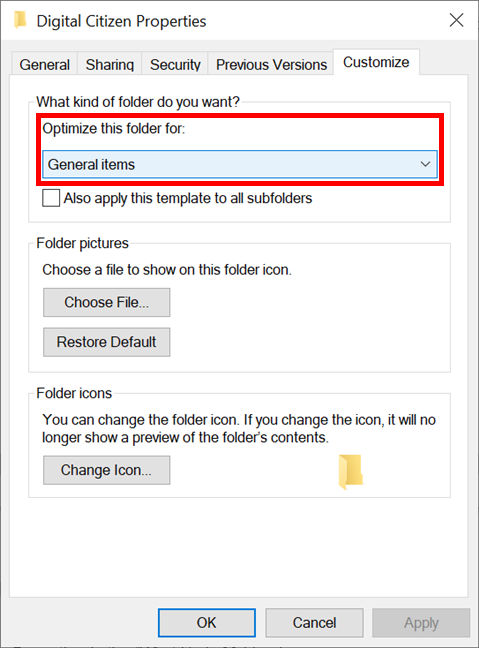
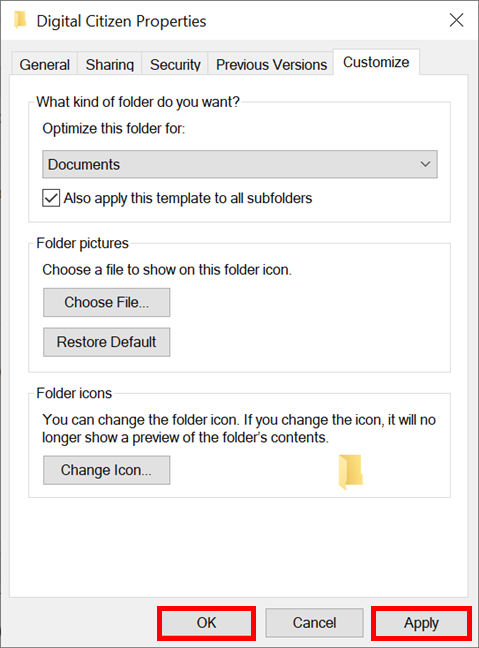
The folder's Properties window opens in the Customize tab.
In the "What kind of folder do you want?" section, click or tap on the field under the "Optimize this folder for" option.
Optimizing a folder
This opens a dropdown menu with the five folder view templates. Select the one you want to apply to your folder.
Select a view template for your folder
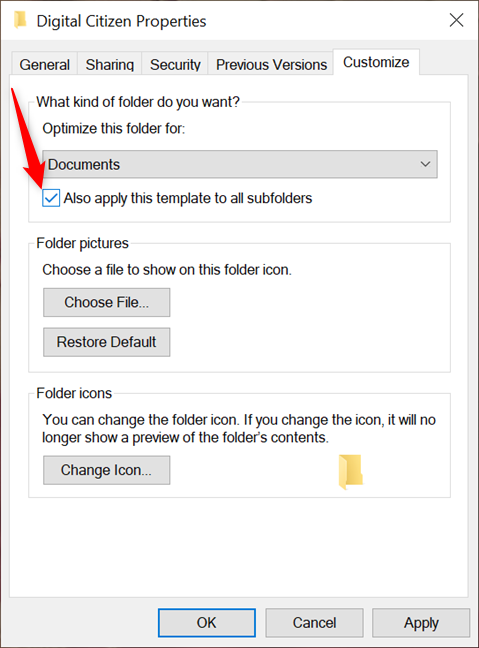
If you want to use the same template for all the subfolders in your folder, check the box next to the "Also apply this template to all subfolders" option.
Check the box to use the same template for subfolders
When you are done, click or tap OK or Apply to save your changes.
Save your changes by pressing OK or Apply
The view is now optimized for the content type you selected, and Windows 10 automatically applies the corresponding template each time you open your folder (and its subfolders, if you also enabled the box).
TIP: If you also want to change the icon of the same folder (or any other folder), read: How to change a folder icon in Windows 10 in 3 easy steps.
What folder did you customize?
Changing the view template for your folders offers flexibility to how you see your data in Windows 10, helping you navigate and find files more efficiently. We hope Microsoft eventually introduces the option to create and name templates, as that would be both helpful and fun. Before you close this tutorial, let us know what folder you optimized. Was it taking forever to open or did you just want to keep things tidy? Leave a comment with your answer in the section below.
There’s some sort of conflict between propagating a default view (say ‘General’) to all sub-folders, and setting a default view within Explorer. It seems Explorer’s idea of General cannot be overidden by the columns, widths, etc you have chosen as the defaults for Explorer. If there IS a way, please post an update – thanks!
JL ·
I do not find the pre-set Folder View Templates useful at all. Rather, I want the one template for all kinds of folders. I.e., I need either to make all the pre-set templates look the same or somehow ban their usage (in registry editor?).
Orcadian ·
This is very simiar to what I want to do – see my comment on 15/5/20. Let us hope for a reply. 🙂
BJ ·
Like everything else with Microsoft…DOESN’T WORK!
Dark Penguin ·
Is there any way I can make this work for my Android device, when it is connected to my computer? File Explorer lists every last single file on my phone as if it were a music track, and there is no option to change this in folder properties–i.e. there’s nothing but “General”.
I want to clear off some old photos determined by their age, and I can’t see any way to do it.
Malky ·
This is all very well, but it doesn’t work with CD/DVD drives. What I need is to be able to apply a folder template based on the folder content, not its location. can this be done?
Andrey ·
Thank you a lot, it worked!
Sheryl ·
How can I change the Windows Explorer 2007 search folder detail view to display the folder hierarchy first and the file last?
jim ·
Oh– the icons changing was me. Never mind that one.
jim ·
And what’s with the Progressive ad in the security code? I just came here to find an answer.
DoubleJ ·
This doesn’t work. Every time I do it, it just changes back to the default settings.
jim ·
It sets them back to default for me too. And something about your solution shut off the preview feature of the icons– now they all show that flower thing.
Easifier ·
Just select the view you want of a folder by the “(change your) View” from the toolbars on the top of the folder (e.g. List View). Then, while you are in this folder, select “Tools” (from the toolbars again) > “Folder Options” (from the drop list) and hit the “View” tab (usually the second one). At last press the “Apply to Folders” button and confirm. Do this procedure one time for each folder type (once in a music folder, once in a picture folder.. document folder and a video folder type.)
Done!
Doug ·
By the way, if you double click the folder on the left, it drops to the bottom of the screen, which is annoying but if you simply click the triangle on the left of the folder itself, it will open the folder and leave it where it is at.
Craig 123 ·
Doug, This is not always the case that clicking on the triangle at left leaves the folder where it was. Sometimes, when clicking the triangle to the left, the folder moves up to the top of the window and opens to reveal all the subfolders. Sometimes it stays right where it was when you click on the triangle. It is not clear what the rules are which makes it seem rather random and causes frustration when what you clicked on to open is randomly no longer there.
It is this “randomness” that prevents users from “learning” how Explorer works and promotes distrust and frustration.
ACEastwood ·
Every time I have to set up a new VM or laptop I’m astonished by how badly the defaults have been chosen in Microsoft Explorer, and how hard it is to make it usable . Industrial users like myself are not interested in ‘clever’ software but simple predictable interfaces which facilitate what real users need to do!
Why is this too much to expect?
D Mann ·
I’m afraid none of you knows what the word “DEFAULT” means. You’ve described how to change the view of EXISTING folders, NOT how to change the DEFAULT view of a folder as it is first created !!! What we want here is a one step process to create a new folder with a particular view and NOT a way to change the view AFTER the folder exists. That is NOT a “DEFAULT”!
Your very first step says to navigate to the folder you want to change. I don’t want to change a folder. I want to CREATE a folder and have it DEFAULT to a view style of my choice WITHOUT having to take extra steps to change what Microsoft mistakenly assumes I want.
barney rubble ·
Sir
You come here, complain about Windows, and abuse everyone with a verbal tirade of insults.
Please do everyone a favour and purchase a Mac.
A. DeMar ·
Prior to Windows 7, the default folder format could be done at the C: level and applied to all the subfolders. The customize button is missing from that level in Win 7. Did Microsoft run out of money and couldn’t afford to include it…Ummm, no, just shoddy programming!
Richard Nesme ·
Thank you very much. I have been suffering for years changing the details view to list view.
You have been my saviour.
Morten Olsen ·
It worked for me. But how do I put a folder (and its sub folders) back to default templates?
beth ·
I have a particular drive and a particular folder within that drive that I go to for almost everything I do on a daily basis. But I still have to go thru so many directories to get there everytime. Is there a way to have that directory the default that opens in explorer. Or the last directory that was open to be the default. I have to work about 2000 mph at my job and clicking thru folders really slows me down. I don’t really want to put an icon on my desktop if I don’t have to.
DJS ·
I guess I could learn to use that. Except that Microsoft raised me to seek out the folders I need on the LEFT side, then double click on the one I want to open it. I’m literally a product of their design. So it would be difficult for me to learn to use the top address bar to type in the folders I want because I don’t know what I want until I see it as I’m scrolling down to find it.
I guess it would be like someone raising their kid to use a fork to eat with and then after 20 years telling them if they use a fork to eat with it’s going to stab them in the gums everytime they try to put it in their mouth… So they should consider using a spoon from now on…
DJS ·
Sorry. I meant every click on a folder on the LEFT side drops the entire tree down. Making the user have to search for the folder they just opened. It is exhausting to say the least.
Ciprian Adrian Rusen ·
Why don’t you consider using the address bar on the top? I learned to use it and I love it. I barely notice the bug that frustrates you, simply because the address bar on the top can get me faster to where I need.
DJS ·
Which makes the entire program worthless to me. I have 6 hard drives. I am in Explorer ALL THE TIME viewing and organizing files and folders. Every click on a folder on the left side drops the entire tree down to the bottom and you have to go searching for the folder you just opened. This is not a bug. It is an ignorant insult to anyone who has given their entire life to Microsoft and purchased and used their products in good faith. I feel completely betrayed by them with this. I can not believe they still have not fixed it.
Anonymous ·
You Know What…
You can show me everything there is to know about Explorer in Windows 7. But until you show me how to keep the damn tree from dropping to the bottom of the page every time I click on a folder to open it, this program is a worthless piece of crap that should be sent to any elementary school and reprogrammed by the 5th graders there.
Ciprian Adrian Rusen ·
I’m afraid that’s a bug (or a feature – depending on whom you ask:)). You cannot fix it by making any setting whatsoever. Sorry we cannot help with this issue. 🙁
Craig 123 Anderson ·
Amen! I would like a File Manager like the Finder on Mac OS X. There are several after market programs, but they cost money. Why can’t Microsoft have some student interns create one?









Discussion (29)
There’s some sort of conflict between propagating a default view (say ‘General’) to all sub-folders, and setting a default view within Explorer. It seems Explorer’s idea of General cannot be overidden by the columns, widths, etc you have chosen as the defaults for Explorer. If there IS a way, please post an update – thanks!
I do not find the pre-set Folder View Templates useful at all. Rather, I want the one template for all kinds of folders. I.e., I need either to make all the pre-set templates look the same or somehow ban their usage (in registry editor?).
This is very simiar to what I want to do – see my comment on 15/5/20. Let us hope for a reply. 🙂
Like everything else with Microsoft…DOESN’T WORK!
Is there any way I can make this work for my Android device, when it is connected to my computer? File Explorer lists every last single file on my phone as if it were a music track, and there is no option to change this in folder properties–i.e. there’s nothing but “General”.
I want to clear off some old photos determined by their age, and I can’t see any way to do it.
This is all very well, but it doesn’t work with CD/DVD drives. What I need is to be able to apply a folder template based on the folder content, not its location. can this be done?
Thank you a lot, it worked!
How can I change the Windows Explorer 2007 search folder detail view to display the folder hierarchy first and the file last?
Oh– the icons changing was me. Never mind that one.
And what’s with the Progressive ad in the security code? I just came here to find an answer.
This doesn’t work. Every time I do it, it just changes back to the default settings.
It sets them back to default for me too. And something about your solution shut off the preview feature of the icons– now they all show that flower thing.
Just select the view you want of a folder by the “(change your) View” from the toolbars on the top of the folder (e.g. List View). Then, while you are in this folder, select “Tools” (from the toolbars again) > “Folder Options” (from the drop list) and hit the “View” tab (usually the second one). At last press the “Apply to Folders” button and confirm. Do this procedure one time for each folder type (once in a music folder, once in a picture folder.. document folder and a video folder type.)
Done!
By the way, if you double click the folder on the left, it drops to the bottom of the screen, which is annoying but if you simply click the triangle on the left of the folder itself, it will open the folder and leave it where it is at.
Doug, This is not always the case that clicking on the triangle at left leaves the folder where it was. Sometimes, when clicking the triangle to the left, the folder moves up to the top of the window and opens to reveal all the subfolders. Sometimes it stays right where it was when you click on the triangle. It is not clear what the rules are which makes it seem rather random and causes frustration when what you clicked on to open is randomly no longer there.
It is this “randomness” that prevents users from “learning” how Explorer works and promotes distrust and frustration.
Every time I have to set up a new VM or laptop I’m astonished by how badly the defaults have been chosen in Microsoft Explorer, and how hard it is to make it usable . Industrial users like myself are not interested in ‘clever’ software but simple predictable interfaces which facilitate what real users need to do!
Why is this too much to expect?
I’m afraid none of you knows what the word “DEFAULT” means. You’ve described how to change the view of EXISTING folders, NOT how to change the DEFAULT view of a folder as it is first created !!! What we want here is a one step process to create a new folder with a particular view and NOT a way to change the view AFTER the folder exists. That is NOT a “DEFAULT”!
Your very first step says to navigate to the folder you want to change. I don’t want to change a folder. I want to CREATE a folder and have it DEFAULT to a view style of my choice WITHOUT having to take extra steps to change what Microsoft mistakenly assumes I want.
Sir
You come here, complain about Windows, and abuse everyone with a verbal tirade of insults.
Please do everyone a favour and purchase a Mac.
Prior to Windows 7, the default folder format could be done at the C: level and applied to all the subfolders. The customize button is missing from that level in Win 7. Did Microsoft run out of money and couldn’t afford to include it…Ummm, no, just shoddy programming!
Thank you very much. I have been suffering for years changing the details view to list view.
You have been my saviour.
It worked for me. But how do I put a folder (and its sub folders) back to default templates?
I have a particular drive and a particular folder within that drive that I go to for almost everything I do on a daily basis. But I still have to go thru so many directories to get there everytime. Is there a way to have that directory the default that opens in explorer. Or the last directory that was open to be the default. I have to work about 2000 mph at my job and clicking thru folders really slows me down. I don’t really want to put an icon on my desktop if I don’t have to.
I guess I could learn to use that. Except that Microsoft raised me to seek out the folders I need on the LEFT side, then double click on the one I want to open it. I’m literally a product of their design. So it would be difficult for me to learn to use the top address bar to type in the folders I want because I don’t know what I want until I see it as I’m scrolling down to find it.
I guess it would be like someone raising their kid to use a fork to eat with and then after 20 years telling them if they use a fork to eat with it’s going to stab them in the gums everytime they try to put it in their mouth… So they should consider using a spoon from now on…
Sorry. I meant every click on a folder on the LEFT side drops the entire tree down. Making the user have to search for the folder they just opened. It is exhausting to say the least.
Why don’t you consider using the address bar on the top? I learned to use it and I love it. I barely notice the bug that frustrates you, simply because the address bar on the top can get me faster to where I need.
Which makes the entire program worthless to me. I have 6 hard drives. I am in Explorer ALL THE TIME viewing and organizing files and folders. Every click on a folder on the left side drops the entire tree down to the bottom and you have to go searching for the folder you just opened. This is not a bug. It is an ignorant insult to anyone who has given their entire life to Microsoft and purchased and used their products in good faith. I feel completely betrayed by them with this. I can not believe they still have not fixed it.
You Know What…
You can show me everything there is to know about Explorer in Windows 7. But until you show me how to keep the damn tree from dropping to the bottom of the page every time I click on a folder to open it, this program is a worthless piece of crap that should be sent to any elementary school and reprogrammed by the 5th graders there.
I’m afraid that’s a bug (or a feature – depending on whom you ask:)). You cannot fix it by making any setting whatsoever. Sorry we cannot help with this issue. 🙁
Amen! I would like a File Manager like the Finder on Mac OS X. There are several after market programs, but they cost money. Why can’t Microsoft have some student interns create one?