When you start File Explorer, it displays the Quick access location, listing the folders you use the most and the files you recently opened in Windows 10. This list is dynamic and gets updated as different items are used, to respond to your ever-changing needs. On top of that, you can also pin to Quick access any location you want, to have it permanently show in File Explorer'sNavigation pane. This tutorial illustrates how to pin an item to Quick access using four different methods:
NOTE: Besides folders, you can also follow the steps in this tutorial to pin drives and libraries to Quick access. If what you're looking for is having all the libraries displayed in the Navigation pane on the left of your File Explorer window, read 3 ways to enable the Windows 10 libraries - the last chapter offers a trick to access the libraries for easier pinning.
1. How to pin a folder to Quick access from its contextual menu
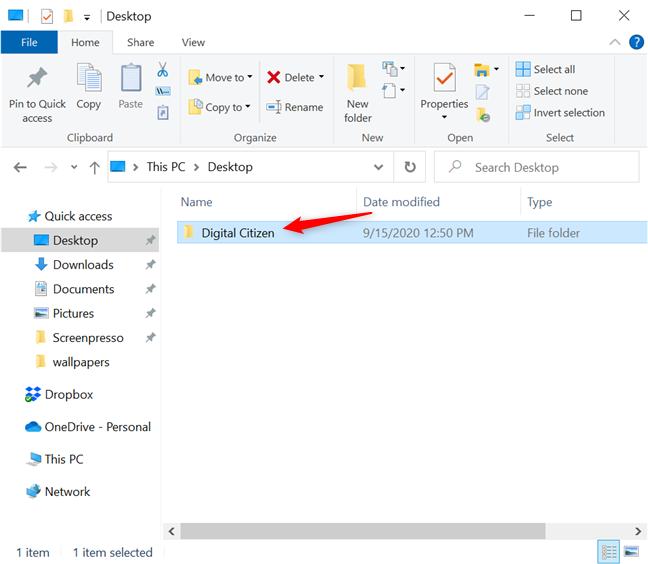
First, open File Explorer, navigate to the item you want to pin, and click or tap on it to select it.
Select the folder you want to pin
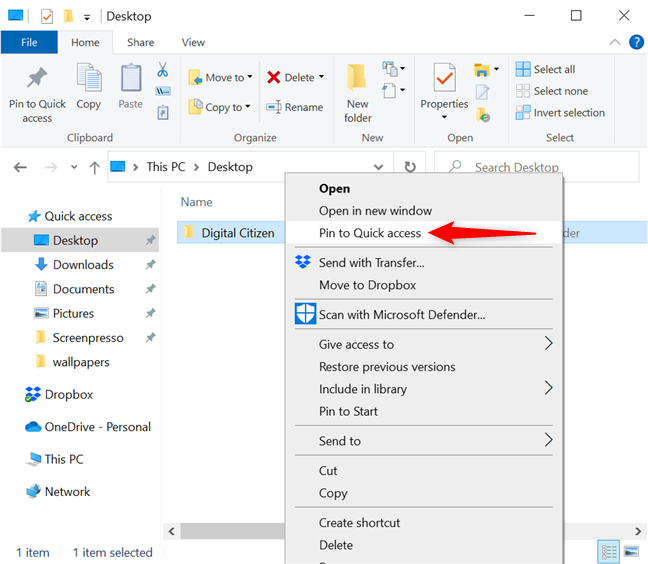
Then, right-click or press-and-hold on it to access a contextual menu. The "Pin to Quick access" option is displayed in the first section. Click or tap on it.
Press Pin to Quick access from the contextual menu
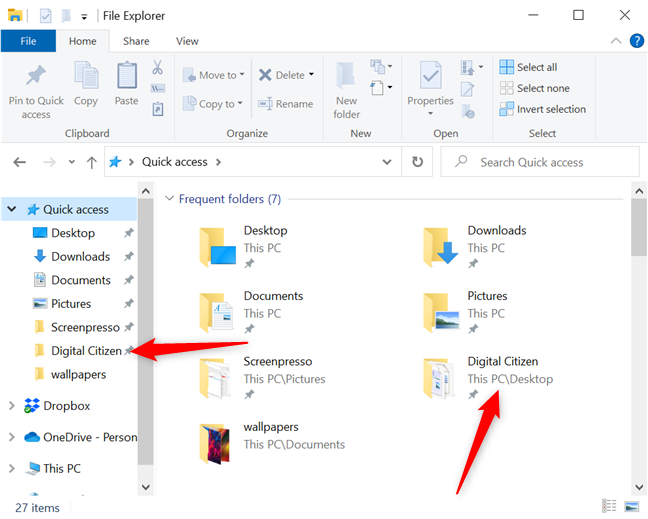
In an instant, the selected item is pinned to File Explorer'sQuick access. It can now be reached both from the Quick access folder and the Quick access shortcuts in the Navigation pane on the left.
The folder is added to Quick access
2. How to pin the current folder to Quick access
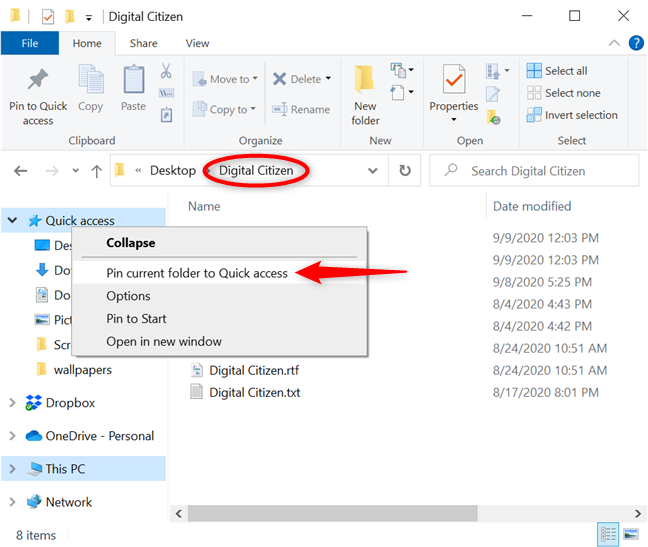
If the folder you want to pin is already open in File Explorer, there's another way to pin it to Quick access. Right-click or press-and-hold on the Quick access shortcut from the Navigation pane on the left to open a contextual menu. Then, click or tap on the "Pin current folder to Quick access" option, and the item is added to the section.
Pin to Quick access the folder you're in
The item you pinned can now be easily reached from Quick access.
TIP: You can't pin files or documents to Quick access. However, once you pin a location, it's always shown, regardless of how rarely you use it.
3. How to pin a folder to Quick access from File Explorer's Home tab
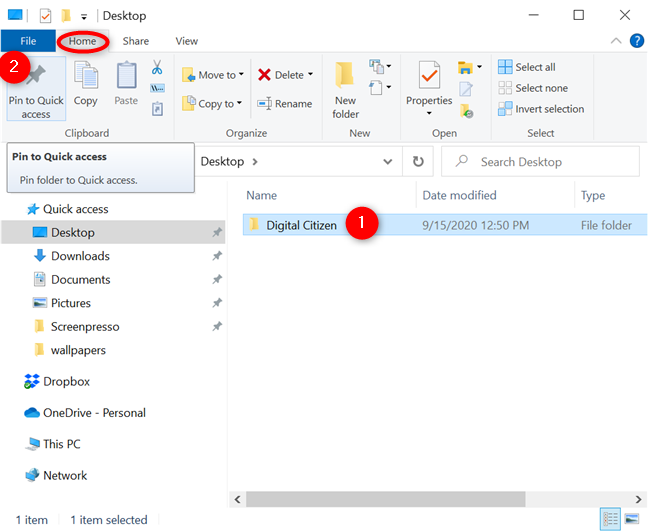
File Explorer'sHome tab has a dedicated button for pinning items to Quick access. Select the folder you want to pin and press the "Pin to Quick access" button to the left of the Home tab. Its icon looks like a pushpin.
Press the big Pin to Quick access button on the left
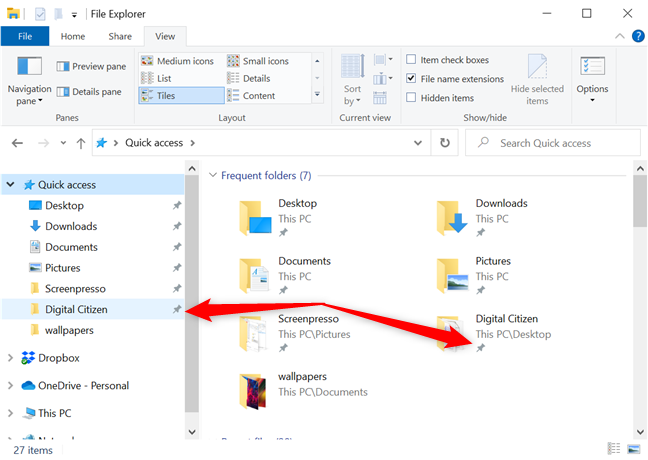
A little pushpin icon is displayed next to pinned items, both in the Quick access folder and in the Navigation pane.
The pushpin icon indicates pinned items
4. How to pin a folder to Quick actions by dragging and dropping
Dragging and dropping items can be a useful tool. You can use it to cut, copy and paste in Windows 10, and it's also handy when you want to pin items to File Explorer'sQuick access.
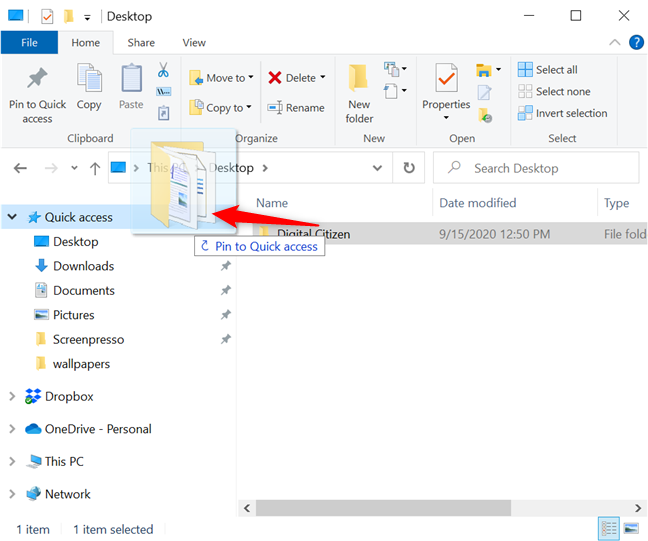
Click or tap on the folder you want to pin and then hold to grab it. Then, drag it on top of the Quick access shortcut in the Navigation pane. When the message "Pin to Quick access" appears, drop the folder by releasing the mouse button or taking your finger off the screen.
Drag and drop an item to pin it to Quick access
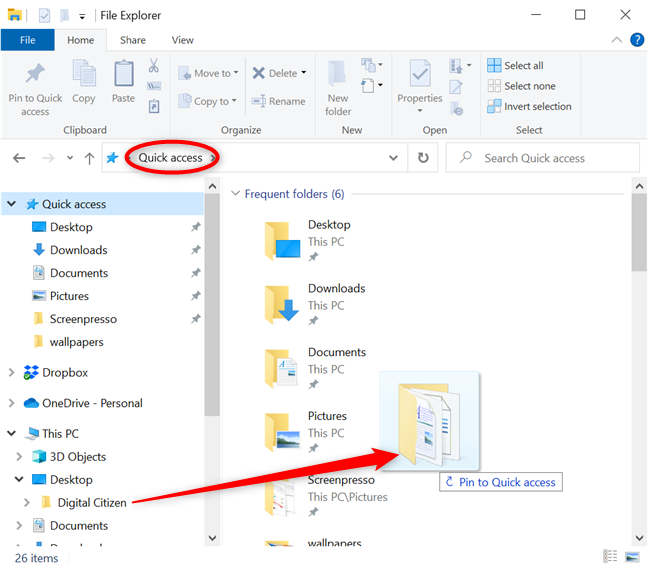
Alternatively, this also works if the Quick access folder is open in File Explorer, and you drag and drop a folder into it from the Navigation pane on the left.
Dragging and dropping a folder pins it to Quick access
Bonus: How to unpin from Quick access
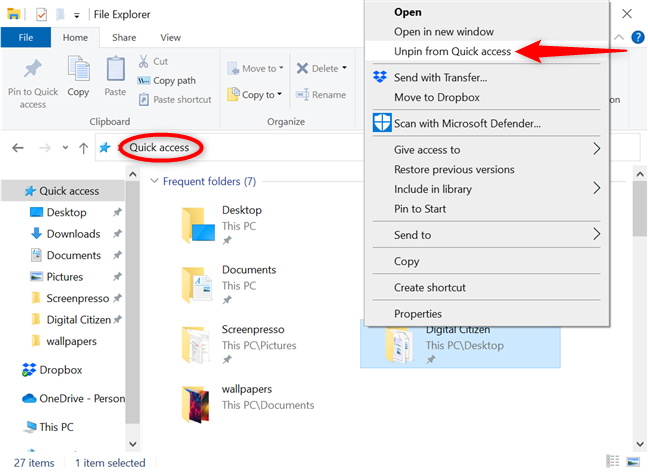
There are two ways to unpin from Quick access. Open the Quick access folder, then right-click or press-and-hold on the item you want to remove from the list. From the subsequent contextual menu, click or tap "Unpin from Quick access," and the folder is no longer shown among the other pinned items.
Unpin the folder from Quick access
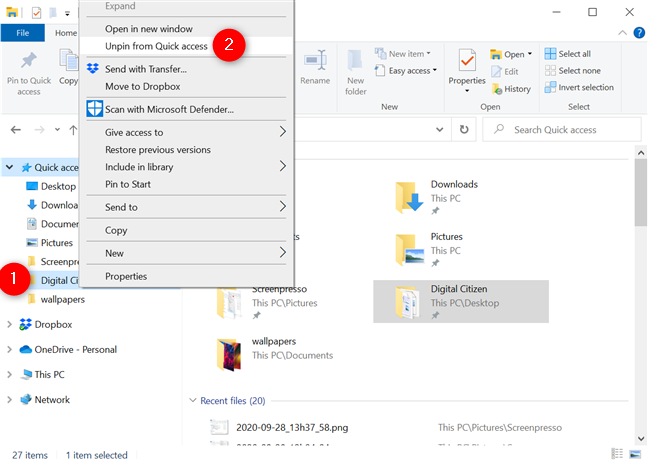
You can also unpin an item from the Navigation pane. Right-click or press-and-hold on your folder's Quick access shortcut, on the left side of the screen, to open a contextual menu. Then, click or tap on "Unpin from Quick access."
Unpinning a folder from Quick access
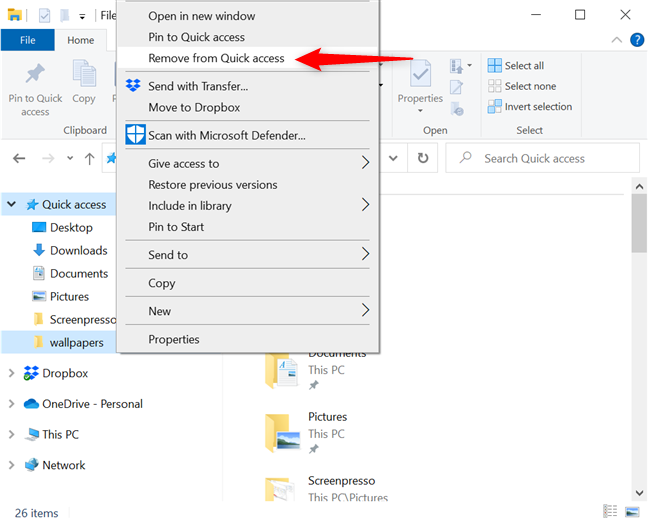
The item is immediately unpinned, and you can no longer see it in Quick access. If you'd like to remove any of the folders added automatically to File Explorer'sQuick access, right-click or press-and-hold on that item, and then click or tap on "Remove from Quick access."
Removing automatically added locations from Quick access
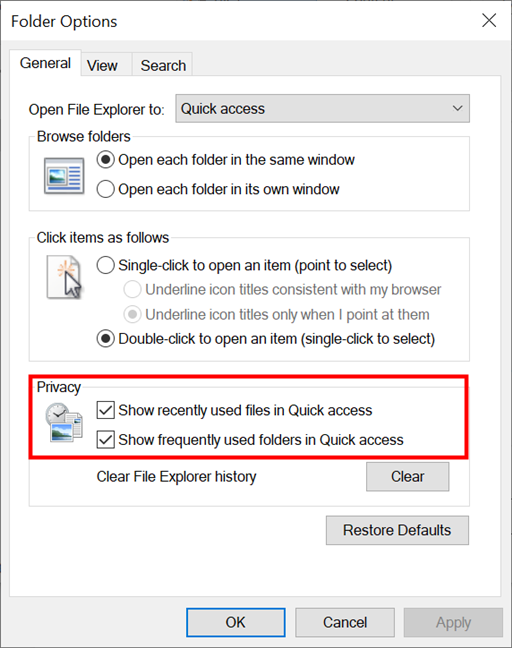
Keep in mind that you can customize further whether files and folders automatically show up in Quick access. First, open Folder Options. In the General tab, uncheck any of the two boxes in the bottom section, next to the "Show recently used files in Quick access" and "Show frequently used folders in Quick access" options, to limit what items are displayed in the folder.
Decide what's listed in Quick access
What folders did you pin to Quick access?
Quick access is a great tool, saving precious time when you're trying to find your favorite locations. You can pin to Quick access the folders, drives, and libraries you want to access as fast as possible. We mostly use it for our work files because those are usually the ones we need to access in a hurry. What about you? What folders did you pin to Quick access? Let us know in the comments.
I have used up all the available space that they have allotted in the quick access section, I cannot add anymore folders without moving some out. There should be a way to increase the length of the allotted section. I use the ones that I have pinned to the space frequently and it is a lot faster to use them than to search thru all the files on dropbox everytime. Do you have a fix for this please?
Ciprian Adrian Rusen ·
I’m afraid I don’t have a fix for this issue.
Jeff ·
I’m trying to reduce the number of folders in the Quick Access section, but when I try to unpin using the process described, another folder takes it’s place. Help?
Wouter ·
Hi Codrut,
Thanks for you article. I have 2 folders that are pinned to quick access that do not exist anymore (referring dropbox folder is gone). For some reason the unpin options as mentioned by you, don’t work. Do you have a solution?
Thanks you very much.
Ciprian Adrian Rusen ·
Create those missing folders manually, unpin them from Quick Access and then delete them again. It's a stupid bug.















Discussion (5)
I have used up all the available space that they have allotted in the quick access section, I cannot add anymore folders without moving some out. There should be a way to increase the length of the allotted section. I use the ones that I have pinned to the space frequently and it is a lot faster to use them than to search thru all the files on dropbox everytime. Do you have a fix for this please?
I’m afraid I don’t have a fix for this issue.
I’m trying to reduce the number of folders in the Quick Access section, but when I try to unpin using the process described, another folder takes it’s place. Help?
Hi Codrut,
Thanks for you article. I have 2 folders that are pinned to quick access that do not exist anymore (referring dropbox folder is gone). For some reason the unpin options as mentioned by you, don’t work. Do you have a solution?
Thanks you very much.
Create those missing folders manually, unpin them from Quick Access and then delete them again. It's a stupid bug.