Windows 8 and 8.1 provide a simple interface for connecting to wireless networks. The procedure varies depending on whether or not the network broadcasts its name (also known as SSID - Service Set Identifier). If the name is broadcast, connecting to the network is as simple as entering a password. But enough talk, let's see how it works:
NOTE: Because the process is very similar between Windows 8 and Windows 8.1, in this guide we will use mostly screenshots taken in Windows 8.1. Where there are major differences, we also provide screenshots for Windows 8.
How to Connect to a Broadcasting Wireless Network
When a network broadcasts its name or SSID, it will appear in a list of available networks on all computers or devices within its range. To access this list in Windows 8 or 8.1 from the Desktop, simply click or tap the network icon from the system tray.
connect, wireless, network, Windows 8, Windows 8.1
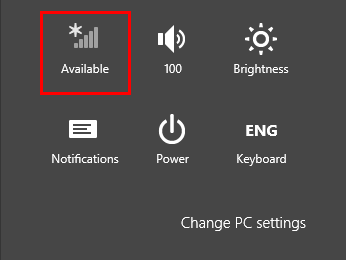
To access the list of available networks from the Start screen, move your cursor to the bottom right corner of the screen to open the charms. On a device with touch, swipe from the right side of the screen. Then, click or tap Settings and then Network.
connect, wireless, network, Windows 8, Windows 8.1
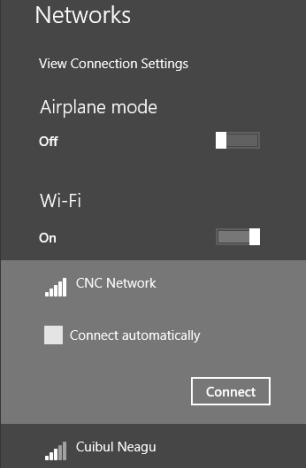
Locate the network you wish to connect to and click or tap on its name. Select "Connect automatically" if you use this network regularly and Windows will automatically connect to the network any time you're within range.
connect, wireless, network, Windows 8, Windows 8.1
Click or tap "Connect" to continue.
NOTE: The airplane mode slider at the top of the list disables your wireless network adapter which will prevent your device from attempting to connect to any networks. This also preserves battery life when you don't need to work online.
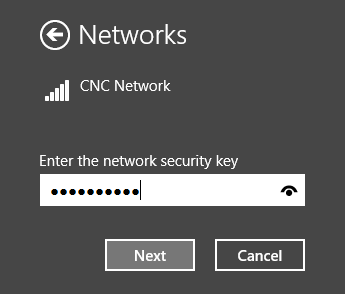
Windows will scan for the security settings of the network and then prompt you for a security key. Enter the key carefully to ensure accuracy and click or tap Next. You can view it before pressing Next by clicking or tapping the eye-like icon on the right of the password field.
connect, wireless, network, Windows 8, Windows 8.1
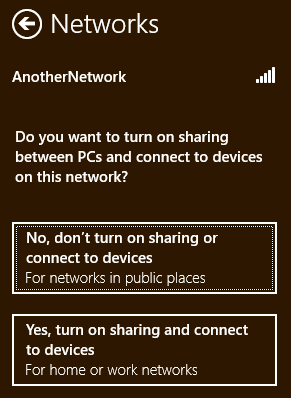
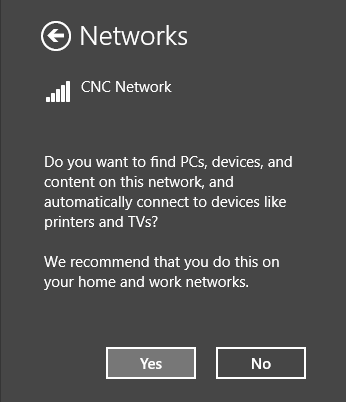
Once connected, you'll be able to choose whether or not to enable sharing on the network.
If you're using Windows 8, you should see something similar to the screenshot below:
connect, wireless, network, Windows 8, Windows 8.1
If you are on a private network, such as one in your home, you should select "Yes, turn on sharing and connect to devices". If you are on a public network, you should select "No, don't turn on sharing or connect to devices".
And, if you're on Windows 8.1, the dialog looks a bit different:
connect, wireless, network, Windows 8, Windows 8.1
Either way, if you are on a private network, such as one in your home, you should select Yes. If you are on a public network, you should select No.
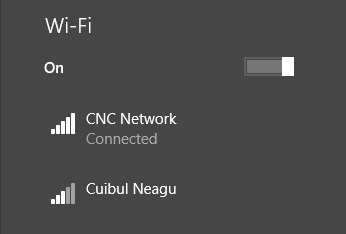
Once you've successfully connected, the networking entry from the charms bar will change to say it's now Connected.
connect, wireless, network, Windows 8, Windows 8.1
Also, the network icon from the taskbar notification area will change to depict the strength of your connection.
connect, wireless, network, Windows 8, Windows 8.1
How to Disconnect from a Broadcasting Wireless Network
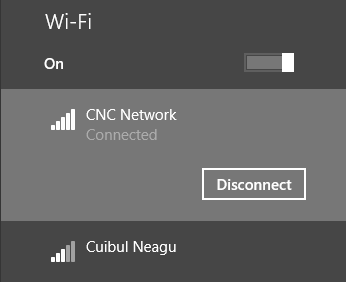
Disconnecting is as simple as finding the network name in the list, clicking or tapping it and selecting "Disconnect".
connect, wireless, network, Windows 8, Windows 8.1
Troubleshooting Connections to Wireless Networks
If you followed the previous steps closely and you still are unable to connect to your broadcasting wireless network, 7 Tutorials has a few articles that you can reference for help:
That's all there is to it. By following the steps mentioned above you can check for available networks and connect to those you have access to. Look out for open networks in public places. They won't require the use of a security key for access, but they can put you at risk. Avoid transmitting sensitive information unless you're behind a safely encrypted connection and always use a firewall and antivirus/spyware application. We have some useful recommendations for you to read at the end of this article.
This was not helpful as it did not solve any of the problems that I face with my device
tahi ·
my laptop is dell with windows 8.1
and it is connected to my home’s wifi but not to connect to another wifi
what should i do????
priya ·
my laptop is dell with windows 8 os. I am not geeting wi-fi network option in network settings.Please tell me the reason and how to connect wifi
Gra ·
we have no internet icon in charms or on the desktop. As we have 2 connections available how can we tell which we are using ? Windows 8 OS by the way
rohit ·
I’ve installed win 8.1 and for connecting wifi it says limited while i can easily work with my phone can you say it is happening ?
Chaya ·
what is the network security key and where do I find it
tariq abdullah ·
Hi, i have installed new win 8 on my dell laptop core i3, but i cannot find the wifi icon?
i have checked all settings in personal settings wireless but its only showing bluetooth not wifi icon at all, before it was installed win xp and wifi was also working.
can you please give me a soloution 🙁
R Kelly ·
when trying to connect to wireless at home with windows 8 it comes up connection limited and will not connect,but when i take my pc to my office it connects ,all other devices connect except my pc,my laptop is a hp pavilion
Wong ·
I have a question. Why on earth is the Windows 8.1 hide the LAN connection (Other PC built up connection) and not appearing? This question is asked because of game purpose. Using LAN connection will smoother the gameplay and prevent lagging. But using this windows 8.1 prevent me to see these connections. But in Windows 8 it appeared. Why is that happened to this latest windows and is there anything I can do to see these connections? Please help.
Ramya ·
I am having the same problem
Radu Babau ·
My TOSHIBA QOSMIO laptop, under Windows 8.1 does not remembers any WIFI passwords, so that I have to manually introduce it whenever I come home or go to work.
Any suggestions on how I can do that it will automatically stores the passwords of the WIFI networks I joined in the past ?
Thanks,
Radu
Ashiekaa Shagbaor Paul ·
I am using a Toshiba Satellite PRO C850-14C which came with a Windows 7 OS, I have installed the Windows 8 OS and I am no more able to access my wireless connection options
Codrut Neagu ·
Did you install the official Windows 8 Toshiba drivers for your laptop?
I think the right ones for you are these (for Windows 8 x64):
I am trying to set up a new Belkin N150 router on my new toshiba windows 8 platform but no matter what I do, it will not set up correctly. When the new wireless router shows up on the available network list, it only connects with “limited” access. What is the problem and how do I fix it. The disc that comes with it is assuming that I have a modem and I don’t need one. I just want to set up my home network and will not be utilizing the internet. I want to print wirelessly along with sync my wireless MP3 and other devices. Please help
Codrut Neagu ·
From what I understand, everything works okay for you:
You want to setup a local area connection with no Internet access.
AND
The “limited access” means that you have a local area connection with no Internet access.

















Discussion (15)
This was not helpful as it did not solve any of the problems that I face with my device
my laptop is dell with windows 8.1
and it is connected to my home’s wifi but not to connect to another wifi
what should i do????
my laptop is dell with windows 8 os. I am not geeting wi-fi network option in network settings.Please tell me the reason and how to connect wifi
we have no internet icon in charms or on the desktop. As we have 2 connections available how can we tell which we are using ? Windows 8 OS by the way
I’ve installed win 8.1 and for connecting wifi it says limited while i can easily work with my phone can you say it is happening ?
what is the network security key and where do I find it
Hi, i have installed new win 8 on my dell laptop core i3, but i cannot find the wifi icon?
i have checked all settings in personal settings wireless but its only showing bluetooth not wifi icon at all, before it was installed win xp and wifi was also working.
can you please give me a soloution 🙁
when trying to connect to wireless at home with windows 8 it comes up connection limited and will not connect,but when i take my pc to my office it connects ,all other devices connect except my pc,my laptop is a hp pavilion
I have a question. Why on earth is the Windows 8.1 hide the LAN connection (Other PC built up connection) and not appearing? This question is asked because of game purpose. Using LAN connection will smoother the gameplay and prevent lagging. But using this windows 8.1 prevent me to see these connections. But in Windows 8 it appeared. Why is that happened to this latest windows and is there anything I can do to see these connections? Please help.
I am having the same problem
My TOSHIBA QOSMIO laptop, under Windows 8.1 does not remembers any WIFI passwords, so that I have to manually introduce it whenever I come home or go to work.
Any suggestions on how I can do that it will automatically stores the passwords of the WIFI networks I joined in the past ?
Thanks,
Radu
I am using a Toshiba Satellite PRO C850-14C which came with a Windows 7 OS, I have installed the Windows 8 OS and I am no more able to access my wireless connection options
Did you install the official Windows 8 Toshiba drivers for your laptop?
I think the right ones for you are these (for Windows 8 x64):
I am trying to set up a new Belkin N150 router on my new toshiba windows 8 platform but no matter what I do, it will not set up correctly. When the new wireless router shows up on the available network list, it only connects with “limited” access. What is the problem and how do I fix it. The disc that comes with it is assuming that I have a modem and I don’t need one. I just want to set up my home network and will not be utilizing the internet. I want to print wirelessly along with sync my wireless MP3 and other devices. Please help
From what I understand, everything works okay for you:
You want to setup a local area connection with no Internet access.
AND
The “limited access” means that you have a local area connection with no Internet access.