While connecting to a broadcasting wireless network in Windows is a very simple process, the same can't be said of a hidden network. By not broadcasting its SSID (service set identifier), or network name, a hidden network is not visible in the list of available networks you can access from your computer. You'll need to know the SSID, as well as all of the other security information before you can connect. Read on for step-by-step instructions for connecting to a hidden network in Windows 8 and Windows 8.1.
Get Your Wireless Network Details
When connecting to a broadcasting network, much of the network configuration is done for you automatically. All you have to do is enter a password. When connecting to a hidden network you'll need to gather all of the information and enter it in manually. Before you even try to connect, you'll need to gather some important information.
Access your router's configuration menu, which can typically be done by entering its IP address in your browser's address bar.
Select the wireless settings section and take note of your network's name (or SSID) and security type. If your network uses WEP, check the WEP key. If you're using WPA-PSK or WPA2-PSK, take note of the Pre-shared key. If you aren't using any kind of security, you'll only need the SSID.
NOTE: The aforementioned security types are those most likely to be found in home networks. WPA, WPA2 and 802.1x are most often found in corporate networks, where an admin would be handling the configuration.
Before trying to connect, make sure that you are in the area of the wireless network you want to connect to.
Access the Network and Sharing Center
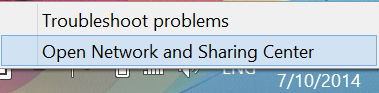
There are a number of ways to enter the Network and Sharing Center. The fastest method on the Desktop is to right-click the networking icon in the system tray and click "Open Network and Sharing Center."
connect, hidden wireless, networks, Windows 8, Windows 8.1
connect, hidden wireless, networks, Windows 8, Windows 8.1
How to Connect to a Hidden Wireless Network
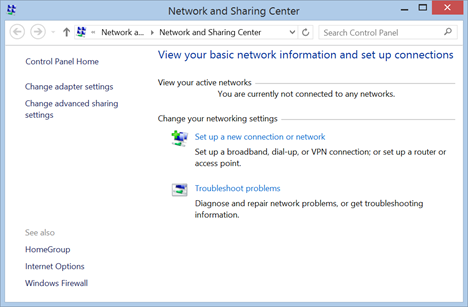
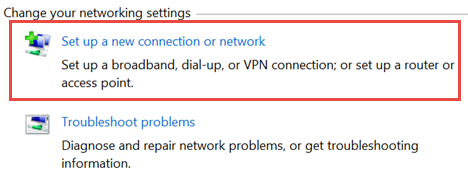
Once you find your way to the Network and Sharing Center, click or tap "Set up a new connection or network."
connect, hidden wireless, networks, Windows 8, Windows 8.1
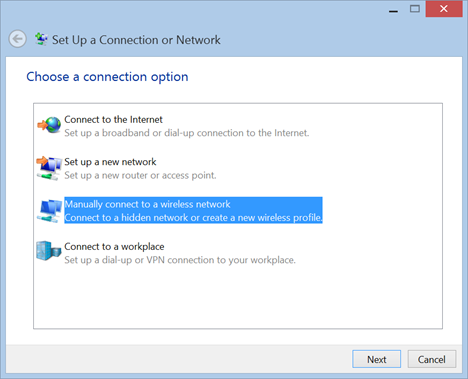
Select "Manually connect to a wireless network" and click or tap "Next."
connect, hidden wireless, networks, Windows 8, Windows 8.1
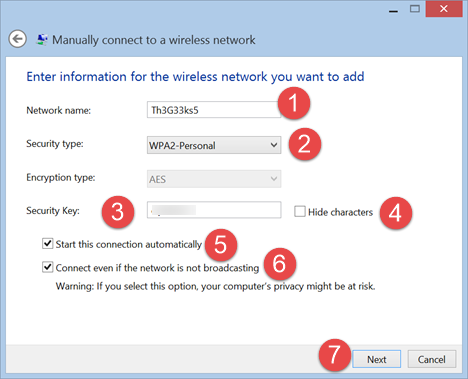
Enter the security information for your network in the spaces provided, as follows:
Enter the SSID in the network name field.
In the security type field choose the type of security used by the wireless network you want to connect to. Some routers may name this authentication method. Depending on the security type you choose, Windows may or may not ask you to select the encryption type.
In the security key field, enter the password used by the wireless network.
If you don't want others to see the password you type, check the box that says "Hide characters".
In order to connect to this network automatically, you should check the box that says "Start this connection automatically".
You should also check the box that says "Connect even if the network is not broadcasting".
Once you have entered all the information that was requested from you, press Next.
connect, hidden wireless, networks, Windows 8, Windows 8.1
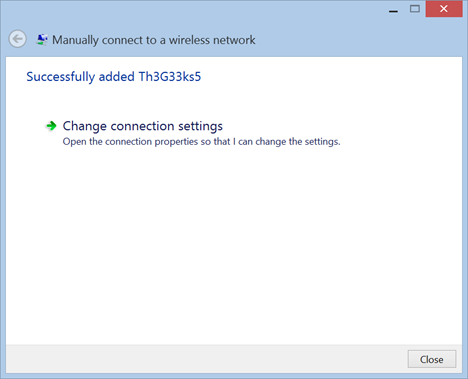
You are notified whether Windows has successfully added the wireless network. Press Close and you are done.
connect, hidden wireless, networks, Windows 8, Windows 8.1
If the network is in the area, Windows automatically connects to it. Check your network icon in the system tray. It should depict a series of full bars to show your connection strength.
connect, hidden wireless, networks, Windows 8, Windows 8.1
Troubleshooting Connection Issues
Even if you followed the instructions provided above carefully, issues can arise. If you find yourself unable to connect to your network of choice, and you're sure the security information you entered is exactly correct, check out these articles for troubleshooting information.
Troubleshoot Wireless Network Connection Problems by Yourself - If you'd rather do your own troubleshooting, this article provides a series of flowcharts that can help. Answering a few questions can help you find the cause of your networking troubles.
How to Delete or Forget Wireless Network Profiles in Windows 8.1 - If you find yourself unable to connect to a previously functioning network, you may have an issue with your network profile. Check out this tutorial the learn how to delete the troublesome profile and get connected.
Conclusion
You'll notice that the procedure for connecting to your hidden network is much more complex than simply connecting to a broadcasting network. In case you are wondering whether or not it is worth the effort, that is a matter of debate. Hiding your SSID does cloak the network from unskilled hackers and freeloaders, but it wouldn't even slow down an experienced hacker. In the end, if hiding your SSID makes you feel more secure, go for it. But no matter what you choose, make sure to use a secure password and encryption.
Followed the examples. Windows does NOT connect me to the network I configured. That network DOES exist. More importantly, there is no option to select a non-broadcast network when I click on connection icon. Requested network is the only network defined under Manage Wireless Networks. I’m confused.
Dikshya ·
there is no option of mannually add wireless
don ·
I M requesting to you PLeaze make new web page which help us to Connect the hidden network if we dont know ssid and also make vidio on youtube
Ciprian Adrian Rusen ·
If you don’t know the name of the hidden network, then you can’t connect to it. Also, if you don’t know the name, do you know the password? What you ask is very unrealistic.
Dave ·
gise is there any way to add wireless network which’s password we don’t know??
ayesha ·
Mera pc setting me wireless on of options hide han wo on kasa hon gi
sunil ·
I am not abil to make proper I can conect my antroid smart phone.but its not conecting..y? When I am connecting in antroid identity asking y the phone.I typed that identity. I think thts y its connected succesfully. But when I am connecting in the windows 7 Laptop there is no any identity asking by the laptop.so pls give me how I can connect this hiden network. I have all thd security details. Pls give me answer.
Shahriar Arefin ·
In my 8.1 I’ve no manually connect to a wifi network ..pls reply
Katelyn ·
Hi there, my mom’s laptop is having this problem right now. I tried looking for the option to connect to a hidden wireless network but when I opened the control panel it didn’t show up. The only way she can connect to the internet is by using an ethernet cable. We’ve already tried restarting the router and her computer. Any help would be appreciated.
Joe F ·
This procedure DOES NOT WORK. I have seen this same procedure listed on many blog postings, and it DOES NOT WORK. Once you complete the procedure you will have a new WiFi connection profile but YOU WILL NOT BE CONNECTED TO ANYTHING.
I have tried this procedure on multiple laptops running the latest version of Win 8.1, at multiple locations (meaning different hidden WiFi networks). It has NEVER WORKED. I get the same result every time, which is NO CONNECTION. I don’t know where you people got this procedure, but IT DOES NOT WORK. The work-around is to bring up the WiFi networks that the laptop sees. There should be at least one icon labeled Hidden Network. If you click on that it will lead you through the steps to connect. AND THAT PROCEDURE DOES WORK. So quit shoving a procedure at people THAT DOES NOT WORK.
JG ·
@Joe F
whoa dude, relax…seriously take a xanax and chill dawg.
This procedure works fine. And it survives reboots.
I have zero issues w/ it.
seriously, calm down before you stroke out man.
Saneeha ·
I added the network successfully , but I could not connect. Then I saw a hidden network in the list . I could not connect to that one either. I can connect to the wireless network at my work place but not at home. Please give a workaround that I may find the newly added network in the list of available networks
Shelby ·
Okay, after I hit “set up a new connection”, I don’t have the option to “manually connect to a wireless network”. So does that mean that I’m out of range? I’m literally one room away from the router with the green blinking dot saying “wireless”. I’m so confused and frustrated and I just want wifi so I can free myself of this stupid ethernet cable from my tv box… Ugh.
Ciprian Adrian Rusen ·
Do you have a wireless network card installed on your computer?
Sheena ·
Can you tether with Windows 8. I have recently upgraded to an iPhone 5C and can’t seem to tether at all. Can you help please?
What’s a channel number and where can I find it?
Well, I am using a Dlink router – security type is Wpa2-Personal, encryption type is AES. The other problem is that I cannot access my router site – 192.168.0.1 since I can’t recollect my password. Should I reset it? But, will that affect other devices connected to it at present. Also, if i do reset it, what sort of configurations will I lose? I know too many questions!! Sorry.
Limo ·
Hi Robert,
I recently purchased an ultrabook (UB) with windows 8 basic (pre installed). I’ve been trying in vain to connect to my wi fi network at home, however, it is not being detected by my UB. It’s not an adapter problem, since it shows other networks in my area. Also, I don’t think my network is a hidden network, since it shows up on other devices and those are connected to the router. I’ve tried everything! Any suggestions? Thanks!
Amar ·
Hey,
Try to change the channel number if this doesn’t help then change wireless security type change the security encryption to WEP. could you provide the router name and configuration for better understanding? if this doesn’t help then leave a reply i will give you some ref to troupbleshoot
Bob Kingsley ·
I’m glad you found it helpful Amar.
Amar ·
Hey that’s very informative, I liked the article and gonna connect my blog to you
Ron ·
This worked great to create the connection to a hidden network, however, when I reboot the computer, it will not find that network again and I have to repeat the process. The network will now have a 1 2 after the name. I have done it about 5 times and it now says (name) 1 2 3 4 5. Any thoughts?
Larry ·
Got exactly the same problem. I’m googling it whole day, but found nothing. Can someone solve this problem? Yes, I have new drivers, I reinstalled the adapter, all working fine except of this.












Discussion (26)
What if Manually doesn’t show
Followed the examples. Windows does NOT connect me to the network I configured. That network DOES exist. More importantly, there is no option to select a non-broadcast network when I click on connection icon. Requested network is the only network defined under Manage Wireless Networks. I’m confused.
there is no option of mannually add wireless
I M requesting to you PLeaze make new web page which help us to Connect the hidden network if we dont know ssid and also make vidio on youtube
If you don’t know the name of the hidden network, then you can’t connect to it. Also, if you don’t know the name, do you know the password? What you ask is very unrealistic.
gise is there any way to add wireless network which’s password we don’t know??
Mera pc setting me wireless on of options hide han wo on kasa hon gi
I am not abil to make proper I can conect my antroid smart phone.but its not conecting..y? When I am connecting in antroid identity asking y the phone.I typed that identity. I think thts y its connected succesfully. But when I am connecting in the windows 7 Laptop there is no any identity asking by the laptop.so pls give me how I can connect this hiden network. I have all thd security details. Pls give me answer.
In my 8.1 I’ve no manually connect to a wifi network ..pls reply
Hi there, my mom’s laptop is having this problem right now. I tried looking for the option to connect to a hidden wireless network but when I opened the control panel it didn’t show up. The only way she can connect to the internet is by using an ethernet cable. We’ve already tried restarting the router and her computer. Any help would be appreciated.
This procedure DOES NOT WORK. I have seen this same procedure listed on many blog postings, and it DOES NOT WORK. Once you complete the procedure you will have a new WiFi connection profile but YOU WILL NOT BE CONNECTED TO ANYTHING.
I have tried this procedure on multiple laptops running the latest version of Win 8.1, at multiple locations (meaning different hidden WiFi networks). It has NEVER WORKED. I get the same result every time, which is NO CONNECTION. I don’t know where you people got this procedure, but IT DOES NOT WORK. The work-around is to bring up the WiFi networks that the laptop sees. There should be at least one icon labeled Hidden Network. If you click on that it will lead you through the steps to connect. AND THAT PROCEDURE DOES WORK. So quit shoving a procedure at people THAT DOES NOT WORK.
@Joe F
whoa dude, relax…seriously take a xanax and chill dawg.
This procedure works fine. And it survives reboots.
I have zero issues w/ it.
seriously, calm down before you stroke out man.
I added the network successfully , but I could not connect. Then I saw a hidden network in the list . I could not connect to that one either. I can connect to the wireless network at my work place but not at home. Please give a workaround that I may find the newly added network in the list of available networks
Okay, after I hit “set up a new connection”, I don’t have the option to “manually connect to a wireless network”. So does that mean that I’m out of range? I’m literally one room away from the router with the green blinking dot saying “wireless”. I’m so confused and frustrated and I just want wifi so I can free myself of this stupid ethernet cable from my tv box… Ugh.
Do you have a wireless network card installed on your computer?
Can you tether with Windows 8. I have recently upgraded to an iPhone 5C and can’t seem to tether at all. Can you help please?
See this guide: https://www.digitalcitizen.life/how-to-turn-your-windows-laptop-wifi-access-point/
After clicking on “manually connect to a wireless network,” it said that an unexpected error occurred. Got any advice for that?
There is a great post in a microsoft forum about using the ‘netsh’ command to deal with left-over wireless networks.
https://social.technet.microsoft.com/Forums/nl-NL/w8itpronetworking/thread/ac80d8ec-21ad-4d44-9a0c-c8777f861db7
What’s a channel number and where can I find it?
Well, I am using a Dlink router – security type is Wpa2-Personal, encryption type is AES. The other problem is that I cannot access my router site – 192.168.0.1 since I can’t recollect my password. Should I reset it? But, will that affect other devices connected to it at present. Also, if i do reset it, what sort of configurations will I lose? I know too many questions!! Sorry.
Hi Robert,
I recently purchased an ultrabook (UB) with windows 8 basic (pre installed). I’ve been trying in vain to connect to my wi fi network at home, however, it is not being detected by my UB. It’s not an adapter problem, since it shows other networks in my area. Also, I don’t think my network is a hidden network, since it shows up on other devices and those are connected to the router. I’ve tried everything! Any suggestions? Thanks!
Hey,
Try to change the channel number if this doesn’t help then change wireless security type change the security encryption to WEP. could you provide the router name and configuration for better understanding? if this doesn’t help then leave a reply i will give you some ref to troupbleshoot
I’m glad you found it helpful Amar.
Hey that’s very informative, I liked the article and gonna connect my blog to you
This worked great to create the connection to a hidden network, however, when I reboot the computer, it will not find that network again and I have to repeat the process. The network will now have a 1 2 after the name. I have done it about 5 times and it now says (name) 1 2 3 4 5. Any thoughts?
Got exactly the same problem. I’m googling it whole day, but found nothing. Can someone solve this problem? Yes, I have new drivers, I reinstalled the adapter, all working fine except of this.