




Is the screen of your Windows 10 PC black and white? Do you want to change the color of the screen back to normal? Windows 10 has some color filters that may have been activated by mistake, or maybe somebody with access to your PC decided to prank you. It doesn’t matter how Window 10 got to be in black and white, here is how to fix this problem:

 Your screen is gray with black and white instead of color
Or, on your Windows 10 PC, the screen may look even darker, like in the picture below:
Your screen is gray with black and white instead of color
Or, on your Windows 10 PC, the screen may look even darker, like in the picture below:
 Your screen is black and white instead of color
If you have a recent version of Windows 10 installed, like Windows 10 October 2020 Update, read the next section of this guide. We have the solution to make the color of the screen get back to normal. If you have an old Windows 10 version from 2017 or earlier, scroll down to the last chapter. If you don’t know which Windows 10 version you have, you can check the Windows 10 version, OS build, edition, or type.
Your screen is black and white instead of color
If you have a recent version of Windows 10 installed, like Windows 10 October 2020 Update, read the next section of this guide. We have the solution to make the color of the screen get back to normal. If you have an old Windows 10 version from 2017 or earlier, scroll down to the last chapter. If you don’t know which Windows 10 version you have, you can check the Windows 10 version, OS build, edition, or type.
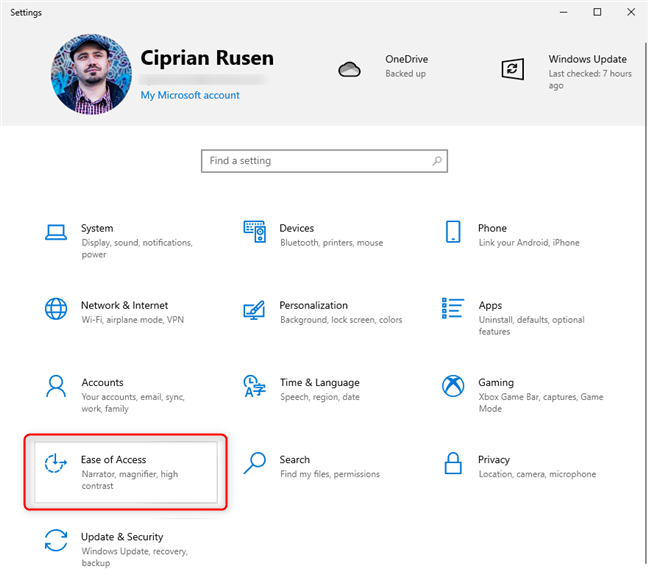
 In Windows 10 Settings, go to Ease of Access
On the left column, choose Color filters. On the right, you see the color filters that are available in Windows 10:
In Windows 10 Settings, go to Ease of Access
On the left column, choose Color filters. On the right, you see the color filters that are available in Windows 10:
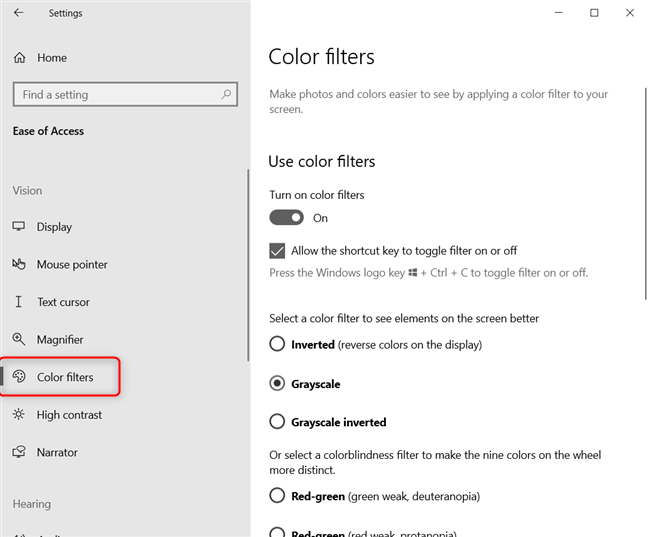
 Choose Color filters on the left
On the right side, set the “Turn on color filters” switch Off, while also unchecking the box that says: “Allow the shortcut key to toggle the filter on or off.” This ensures the keyboard shortcut Windows + CTRL + C does not accidentally turn the color filters on, changing the image on the screen - which could be the accident that caused the entire issue.
Choose Color filters on the left
On the right side, set the “Turn on color filters” switch Off, while also unchecking the box that says: “Allow the shortcut key to toggle the filter on or off.” This ensures the keyboard shortcut Windows + CTRL + C does not accidentally turn the color filters on, changing the image on the screen - which could be the accident that caused the entire issue.
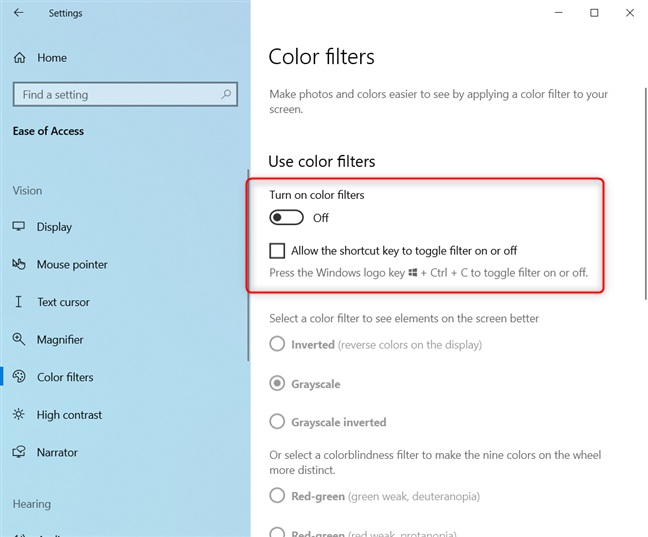 Disable the Color filters to enjoy normal colors
The color of the screen is back to normal. Enjoy using Windows 10! 🙂
Disable the Color filters to enjoy normal colors
The color of the screen is back to normal. Enjoy using Windows 10! 🙂
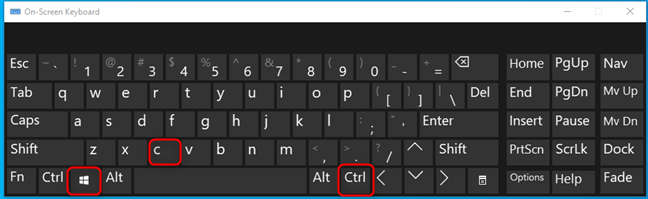
 Win + CTRL + C turns the color filters On and Off
Another way to fix this problem is to open Settings and go to Ease of Access.
Win + CTRL + C turns the color filters On and Off
Another way to fix this problem is to open Settings and go to Ease of Access.
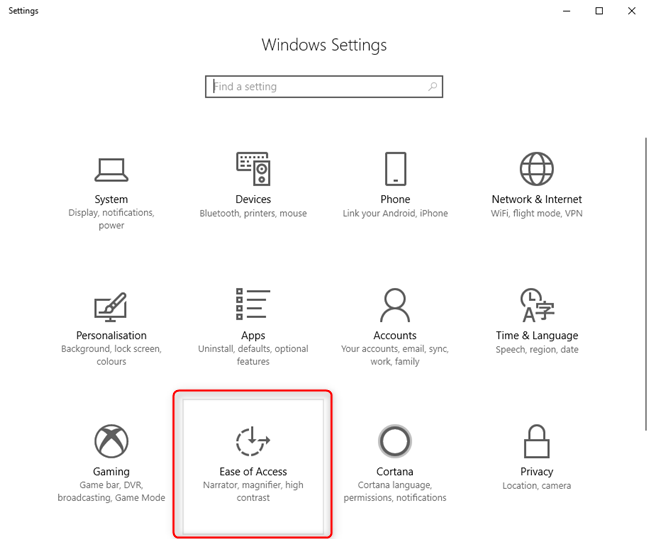
 In Windows 10 Settings, go to Ease of Access
On the left, choose “Colour & high contrast.” On the right, you see the color filter that is selected as the default: Grayscale. Look for the switch that says “Apply color filter,” and turn it Off.
In Windows 10 Settings, go to Ease of Access
On the left, choose “Colour & high contrast.” On the right, you see the color filter that is selected as the default: Grayscale. Look for the switch that says “Apply color filter,” and turn it Off.
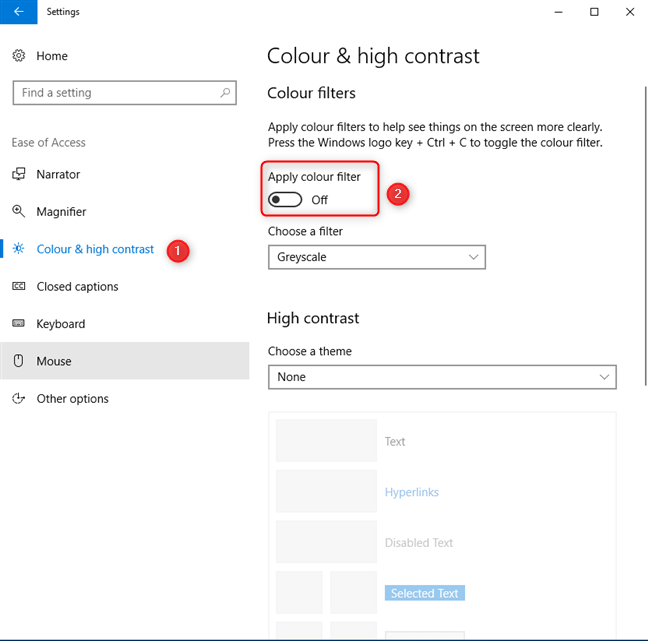
 Deactivate the switch for Apply colour filters
Your screen is no longer black and white.
Deactivate the switch for Apply colour filters
Your screen is no longer black and white.
Problem description: Windows 10 is black and white!
While working on your Windows 10 PC, did the screen switch from color to black and white or grayscale, like in the screenshot below? You have no idea what caused this, and restarting Windows 10 does not fix the problem. Also, if you update your video card drivers and settings, nothing changes. All your apps are gray, and the only colors you can see on your display are black, white, and shades of gray.The solution: disable Windows 10’s color filters to change the color of the screen back to normal
If you have a newer version of Windows 10, open Settings (Windows + I on your keyboard), and go to Ease of Access.- Inverted - reverses the colors and turns most app backgrounds to black
- Grayscale - gray becomes the dominant color for all app backgrounds. The image on the screen looks similar to the first screenshot we shared in this guide.
- Grayscale inverted - inverts the grayscale filter’s colors and makes most app backgrounds black, as shown in the second screenshot of this guide.
If you have an old Windows 10 version, follow this solution
Microsoft first introduced this color filters problem back in 2017, with Windows 10 Fall Creators Update. If you have an old version of Windows 10 and the Settings app doesn’t look like in the screenshots shared in the previous section, try pressing the following keyboard shortcut: Windows + CTRL + C. It should immediately turn off the color filter that makes your Windows 10 black and white.

Discussion (302)
Thanks for your help. WIN+ctrl+C worked great on this Toshiba laptop. It was the first time I had heard of this problem.
My colors on my screen are gone
I couldn’t find any solution
This was highly helpful. It resolved my issues.
Happy to help. Don’t hesitate to subscribe to our newsletter, for more useful tutorials.
Thank you so much for your help. I had to update my windows 10,which I had to do and they always change everything. The colours they chose was not yo my liking so I changed it and messed it up.
My Computer color changed to b&w while working. Thanks for your advice how to fix it. It was easy to follow. Much appreciated!
Glad to help. Do not hesitate to subscribe to our newsletter, for more useful guides like this one.
Thank you so much!!! Finally, I discovered how to have the standard settings back, after about two months! Bless you!
It’s work thanks.
This worked .. thank you
Thank you so much. I now have COLOR again on my computer!
Thank You very much. I was struggling with this problem and your article helped me to fix the issue. Initially I had given up on this as I thought this to be a issue with Graphics of my Laptop which is years old. The problem indeed happened due to the Turn on color filter setting. Thank You
This saved my big worry
Many thanks to google community
Every thing worked great,back to color.With your help got it back first try.
Update this article to the newest version of windows 10!!!
I tried this it and it didn’t work I’m still in black and white
thanks
thank for solution its working
Great thing!
Thank you!
Hit Win+end and see if that makes a difference. When my computer did this but the grayscale was not on this did the trick.
Didn’t work? Color and Contrast are two different options not together.
Any advice?
Thank you very much. Did not understand what actually happened until I found this.
Thank you the tips,
You are correct.
Thanks.
its work ! great
Thak You very much ????
What if I did that already and the screen is still B&W?
Great job thank u sooo much!
Many thanks, I have learned something new today!
‘Fixed my problem. Thanks!
I did the same and got to know there is something missing and everything turned to black and white.
Thank you for the solution
Its very accurate and informative thank you for your help!
Just wanted to drop a thank you haha. Crazy how often this must happen by accident!
Nearly freaked out, but just went to Google and problem solved.
Thanks for the article
Happy to help 😉
Too late, bought new computer .. hey ho
Thank you so much!!!!!!!!!!!!!!!!!!! I turned of the filter thing and back to color! Thank you!!!!!!!!!!!
You are welcome. Do not hesitate to subscribe to our newsletter, for more useful guides.
That was SUPER helpful and easy. Thank you so much!
Why would you need this feature?
Thank you sooooo much .
Thank You Very Much For Helping me With This Trick
the setting is already turned off. It was something with the f.lux app
That is possible too. But most people have the problem that we described.
Ctrl + WINDOWS KEY + C also toggles colors on and off.
thank you for your help.
Really helpful!
Windows Key + CTRL + C
Thank you very much for this clear explanation and solution.
Now, if only we could turnoff this shortcut which I will never want to use…
When you update Windows 10, this problem goes away.
not really sure what i’m doing wrong since i’ve followed your instructions step-by-step, but i can’t get my display to change out of greyscale. my cat walked across my laptop about an hour ago and it’s been stuck ever since, no matter how many times i turn off/on the color filters and restart.
Do you happen to have f.lux installed?
I have, turns out f.lux also has a greyscale option.
yes this is helpfull
Thanks a lot. You saved my time 🙂
Excellent advice. i resolved my problem
It didn’t work!
Great, quick explanation and fix.
thank you a lot i was playing overwatch and then my screen turn off black n white thank you for quick solution 😀
Thanks for the help. I was quite shocked when suddenly this happened and I thought it might have caused due to overheating. But all sorted just by pressing Ctrl+Windows key+C.
Thanks brother….
After Pressing any wrong key instead of blinking screen it turns black for few second then white, where is the problem? Can you help me solve this?
This was very helpful, fast and easy. I was confused, thinking that my machine has been affected by a virus.
Thank you so much.
Wow Great ! Really it help me..In solving the problem.
thanks
This is very helpful.
Thank you and well explained
Thank you, it worked
Thank you very much for the solution dear
Nicely explained.Thank you
Thank you so much this is the fastest solution I got it. Bravooooo..
Thank you for the great article, I was in the office when it happened and after all the troubleshooting. Finally found it is that much easy to press windows+cntrl+C.
soooo grateful for this………was so confused earlier but u made my day……..thanks a lot
thanks 4 help
Thanks a lot. My kids got a few seconds and the rest is history 🙂
My phone turn black and white
Thank You , Liiiiiiiike
Thank you!!!
Thanks, the instructions were extremely useful!
Great man. Thanks!!!
This is helpful
Thanks this was very helpful
Thanks it solve my problems also
Thank you ..very helpful 🙂
My filter is turned off in my settings yet, somehow I must of it the shortcut. The shortcut still enables/disables the grayscale filter on my laptop regardless of whether the filter is turned on or off.
Great advice. It worked
Thank you it worked for me!!
but i have a windows 8 pc i dont know how to do it
This feature does not exist in Windows 8, like in Windows 10. Your issue is different, and so is the solution.
its working thankyou so much
that fixed the problem, thanks
This worked perfectly. Thank you.
Great help! Thanks a lot!
thank you for your help
i face this problem and i have no solution to fix it..then i start searching solution on net..i see this solution and then apply my problem is solve and display restore back..thank you so much
IT works Thank you so much.
Thanks for the quick solution.
I am on my iPhone and the screen is black and white, how do I get color back?
Its working…. thanks
You are a lifesaver!
your advice was very practical
Thank you. VERY HELPFUL
After a system update a few months ago my computer has become plagued by randomly switching to grayscale display. While ctrl+win+c does correct the issue, I can be 100% sure that it is not an errant accidental keystroke that causes it. The first ever occurrence was within an hour of the mentioned update and it has happened multiple times every hour since and It will happen when I am not even touching the keyboard.
thank you Digital Citizen. Problem solved! this is the second time its happening. the first time the computer readjusted itself it seemed after a few weeks and my computer expert did not know why it had lost its colour. this time i sensibly decided to ask Google and it gave me you! I have a presentation in front of a large audience today and was pissed that I would have to borrow someone else’s computer but you saved the day…thanks again.
Oh my God!Thank you a lot DIGITAL CITIZEN!I tought I need to buy a new laptop because it is broken.
My comment is why doesn’t Microsoft have the solutions to microsoft problems. And thanks for DC for posting the solution.
My cat managed to do this. She likes to sleep on the laptop.
whew, thanks
Very informative .Thanks
Thank you, I almost had a gigantic panic attack
Never had this issue until 10. is there a keyboard combo to turn it back?
thanks
Thanks
Thank you sooooo much! My cat jumped on the keyboard and I had no idea what key combination I needed to go back to colour!!
Thank You …
The screen not reverting back to color
thank you thank you thank you thank you thank you
mwah mwah mwah
my wife has been laughing at me an hour
Happy to save you from a tough spot. 🙂
Thanks so much for the article. It solved my color issue (Windows + Ctrl + C)
This is a tricky way by the way. i was feeling troubled over this problem but after reading this i realized that it is an easy deal. Thank you very much for the help.
LOL. I had just put allergy drops in my eyes and then suddenly everything on my screen went gray scale! I was starting to freak out until I looked around the room and realized that I could actually see color. Must of accidentally hit the key combo. Thanks for your help!
Fun story. Thank you for sharing. 🙂
Absolute perfect fix. thanks
Thank you very much for your guidance. It’s really clear to understand. Thanks again.
Yeah I have done that twice and forgot, thanks for the quick fix and I’m now a subscriber,
Thanks
Excellent advise. I thought I had a virus. THANK YOU !!!!!!!!
*Advice
I had this problem and hitting Windows + CTRL + C worked great to bring back the color. Thanks.
Is it possoble to disable this keyboard shortcut?
Thanks!
I was getting desperate! I was going to do a system restore when I thought to search for a solution. Found your easy to follow tutorial and “Bingo” problem solved! Thank you so much!
It’s worked, Thanks a lot guys…
it helped alot!
Great! Explained what happened and how to fix in clearly defined steps. Thanks!
I thought my graphics card was on the fritz. I’m very relieved to learn that it was just me having something clumsy. Thank you!
Thank you very much. It is so helpful. Great work.
This worked. I was freaking out and panicking so I searched it and this came up and it really helped!! Thanks so much!
We freaked out too when we first encountered this problem. Happy to help!
Thanks for giving me a great solution
This solution was very accurate and extremely helpful.
Great quick directions for an easy fix to this issue. Thanks!
Great website with good guided help
Thanks , that was tricky and very useful 🙂
I was working with photos on my pc – imagine the stress when the screen turned grey. Your fix using the 3+keys was great.
lol I almost reinstall the video card driver for this 😀
Another big thank you! That worked easily.
THANK YOU!
this worked on my windows 10 machine. User was on Excel and was pressing CTRL-C but must have accidentally pressed the Windows button next to it by mistake.
Thank you so much for finding this trick to bring the colors back.
Easy fix – thank you!!
Thank you so much for this…It resolve my issue!!
Good Trick …to make it color , Thanks it worked fine for me.
Thank you so much.I was struggling to get back the clour.
Thank you for your information…
I had fixed my pc from black and white to colored…
Thank you.. This post is so helpful.
Thanx
Thats really helpful
Thank you!!
Thank you so much!! I could not figure out what happened, but your solution worked perfectly.
I find it very strange that this inadvertent change happened without Windows asking if I really wanted to do this.
Thank you. Your solution was perfect. It resolved my problem
Brilliant, thanks
Thank you so much
Really appreciate your advice. its worked. Thanks
Perfect, thank you, this fixed it for me!
It’s so great!
Very Helpful
Thanks for sharing with us this TUTORIAL! 🙂
Wow! This worked immediately, thank you!!
Yah its working. Thanks
thanks a lot
the information was very useful . Thanks!
It worked! Thank you for this article……
Thank you!
thank u so much!!!!
Thank a lot 🙂
Thank you!
Thank you..
Thank you so much! The problem is solved!!
It worked amazingly. Thanks a lot.
This fix didn’t work for me. It seems to be affecting only my secondary monitor. My primary monitor is still gray.
man ! u r the best .
This is so helpful!!!Thank you so much!!! you’re a master!
One of the reasons why I was awarded the title of Microsoft Windows Insider MVP title. 🙂 Happy to help! 😉
problem fixed. Thank you!
Wow. Amazing. haha. Thanks a lot. I wasted time for reformatting my friends computer for that error. Grrr. Thanks man
THANK YOU VERY MUCH. IT REALLY SOLVED MY PROBLEM.
THANKS AGAIN
thanks!!
ty so much
I really appreciate your work on this resolution.
IT was really good and worked instantly.
Please go ahead with this good work.
I just press window + ctrl+c and the issue fixed.
Thank you.
Thanks !!
I freaked out when this happened just now! Thanks buddy
Thank you. Its working fine…
Oh god !!!! This save my eyes literally!! Thanks
I thank you for fixing my problem of Windows Colour Ctrl+Windows Logo+C.
Really its very very helping me .
Thanks, i had a same problem, now i followed your instructions
thanks for the info ! big help
Great solution to what could have been a big problem. Thanks
Happy to help! 😉
Thanks to you I turn it into color mode!!!!
Lol, thanks a lot mate, this was helpful
Thank, helped!!!
Thanks for this; was able to fix my screen following these instructions.
thank you for your help!! it is extremely usefull
Thank you
For a moment I thought dead screen, time for new laptop haha
This is helpful!
HI
your information is very useful for me
thanks
regards
saddam
Thanks for the info i really like it and helped me alot.
oh my Gosh. thank you so freaking much. I almost got a panick attack when that happened.
Ohhh very helpful. Thanks!!
Thank you very much
Thank you so much so much so much. I faced the problem and finally i fixed that for your solution. You save my many time.. Thank you so much.
Thanks so much for the quick fix. I pressed crtl c to copy and paste but also pressed the windows key without knowing so I had no idea what happend and indeed restaring didnt work. Thanks for posting this!
It worked. Thank you
very helpful
THANK YOU FOR THE INFO. 🙂
My pleasure.
Thanks for this! Helped a lot!
Thanks! Very helpful, indeed!
thanks for your help
excellent article…thanks…
Yes it did work. Thank you so much for your help.
Thank you very much… Solved my problem… 🙂
You saved my life!!! I have been struggling for over a week with a black and white screen, and I need to do graphic design on my laptop. After trying to find a solution in the settings area for hours, I contacted Windows help, and the woman told me to reinstall Windows. I would lose all my settings and apps. I backed up all my files because I just couldn’t afford to lose my files. But I still didn’t reinstall as I didn’t want to lose my apps, specially my VPN setup as it was a day before I leave for overseas. Now I googled and found the solution — windows+ctrl+c!!!! It worked!!!!!!! Thank you!!!!!!
Thank you so much! This fixed my problem. I was worried my computer was ready to die and worried I had to get a new one…
thanks for help.
my cat stepped on the keyboard and the screen went B&W. Freaking out. hit windows ctrl c and all good. THANKS!
Thank you so much.
WOW! GREAT Thanks for the idea
Thanks, It works
Thank you!
thanks a lot…very useful.
Perfect, many thanks
Thank you for your help with this problem. Microsoft don’t seem to have identified the solution to this problem but you have. Many thanks.
That was wonderful.
Thanks for this. It’s really helpful!
Thank you we were freaking out.
Very helpfull!
Many thanks
Thanks helped me
Thank you for the help
Thank you very much. Its very very useful
Thank you so much for this advice . I came back from town and was in panic to be faced with a black and white computer screen ! . I fell asleep the previous evening with the wireless keyboard in my lap and I guess unknown keys got pressed . Cured thanks to your advice ! .
thanks so much, easier than I expected.
It resolved my problem.Good article
Nice article .It resolved my problem.
Thank you so much for the help. It worked like a charm.
Thank you for this useful information. My monitors going black and white all of a sudden scared the hell out of me.
tnx
thank u very much…very usefulll
Thanks for the tip
Thank-you. Your article saved me the cost of a new monitor, which would also have displayed in grayscale!
TYVMMMM
Perfect, thank you!
Thanks for providing simple and quick solution. I spent a lot of time searching for appropriate drivers, starting Windows in safe mode, etc. but obviously it did not work. I am glad I found this link.
Your advise is very useful. I am able to fix my problem.
Thank you for posting it.
THANKS A LOT
This happened to my iMac running Parallels Desktop and Windows 7. I fix it I followed the above instructions. I selected the Windows icon in the lower left corner of the screen. Then I selected the Settings icon just above it. Then I selected the Ease of Access button. Next I selected the Color and High Contrast button. Finally turned off the Apply Color Filter and the problem was solved! Thanks for the help!
Thanks for this, appreciate it.
Thanks!! Solved my problem
much apreciated, thank you
CTRL + Windows logo + c
press these button combination, instantly your display goes color ful 😉
Thank you very much. It helps me a lot.
Thank you very much. It helps me a lot.
Thks. Useful tip.
A concise solution to the problem and a detailed explanation of how and why it occurred. Fantastic. Thank you!
thanks for the info it’s really help…
Thank you very much for the very easy answer. I use alt+ctrl+C for calculator and I obviously hit the windows key. I corrected, but, your page is almost black and white, and didn’t notice a change. I panicked but swapped out and saw it worked. THANKS.
Funny! 🙂 We used first screenshots in black and white to show the problem people have and make it obvious how things look when you have the problem. The final screenshot(s) are in color, to show how things look once you fix the problem.
Thanks ! Problem Solved
Thank you so much.
(I’m sorry if you’re getting tired of all the thank-yous.) Thank you!
We are never getting tired of Thank You messages. 🙂 If you appreciate your help, do not hesitate to subscribe to our newsletter. You will find other useful tutorials. 😉
Thank you so much, It was driving me mad!
Thank you so much, It was driving me mad!
Real nice. Thanks.
Windows icon+Ctrl+C really helped me change my display setting from a black and white and grey color setting back to normal color setting.
It worked and this is great, thank you!
Thanks a Lot !!!!!!!!!!!!!!!! It helps 🙂
Thank you so much….I’ve spent about two hours trying to remove the greyscale filter …..and now it’s gone just like that!
It’s CTRL + WINDOWS + C not, WINDOWS + CTRL C. Just sayin
Lol. You realize it doesn’t matter? Press them in any order you wish, as long as you press all three at the same time. 🙂
I agree that the order of what you press does not matter.
That person is ungrateful and doesn’t know what he/she is talking about.
Many thanks to you that now I can work with color monitor!
Thank you sooooo much!
Thank you
Thank You!!!
Thank you so much.
Thanks so much I was just playing video-games when it happened and it freaked me out but thanks so much for the fix.
Thanks a lot. Very helpful. Cheers!
THIS is why Microsoft is such crap. Why the f would anyone with half a brain make a keyboard shortcut to turn your screen grey scale?!? morons. Complete morons. And no, there is absolutely NOTHING anyone can say to justify this. This is the most ridiculous ‘feature’ of this broken pos operating system ever.
Absolutely the best and quickest resolution to the sudden problem of losing color.
love you bro
OMG…I’ve been racking my brain for 3 days. Trying all sorts of stuff. This morning laying in bed (not being able to fall back to sleep) I jumped up and said “I know…I’ll google it” Thank you so much for the very simple solution a frustrating dilemma.
Happy to help.
great .. it worked for me.. its awesome.. thanks for help.
As Windows versions grow, so do problems with it.
Disabling filter worked fine. I am in a colored world again.
Thanks
wowwww good
thanks for your help….
This is absolutely helpful for victims. Thanks Dear. You know the smart way of solving problems which helps the victims to understand easily. Appreciable.. (y)
many thanks
that worked a treat
I’m glad it worked. Don’t hesitate to subscribe to our newsletter, so that you can get more awesome tips and tutorials.
Thank you for this very awesome information to quickly fix my problem
just to say thank you…! the problem had me totally confused and couldnt find solution until yours very kindly appeared!
Happy to help. Don’t hesitate to subscribe to our website.
Thank you so much