



If the Messages app keeps crashing or freezing on your iPhone, the issue usually points to a software glitch, corrupted message data, or an iOS-level conflict. At the time of writing, this problem most often appears after system updates, heavy message storage, or third-party iMessage app issues. The steps below walk through reliable fixes that restore stability without deleting your personal data.
Force Quit The Messages App
Force quitting clears temporary app processes that may cause the Messages app to freeze or crash repeatedly.
- Swipe up from the bottom of the screen and pause if your iPhone does not have a Home button
- Double-press the Home button on older iPhone models
- Locate the Messages app preview and swipe it up to close
- Wait a few seconds, then reopen Messages
Restart Your iPhone
A full restart refreshes background services that support iMessage and text messaging.
- Open Settings
- Tap General
- Select Shut Down
- Turn your iPhone back on after one minute
Automatically Delete Old Messages
Large message histories with media attachments can cause the Messages app to slow down or crash.
- Open Settings
- Tap Messages
- Select Keep Messages
- Choose 30 Days or 1 Year instead of Forever
Remove Unused iMessage Apps
Third-party iMessage apps sometimes conflict with iOS updates and cause instability.
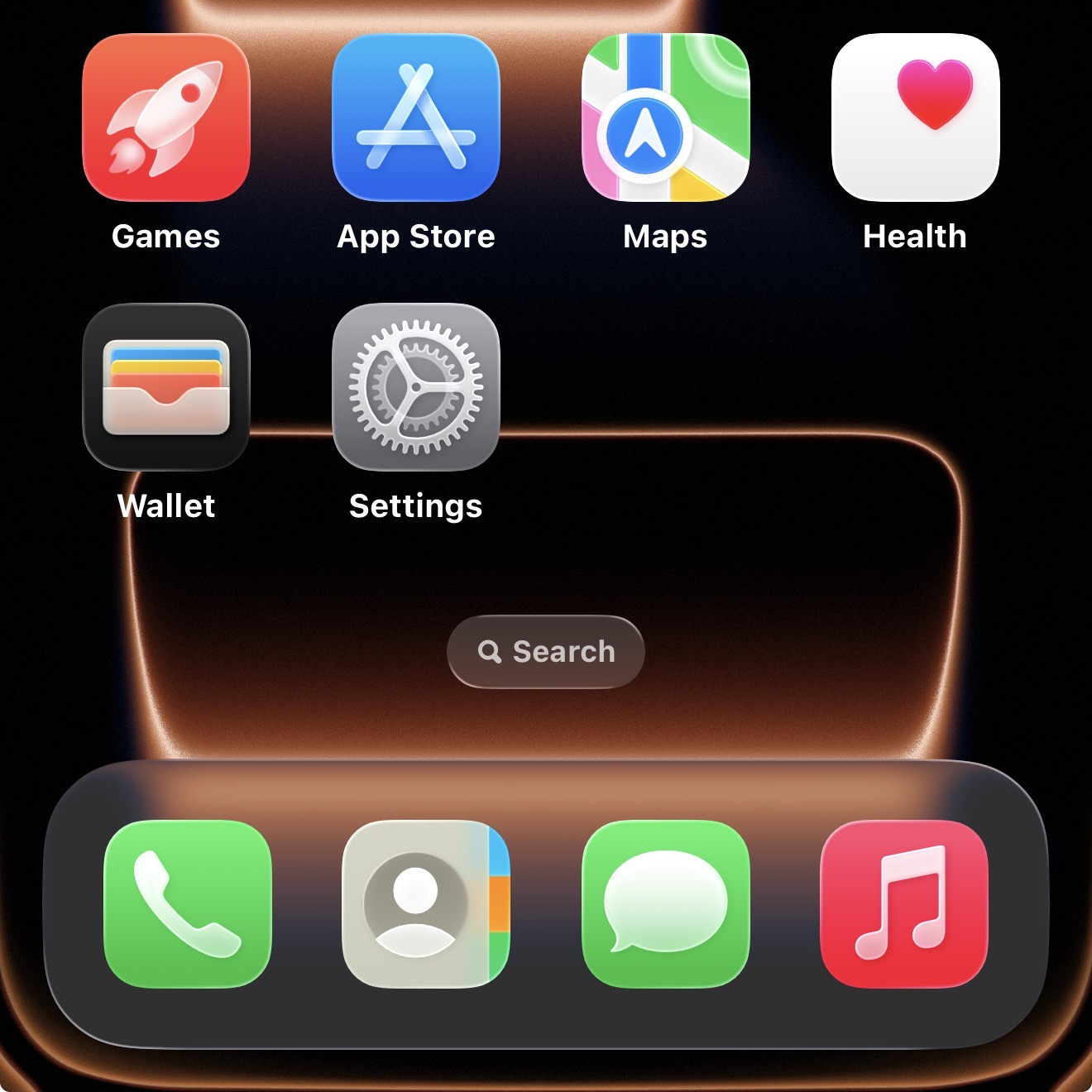
- Open any conversation in Messages
- Tap the App Store icon next to the text field
- Swipe through installed iMessage apps
- Remove apps you no longer use
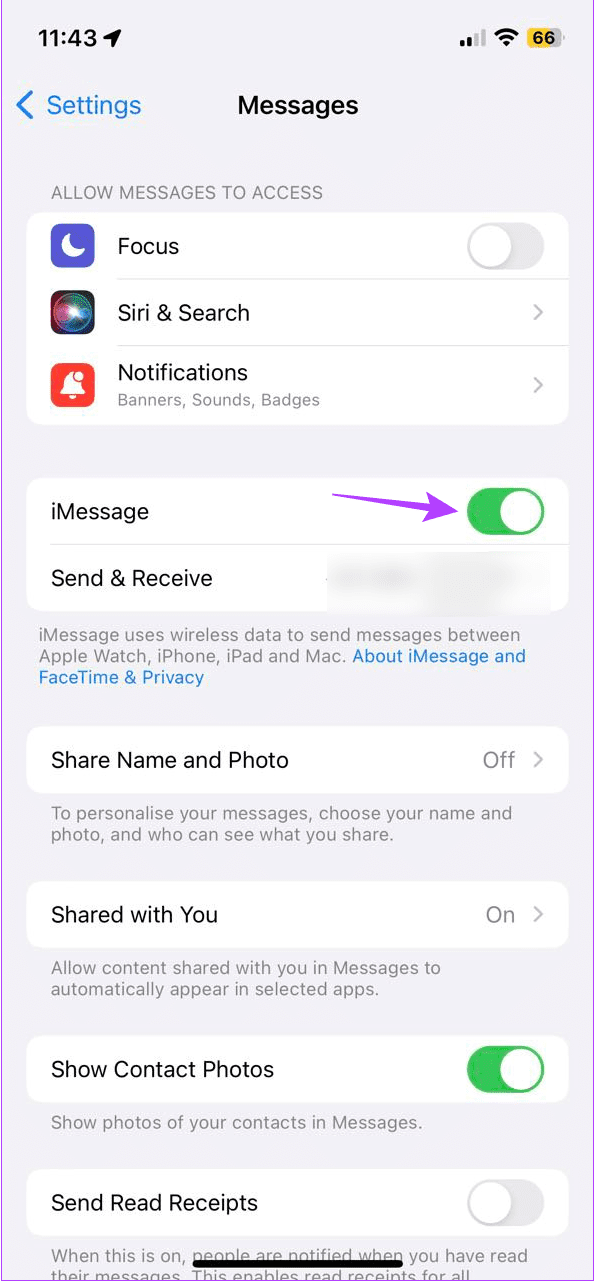
Disable And Re-Enable iMessage
Resetting the iMessage service often resolves sync and activation issues.
- Open Settings
- Tap Messages

- Turn off iMessage
- Wait one minute, then turn it back on
Install The Latest iOS Update
Apple frequently releases bug fixes that address Messages app crashes and freezes.
- Open Settings
- Tap General
- Select Software Update
- Download and install any available update
Reset All iPhone Settings
This option resets system settings without deleting apps, messages, or photos.
- Open Settings
- Tap General
- Select Transfer Or Reset iPhone
- Tap Reset
- Choose Reset All Settings
Troubleshooting Common Problems
If Messages still crashes, confirm that your Apple ID is signed in correctly and that iCloud Messages syncing is active. Network instability can also trigger freezing, especially when sending media files.
Tips
- Keep at least 5–10 GB of free storage available
- Avoid restoring message backups from older iOS versions
- Limit animated effects if the app freezes during message previews
FAQ
Why does the Messages app keep crashing on iPhone?
This usually happens due to software bugs, overloaded message history, or conflicts with iMessage apps.
Will resetting settings delete my messages?
No. Reset All Settings does not remove messages, photos, or apps.
Can malware cause Messages to crash?
Malware is rare on iOS, but corrupted message content or profiles can cause similar behavior.
Summary
- Force quit and restart the Messages app
- Reduce message storage and remove unused iMessage apps
- Update iOS and reset system settings if needed
Conclusion
When the Messages app keeps crashing or freezing on iPhone, the issue is almost always software-related. Working through these steps methodically restores reliability and prevents future interruptions. If the problem continues, Apple Support may be required for deeper diagnostics.


Discussion (0)
Be the first to comment.