




If Messages search shows Indexing for hours or returns no results, your iPhone hasn’t finished rebuilding its message database. This usually happens after an iOS update, a new iPhone setup, or a large iCloud sync. The steps below help indexing finish and restore search results without deleting messages.
How long Messages indexing should take
Indexing can finish in minutes on a phone with a small message history. Phones with years of chats and many attachments may need several hours, sometimes a full day. If indexing runs longer than 24 hours under ideal conditions, something likely blocks it.
Check if Messages indexing is still running
Open Messages and tap the search field. If you see Indexing or partial results appear slowly, the process still runs. You can also try a Spotlight search for a known word from an old conversation. No results usually mean indexing hasn’t completed.
Basic fixes that solve most indexing issues
Restart your iPhone the right way
Restarting refreshes background services that handle indexing. Power off completely, wait 30 seconds, then turn the phone back on. Avoid repeated restarts, which can reset progress.

Keep iPhone connected to power and Wi-Fi
Indexing pauses on low battery or unstable connections. Plug your iPhone into a charger and connect to a strong Wi-Fi network. Leave the screen locked for best results.
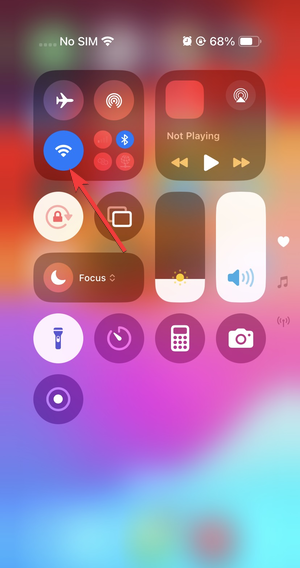
Disable Low Power Mode
Low Power Mode limits background tasks, including indexing. Turn it off temporarily so Messages can rebuild its database faster.
Fix Spotlight and Siri indexing issues
Re-enable Siri & Search for Messages
Go to Settings, open Siri & Search, select Messages, then turn off all Siri and search options. Restart your iPhone, return to the same menu, and turn everything back on. This forces iOS to rebuild the Messages search index.
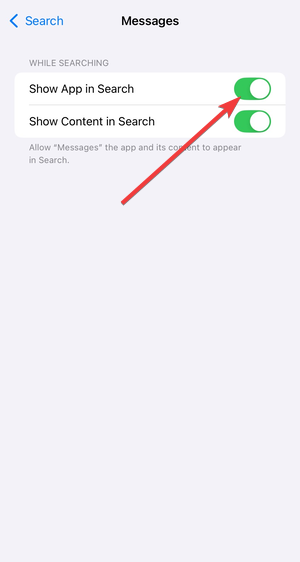
Turn Messages off and on in Spotlight
Open Settings, go to Siri & Search, scroll to Messages, and disable Show App in Search. Restart, then re-enable it. This step refreshes Spotlight indexing without affecting other apps.
Fix iCloud Messages sync problems
Toggle Messages in iCloud safely
If the Messages app is open, close the app on your iPhone. Next, open Settings, tap your Apple ID, select iCloud, then Messages. Turn off Use on this iPhone and choose to keep messages on your iPhone. Restart, then turn Messages back on.
This often restarts stalled syncs that block indexing.

Sign out and back into iCloud (last resort)
Sign out of iCloud only if other fixes fail. This step refreshes account services tied to indexing, but it triggers a full re-sync afterward. Make sure you have enough storage and time before trying it.
Fix indexing after an iOS update or new iPhone setup
What to do after updating iOS
Major updates rebuild several databases at once. Leave your iPhone charging overnight with Wi-Fi enabled. Avoid opening Messages repeatedly, which can slow background work.
What to do after restoring from iCloud or Quick Start
Restores download messages first, then index them later. Messages may appear complete while indexing still runs silently. Keep the phone idle and powered for several hours before troubleshooting further.
Advanced fixes for stubborn indexing problems
Reset Spotlight index without erasing data
Go to Settings, open Siri & Search, then disable suggestions entirely. Restart your iPhone, then re-enable them. This forces a broader search index rebuild that often fixes stuck Messages results.

Reset all settings
Open Settings, go to General, then Transfer or Reset iPhone followed by Reset, and choose Reset All Settings. This keeps your data but resets system preferences that can block indexing services.

What will not fix Messages indexing
Force-closing Messages does nothing for indexing. Deleting and reinstalling apps won’t help either, since Messages is built into iOS. Clearing chat threads rarely fixes indexing unless storage runs critically low.
When indexing will never finish
If indexing runs for days despite stable power and Wi-Fi, your message database may contain corrupted attachments or your storage may be nearly full. Freeing space or restoring from a clean backup may become necessary.
Tips
- Leave your iPhone locked while indexing runs to reduce interruptions.
- Avoid switching networks or enabling Low Power Mode mid-process.
- Keep at least 5–10 GB of free storage for smooth indexing.
- Let indexing finish overnight instead of restarting repeatedly.
- Check indexing progress once every few hours, not constantly.
Summary
- Confirm indexing is actually running in Messages search.
- Keep your iPhone charging on strong Wi-Fi with Low Power Mode off.
- Refresh Siri, Spotlight, and iCloud Messages indexing.
- Use system resets only if basic fixes fail.
Messages indexing usually fixes itself once iOS finishes background work, but power limits, sync issues, and disabled services can stall it indefinitely. Follow the steps above in order, give indexing enough uninterrupted time, and the search should return to normal without losing a single message.



Discussion (0)
Be the first to comment.