




Old text messages can clutter your iPhone, make conversations harder to follow, and take up unnecessary storage. Whether you want to delete a single message, remove an entire conversation, or permanently erase messages, iOS gives you several built-in tools to manage your inbox.
At the time of writing, the Messages app supports deleting individual texts, bulk-deleting conversations, clearing the Recently Deleted folder, and automatically removing old messages. Below are the most reliable methods that still work on current iOS versions.
How To Delete Individual Messages On iPhone
If you only need to remove a specific text message from a conversation, you can delete it without removing the entire chat thread.
- Open the Messages app.
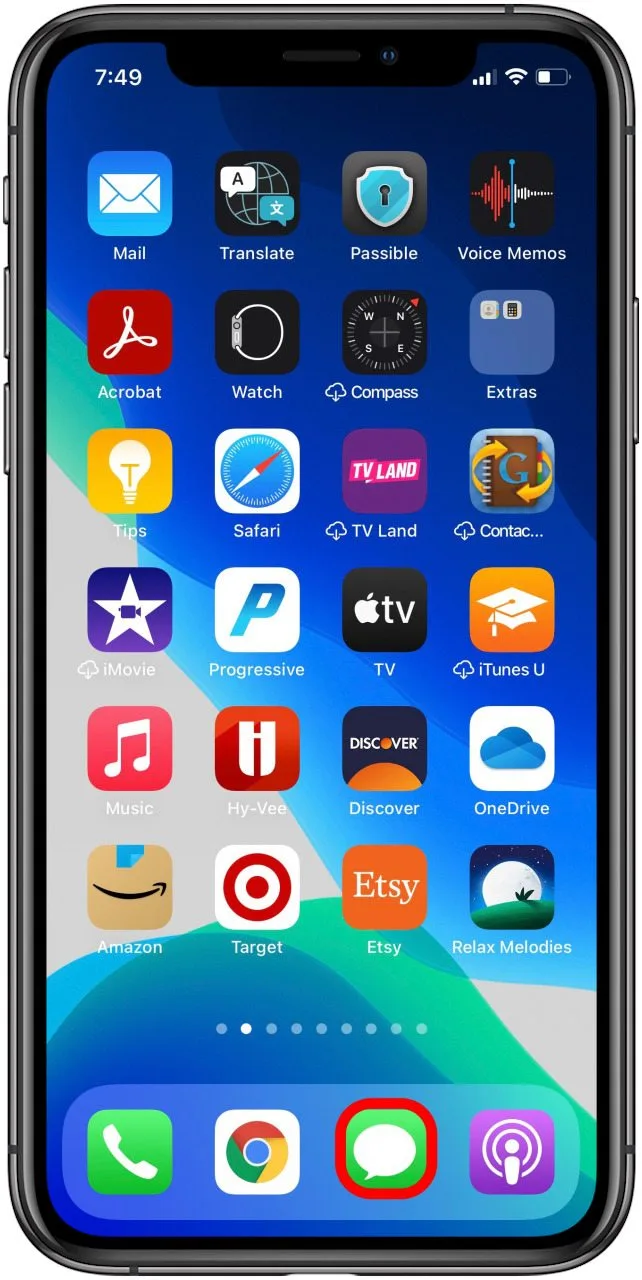
- Open the conversation containing the message.

- Tap and hold the message bubble.
- Select More from the menu.

- Tap the circle next to the message to select it.
- Tap the trash icon in the corner.

- Confirm by tapping Delete Message.

You can select multiple message bubbles at once before tapping the trash icon if you want to remove several texts together.
How To Delete An Entire Conversation On iPhone
Deleting a full conversation is faster when you no longer need any messages from a specific contact or group chat.
- Open the Messages app.
- Find the conversation you want to remove.
- Swipe left on the conversation.
- Tap the red trash icon.
- Tap Delete to confirm.
This removes the entire message thread from the inbox of your iPhone, but does not permanently erase it yet.
How To Delete Multiple Conversations At Once
If your inbox is overloaded, deleting multiple conversations at the same time can save a lot of effort.
- Open the Messages app.
- Tap Edit in the top corner.
- Select Select Messages.
- Tap the circles next to each conversation you want to delete.
- Tap Delete.
- Confirm the action.
How To Permanently Delete Messages From Recently Deleted
Deleted messages are temporarily stored in the Recently Deleted section. They remain there until you remove them permanently.
- Open the Messages app.
- Tap Filters at the top.
- Select Recently Deleted.
- Tap Delete All to remove everything at once.
- Or select individual conversations and tap Delete.
Once messages are removed from Recently Deleted, they cannot be recovered.
How To Automatically Delete Old Messages On iPhone
You can set your iPhone to automatically delete older messages after a set period to keep your inbox clean.
- Open Settings.
- Go to Apps and select Messages.
- Tap Keep Messages.
- Choose 30 Days or 1 Year.
- Confirm the deletion of older messages.
Troubleshooting Common Problems
If messages do not delete, make sure you are confirming the final delete prompt. Messages removed from a conversation still exist in Recently Deleted until cleared.
If deleted messages reappear, check whether Messages is syncing with iCloud on another device signed into the same Apple ID.
Tips
- Clear Recently Deleted regularly to free storage.
- Use bulk deletion for faster inbox cleanup.
- Enable auto-delete to avoid manual cleanup.
- Delete OTP and spam messages frequently.
- Review attachments in conversations to save space.
FAQ
Can I delete messages on both sides? No, deleting a message only removes it from your device.
Do deleted messages free up storage immediately? Storage is freed after messages are permanently deleted from Recently Deleted.
Can I recover deleted messages? Only if you have a backup made before deletion.
Summary
- Delete single messages from within conversations.
- Remove entire chats with a swipe gesture.
- Bulk-delete conversations for faster cleanup.
- Clear Recently Deleted to erase messages permanently.
Conclusion
Deleting messages on iPhone is flexible and easy once you know where each option lives. Whether you are clearing one message or wiping your entire inbox, these tools help you keep Messages organized and your device running smoothly.


Discussion (0)
Be the first to comment.