




Google now lets users try vertical tabs in Chrome Canary. The option now appears as a visible flag, and users can also choose where the tab strip appears inside Settings.
How to enable vertical tabs in Chrome Canary
- Open chrome://flags
- Search for "Vertical Tabs"
- Set the flag to "Enabled"
- Relaunch Chrome

Once enabled, Chrome adds new controls for switching between horizontal and vertical tabs.
New tab strip position setting
After turning the flag on, visit Settings > Appearance > Tab strip position, you now get two options:
- Top
- Side
Selecting "Side" shows tabs vertically by default.

Chrome also adds a faster way to change layouts. Right-click on the empty area near the window controls and select "Show tabs to the side" to turn on vertical tabs.
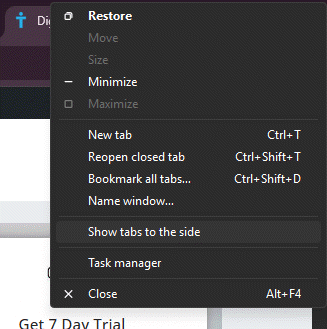
To go back, right-click again and select "Show tabs at the top". This works even if the layout was changed through Settings.
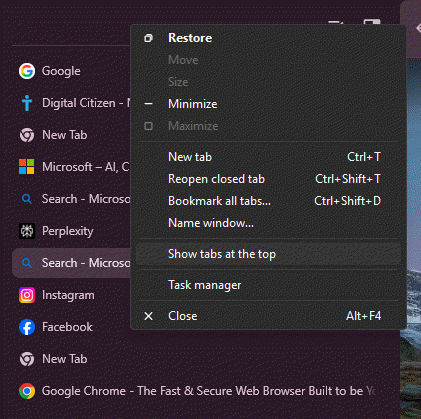
The vertical layout adds more than just a new tab position. You can collapse the tabs panel to save space. A button at the top lets you hide or expand the list.
Chrome also adds Tab Search at the top of the vertical layout. It opens a panel where you can quickly find open tabs.
The layout adds a tab groups button and a New Tab button at the bottom of the vertical panel. This placement feels more natural when tabs run down the side.
As we recently reported, Chrome’s vertical tabs now support tab groups and split view.
Google is no longer keeping vertical tabs hidden behind obscure experiments. The flag is visible, the setting is live, and the control is part of the UI. There is still no word on when this will reach Stable.
That’s not all. Chrome is testing a new “Browse with AI” toolbar button and a dedicated updater page that shows update history.

Discussion (0)
Be the first to comment.