



Google has finally added an immersive Reading Mode feature to Chrome. The feature replaces the side-panel view with a full reading experience and is now available for testing in Chrome Canary on desktop.
Reading Mode in Chrome is designed to make long articles easier to read. It removes ads, menus, and page clutter, and presents text in a focused layout. Until now, this experience lived almost entirely inside the side panel. While useful, it never felt like a full reading view.
That has now changed.
With the latest Canary version, Reading Mode behaves like a full-page reader. When you select "Open in Reading Mode", either from the page right-click menu or the toolbar button, Chrome opens the page in a new reading interface instead of the side panel.
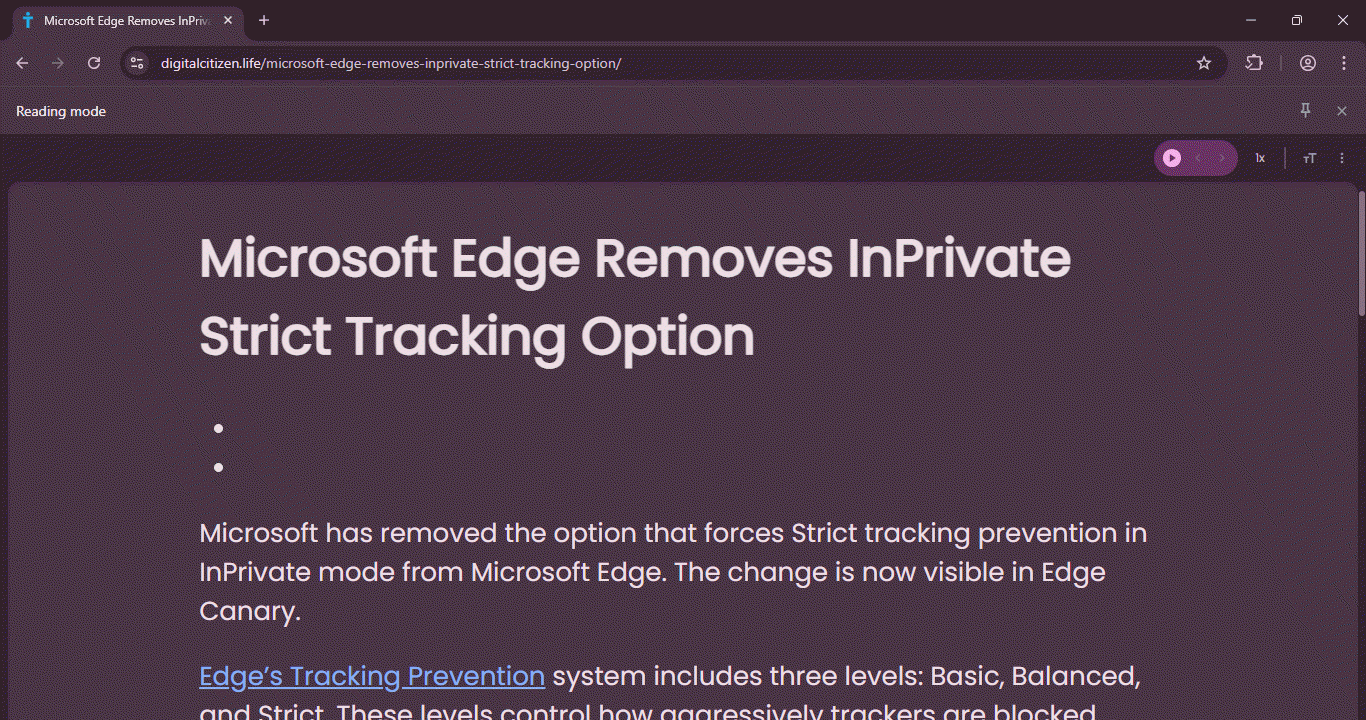
In this view, the page switches to a distraction-free layout. You see a Reading mode label at the top, followed by controls for Read Aloud, playback speed, and text size. The remaining options are available under a three-dot menu.
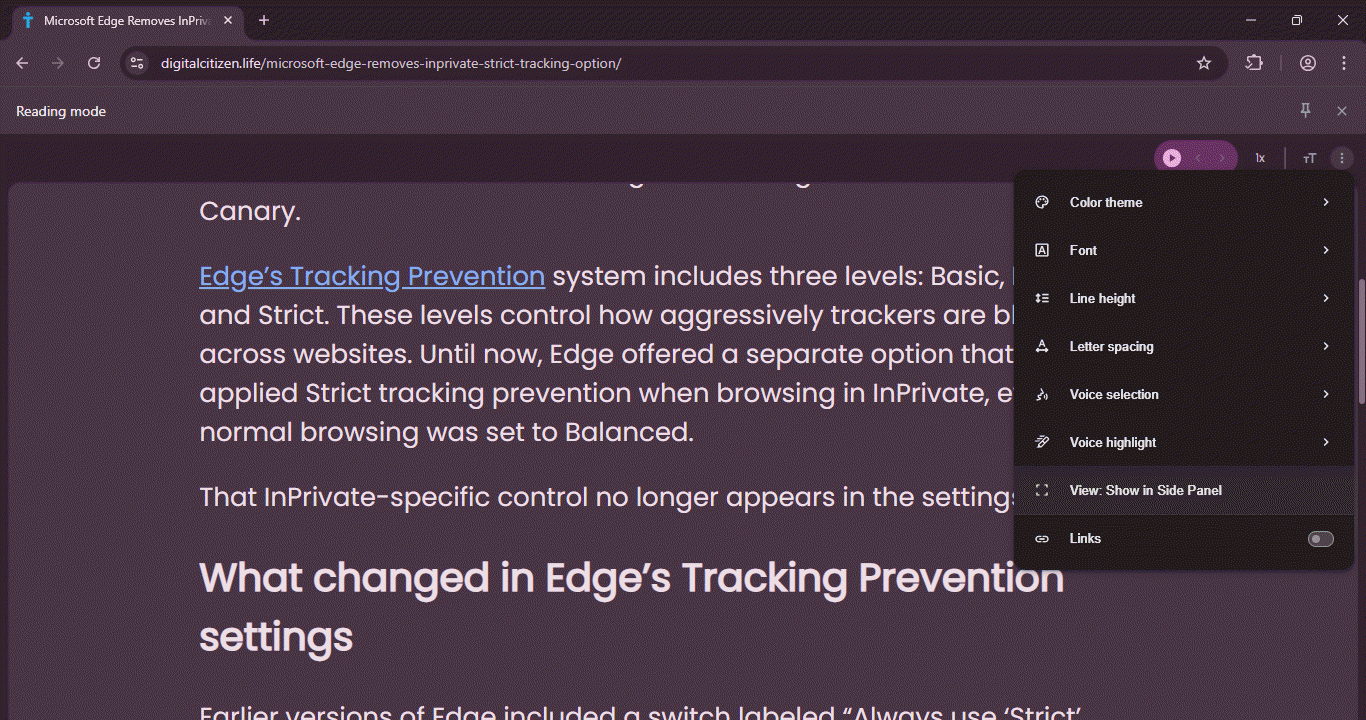
Inside that menu, you can adjust the color theme, font, line height, and letter spacing. You can also change voice selection and voice highlight for Read Aloud. A new View option appears here as well, with "Show in side panel" available for users who prefer the earlier layout. A Links option is also present and remains disabled by default.
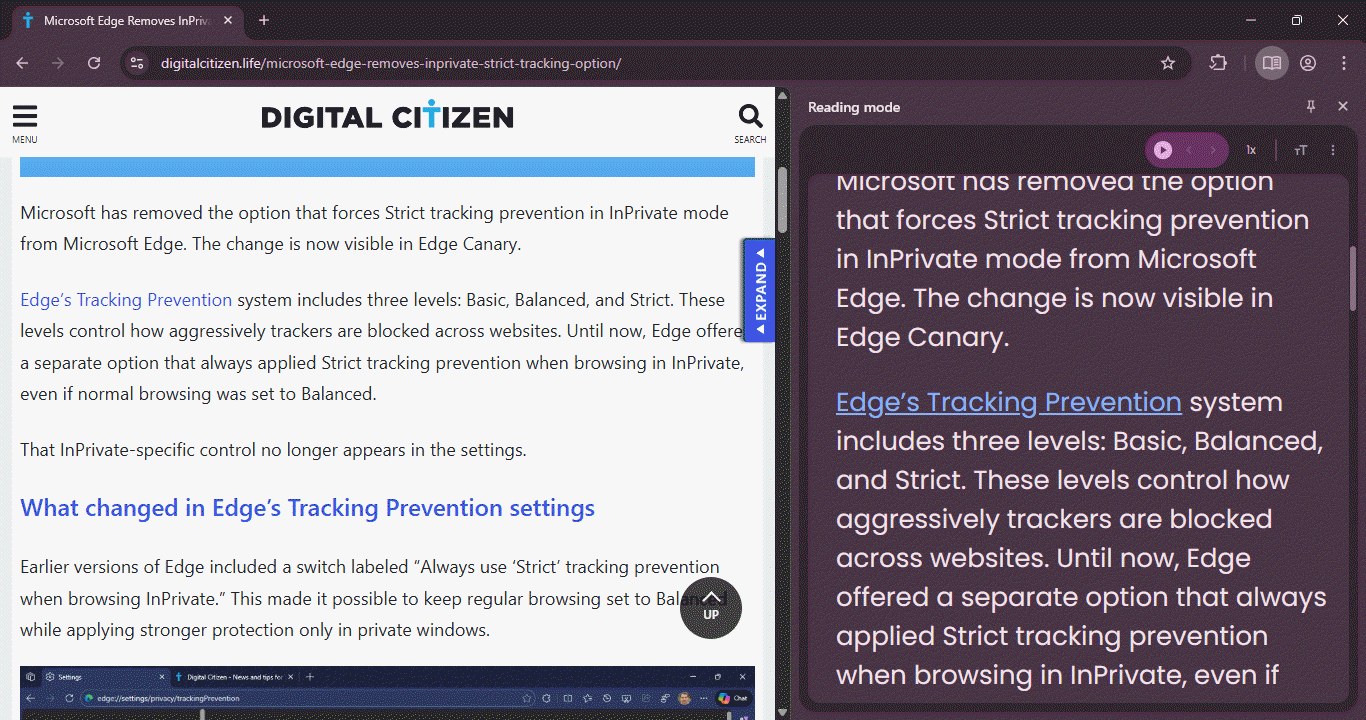
Switch between Immersive view and the Side Panel
This default behavior is important. Chrome now opens Reading Mode in the immersive view first. The side panel is no longer the primary layout. If you prefer reading alongside the original page, you can switch back manually using the View menu. Otherwise, Chrome keeps the focus entirely on the text.
How to enable immersive Reading Mode in Chrome
- Launch the latest Chrome Canary
- Visit chrome://flags
- Find "Reading Mode Experimental Immersive Mode"
- Enable it and relaunch Chrome
- Open any text-heavy webpage
- Select Open in Reading Mode
The page will load in the immersive reading view by default.

Google is still working on Immersive Reading Mode and labels it as "experimental", so some options may not work fully and there is no guarantee this exact behavior will reach the stable release. Still, the feature brings Chrome closer to the immersive readers users expect from modern browsers like Microsoft Edge.


Discussion (0)
Be the first to comment.