




Google Chrome is testing a new "Chrome Updater UI" in Chrome Canary that adds a dedicated page for viewing browser update activity.
Chrome updates normally run in the background through a built-in updater service. This service checks for new versions, downloads updates automatically, and applies them the next time the browser restarts. Most of this process happens silently, with little visibility inside the browser itself.
The new updater page is available at chrome://updater and is currently hidden behind a flag. Once enabled, it shows a clear list of update-related events tied to the browser.
The page lists recent install, update, and uninstall events in a structured format. Each entry includes details such as the event type, status, and timestamp, with an option to expand individual entries for more information.
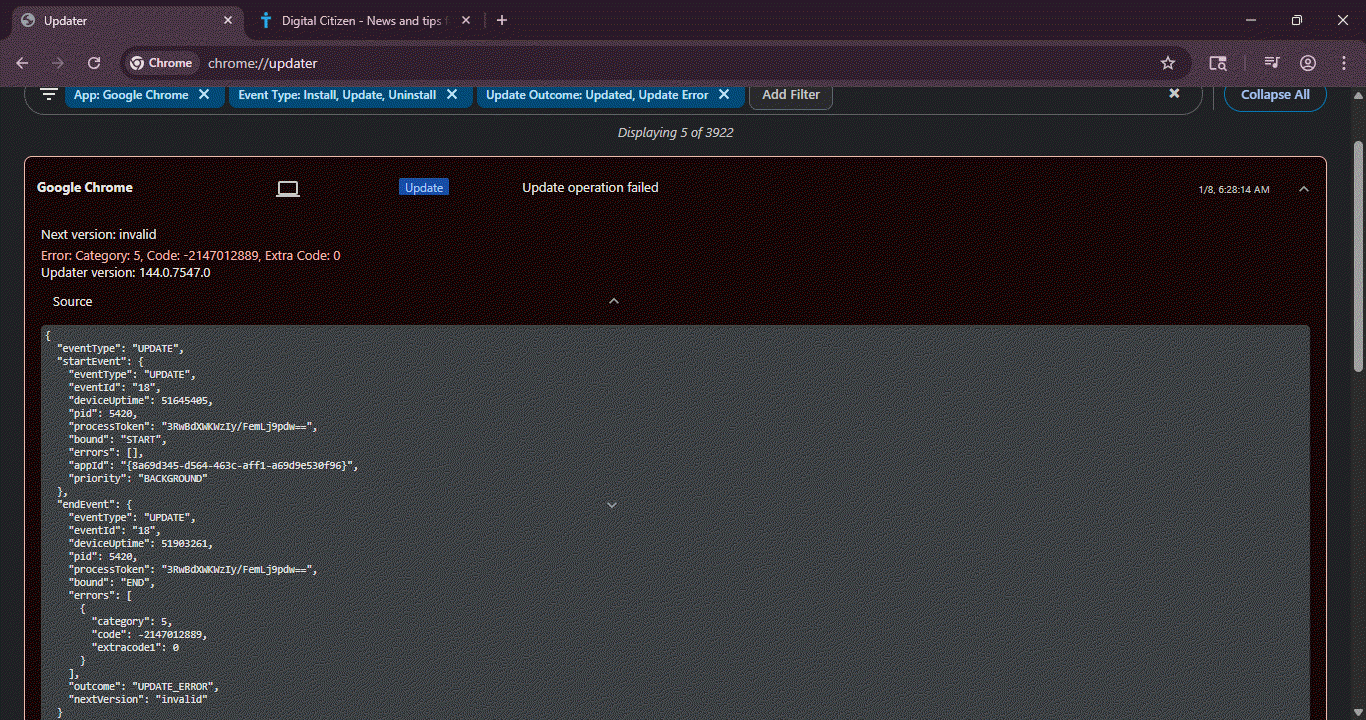
The updater page also includes built-in filters to make review easier. Chrome allows users to filter update history by event type, update outcome, updater scope, and date, which helps narrow results in longer logs.
By default, Install is selected as the event type, while update outcomes appear within the same interface. Older entries remain visible, creating a running history of updater activity inside Chrome.
How to enable the Chrome Updater UI
To try the new Chrome Updater UI, users need the latest Chrome Canary version and must enable the feature manually.
- Launch the latest Chrome Canary
- Visit chrome://flags.
- Search for "Chrome Updater UI" and set the flag to Enabled.
- Restart Chrome.
Visit chrome://updater to view the update history page.

This interface gives Canary users a clearer view of how Chrome’s updater behaves over time. Update activity can now be reviewed from within the browser, without relying on system tools or external logs.
For now, the Chrome Updater UI is limited to Canary builds and remains behind an experimental flag. This shows that the feature is still under active testing.
That's not all. Chrome is testing Immersive Reader Mode and hidden Vertical Tabs now support Tab groups and Split View.
Discussion (0)
Be the first to comment.