




Discord text formatting lets you make messages easier to scan in fast-moving chats. Use Discord Markdown to bold keywords, hide spoilers, format code blocks, and create clean lists on both mobile and desktop.
If you want a quick starting point, learn bold, spoilers, and code blocks first. They cover most “make this stand out” moments in Discord servers and DMs.
How To Format Text On Discord
Discord uses Markdown-style characters to format text. You can also select text and use the formatting toolbar on desktop and web, but the typed shortcuts work everywhere.
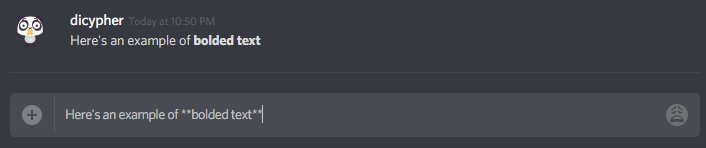
Bold Text In Discord
- Type two asterisks before and after your text:
**Bold Text** - On the desktop, select text and choose Bold in the pop-up toolbar.
Italics Text In Discord
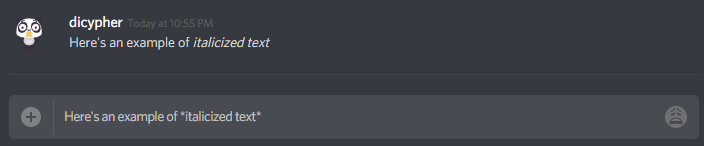
- Type one asterisk before and after your text:
*Italic Text* - Type one underscore before and after your text:
_Italic Text_
Underline Text In Discord
- Type two underscores before and after your text:
__Underlined Text__

Strikethrough Text In Discord
- Type two tildes before and after your text:
~~Struck Text~~
Combine Discord Markdown Styles
- Bold + italics:
***Bold Italic*** - Underline + bold:
__**Underline Bold**__ - Underline + bold + italics:
__***All Three***__
Headers In Discord
- Large header:
# Header - Medium header:
## Header - Small header:
### Header - Add a space after the
#so Discord formats it correctly.
Subtext In Discord
- Type
-#at the very start of the line, then add a space:-# Subtext - Put
-#on each new line if you want multiple lines of subtext.
Masked Links In Discord
- Use bracket text with a link in parentheses:
[Text You Want People To See](https://example.com) - If Discord does not render the mask, the server may block it or Discord may show the raw link.
Inline Code And Code Blocks In Discord
- Inline code: wrap text in one backtick:
`inline code` - Multi-line code block: wrap text in triple backticks:
```text
Your Code Or Text Here
```
Lists In Discord
- Bullet list: type a hyphen and a space at the start of each line:
- Item - Nested bullet: add two spaces before the hyphen:
- Sub Item - Numbered list: type
1.then a space, and continue with new lines.
Block Quotes In Discord
- Single-line quote: start the line with
>then a space:> Quote - Multi-line quote: start with
>>>then a space, then type your text.
Spoilers In Discord
- Wrap spoiler text in two vertical bars:
||spoiler|| - Tap or click the spoiler to reveal it.
Colored Text In Discord With Syntax Highlighting
Discord does not offer a true “text color” button, but code blocks can apply syntax highlighting. Results vary by theme and platform, so treat this as a styling trick, not a reliable design system.
- Start a code block and label it with a language name, like
difforyaml. - Use
diffwith+and-lines to create strong visual contrast in many themes.
```diff
- This Often Looks Like A Removal
+ This Often Looks Like An Addition
```
Troubleshooting Common Problems
Formatting does not work when you type it. Check if you added an extra space inside the symbols, or if you forgot the closing characters.
Headers do not show as headers. Put a space after the # and start the header at the beginning of the line.
Subtext does not show. Put -# at the very start of the line, then add a space before your text.
Masked links do not render. Some servers restrict them, and Discord may show the full URL instead.
Colored text looks different on mobile. Syntax highlighting can change across themes and clients, so keep it optional.
Tips
- Use bold for one key phrase, not the whole message.
- Use spoilers for punchlines, game results, and plot details.
- Use inline code for filenames, settings, and commands.
- Use headers to separate long updates into readable chunks.
- Test your formatting in a private DM before you post it to a busy channel.
FAQ
Does Discord have a built-in “search by formatting” feature?
No. Discord search focuses on text content, users, and channels, not Markdown styles.
Can I format text the same way on iPhone and Android?
Yes, for most Discord Markdown, but the desktop toolbar and some styling tricks can differ by client.
Why do I only see plain text instead of formatted text?
Discord needs the correct opening and closing characters. A missing symbol or an extra space can break formatting.
Can I change text color in normal messages?
Discord does not offer a standard text color tool. Syntax-highlighted code blocks can simulate color in many themes.
Summary
- Use Discord Markdown characters for bold, underline, spoilers, and code blocks.
- Start headers and subtext at the beginning of a line for consistent results.
- Use code blocks for clean formatting and optional syntax highlighting.
- Keep formatting light so your message stays readable.
Conclusion
Discord text formatting helps you communicate faster in busy chats. Learn bold, spoilers, and code blocks first, then add headers and quotes when you write longer messages.


Discussion (0)
Be the first to comment.