




Learning how to color text in Discord helps your messages stand out in busy servers. Discord does not offer a built-in text color button, but you can still create colored text by using multi-line code blocks and a few reliable language tags.
This guide focuses on Discord text color tricks that work most consistently on the desktop app and browser at the time of writing. You also get tips to type faster, avoid common mistakes, and fall back to standard Discord text formatting when color is not available.
Discord’s chat uses Markdown for formatting and a syntax highlighter to color-code blocks. The interface uses a dark theme and a library known as highlight.js to color programming languages inside those blocks.
Because of that design, Discord colored text is really colored “fake code.” You wrap your message in a code block, tell Discord which language to use, and then take advantage of how that language normally looks when highlighted.
How Discord Text Color Works
Every colored message in Discord follows the same three-line pattern. Once you understand this pattern, you can reuse it for any working color code.
Here is the basic idea:
- You start a multi-line code block with three backticks followed by a language name.
- You type your message on the next line, often with a symbol in front of it.
- You close the block with three backticks on a new line.
The backtick (grave accent) key sits in the upper left corner of most keyboards, on the same key as the tilde (~). You must use backticks, not regular quotation marks, or Discord text colors will not appear.
How To Type Colored Text With Code Blocks
You can type colored text directly in a channel or prepare Discord text color codes in a separate file and paste them. When you type in chat, remember to use “Shift + Enter” to move to a new line without sending the message.
Basic Code Block Structure
Use this pattern whenever you experiment with Discord colored text:
- On the first line, type three backticks and the language name, such as
```diffor```ini.
- On the second line, type your message using any symbols that language requires.

- On the third line, type three backticks again to close the block.

- Press “Enter” to send the message once all three lines are ready.

Discord will show your message inside a box with the colors defined by that language. The symbols that trigger the colors, such as plus signs or quotes, still appear in the message.
Green And Red Text With Diff
The diff language is one of the most reliable ways to color text in Discord. Lines that start with a plus sign show in light green, and lines that start with a dash show in white with a red highlight.
- Start with
```diffon the first line. - On the second line, type
+ Your green text herefor green text. - On another line in the same block, type
- Your red highlight text herefor red-highlighted text. - Close the block with
```on the final line.
This format works well for quick status updates, such as green “online” messages and red “offline” messages, or pros and cons lists.
Blue Text With Ini
The ini language treats the text inside square brackets as a section header and colors it blue. You can use this trick when you want a simple blue label in your Discord messages.
- Type
```inion the first line. - On the second line, start with a left bracket and write your text, such as
[Server Status]. - Optionally add more lines for notes below the header.
- Close the block with three backticks on the last line.
Because the bracket remains visible, this style looks like a blue section tag and fits well in structured channels.
Light Blue Text With Json Or Css
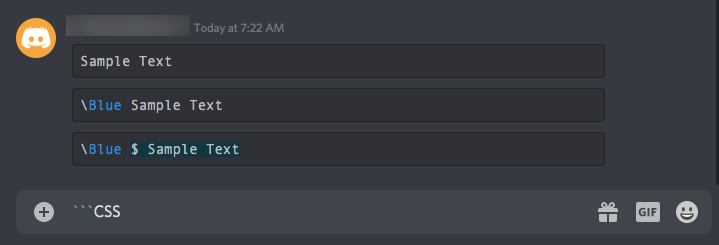
You can also get light blue text in Discord using the json or css languages. These formats color strings or bracketed sections, which you can repurpose for colored chat.
- For json, start with
```json, then put your text in quotes on the next line, such as"Sample Text", and close the block. - For css, start with
```css, then wrap your text in brackets, such as[Sample Text], and close the block. - Use “Shift + Enter” between lines so the message does not send until your code block is complete.
- Send the message and confirm that the middle line appears in light blue inside a box.
These Discord color codes are handy when you want a different shade from the green and blue options in other syntaxes.
Red Text With Elm
The elm language often renders simple text as red inside a code block. It does not require special symbols, which makes it easier to read.
- Type
```elmon the first line of your message. - On the second line, type your text normally, such as
Warning: Server Restart Soon. - Close the block on the third line with three backticks.
- Send the message and look for solid red text in a box.
This approach works well for warnings or urgent notices when you do not want extra symbols in front of the message.
How To Type Colored Text Faster
Typing full code blocks for every colored line can feel slow, especially when you color text in Discord often. A few simple habits help speed things up.
- Save your favorite Discord text color codes in a note file and paste them when needed.
- Use “Shift + Enter” to build the three-line block cleanly before sending it.
- Keep a few templates, such as green
```diffblocks and blue```iniheaders, ready to reuse. - Test new color combinations in a private test server before posting them in public channels.
When Discord Color Codes Do Not Work
Discord text color tricks depend on the client and theme, so they may not always look the same for every user. If a particular syntax fails, check a few common issues before you give up.
- Confirm that you used backticks, not regular quotes, on the first and last lines.
- Make sure the language name is on the same line as the opening backticks, with no extra spaces.
- Check that you included any symbols required for that language, such as plus signs or quotes.
- Try the same message in the desktop app if the browser or mobile version looks different.
Even with perfect syntax, some Discord updates and themes change how highlight.js behaves, so treat Discord colored text as a bonus rather than a guaranteed feature.
Other Ways To Make Text Stand Out
Because color support is limited, it helps to combine Discord text formatting with occasional color. Standard Markdown styles work everywhere and do not rely on highlight.js.
- Use
**bold text**to highlight keywords or headings. - Use
*italics*to add emphasis or side comments. - Combine
***bold italics***for strong emphasis. - Use
__underlines__for titles and labels. - Use
~~strikethrough~~when you correct or retract old information. - Mix these styles with occasional color blocks to keep messages readable but still eye-catching.
Troubleshooting Common Problems
- Colors are not showing → Confirm you used three backticks and the correct language name on the first line.
- Message sends too early → Use Shift + Enter to create new lines without sending.
- Text stays gray instead of colored → Check that you used backticks, not apostrophes or quotes.
- Color shows differently for other users → Some themes and clients interpret highlight.js differently.
- Red or blue not appearing → Make sure the required symbols (such as brackets or plus signs) match the language rules.
- Code block breaks → Remove extra spaces between the backticks and language tag.
Tips
- Save color templates (diff, ini, json, elm, css) in a note so you can paste them quickly.
- Use “Shift + Enter” to build clean three-line blocks before sending.
- Test new color combinations in a private channel before using them in busy servers.
- Combine colored text with bold or italics for clearer organization.
- Use shorter blocks for quick colored labels, such as blue ini headers or green diff tags.
FAQ
Why Does Discord Not Support Colored Text Normally?
Discord relies on Markdown and syntax highlighting, so colors only appear inside code blocks, not regular chat messages.
Why Do My Colors Look Different From Someone Else’s?
Different clients, themes, and highlight.js versions can display code colors slightly differently.
Can I Use Discord Text Colors On Mobile?
Some colors work on mobile, but results vary. The desktop app is the most consistent.
Why Do I Need Symbols Like Plus Signs Or Brackets?
Each language tag highlights specific syntax. Symbols trigger the color rules used by that language.
Can I Hide The Code Block Box?
No. All Discord colored text appears inside a code block, and the box cannot be removed.
Summary
- Discord does not have a built-in text color feature but supports color through code blocks.
- Colors come from highlight.js using tags like
diff,ini,json,css, andelm. - Every color block uses a three-line format with backticks on the top and bottom.
- Green, red, blue, and light blue are the most reliable colors for Discord messages.
- When color fails, standard Markdown formatting (bold, italics, underline) keeps messages clear.
Final Thoughts
Now you know how to color text in Discord using the most reliable code-block methods, including diff, ini, json, css, and elm. These Discord color codes use highlight.js behind the scenes and give you simple green, blue, light blue, and red options for your messages.
Remember that Discord colored text is always shown inside a code box and may look different on some clients. When color does not cooperate, fall back on bold, italics, and other formatting so your messages stay easy to read. With a mix of color and clear formatting, your Discord text chats stay both stylish and readable in any server.


Discussion (0)
Be the first to comment.