




A music bot turns your Discord server into a shared audio space where users can queue songs, play playlists, and control playback together. Most people struggle because bots require specific permissions before they work. This guide shows clear steps that help you add a music bot, configure roles, and fix common issues fast.
1) What you need before adding a music bot
Your account must include Manage Server, Manage Roles, and permissions to edit channel settings. These permissions let you authorize a bot, adjust its role, and allow it to speak in voice channels.
Also, note that Discord places bots inside the server’s role hierarchy. A bot needs a dedicated role ranked above regular users so it can join voice channels and execute commands without errors.
2) Choose the right Discord music bot
Choosing the best Discord music bot that matches the type of server you run makes your channel fun. Different bots offer different strengths. Some focus on playlist control, while others offer strong queue management or multiple audio sources.
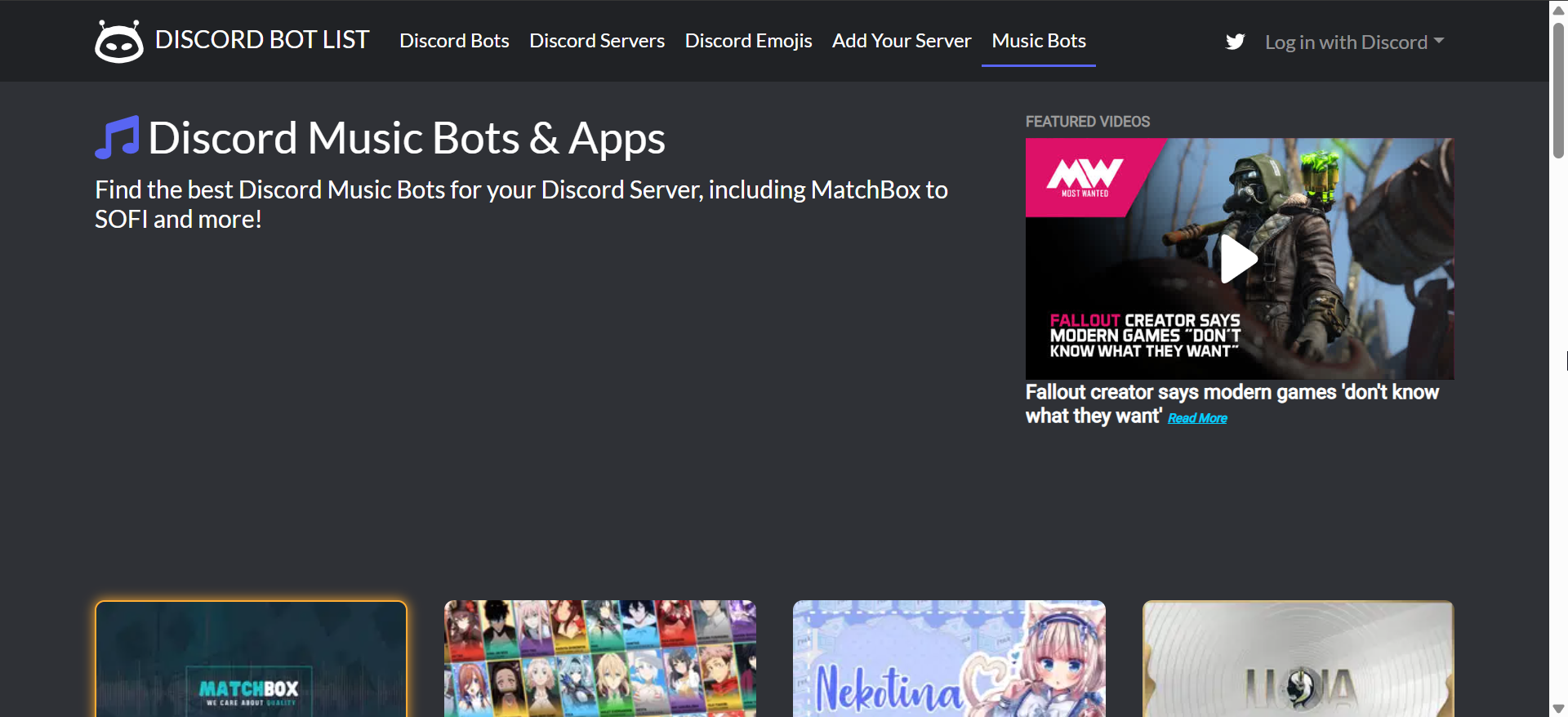
Popular pre-built music bots
Reliable bots support stable audio streaming and regular updates. Choose a bot that clearly states uptime history and a simple slash-command interface.
Self-hosted vs pre-made options
Self-hosted bots give you full control over updates and audio sources. Pre-made bots work instantly but may shut down when APIs change. Advanced users often prefer hosting their own instance for stability.
3) Add a music bot to your Discord server (Desktop)
Open the bot’s invite link, select the server where you want to add the bot, and click Continue. Next, approve the requested permissions and click Authorize. Now, complete the CAPTCHA to confirm.
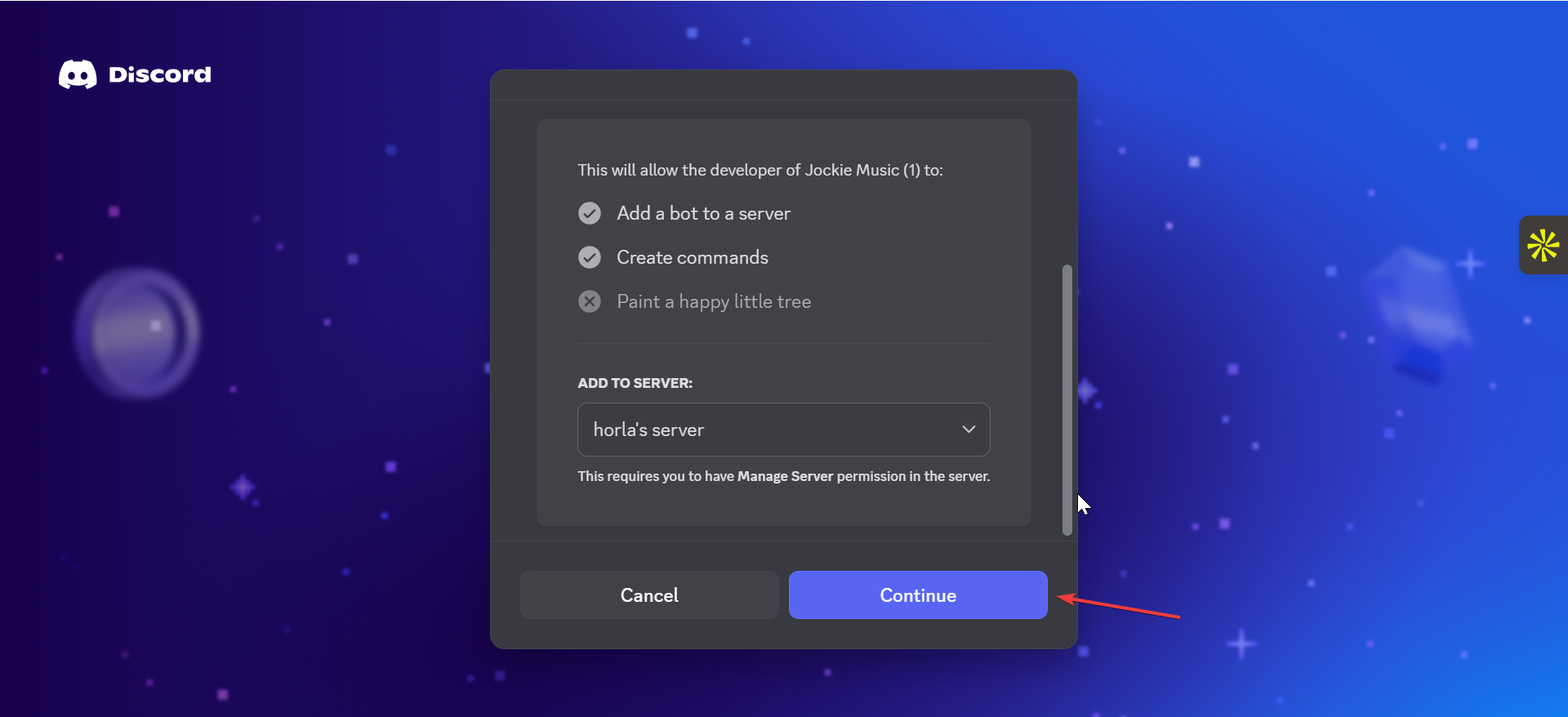
From here, open Discord and check the server’s member list to confirm the bot appears.

Tip: You should allow Connect, Speak, View Channels, and Use Slash Commands. These permissions help the bot join voice channels and follow user instructions.
4) Add a music bot using the Discord mobile app
Open the bot’s invite link in your mobile browser and select the server where you hold Manage Server permissions. Next, tap Continue and approve the requested permissions.
Now, tap Authorize and complete the CAPTCHA. Finally, open Discord and verify the bot in the member list.
5) Play music with the bot
Most music bots respond to slash commands, so playback starts fast after setup. You need to join a voice channel before the bot can follow your commands.
Join a voice channel first
The bot connects to the same channel you join, so you should click the voice channel you want to use before typing commands.
Basic music commands

Common commands include:
- /play [song or URL]
- /skip
- /queue
- /pause
- /resume
- /leave
6) Set correct permissions so everyone can use the bot
Adjust bot role hierarchy
You should drag the bot’s role above regular user roles. This gives the bot priority to join voice channels and control playback.
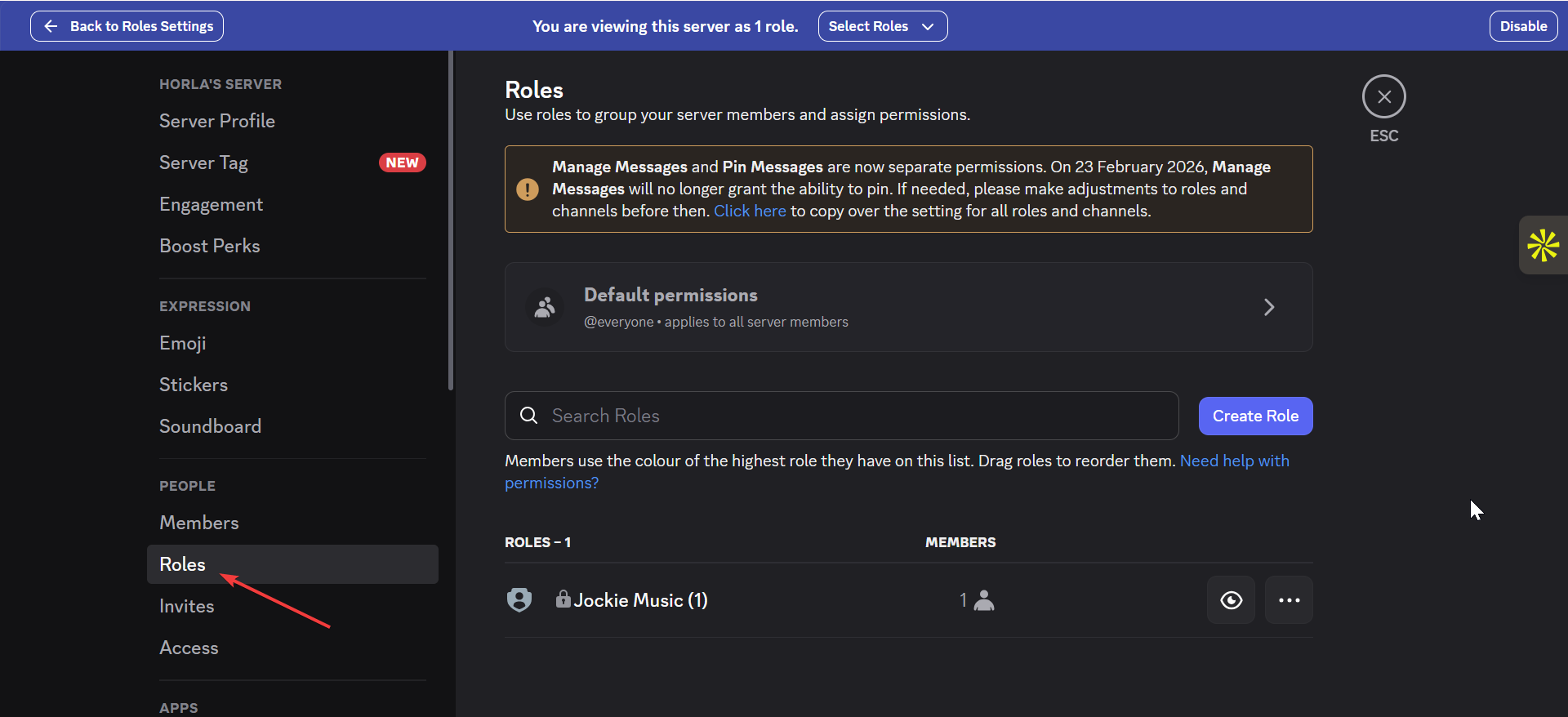
Configure voice channel permissions
Each voice channel should allow Connect and Speak for the bot role. Missing Speak permission stops audio playback.
Restrict music commands to moderators (optional)
Assign a DJ role or similar role if you want only specific users to skip or queue music.
7) Troubleshooting music bot issues
- Bot not joining voice channel: Ensure the bot role includes Connect and Speak. Check that the bot’s role sits above any restricted roles that might block entry.
- Bot not responding to commands: Disable conflicting custom prefixes and use Discord’s slash commands instead. Also, confirm that the bot appears online.
- Music not playing or queue not loading: Verify that the bot supports the audio source you entered. Some bots no longer play YouTube or private playlist links.
- Mobile users unable to control bot: Confirm that mobile users hold permissions to use slash commands and view text channels where the bot listens.
Safety, legal, and reliability considerations
- YouTube and streaming API limits: Many bots stopped working after API changes, so server owners should check uptime and update history before relying on a bot.
- Avoid unofficial or unverified bots: Unverified bots may log messages or abuse permissions. Choose bots with transparent documentation and strong communities.
FAQs
Why can’t I add a bot to my Discord server? You likely lack the Manage Server permission. Ask the server owner to upgrade your role.
Can the bot play Spotify tracks? Most bots cannot play Spotify directly. They can only play sources that the bot supports.
How do I stop random members from skipping songs? Assign a DJ role and restrict skip or queue commands to that role.
Can I use multiple music bots in the same server? Yes. Many servers use two bots to avoid queue conflicts, but you should assign clear DJ permissions.
Summary
- Confirm that you have Manage Server permissions.
- Pick a stable music bot that fits your server’s needs.
- Use the invite link to authorize the bot on desktop or mobile.
- Place the bot role above standard user roles.
- Allow Connect and Speak in voice channels.
Conclusion
Adding a music bot to Discord takes only a few minutes when you hold the right permissions and configure roles correctly. A well-set bot plays reliably, follows your commands, and gives your server an easy way to share playlists. After setup, you can fine-tune DJ roles, enable 24/7 mode, or host your own bot for long-term stability.


Discussion (0)
Be the first to comment.