




Discord is one of the most popular apps for gamers and online communities. You can chat, stream, and organize your favorite games - all in one place. Installing Discord on your Windows PC takes only a few minutes, and the process is simple if you follow the right steps.
1) Check if your PC meets the requirements
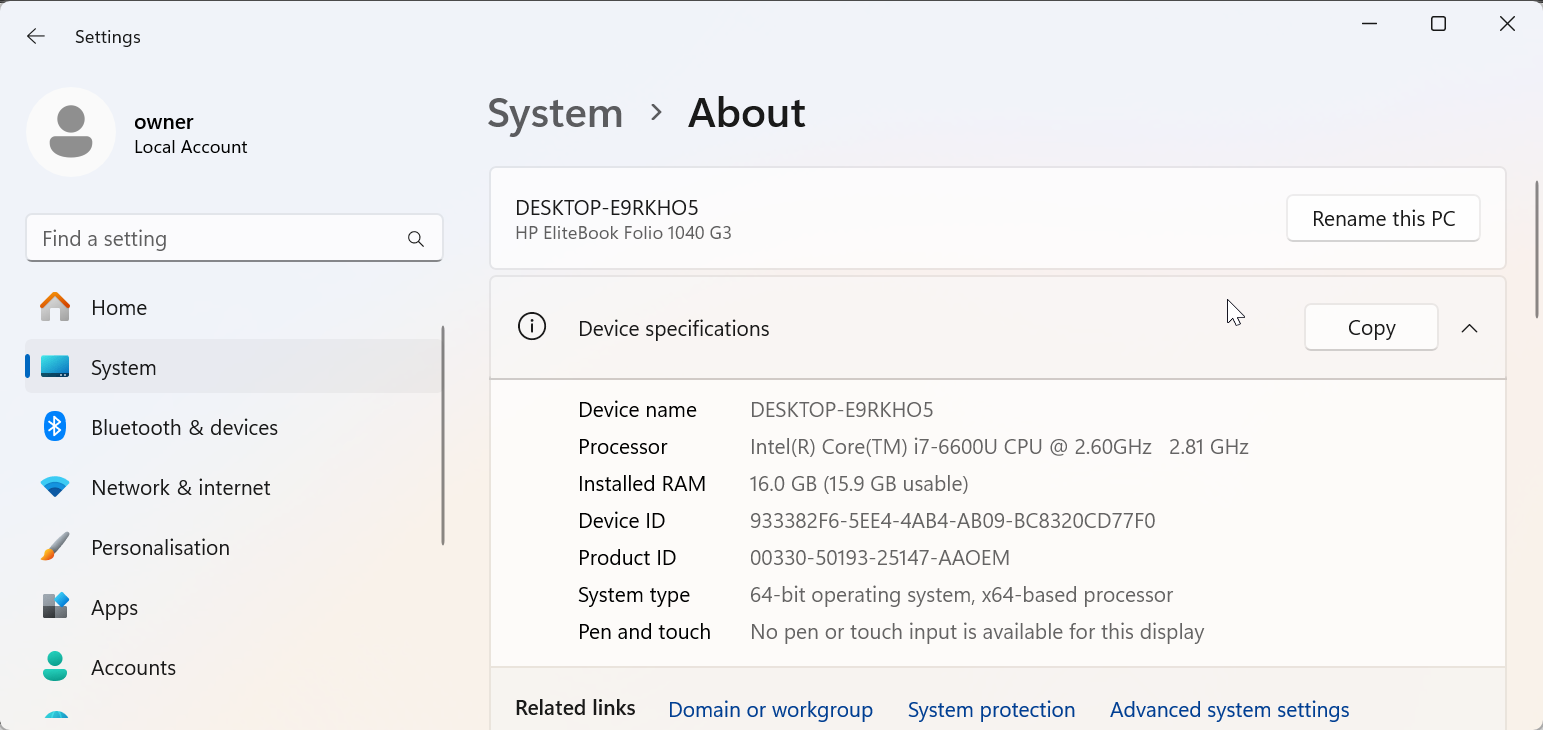
Discord runs smoothly on most modern Windows computers. You’ll need Windows 10 or later, at least 150 MB of free disk space, and a stable internet connection. These specs help ensure Discord installs correctly and performs without lag or crashes.
2) Download from the official Discord website
Open your browser and go to the official Discord download page. Click the Windows button, and the setup file (DiscordSetup.exe) will begin downloading automatically. This method ensures you get the latest version of the app directly from the source.

After the download is complete, locate the DiscordSetup.exe file in your Downloads folder and double-click it. Next, allow Windows to run the installer when prompted by User Account Control.
Then, wait while Discord downloads the latest updates and launches automatically. Lastly, sign in with your existing Discord account or create a new one to start chatting.
3) Install via the Microsoft Store
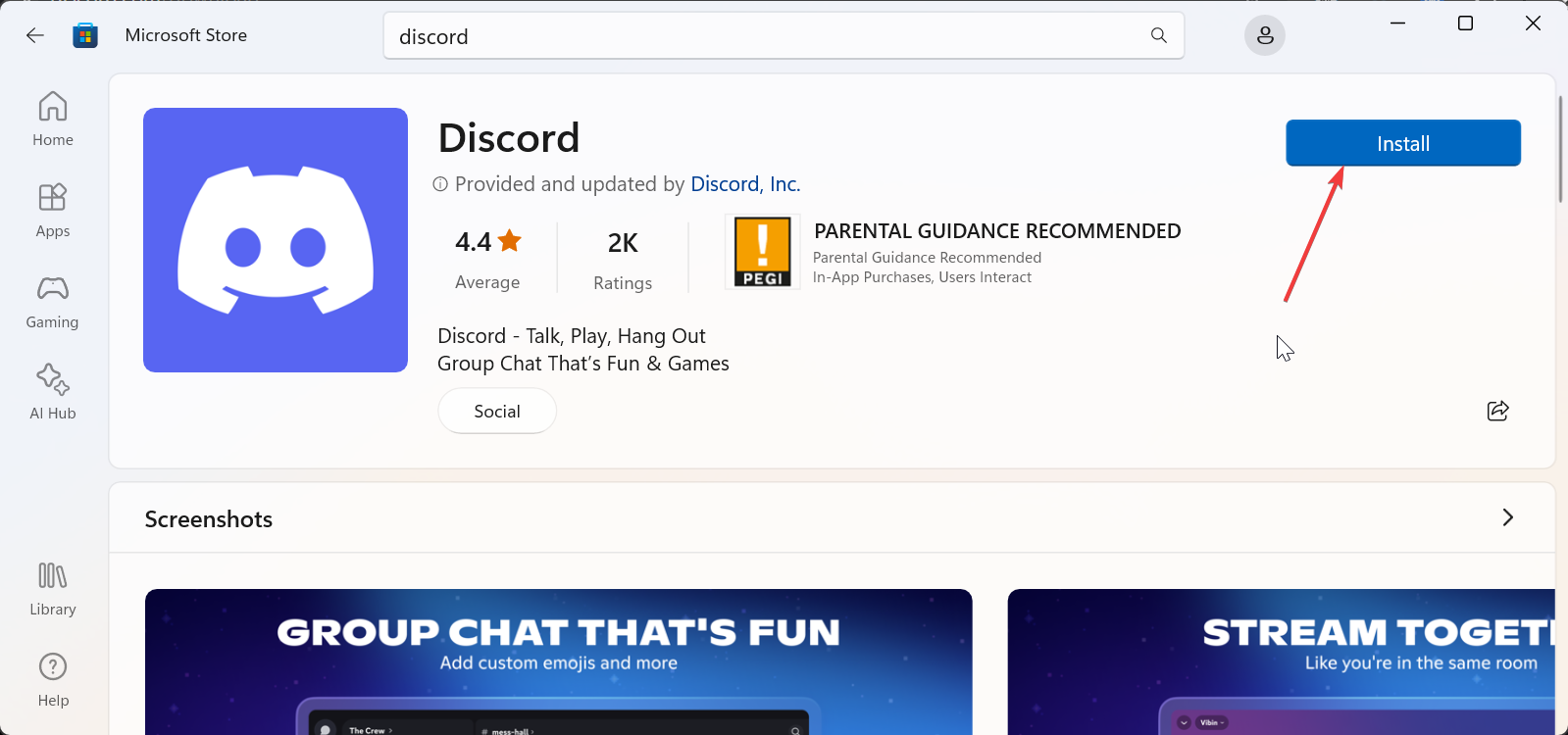
Open the Microsoft Store from the Start menu and type Discord in the search bar. Select the app from the results, then click Install to install it. The Store version keeps itself up to date automatically with your other Windows apps.
4) Update and configure Discord after installation
Discord updates automatically every time it starts. You can also check manually by reopening the app and pressing Ctrl + R to refresh. Enable hardware acceleration for smoother video calls and push-to-talk to improve voice clarity.
5) Troubleshooting installation problems on Windows
- Clear temporary Discord files: Press Win + R to open the Run dialog box, type
%AppData%\Discord, and press Enter. Next, delete the entire folder to remove leftover setup data. Now, re-run the Discord installer afterward. - Reinstall after removing leftover files: Go to Settings > Apps > Installed apps, find Discord, and click Uninstall. Once removed, download a fresh copy of the installer and try again.
- Check Windows Firewall or antivirus: Your security software may block Discord’s installer or online updates. Temporarily disable your antivirus or firewall, install the app, then enable them again.
Tips for using Discord on PC efficiently
- Disable Auto Start if you don’t need Discord to open at login.
- Adjust Notifications and Overlay settings for distraction-free gaming.
- Use keyboard shortcuts like Ctrl + / to see all keybinds instantly.
FAQs about downloading Discord on PC
Is Discord free? Yes, Discord is completely free to download and use. Optional upgrades like Nitro offer extra perks but aren’t required.
Can I install it on Windows 11? Absolutely. Discord works perfectly on both Windows 10 and Windows 11.
Why does Discord fail to open after installation? A corrupted cache or blocked update usually causes this. Clearing AppData and reinstalling the app resolves most cases.
Summary
- Check that your PC runs Windows 10 or later with at least 150 MB free space.
- Pick a download option: website installer, Microsoft Store, or web version.
- Run DiscordSetup.exe and complete the installation.
- Sign in or create a new Discord account after launch.
- Fix failed installs by clearing
%AppData%\Discordand reinstalling. - Customize Discord settings for performance, notifications, and startup behavior.
Conclusion
To install Discord on your PC, check system requirements, pick a download method, run the installer, and log in. If you face issues, clear AppData or reinstall the app. Once up and running, personalize your settings and join your favorite servers to start chatting.


Discussion (0)
Be the first to comment.