




When copy-paste feels limited to “the last thing you copied,” Clipboard history is the fix. If Win+V shows nothing or old clippings don’t stick, it’s usually because Clipboard history is off, sync is disabled, or an admin policy blocks it. This guide shows the exact toggles, Win+V tricks, pinning, clearing, and syncing so your most-used snippets are always one press away.
Before you start
- You need a local or Microsoft account on Windows 11.
- Win+V is the shortcut to open Clipboard history.
- Some work/school PCs may have Clipboard history disabled by policy.
1) Turn on Clipboard history
Open Settings > System > Clipboard and switch Clipboard history to On. Faster: press Win+V and choose Turn on when prompted. For a refresher on opening Settings fast, see 17 ways to open Settings in Windows 11.
2) Open the history and paste older items
Press Win+V to see your recent clippings. Click an item to paste it into the active app. To keep a favorite always handy, select ⋯ > Pin (or use the pin icon). For a full tour of the panel, see How to open and use the clipboard in Windows 11.
3) Pin, unpin, and reorder smartly
- Pin long URLs, canned replies, or boilerplate you reuse.
- Unpin when you no longer need something (Win+V > pin icon).
- Pinned items stay even after you clear the rest.
4) Clear one item—or everything
With Win+V open, use ⋯ > Delete on any entry. To wipe the list, go to Settings > System > Clipboard > Clear clipboard data > Clear. Note: Pinned items survive a general clear, so unpin first if you want a full reset. For a toggle-level walkthrough, check Enable/turn off Clipboard history in Windows 11.
5) Sync your clipboard across PCs (optional)
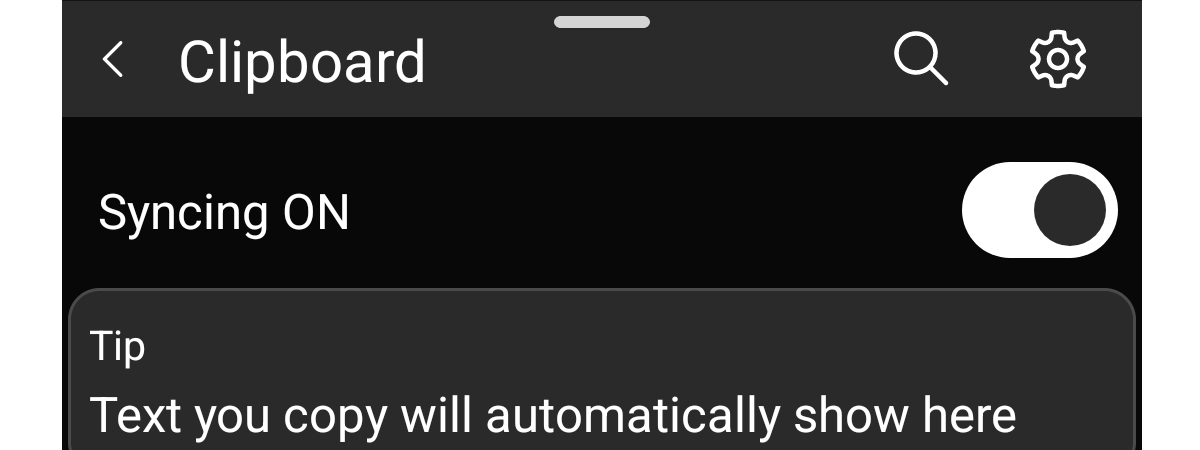
Go to Settings > System > Clipboard > Sync across devices and switch it On (sign in with your Microsoft account if asked). This lets you copy on one Windows 11 PC and paste on another. Step-by-step: Sync the Windows 11 clipboard.
6) Privacy tips
- Sensitive data: Clear after copying passwords or codes (Win+V > Delete).
- Work PCs: If you share your device, avoid leaving personal clippings pinned.
- Sync scope: If you enable sync, remember clippings can move between your signed-in devices.
7) Troubleshooting when Win+V does nothing
- Clipboard history is off: Re-enable it in Settings > System > Clipboard.
- Policy-managed PC: Your organization may block Clipboard history; check with IT.
- Explorer glitch: Press Ctrl+Shift+Esc > Windows Explorer > Restart.
- App focus: Make sure the target window is active when you press Win+V.
- Copy/paste basics: If copy/paste itself fails, use our companion guide All the ways to cut, copy, and paste in Windows for quick fixes and shortcuts.
Keyboard shortcuts you’ll actually use
- Win+V = Open Clipboard history
- Ctrl+C / Ctrl+X / Ctrl+V = Copy / Cut / Paste
- Win+I = Open Settings
Pro tip: Pin your top 3 clippings so Win+V becomes a tiny “favorites” launcher.
FAQs
Is Clipboard history available on Windows 10 too?
Yes, with the same Win+V shortcut and similar settings. See The Windows 10 Clipboard guide if you still use a mixed setup.
Can I search Clipboard history?
There’s no search box; keep must-use snippets pinned for one-click access.
Does clearing the clipboard remove pinned items?
No—pinned items persist until you unpin them.
Will sync share everything automatically?
Once enabled, recent clippings can roam between your PCs under the same Microsoft account. Turn Sync across devices off any time if you prefer local-only history.
Related reading on Digital Citizen
- How to open and use the clipboard in Windows 11 (full tour, pin/unpin).
- Enable or turn off Clipboard history and syncing (Windows 11) (toggles, clearing data).
- Sync the Windows 11 clipboard across devices (requirements and steps).
- 17 ways to open Settings in Windows 11 (fast access to the right panel).
- 5+ ways to cut, copy, and paste in Windows (shortcuts and alternatives).
Summary (ordered steps)
- Win+V > Turn on Clipboard history.
- Use Win+V to pick and paste older items.
- Pin important clippings for one-click reuse.
- Clear individual items or all history (pins survive).
- Optionally Sync across devices in Settings > System > Clipboard.
Conclusion
Turn on Clipboard history, use Win+V, and pin the three snippets you reuse most. Most users get fully set up in a minute, and productivity jumps immediately. If copy/paste is flaky beyond this, switch to the basic shortcut guide above and rule out app or system issues before digging into admin policies.

Discussion (0)
Be the first to comment.