



When a Chromebook keeps turning off without warning, the cause is usually tied to power settings, battery health, overheating, or software conflicts. ChromeOS is lightweight, but it still relies on stable hardware and clean system behavior to stay running.
Understanding what triggers the shutdown helps you apply the right fix instead of guessing. The steps below cover the most common and reliable solutions.
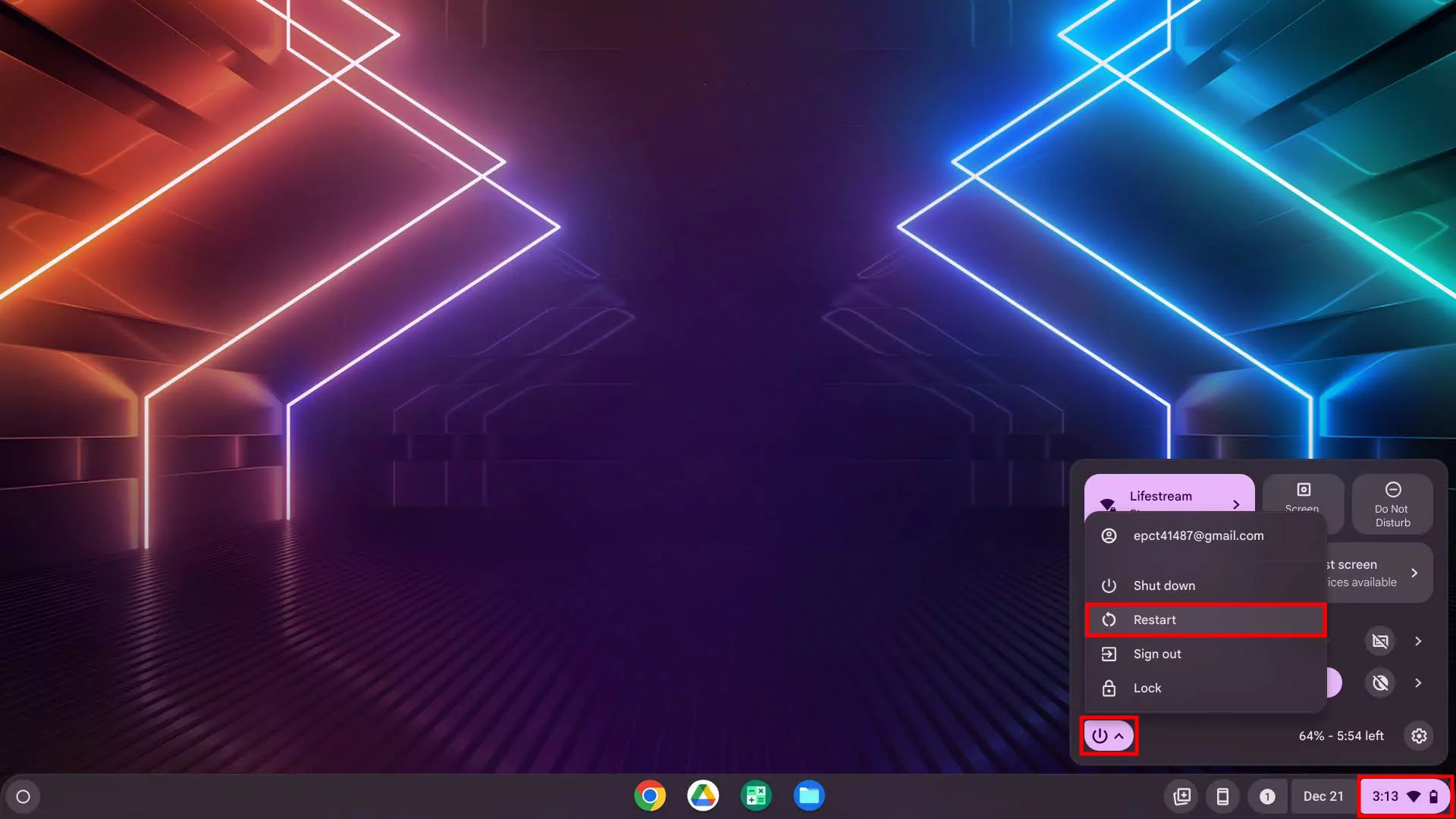
Restart The Chromebook
A simple restart clears temporary system processes that can cause instability. Chromebooks often stay in sleep mode for long periods, which can lead to memory or background task issues.
- Press and hold the Power button
- Select Restart from the power menu
Review Power And Sleep Settings
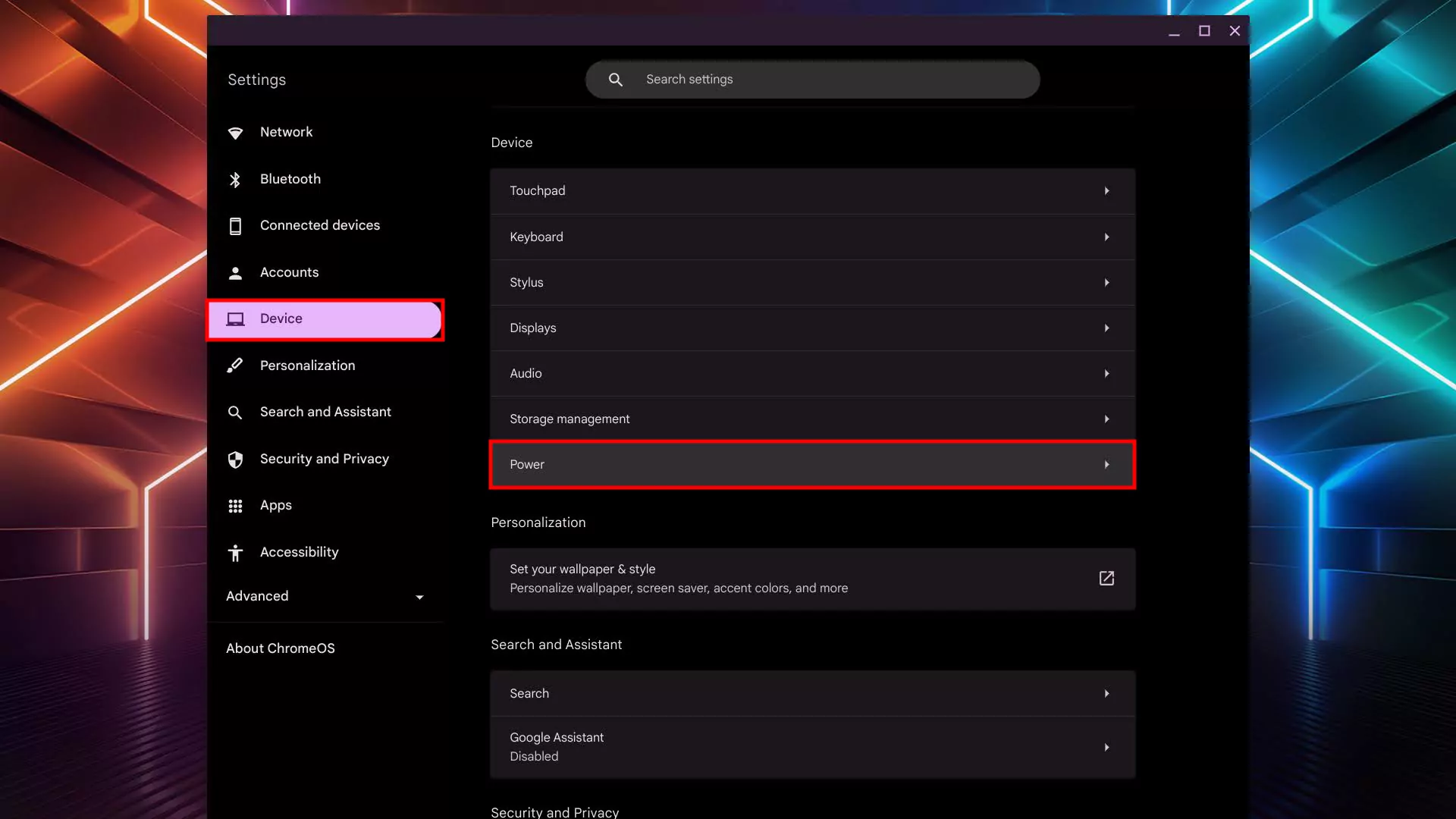
Incorrect power settings can make a Chromebook appear to shut down when it is actually entering sleep or display-off mode. Adjusting these options can stop sudden screen loss.
- Open Settings
- Go to System Preferences → Power
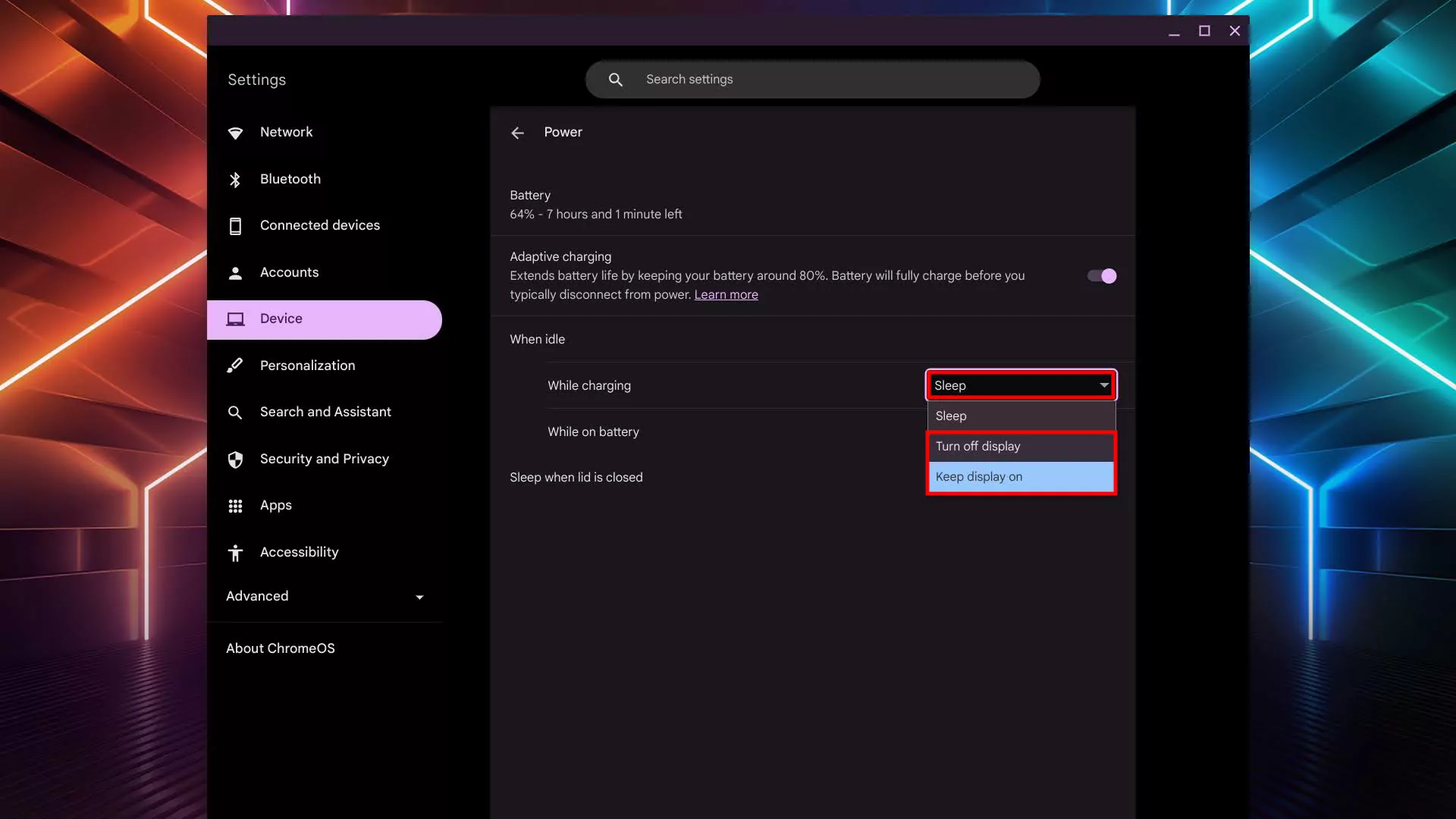
- Set inactivity behavior to keep the display on while in use
Disable Recently Added Extensions
Chrome extensions can cause Chromebook power issues, especially if they run persistent background scripts. Disabling them helps isolate the problem.
- Open Chrome and go to chrome://extensions
- Turn off recently installed extensions
- Remove the extension if the issue stops
Reset Chrome Flags
Chrome flags enable experimental features that may cause instability. If a Chromebook turns off by itself after enabling flags, resetting them can restore stability.
- Open Chrome and enter chrome://flags
- Disable recently enabled flags
- Restart the Chromebook
Check The Charger And Charging Port
Faulty chargers or debris in the USB-C port can interrupt power delivery, causing sudden shutdowns. This often looks like a battery problem when it is not.
- Try a different compatible charger
- Inspect the charging port for dust or debris
- Use an alternate charging port if available
Inspect Battery Health
Older batteries may no longer supply stable power, especially under load. A Chromebook with battery problems may shut down even at moderate charge levels.
- Note sudden drops in battery percentage
- Test the Chromebook while plugged in
- Consider battery replacement if shutdowns stop when charging
Check For Overheating
Chromebook overheating triggers automatic shutdowns to protect internal components. Poor airflow and dust buildup make this more likely.
- Open Settings → About ChromeOS → Diagnostics
- Monitor CPU temperature during normal use
- Ensure vents are clear and the device is well ventilated
Powerwash The Chromebook
A Powerwash resets ChromeOS to factory defaults and removes software conflicts. This step should be used after backing up important data.
- Open Settings
- Go to System Preferences
- Select Powerwash and confirm
Contact Professional Support
If hardware damage or internal power failure is suspected, professional repair may be required. Devices under warranty should be serviced by the manufacturer.
Troubleshooting Common Problems
If the Chromebook only turns off during heavy use, overheating is likely. If it shuts down while idle, power settings or battery issues are more common.
Random shutdowns shortly after installing apps or extensions usually point to software conflicts.
Tips
- Keep ChromeOS updated to avoid known power bugs
- Avoid placing the Chromebook on soft surfaces that block airflow
- Use only certified USB-C chargers
FAQ
Why does my Chromebook keep turning off at random battery levels?
This often indicates battery degradation or unstable power delivery.
Can overheating cause a Chromebook to shut down?
Yes, ChromeOS will power off automatically to prevent hardware damage.
Does Powerwashing fix shutdown issues?
It can fix software-related causes but will not resolve failing hardware.
Summary
- Most Chromebook shutdowns relate to power, heat, or software conflicts
- Basic checks often resolve the issue quickly
- Hardware problems require repair or replacement
Conclusion
If your Chromebook keeps turning off, start with simple fixes like restarting and adjusting power settings before moving to deeper troubleshooting. In many cases, identifying the root cause early prevents unnecessary repairs and data loss.

Discussion (0)
Be the first to comment.