




Chromebooks do not lock you into Google Chrome as much as many users think. ChromeOS supports other browsers through Android apps and Linux, letting you browse with Firefox, Edge, Brave, or Opera with a few setup steps. The key is understanding ChromeOS limits, so you know what works and what does not.
Table of contents
- How browsers work on ChromeOS
- Method 1: Use Android browser apps from Google Play
- Method 2: Use Linux browsers for full desktop features
- Choosing the right browser for your Chromebook
- Performance, battery, and security considerations
- Common problems and fixes
- Using browsers on school or work Chromebooks
- Tips for using multiple browsers efficiently
- FAQs
- Summary
How browsers work on ChromeOS
ChromeOS treats Chrome as a system component, not just an app. Because of this, you cannot fully remove or replace Chrome, but you can still rely on another browser for most daily tasks.
Can you replace Chrome as the default browser
ChromeOS does not allow changing the system default browser. Links from system apps still open in Chrome, but you can manually open your preferred browser and use it for regular browsing, work, and media.
Method 1: Use Android browser apps from Google Play
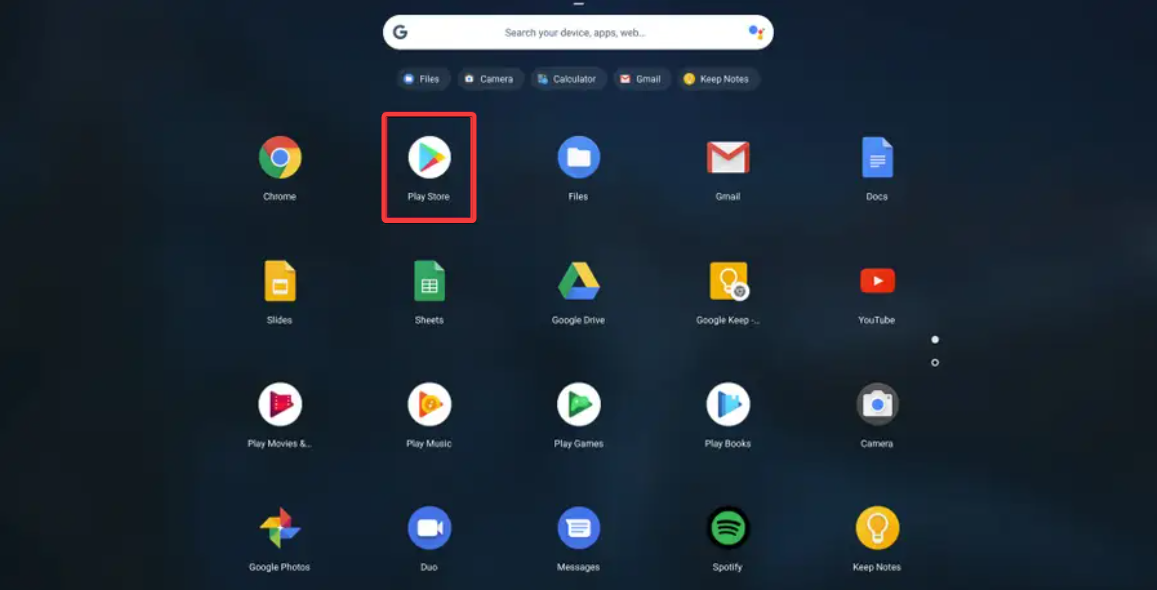
Installing Android apps from Google Play Store offer the easiest way to use another browser on a Chromebook. This method works best for casual users and newer devices.
Supported Android browsers on Chromebook
Popular options include Firefox, Microsoft Edge, Brave, and Opera. These install directly from the Play Store and behave like tablet apps.
Pros and limitations of Android browsers
Android browsers install quickly and update automatically. However, extension support is limited, keyboard shortcuts feel inconsistent, and performance can vary on lower-end Chromebooks.
Method 2: Use Linux browsers for full desktop features
Linux apps provide the closest experience to desktop browsers on Windows or macOS. This option suits power users and developers.
Enable Linux on Chromebook
Linux runs inside a secure container on ChromeOS. Most modern Chromebooks support it, but entry-level or managed devices may not.

Install browsers via Linux
Linux lets you install full desktop versions of Firefox, Chromium-based browsers, and other open-source options. This approach unlocks extensions, advanced settings, and better multitasking.
Pros and limitations of Linux browsers
Linux browsers offer full features and extensions. They may consume more resources and require basic command-line use for updates and troubleshooting.
Choosing the right browser for your Chromebook
The best browser depends on how you use your device and what you value most.
Best browser for privacy-focused users
Firefox and Brave stand out for tracking protection and privacy controls. Linux versions offer the strongest privacy features.

Best browser for syncing with Windows or macOS
Microsoft Edge works well for Windows users, while Firefox offers strong cross-platform syncing without tying you to one ecosystem.
Best option for low-end or older Chromebooks
Lightweight Android browsers usually run better on devices with limited RAM or storage. Linux browsers may feel slow on entry-level hardware.
Performance, battery, and security considerations
Android browsers often use less battery but feel less polished. Linux browsers deliver better features but draw more power. ChromeOS still isolates all browsers using strong sandboxing.
Common problems and fixes
- Browser won’t install from Play Store: Check that Google Play is enabled and that your Chromebook is not managed by a school or workplace.
- Linux browser won’t launch or crashes: Update the Linux container and verify that your Chromebook supports hardware acceleration properly.
- Extensions not working properly: Android browsers do not support desktop extensions. Switch to a Linux browser if extensions matter to you.
Using browsers on school or work Chromebooks
What is blocked by device administrators
Administrators often disable Play Store access and Linux entirely. These restrictions cannot be bypassed legally or safely.
What still works on managed Chromebooks
Some managed devices still allow Android apps or limited browsing through approved browsers.
Tips for using multiple browsers efficiently
- Pin your preferred browser to the Shelf for quick access
- Keep work and personal accounts in separate browsers
- Use Chrome only for system links and web apps
FAQs
Can I uninstall Google Chrome on a Chromebook? No. Chrome is part of ChromeOS and cannot be removed.
Is Firefox on Chromebook as good as on Windows? The Linux version comes very close. The Android version feels more limited.
Do alternative browsers affect Chromebook security? ChromeOS keeps strong isolation regardless of which browser you use.
Summary
- Chromebooks support other browsers through Android apps and Linux
- Chrome cannot be replaced as the system default
- Android browsers suit casual use, while Linux browsers fit advanced needs
- Managed Chromebooks have stricter limits
ChromeOS gives you more browser freedom than most users expect. Android apps offer a fast and simple option, while Linux browsers unlock full desktop features. Choose the method that fits your hardware and workflow, then rely on Chrome only when the system requires it.

Discussion (0)
Be the first to comment.