



If you use more than one Apple Watch with the same Apple ID, they can quickly become hard to tell apart. By default, watchOS assigns a generic name based on your iPhone, which isn’t always helpful when managing backups, Bluetooth connections, or Family Sharing devices.
Renaming your Apple Watch makes it easier to identify the correct device across Apple services and connected hardware. While you can’t change the name directly on the watch, the process only takes a minute using your paired iPhone.
How To Change The Name Of Your Apple Watch
Your Apple Watch name syncs through your iPhone, so you’ll need access to the device it’s paired with. Once updated, the new name appears across iCloud, Bluetooth menus, and Apple apps.
- Open the Watch app on your iPhone.
- Tap the My Watch tab at the bottom of the screen.
- Go to General.
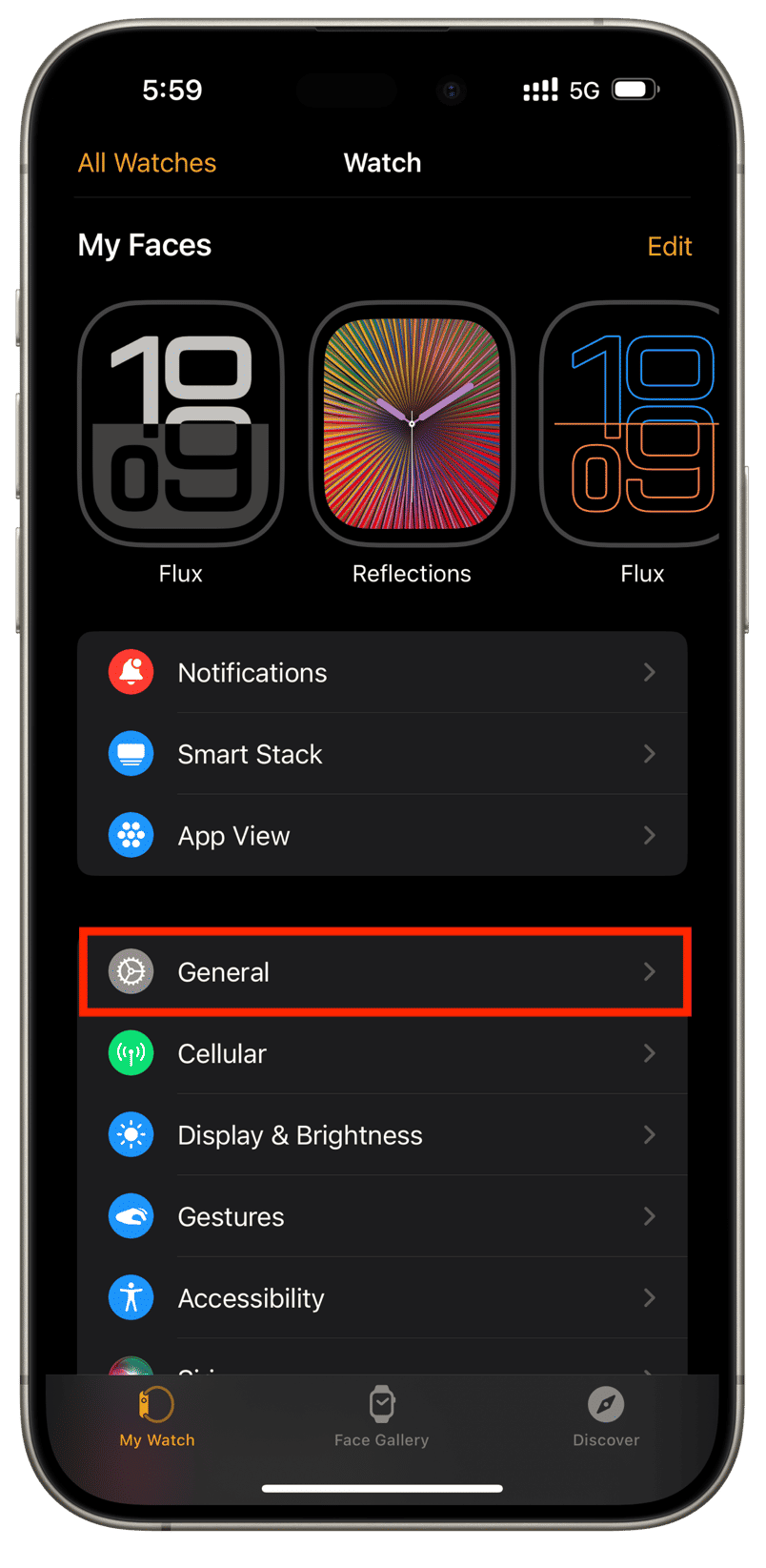
- Select About.
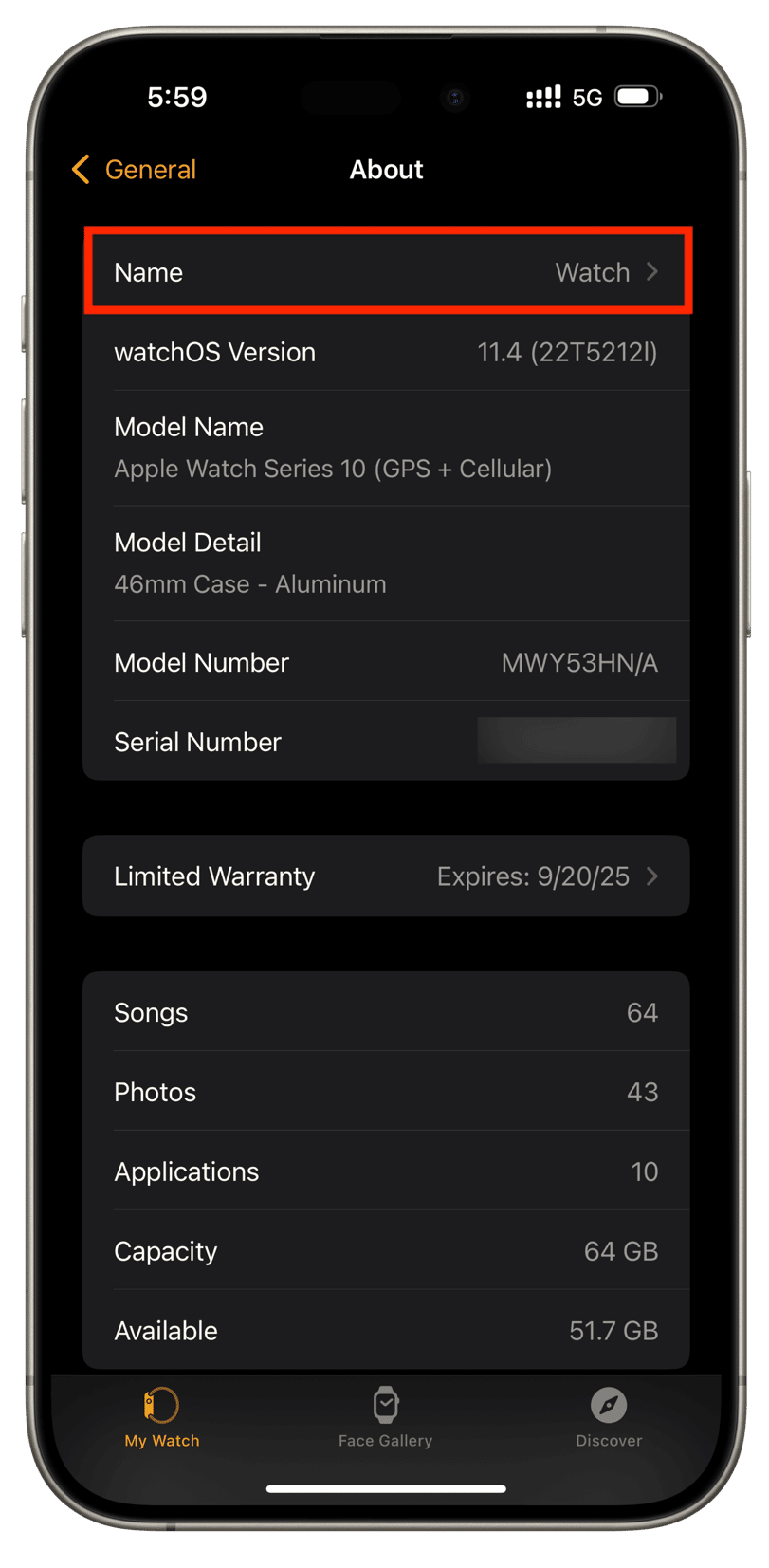
- Tap Name.

- Enter the new name for your Apple Watch.
- Tap Done to save the change.
The updated name may take a few moments to appear everywhere, especially if the watch is connected to other Apple devices or services.
Troubleshooting Common Problems
If the new name doesn’t appear right away, make sure your Apple Watch is powered on and within Bluetooth range of your iPhone. A brief disconnect or sync delay can prevent the update from showing immediately.
Restarting both the iPhone and Apple Watch often resolves naming sync issues. If the Watch app fails to update, ensure both devices run compatible versions of iOS and watchOS.
Tips
- Use unique names if you manage multiple Apple Watches under one Apple ID.
- Add identifiers like “Work,” “Kids,” or “Series 9” for easier recognition.
- Renaming helps when restoring from backups or pairing accessories.
- Family Sharing setups benefit from clearly labeled watch names.
FAQ
Can I rename my Apple Watch directly on the watch?
No. The name must be changed using the Watch app on the paired iPhone.
Will the new name appear on other Apple devices?
Yes. The updated name syncs across iCloud and appears on Macs, iPads, and Bluetooth menus.
Does renaming affect my Apple Watch data?
No. Changing the name does not delete apps, data, or settings.
Why hasn’t the name changed yet?
Sync delays are normal. Keep both devices connected and give the system a few minutes.
Summary
- Apple Watch names are managed through the paired iPhone.
- The Watch app lets you rename the device in seconds.
- Custom names help identify multiple watches and backups.
- Changes sync across Apple devices automatically.
Conclusion
Renaming your Apple Watch is a small change that delivers practical benefits, especially if you use multiple devices or manage watches for family members. Once updated, the custom name makes device management clearer across iCloud, Bluetooth, and Apple apps.
If the update doesn’t appear immediately, a short wait or restart usually resolves the issue.


Discussion (0)
Be the first to comment.