




An Apple Watch makes an excellent alarm because it stays on your wrist and uses haptic feedback to alert you silently. This reduces missed alarms caused by low volume, distance from your phone, or Silent Mode.
At the time of writing, watchOS supports multiple ways to set and manage alarms directly on the Apple Watch, without relying on an iPhone. The steps below show how to create, edit, and customize alarms so they work exactly the way you need.
How To Set An Alarm On Apple Watch Using Siri
Using Siri is the fastest way to set an alarm on Apple Watch. It works well when your hands are busy or you want to set an alarm quickly.
- Raise your wrist and say Hey Siri, or press and hold the Digital Crown.
- Say Set an alarm for followed by the time.
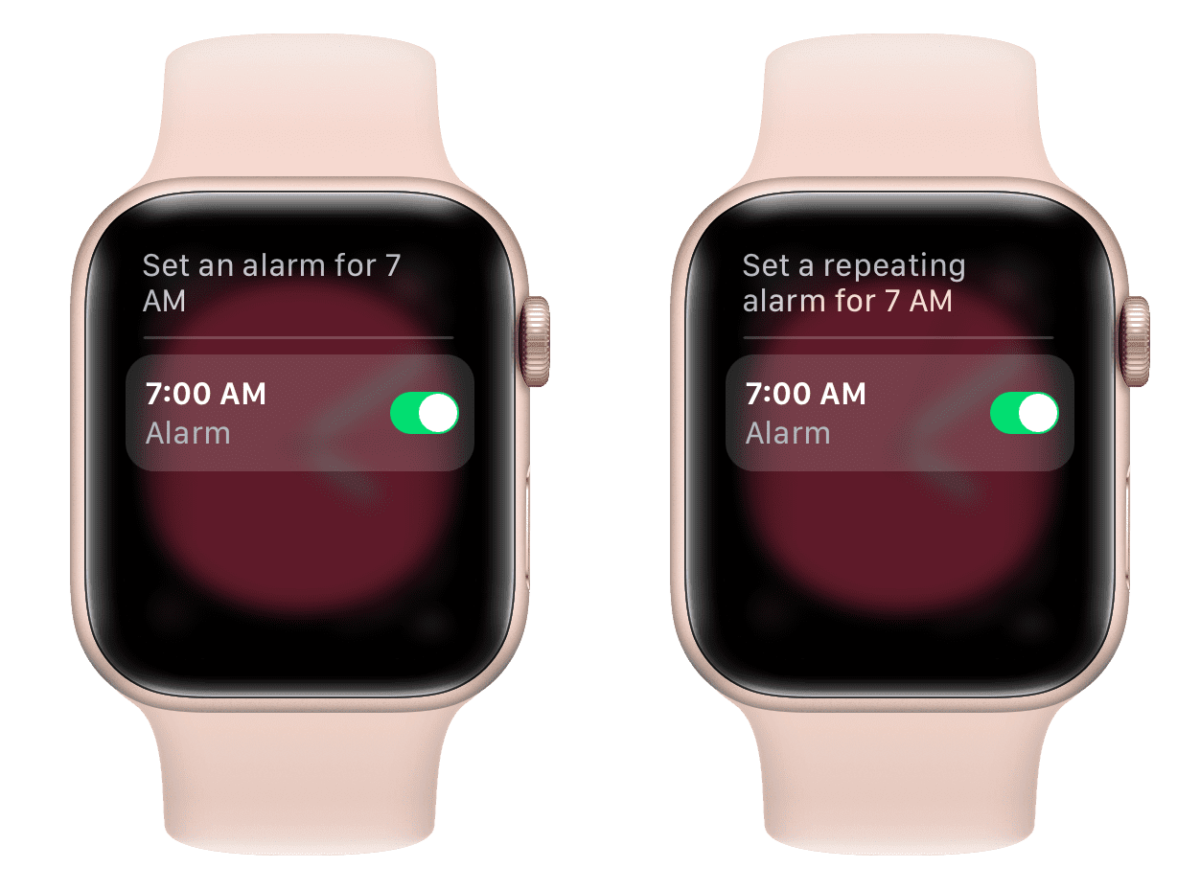
Siri confirms the alarm immediately, and you can verify it in the Alarms app.
How To Set An Alarm Using The Alarms App On Apple Watch
If you prefer manual control, the Alarms app gives you precise control over time and settings.
- Press the Digital Crown to open the app list.
- Open the Alarms app.

- Tap the Plus icon.

- Rotate the Digital Crown to set the hour and minutes.
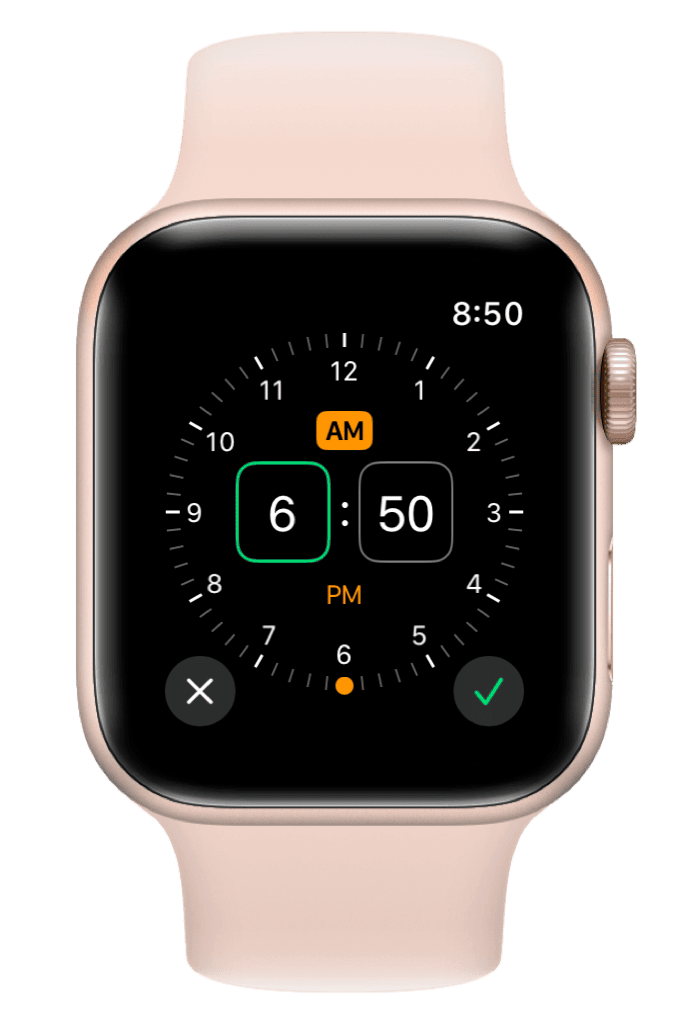
- Select AM or PM if applicable.
- Tap the Checkmark to save.
You can repeat these steps to create multiple alarms.
How To Edit Or Manage Existing Alarms On Apple Watch
Once an alarm is set, you can change its time, enable or disable snooze, or remove it entirely.
To change the alarm time:
- Open the Alarms app.
- Tap the alarm you want to edit.
- Tap Change Time.
- Adjust the time and confirm.
To turn off snooze:
- Open the alarm in the Alarms app.
- Scroll down.
- Toggle Snooze off.
To delete an alarm:
- Open the alarm.
- Scroll down.
- Tap Delete.
How To Skip A Wake Up Alarm On Apple Watch
Wake Up alarms created through the Sleep app can be skipped without deleting them.
- Open the Alarms app.
- Tap the Wake Up alarm.
- Tap Skip For Tonight.
You can reverse this by selecting Don’t Skip before the alarm time.
How To Sync iPhone Alarms With Apple Watch
Your Apple Watch can mirror alarms set on your iPhone, ensuring you receive alerts on both devices.
- Open the Watch app on your iPhone.
- Tap Clock.
- Enable Push Alerts From iPhone.
Your watch now alerts you whenever an iPhone alarm goes off.
How To Set Vibrate-Only Alarms On Apple Watch
For silent alerts, you can set alarms to vibrate only using Silent Mode.
- Press the Side button to open Control Center.
- Tap the Bell icon to enable Silent Mode.
Your Apple Watch will now use haptic feedback instead of sound.
Troubleshooting Common Problems
If alarms do not trigger, check that Silent Mode is not paired with Theater Mode. Restarting the watch often resolves missed alerts.
Ensure your Apple Watch is charged and updated to the latest watchOS version, as low battery levels may disable alarms.
Tips
- Use haptic alerts for quiet wake-ups.
- Disable snooze to avoid oversleeping.
- Set multiple alarms as backups.
- Verify alarm volume in Settings.
- Wear the watch snugly for reliable vibration.
FAQ
Can I set multiple alarms on Apple Watch?
Yes. You can create and manage multiple alarms directly from the Alarms app.
Will Apple Watch alarms work without my iPhone nearby?
Yes. Alarms run independently on the watch.
Why did my Apple Watch alarm not go off?
Low battery, Theater Mode, or outdated software may prevent alarms from working.
Summary
- Apple Watch alarms use sound or vibration.
- Siri offers the fastest setup method.
- Alarms can be edited or deleted easily.
- Silent Mode enables vibration-only alerts.
Conclusion
Using alarms on Apple Watch improves reliability and reduces missed alerts. With flexible setup options and strong haptic feedback, the Apple Watch works as a dependable personal alarm throughout the day and night.


Discussion (0)
Be the first to comment.