




If you wear your Apple Watch all day, seeing the same background can get repetitive. While switching watch faces manually works, it is not ideal if you want variety throughout the day. Apple provides built-in tools that let you automatically change Apple Watch wallpaper using photos or time-based automation.
Below are two reliable ways to change Apple Watch wallpaper automatically using the Photos watch face and the Shortcuts app on your iPhone.
Use The Photos Watch Face For Dynamic Wallpapers
The Photos watch face is the simplest way to automatically change wallpapers on Apple Watch. It cycles through selected images each time you raise your wrist or tap the display, creating a dynamic background without manual interaction.
You can display photos from an album, select images manually, or let the smartwatch rotate recent memories.
- Open the Watch app on your iPhone
- Tap Face Gallery
- Select Photos or Portraits watch face
- Choose an album, specific photos, or dynamic memories
- Add the watch face to your Apple Watch
The Photos watch face supports up to 24 images and automatically rotates them, making it ideal for users who want their Apple Watch background to change without setting a schedule.
Automatically Change Watch Face Using Shortcuts
If you want more control, such as changing your Apple Watch wallpaper based on time of day or location, the Shortcuts app offers a powerful solution. This method switches entire watch faces automatically rather than just background images.
Your Apple Watch must be paired with an iPhone, and Shortcuts must be enabled.
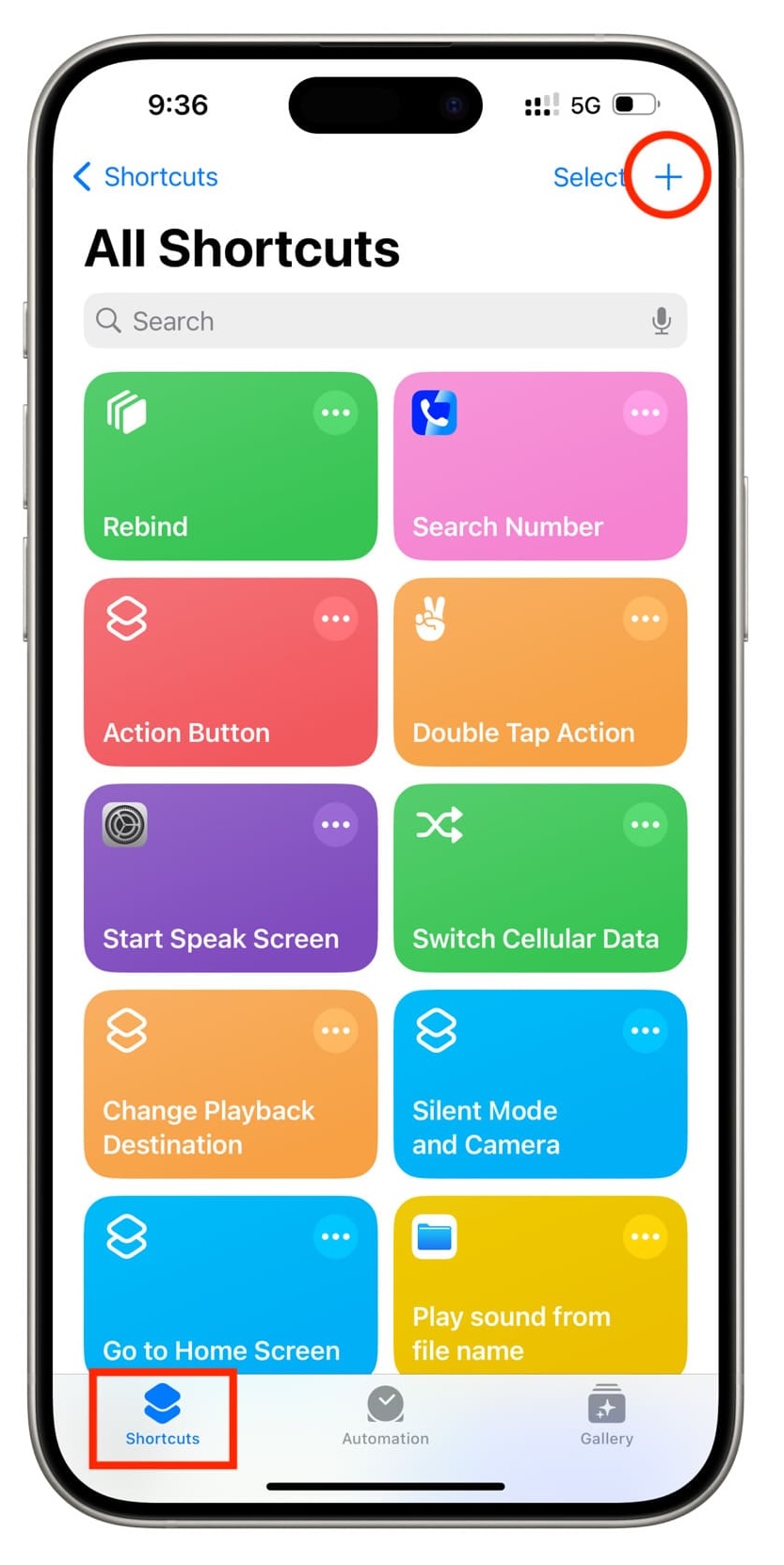
- Open the Shortcuts app on your iPhone
- Create a new shortcut
- Add Get My Watch Faces
- Use Get Item From List and set it to Random
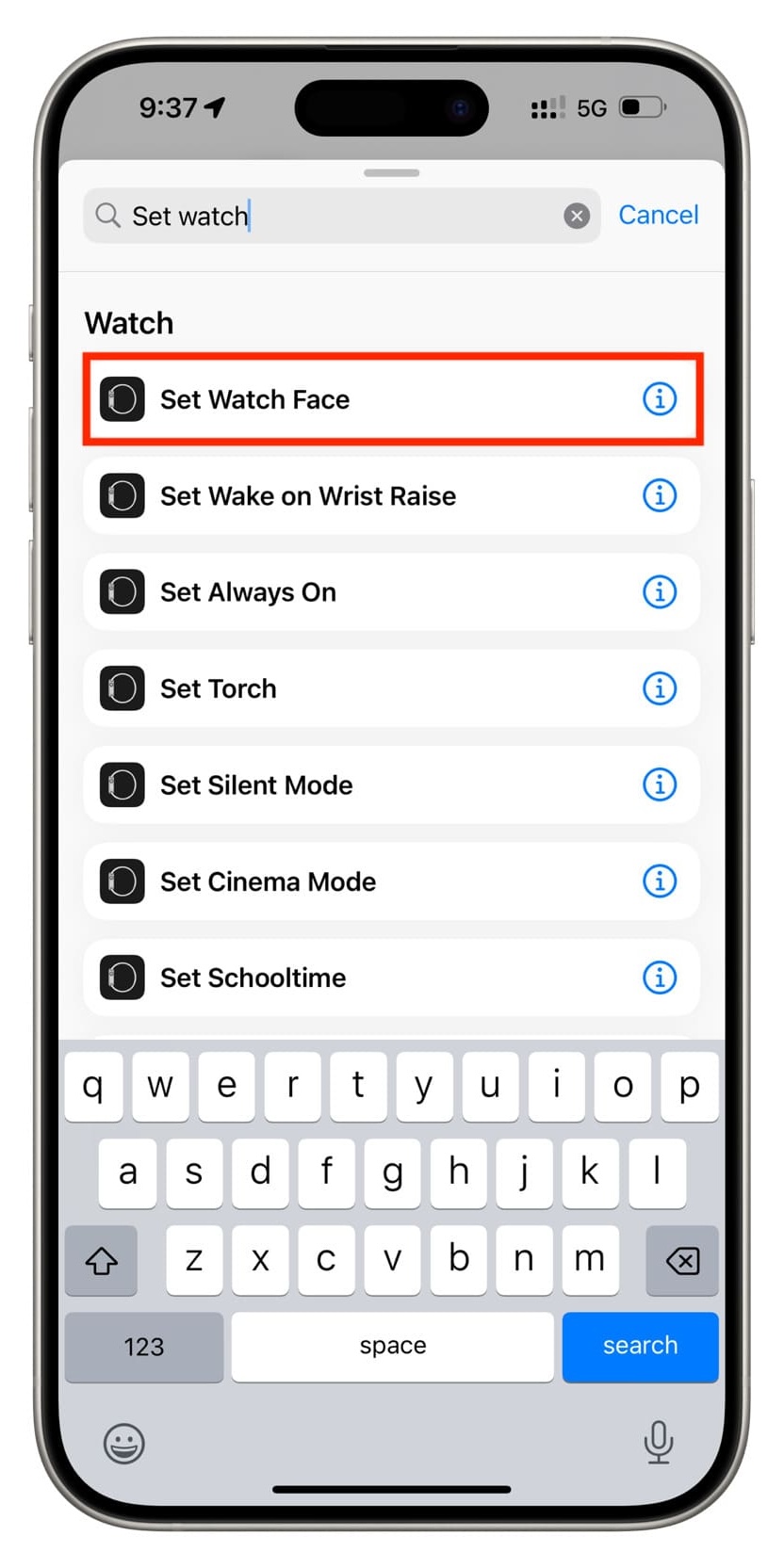
- Add Set Watch Face action

- Save the shortcut
- Create an automation using Time Of Day or Location
- Select the shortcut you created
This setup allows your Apple Watch to automatically change watch faces throughout the day, effectively giving you scheduled wallpaper changes.
Troubleshooting Common Problems
If wallpapers are not changing, confirm that the Photos watch face is active or that the Shortcuts automation is enabled. Also ensure your Apple Watch and iPhone remain connected via Bluetooth.
Blurry wallpapers usually indicate low-resolution images. Use high-quality photos sized appropriately for Apple Watch displays.
Tips
- Use portrait-oriented photos for better cropping
- Create dedicated albums for seasonal wallpapers
- Limit Live Photos to reduce battery impact
- Combine Photos watch face with Shortcuts for maximum variety
FAQ
Can Apple Watch wallpapers change automatically without an iPhone? No, initial setup requires an iPhone, though photos rotate independently afterward.
Does automatically changing wallpapers affect battery life? The impact is minimal, though Live Photos may consume slightly more power.
Can wallpapers change based on time of day? Yes, using Shortcuts automation with time-based triggers.
Summary
- The Photos watch face automatically rotates selected images
- Shortcuts allow scheduled or location-based watch face changes
- Both methods work using built-in Apple features
Conclusion
Automatically changing wallpapers on Apple Watch is easy using the Photos watch face or Shortcuts automation. Whether you prefer spontaneous photo rotation or scheduled changes throughout the day, these tools help keep your watch display fresh and personalized without extra apps.



Discussion (0)
Be the first to comment.