




Changing the wallpaper on your Apple Watch lets you personalize how your device looks and feels every time you raise your wrist. You can switch Watch Faces, use your own photos as a background, or manage everything directly from your iPhone.
Apple treats Watch Faces and photo wallpapers differently, and understanding that distinction makes customization much easier. Below are the most reliable ways to change your Apple Watch background.
Understand Watch Faces Vs Photo Wallpapers
A Watch Face controls the entire layout of your Apple Watch device, including the clock style, complications, colors, and animations. A photo wallpaper places an image behind basic time elements with limited customization.
If you want deep customization, Watch Faces offer the most flexibility. Photo wallpapers work best for personal images or minimal designs.
Change The Apple Watch Wallpaper Using The Watch
You can quickly switch or add Watch Faces directly from your Apple Watch. This method works well for fast changes without using your iPhone.
- Wake your Apple Watch and unlock it if required.
- Press and hold the current Watch Face until customization mode appears.
- Swipe left or right to browse existing Watch Faces.
- Swipe all the way to the right and tap the + icon to add a new Watch Face.

- Scroll through available faces and tap Add.
The new Watch Face becomes active immediately after adding it.
Change The Apple Watch Wallpaper Using Your iPhone
Using the iPhone offers the clearest previews and the most control. This is the easiest way to switch Watch Faces, edit them, or remove ones you no longer use.
- Open the Watch app on your iPhone.
- View your current Watch Faces at the top of the app.
- Tap any Watch Face to preview it.
- Select Set As Current Watch Face to apply it.
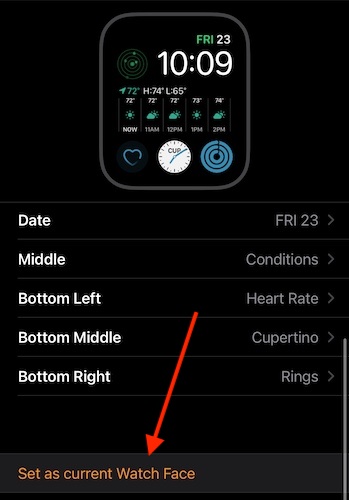
- Tap Edit to adjust colors, styles, and complications.
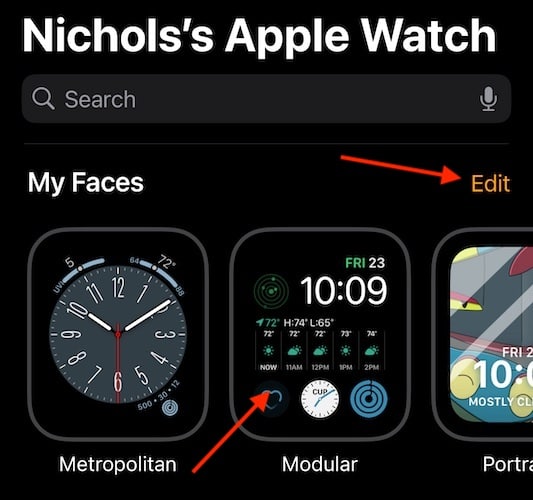
- Use the edit screen to delete Watch Faces you no longer want.
- Tap Face Gallery to browse and download new Watch Faces.
Some Watch Faces support more complications and styling options than others, so experimenting helps you find the best fit.
Add A Photo As Your Apple Watch Wallpaper Using The Watch
If you want to use a personal image, Apple Watch allows photos to be set as a background with minimal setup.
- Press and hold the Watch Face.
- Swipe left and tap the + icon.
- Scroll down and select Photos.
- Tap Add and choose an image.
The photo appears behind the time, with limited customization options.
Add A Photo Wallpaper Using Your iPhone
The iPhone makes it easier to select multiple images or entire albums for dynamic photo wallpapers.
- Open the Photos app and add images to Favorites or an album.
- Open the Watch app on your iPhone.
- Go to Face Gallery and select Photos.
- Choose specific photos, an album, or dynamic memories.
- Tap Add to apply the wallpaper.
The Apple Watch automatically crops images to fit the display.
Troubleshooting Common Problems
If your new wallpaper does not appear, make sure your Apple Watch is connected to your iPhone and synced. Restarting both devices often resolves display issues.
Some Watch Faces are unavailable on older Apple Watch models or older watchOS versions.
Tips
- Use the iPhone for precise customization and previews.
- Photo wallpapers work best with high-contrast images.
- Delete unused Watch Faces to keep switching simple.
- Explore Face Gallery regularly for new designs.
FAQ
Can I use a live or dynamic wallpaper on Apple Watch?
Apple Watch supports dynamic photo selections but does not support live wallpapers like iPhone.
Do different Apple Watch models support different Watch Faces?
Yes. Some Watch Faces require newer Apple Watch models or newer watchOS versions.
Can I revert to an old Watch Face?
Yes. Previously used Watch Faces remain available unless you delete them.
Summary
- Watch Faces offer the most customization.
- The iPhone Watch app provides the best control.
- Photos can be used as simple wallpapers.
- All changes sync instantly between devices.
Conclusion
Changing the wallpaper on your Apple Watch is quick once you know the right method. Whether you prefer Watch Faces or personal photos, using the iPhone gives you the smoothest experience and the most customization options.
Experiment with different designs to find a setup that fits your style and daily routine.



Discussion (0)
Be the first to comment.