




Apple Watch icons appear across the watch face, Control Center, and during activities like workouts, charging, or navigation. While some symbols are easy to recognize, others can feel confusing if you do not know what triggered them.
Understanding Apple Watch icons and symbols helps you quickly identify alerts, connectivity status, and active features without opening apps or digging through settings.
Apple Watch Status Icons Explained
Status icons usually appear at the top of the Apple Watch screen. They provide a quick snapshot of notifications, connectivity, and system activity.
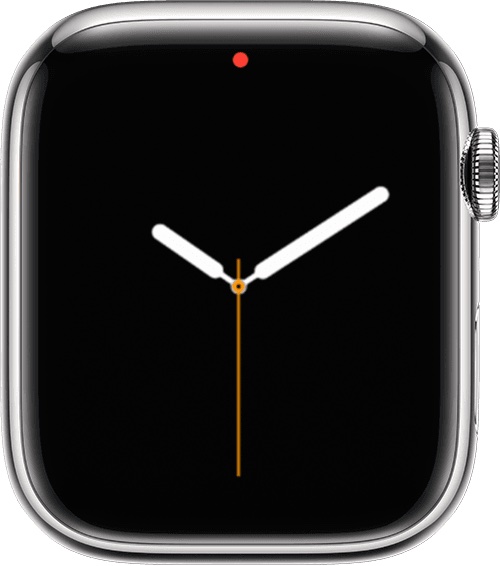
The red dot icon means you have unread notifications waiting in Notification Center.
The green lightning icon shows that your Apple Watch is charging, while the red lightning icon signals a critically low battery.

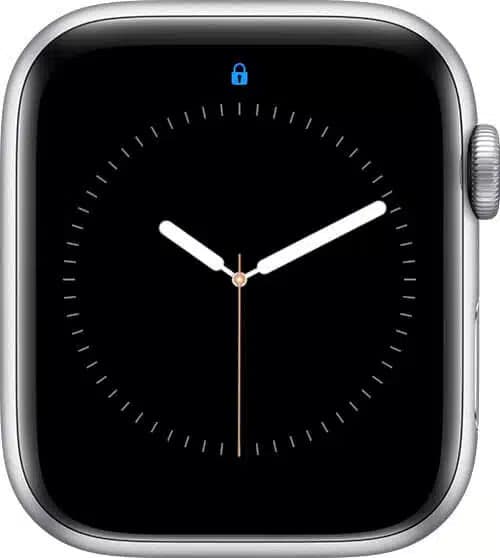
A lock icon appears when the watch is locked by passcode, usually after removal from your wrist if Wrist Detection is enabled.
The water drop icon indicates Water Lock mode, which disables touch input and helps eject water from the speaker when turned off.
The crescent moon icon means Do Not Disturb or a Focus mode is active, silencing most alerts except alarms.
An airplane icon confirms Airplane Mode is enabled, disabling wireless connections.
The theater mask icon signals Theater Mode, preventing the screen from lighting up automatically.
A workout icon appears when an active workout session is running.
The red cross icon indicates a cellular Apple Watch has lost its mobile signal.
An iPhone with a slash means the Apple Watch is disconnected from the paired iPhone.
A green iPhone icon confirms the watch is actively connected to the iPhone.
The arrow-shaped location icon appears when an app or watch face uses location services.
The Wi-Fi icon shows an active Wi-Fi connection.
The spinning activity icon indicates wireless or background activity.
An orange microphone icon means the Apple Watch microphone is in use.
The Now Playing icon appears when audio is playing on the watch or paired iPhone.
The LTE icon displays cellular signal strength on supported models.
The green phone icon shows an active call.
Navigation icons appear during Apple Maps or third-party navigation use.
A car icon indicates Car Focus is enabled on a paired device.
The yellow circle icon represents Low Power Mode.
Apple Watch Control Center Icons Explained
Control Center icons appear when you swipe up or press the Side button, depending on watchOS version.
The cellular icon toggles mobile data on supported models.
The Wi-Fi icon controls wireless network access.
The Ping iPhone icon makes your paired iPhone play a sound to help locate it.
The battery percentage icon shows remaining battery and provides Low Power options.
The crossed bell icon activates Silent Mode.
The flashlight icon turns the display into a light source with multiple modes.
The AirPlay icon lets you choose audio output devices.
The bed icon shows Sleep mode is active.
Work and Personal focus icons indicate active Focus modes.
The double A icon adjusts Dynamic Type text size.
The bell with sound waves icon enables Siri Announce Notifications.
The ear icon appears when headphone audio reaches potentially unsafe levels.
The compass icon signals Backtrack is active on supported models.
Troubleshooting Common Problems
If icons appear unexpectedly, check Control Center and Focus settings first.
Connectivity icons often change due to distance from your iPhone or weak network signals.
Restarting the Apple Watch can clear stuck or incorrect status indicators.
Tips
- Swipe down from the watch face to review notifications.
- Use Control Center to quickly identify active modes.
- Check Focus settings when alerts are silent.
- Watch battery icons closely during workouts.
- Learn common symbols to avoid unnecessary troubleshooting.
FAQ
Why does a red dot keep appearing on my Apple Watch?
It means you have unread notifications.
What does the yellow circle icon mean?
It shows Low Power Mode is enabled.
Why is there a microphone icon on my watch?
An app or system feature is actively using the microphone.
Summary
- Icons show system status and alerts.
- Status icons appear at the top of the screen.
- Control Center icons manage features.
- Knowing icons improves daily usability.
Conclusion
Apple Watch icons and symbols provide essential information at a glance. Once you understand what each one represents, navigating watchOS becomes faster, clearer, and far less confusing.



Discussion (1)
My app face will not appear and there is a pink headed top of a person on the face, very small. I can not use any apps as they are not seen!