



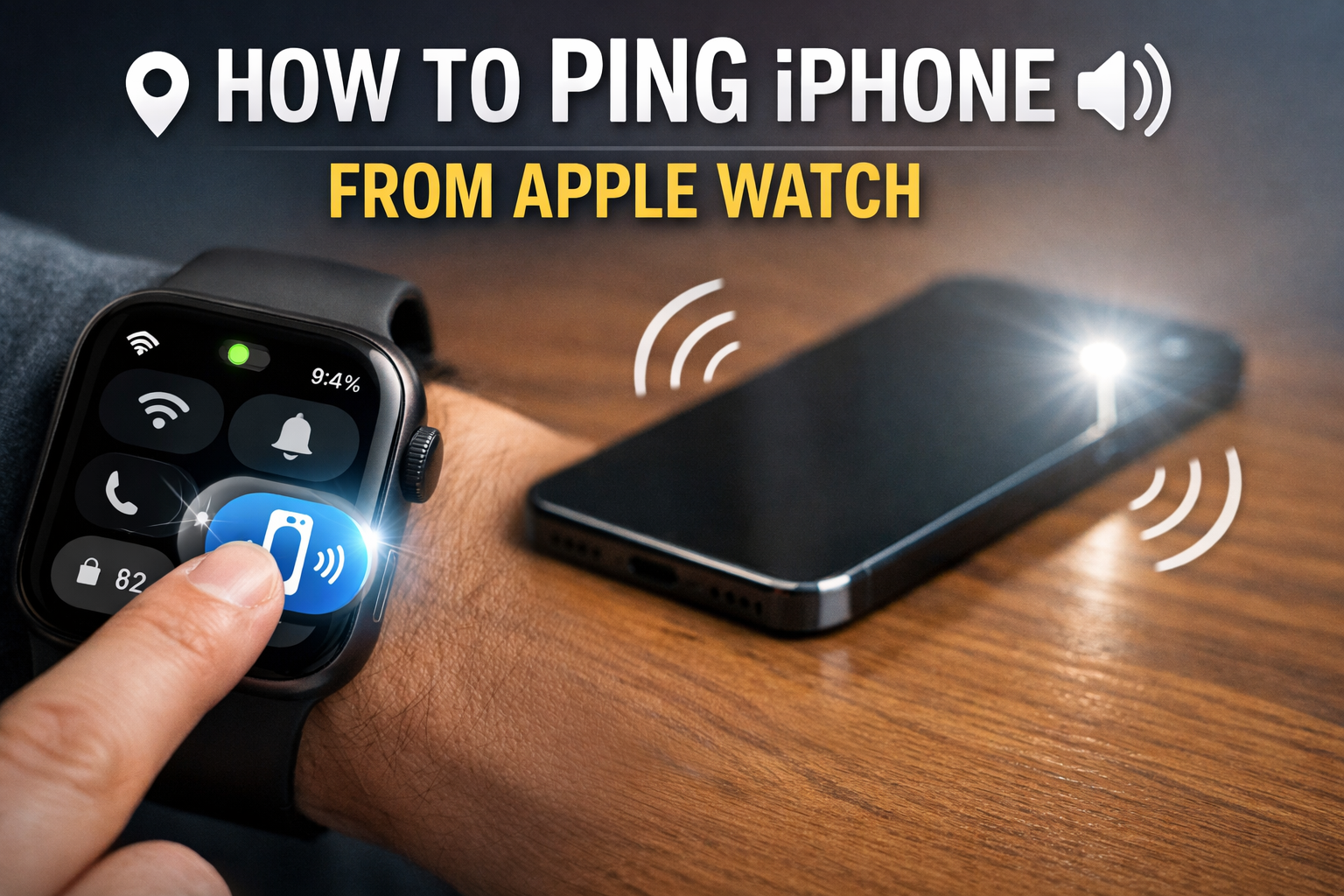
If you’ve misplaced your iPhone nearby, your Apple Watch can make it ring in seconds. Using the built-in ping feature, you can trigger a sound and even flash the iPhone’s light, even when the phone is on silent. This guide shows exactly how to ping an iPhone from an Apple Watch and what to do if the ping button doesn’t work.
Table of contents
- How to ping your iPhone using Apple Watch Control Center
- How to ping an iPhone using the Find Devices app on Apple Watch
- Does ping work if the iPhone is on silent or Focus mode?
- What happens if your iPhone is offline or powered off
- Why you can’t find the ping button on Apple Watch
- Fix ping not working on Apple Watch
- Tips for finding a misplaced iPhone faster
- FAQs
- Summary
How to ping your iPhone using Apple Watch Control Center
This is the fastest and most reliable method when your iPhone is nearby and connected to your watch.
Open Control Center on Apple Watch
Follow these exact steps based on your watchOS version.
- Wake your Apple Watch.
- Press the Side button once to open Control Center.


- If Control Center does not appear, swipe up from the bottom of the watch face.
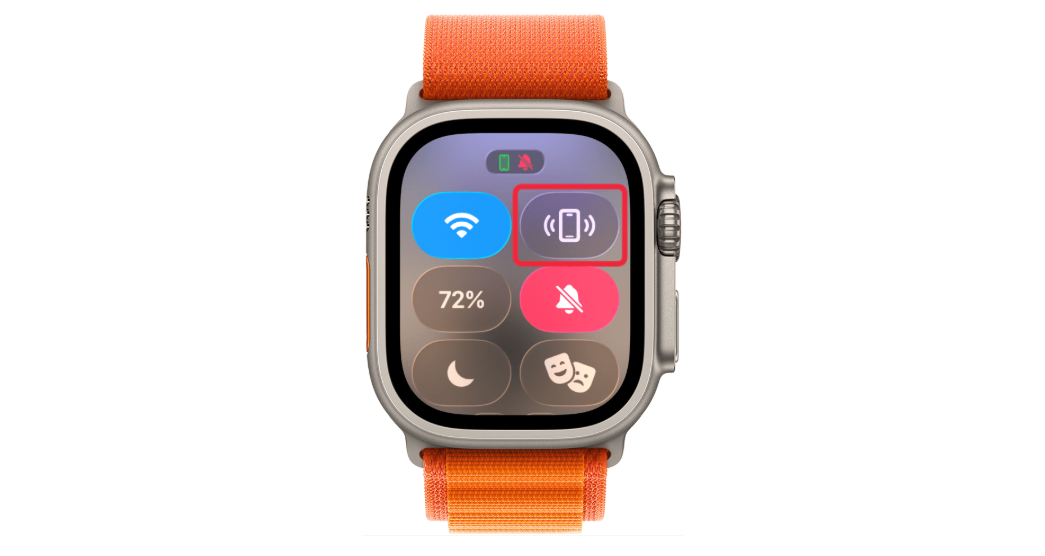
Tap the iPhone ping button
- Look for the iPhone icon with sound waves.
- Tap the icon once.


- Listen for the ping sound coming from your iPhone.
Make the iPhone flash and play a sound
This helps when the phone is under furniture or face down.
- Press and hold the iPhone ping button.


- Release after one second.
- Your iPhone plays a sound and flashes the LED light.
How to ping an iPhone using the Find Devices app on Apple Watch
Use this method when the iPhone is farther away, or the Control Center ping fails.
Open the Find Devices app
This app works over Apple ID and network connections.
- Press the Digital Crown.
- Open the Find Devices app.
- Wait for the device list to load.
Select your iPhone and play a sound
This forces the iPhone to ring through Find My.
- Tap your iPhone from the list.
- Tap Play Sound.

- Follow the sound or the on-screen distance indicator.
Does ping work if the iPhone is on silent or Focus mode?
Yes, ping still works in most cases. The iPhone plays a sound even if silent mode or Focus is enabled.
What to expect:
- Silent switch on: sound still plays.
- Focus or Do Not Disturb: sound still plays.
- Volume low: sound plays at an audible level.
- Long press: flashlight activates regardless of sound settings.
What happens if your iPhone is offline or powered off
Ping has limits that you should know. The first is that if the iPhone is powered off, ping will not work. Also, if your phone is in Airplane mode, the Control Center ping will fail. Lastly, if there is no Apple ID connection, Find Devices may not load.
Why you can’t find the ping button on Apple Watch
This usually means a connection or layout issue.
Apple Watch and iPhone connection requirements
Both devices must stay paired and signed in. So, you need to turn on Bluetooth on your iPhone and make sure Apple Watch connects to it.
- Open Settings on iPhone.
- Tap Bluetooth and confirm it’s on.


- Open the Watch app and confirm pairing status.
- Ensure both devices use the same Apple ID.
Control Center customization issues
- Open Control Center on Apple Watch.
- Scroll to the bottom.
- Tap Edit.
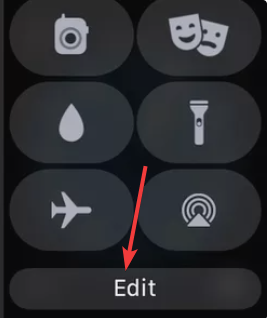

- Locate the Ping iPhone button.
- Add it back if missing.
Fix ping not working on Apple Watch
If tapping the button does nothing, follow these fixes in order.
Restart the Apple Watch and iPhone
- On iPhone, hold the Side button and power off.
- On Apple Watch, hold the Side button and power off.
- Now, turn on the iPhone first.
- Then, turn on the Apple Watch after one minute.
Check Bluetooth and Wi-Fi status
- Open Settings on iPhone.
- Enable Bluetooth and Wi-Fi.
- Open Control Center on Apple Watch.
- Confirm the phone icon shows connected status.
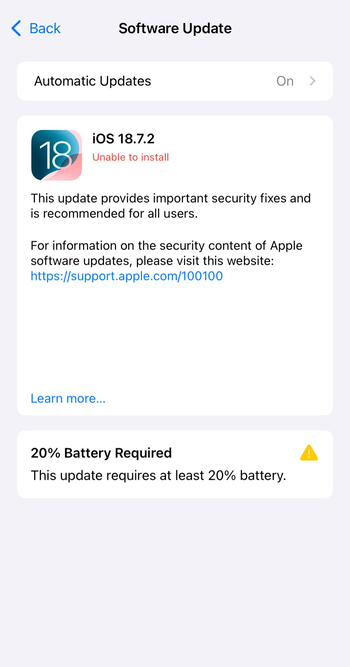
Update watchOS and iOS
- Open the Watch app on iPhone.
- Tap General, then Software Update.
- Install available updates.
- Repeat on iPhone via Settings, General, then Software Update.

Tips for finding a misplaced iPhone faster
- Use long-press ping to trigger the flashlight.
- Walk slowly and listen between pings.
- Check under cushions and furniture first.
- Use Find Devices when moving between rooms.
FAQs
Can Apple Watch ping iPhone from far away?
Yes, but only through the Find Devices app when the iPhone is online.
Can multiple Apple Watches ping the same iPhone?
Yes, if they are paired to the same Apple ID.
Does ping work if the iPhone battery is dead?
No, the iPhone must be powered on.
Can a cellular Apple Watch ping an iPhone without Bluetooth?
Yes, but only through Find Devices, not Control Center.
Summary
- Use Control Center for instant nearby pings.
- Long-press enables sound and flashlight.
- Use Find Devices for longer distances.
- Restart and update devices if ping fails.
Control Center ping is the fastest way to find a nearby iPhone. Use Find Devices when distance or connection issues block the basic ping method.



Discussion (0)
Be the first to comment.