



If you want your iPhone to feel fresh without changing backgrounds every day, you can set your iPhone wallpaper to switch automatically. At the time of writing, iOS includes built-in options for photo shuffling, and you can also use Shortcuts automations or Focus customization for more control.
Use the method that matches how you want wallpapers to rotate: random photos, a schedule, a Focus trigger, or a one-tap wallpaper app workflow.
Method 1: Use Photo Shuffle In Wallpaper Settings
Photo Shuffle rotates a set of photos on your Lock Screen automatically. It works best if you already keep favorite wallpapers in a dedicated Photos album.
- Open Settings.
- Tap Wallpaper.
- Tap Add New Wallpaper.
- Select Photo Shuffle.
- Choose Featured photos or tap Select Photos Manually.
- Tap Shuffle Frequency, then pick On Tap, On Lock, Hourly, or Daily.
- Customize the Lock Screen, then tap Add.
- Tap Set As Wallpaper Pair (or choose a different Home Screen style).
Method 2: Use Shortcuts To Change Wallpaper On A Schedule
Shortcuts lets you change wallpapers automatically based on time, location, or other triggers. This method works well if you want your iPhone wallpaper to change at a specific time every day.
Create A Shortcut That Picks A Random Photo
- Open the Shortcuts app.
- Tap + to create a new shortcut.
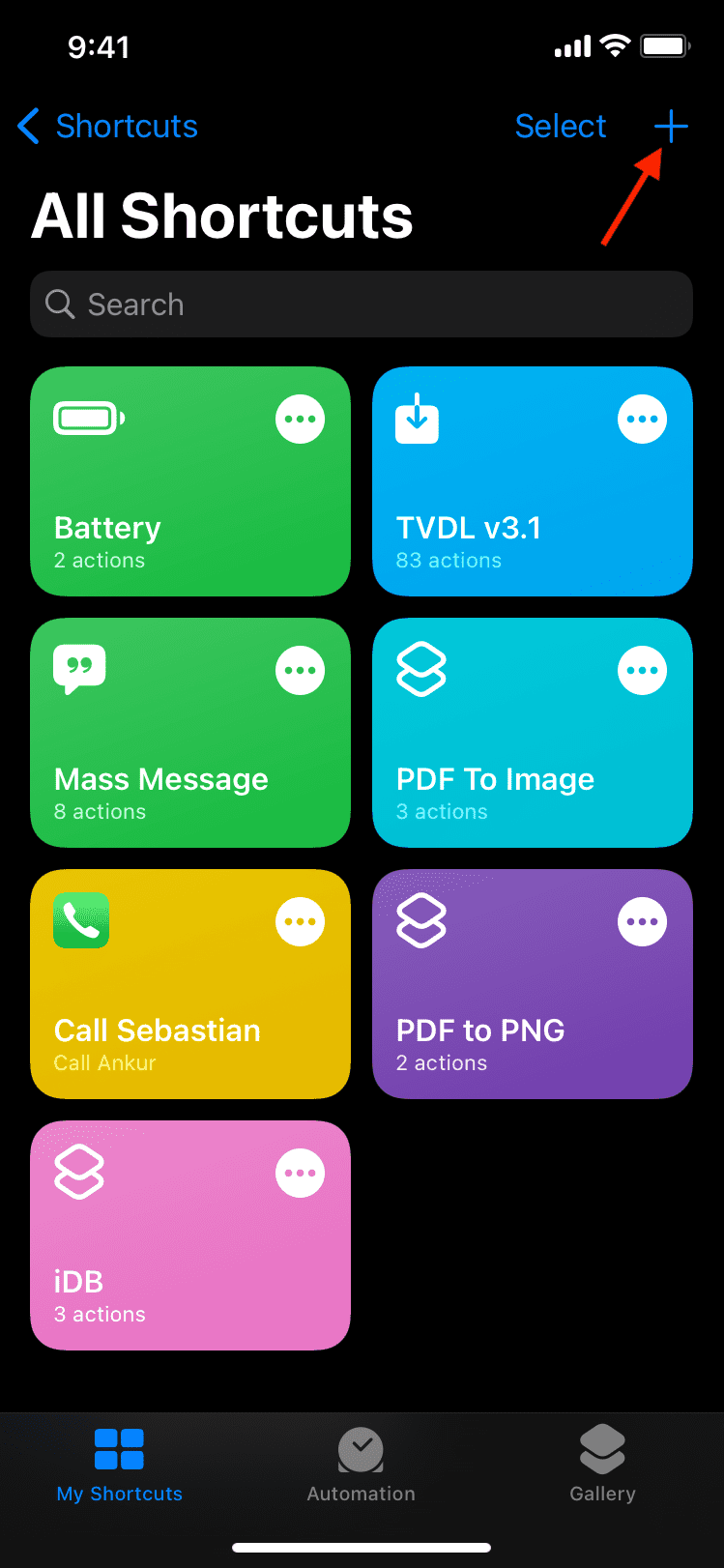
- Tap Add Action
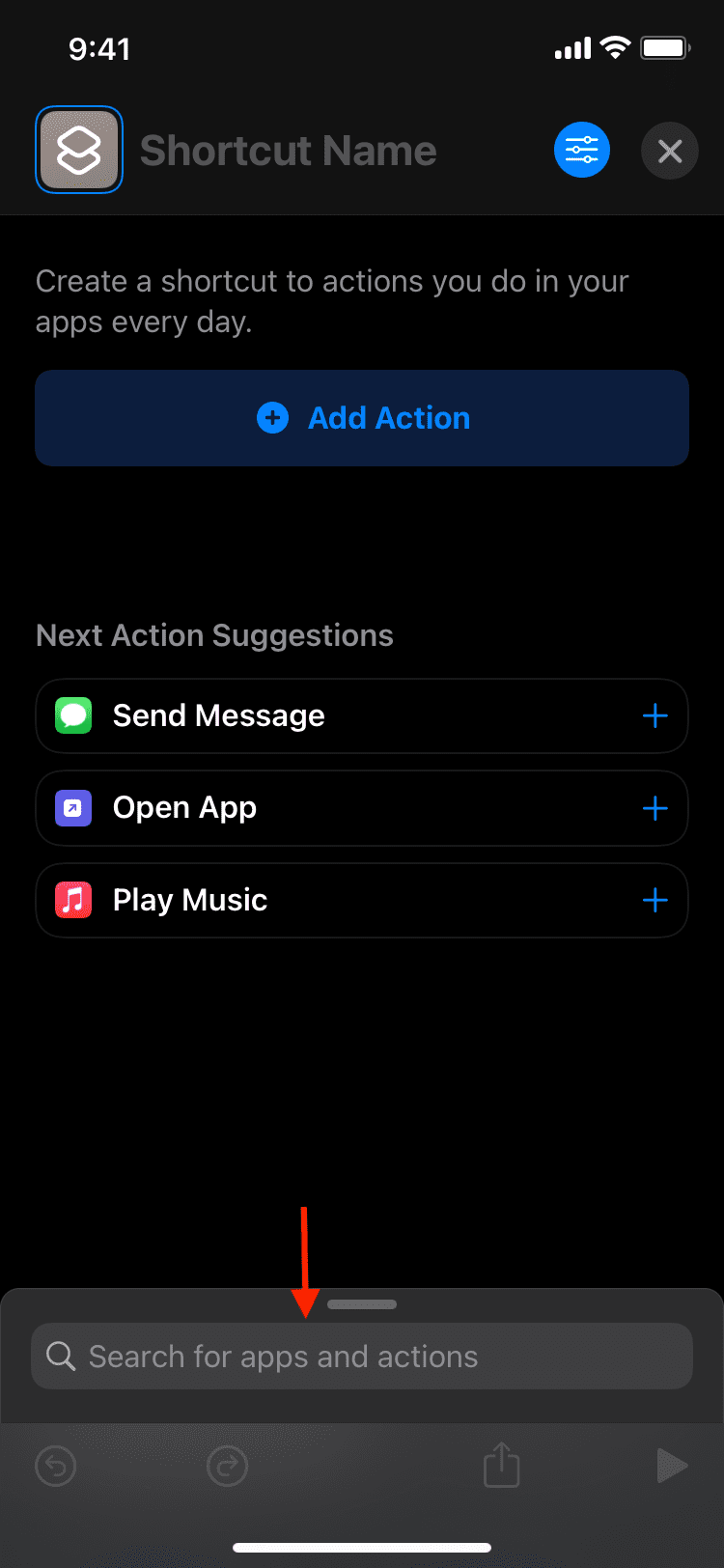
- Search for Find Photos, then add it.
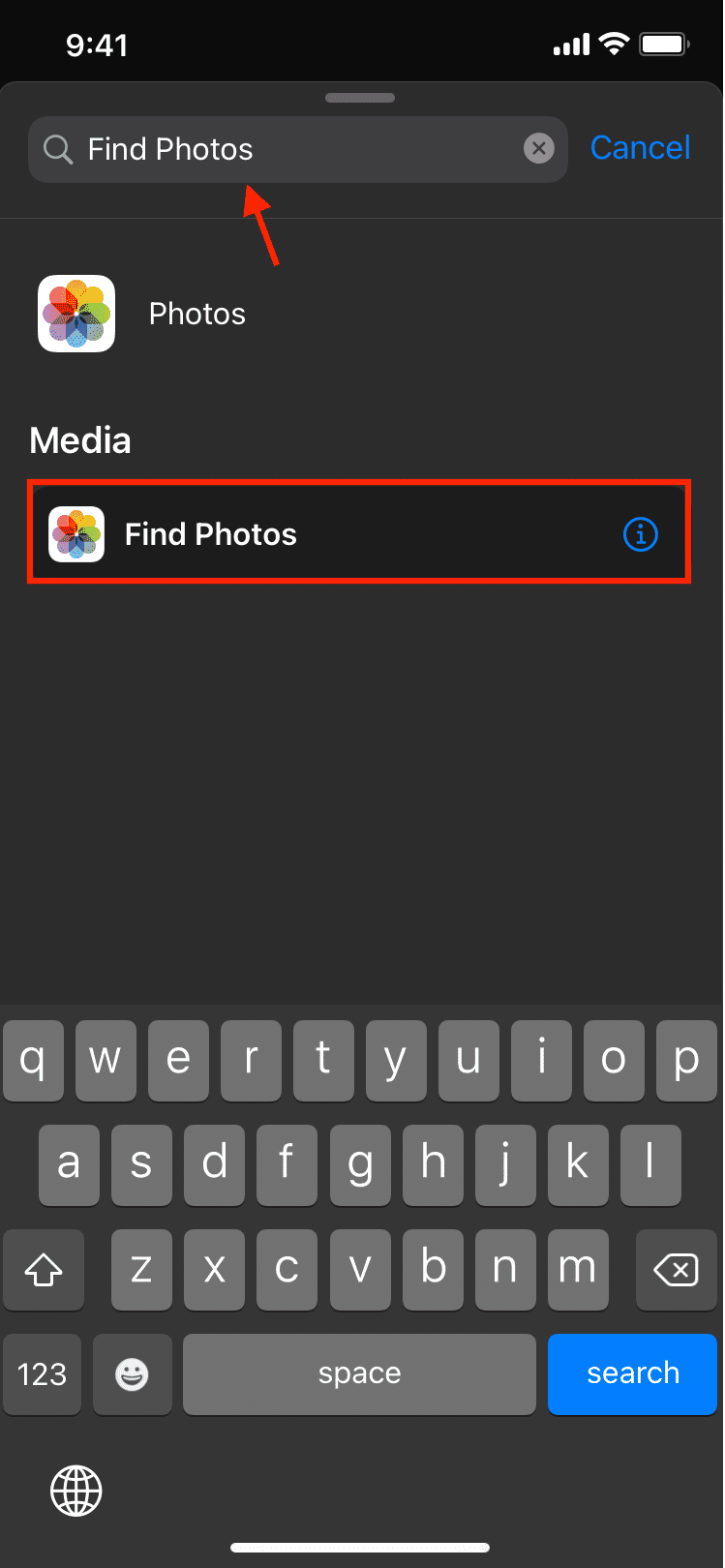
- Tap Add Filter, select Album, then choose the album you want to rotate.
- Tap Sort By, then choose Random.
- Turn on Limit, then set it to 1.
- Search for Set Wallpaper Photo (or Switch Between Wallpapers, if available), then add the action.
- Choose whether to apply it to Lock Screen, Home Screen, or both.
- Tap the shortcut name, tap Rename, then give it a clear name like Random Wallpaper.
Automate The Shortcut With Time Of Day
- In Shortcuts, tap Automation.
- Tap New Automation (or tap +).
- Select Time Of Day.
- Pick the time you want the wallpaper to change, then set Repeat to Daily.
- Turn on Run Immediately, then tap Next.
- Select your Random Wallpaper shortcut, then tap Done.
Method 3: Change Wallpaper Automatically With Focus Mode
Focus mode can swap Lock Screens when you switch contexts, like Work, Sleep, or Personal. This gives you “automatic wallpaper changes” without relying on a timed schedule.
- Open Settings.
- Tap Focus.
- Select a Focus profile like Work or Sleep.
- Tap Customize Screens.
- Select the Lock Screen you want linked to that Focus, or create a new one.
- Enable the Focus when you want the wallpaper to switch automatically.
Troubleshooting Common Problems
If your iPhone wallpaper is not changing automatically, one setting usually blocks the trigger. These checks fix most issues quickly.
- Update iOS, then restart your iPhone.
- For Shortcuts automations, confirm Run Immediately is enabled.
- Open the shortcut and tap Play once to confirm it works manually.
- Make sure Shortcuts has access to Photos: Settings > Privacy & Security > Photos > Shortcuts.
- If the shortcut cannot find photos, confirm the album contains images stored in Photos (not only cloud placeholders).
- If Focus does not switch wallpapers, confirm the Focus actually turns on (schedule, location, or manual toggle).
Tips
- Create a dedicated album named Wallpapers so Photo Shuffle and Shortcuts stay organized.
- Use Hourly for variety and Daily</


Discussion (0)
Be the first to comment.