Most of the Windows installations today are 64-bit, so most people use 64-bit operating systems and applications. Even popular applications like Chrome, Firefox, Office, and 7-Zip, are using the 64-bit architecture to provide better performance. All this is good but, on a 64-bit operating system, you can run both 32-bit and 64-bit apps. How can you tell whether a program is 64-bit or 32-bit? To help you figure this out, we would like to share five ways of doing this, that work in all modern versions of Windows:
NOTE: This guide covers Windows 10, Windows 7, and Windows 8.1. Most of the methods work in all three versions of Windows, but one of them is tailored only to Windows 7 - we marked it accordingly.
How to tell if your Windows installation is 64-bit or 32-bit?
First of all, you have to see which version of Windows you are using. Is it a 32-bit or a 64-bit version? If you are not sure which version you have installed, read this guide: What version of Windows do I have installed? (5 methods). If you already know you have Windows 10, this other guide can help you learn what version it is: What version, edition, and type of Windows 10 do I have installed?.
It is essential to know that, if you are using a 32-bit version of Windows, all the applications that are installed on it, are also 32-bit. You cannot install and use 64-bit applications on 32-bit operating systems.
However, if you are using a 64-bit version of Windows, you can use both 32-bit and 64-bit applications. Let's see a few methods for how to figure out which programs are 32-bit and which are 64-bit.
1. How to tell if a program is 64-bit or 32-bit, using the Task Manager (Windows 10 and Windows 8.1)
First, you need to open the Task Manager by any method you want. The fastest way to get there is to use this keyboard shortcut: Ctrl + Shift + Esc.
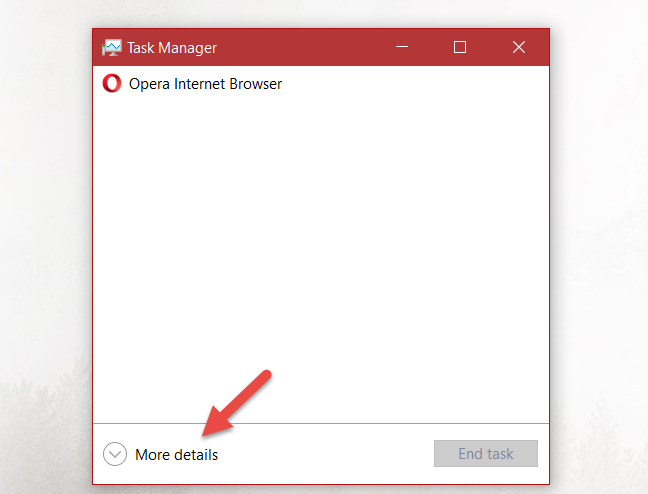
If you are using Windows 10 or Windows 8.1, the Task Manager might use its compact view. If it does, click or tap on More details.
Windows, programs, apps
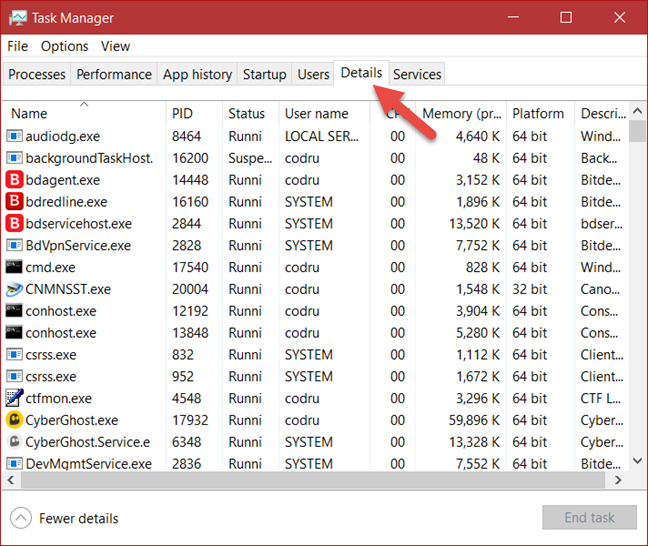
Then go to the Details tab.
Windows, programs, apps
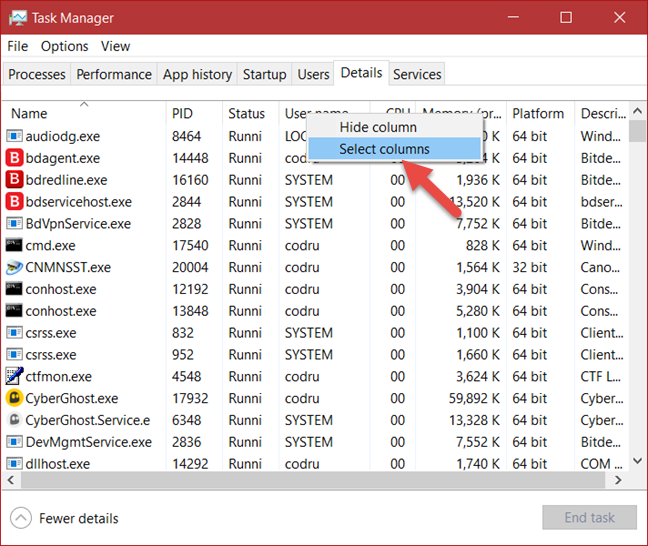
Right-click or press and hold any column header and choose "Select columns."
Windows, programs, apps
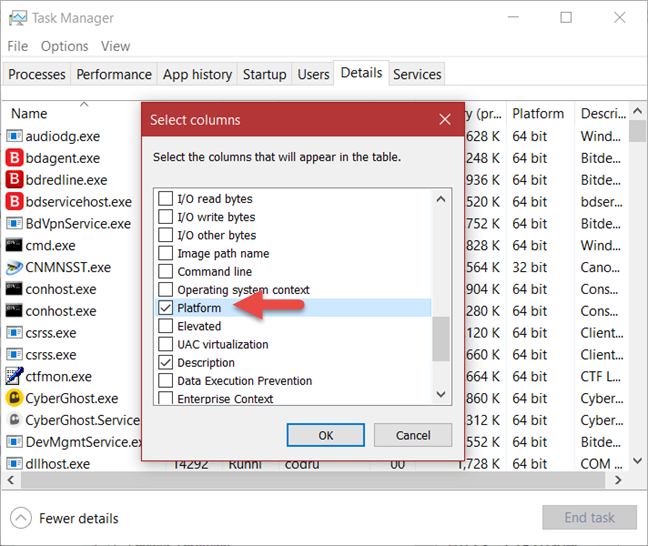
Find and check the Platform box. Then, click or tap OK.
Windows, programs, apps
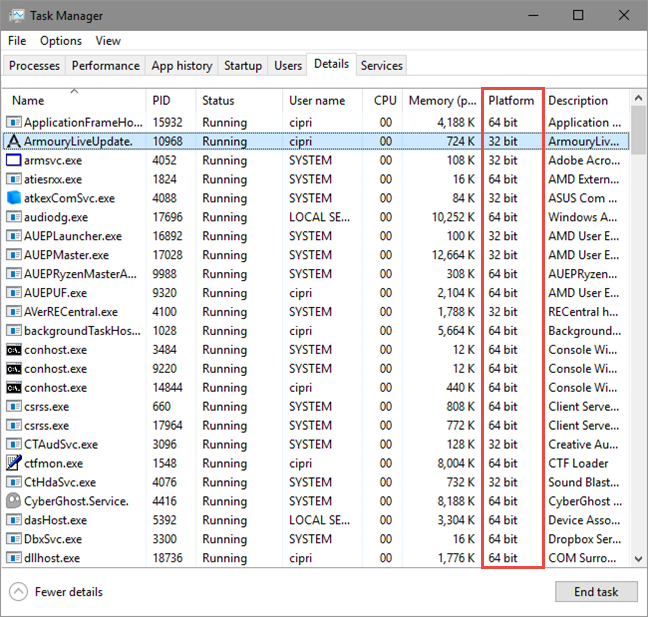
Run the application you are interested in and look at the Platform column in the Task Manager. For each running application or process, this column tells you whether it is 32-bit or 64-bit.
Windows, programs, apps
2. How to tell if a program is 64-bit or 32-bit, using the Task Manager (Windows 7)
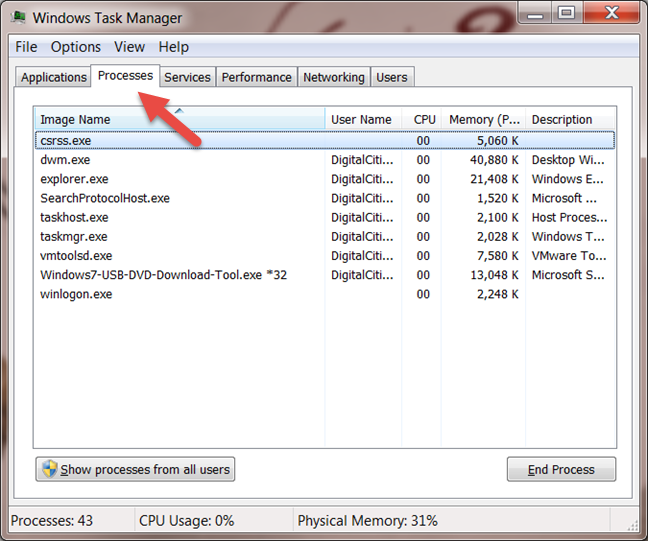
In Windows 7, the process is slightly different than in Windows 10 and Windows 8.1. Open the Task Manager by simultaneously pressing the Ctrl + Shift + Esc keys on your keyboard. Then, click on the Processes tab.
Windows, programs, apps
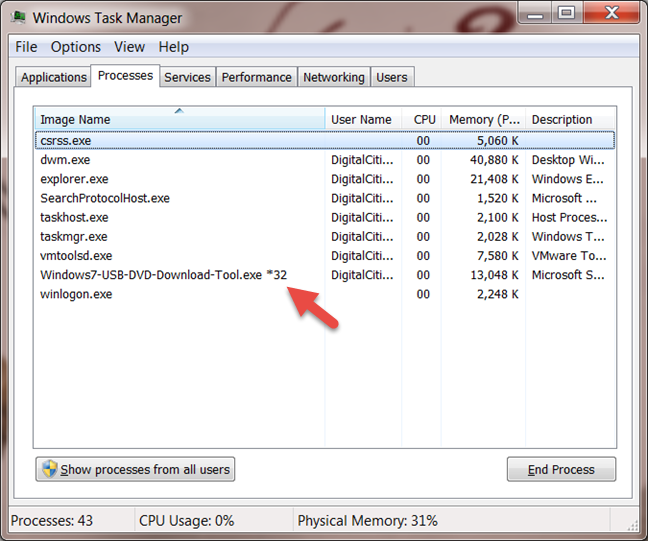
In the Processes tab, you see the list of processes that are running at the moment. If a program is 32-bit, near its name you should see the text: *32. If a program is 64-bit, you only see its name, without *32 at the end. In the screenshot below, only one program is 32-bit, and it is highlighted.
Windows, programs, apps
3. How to tell if a program is 64-bit or 32-bit, by analyzing its properties (all Windows versions)
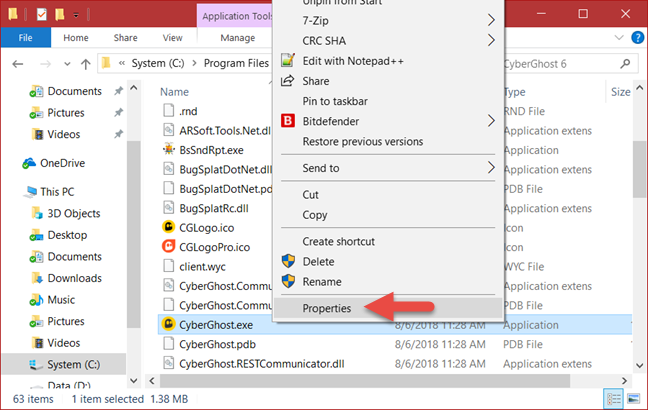
Another method that works well is to analyze the properties of that program's executable file. First, you have to locate the launcher file (*.exe) or one of its shortcuts.
Right-click on it or press and hold and then select Properties.
Windows, programs, apps
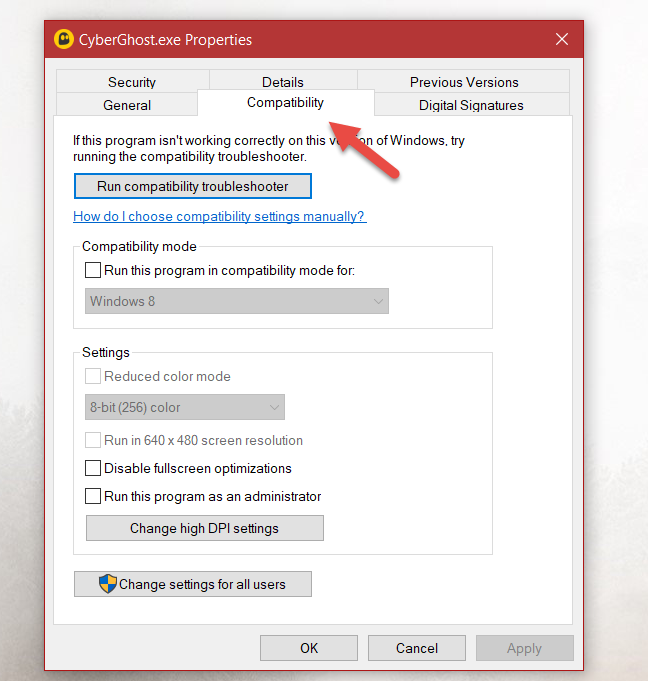
Then go to the Compatibility tab.
Windows, programs, apps
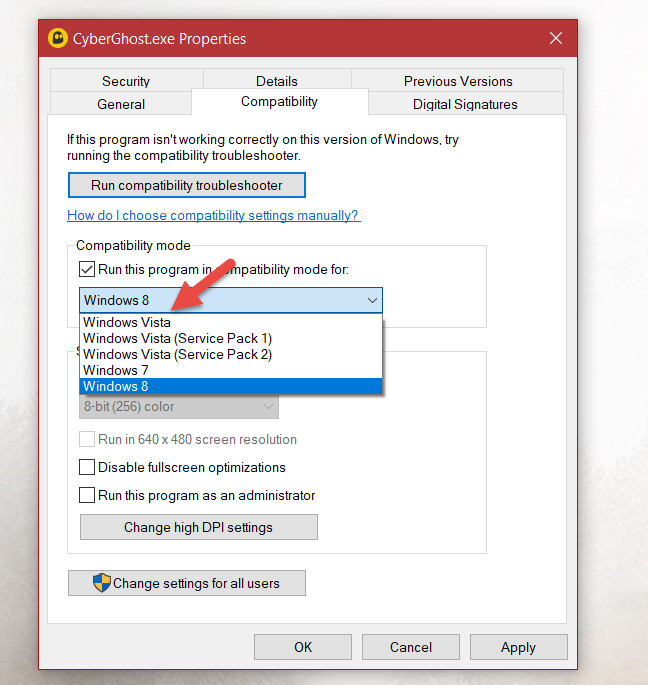
Here, check the "Run this program in compatibility mode for" box, and open the drop-down list. If the list starts with Windows Vista, then the application you selected is a 64-bit application.
Windows, programs, apps
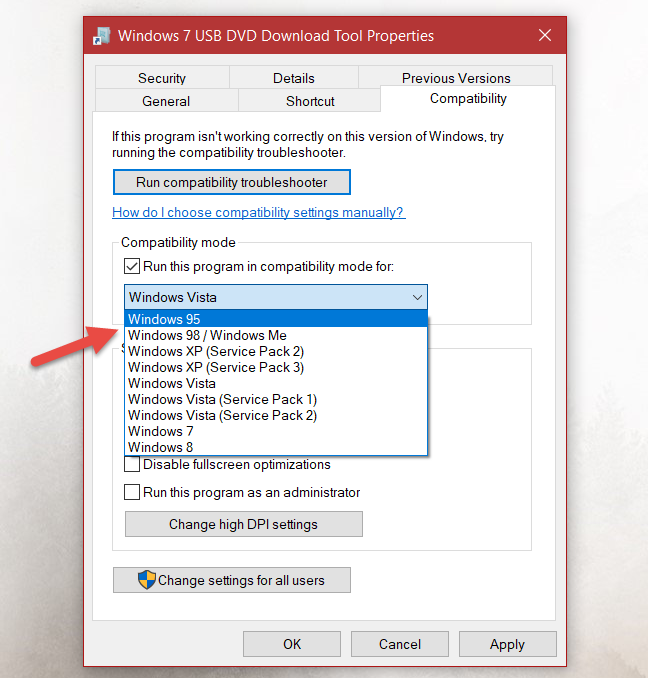
If the list starts with Windows 95, then the application you selected is a 32-bit application.
Windows, programs, apps
IMPORTANT: Do not apply any compatibility settings and close the Properties window without making any changes.
4. How to tell if a program is 64-bit or 32-bit, using the File Explorer or Windows Explorer (all Windows versions)
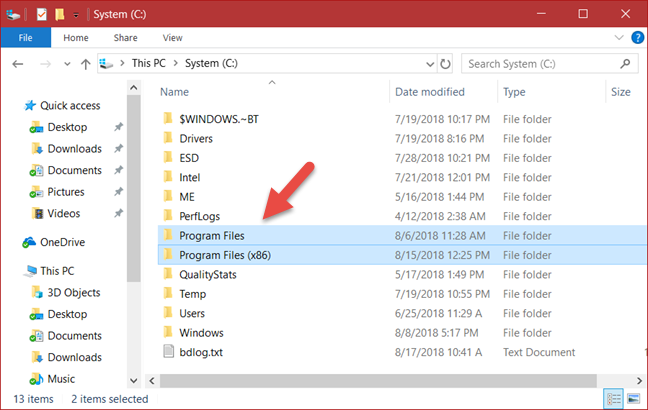
Usually, when you are installing a program or an application, it is located in one of the following folders: "C:Program Files" or "C:Program Files (x86)". 64-bit applications are usually installed in the "C:Program Files" folder, while 32-bit applications install themselves in the "C:Program Files (x86)" folder.
Windows, programs, apps
However, there are some exceptions to this rule. For example, the 64-bit version of Google Chrome installs itself in the "C:Program Files (x86)" folder. We do not know the reason for it, but you might encounter other 64-bit applications that do the same.
5. How to tell if a program is 64-bit or 32-bit, by looking at its About or Help menu (only for some programs, in all Windows versions)
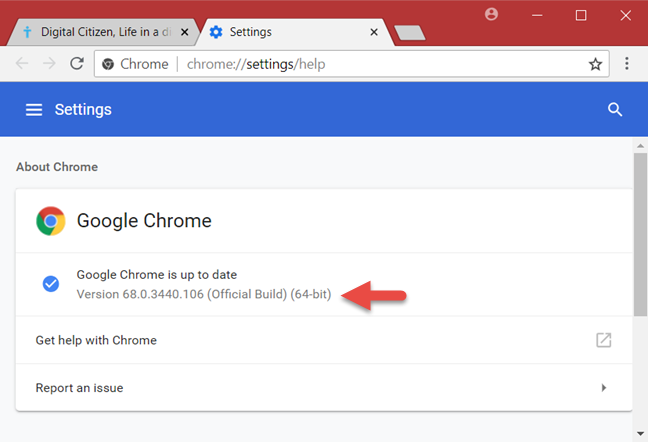
Some applications also state whether they are 64-bit or 32-bit, in their About or Help menu. However, this is not a reliable solution for finding out this information, as only some apps offer it. For example Google Chrome. You can learn whether it is 64-bit or 32-bit by opening its Settings menu and then by going to Help -> About Google Chrome. This opens a new tab where it tells you its version number and whether it is 64-bit or 32-bit.
Windows, programs, apps
This approach is also used by other apps and you can use it on any Windows version. However, as we said, it is not a reliable method as it is not a standard approach from software developers to include this information in their applications.
Do you know other means for telling whether a program is 64-bit or 32-bit?
These are the most straightforward methods you can use to figure out whether an application is 64-bit or 32-bit, without installing third-party tools. Try them out and let us know which is your favorite. Also, if you know other methods, do not hesitate to share them in the comments section below.
I wrote a utility called “Bits” which tells from an explorer right-click menu. The binary source can be found here: https://github.com/shewitt-au/Bits
Jacob ·
Thank you! It was driving me nuts to know if the 64-bit version actually did get installed or not for the Zoom Desktop Client (win 10). If you install Zoom via their website (not MSI version like Ninite uses), then it gets installed in the /users folder, instead of C:\Program Files, where most 64-bit programs get installed.
Arthur ·
This was really helpful. I didn’t knew about the task manager method. Thanks a bunch
Alkis Piskas ·
Another method:
Open the finder of notepad by “Ctrl +f”. Then type “PE”, if you find “L” next to “PE” this means that Program is 32 bit.
Niranjan Hanasoge ·
You can use the ‘file’ command to find out if an .exe file is 64-bit or 32-bit. The ‘file’ command is not present by default on Windows. You need to install it. In my case, it was included with the Ubuntu app that I installed from the Microsoft Store. To use it, I start the Ubuntu app, which opens a bash window. Then I type, for example:
alpha@nh-lenovo-win10~$: file “/mnt/c/Program Files (x86)/Google/Chrome/Application/chrome.exe”
/mnt/c/Program Files (x86)/Google/Chrome/Application/chrome.exe: PE32+ executable (GUI) x86-64, for MS Windows
alpha@nh-lenovo-win10~$: file “/mnt/c/Program Files (x86)/Dropbox/Client/Dropbox.exe”
/mnt/c/Program Files (x86)/Dropbox/Client/Dropbox.exe: PE32 executable (GUI) Intel 80386, for MS Windows
The two examples above show that on my machine, Chrome is 64-bit and Dropbox is 32-bit.
Of course ‘file’ can do much more than that and Ubuntu is much more than just ‘file’, but the Linux users already know that 🙂
James Watson ·
Your first tip using Task Manager is invalid for Windows 10 as of 10/19. There is no “Platform” option available from the context menu.
James Watson ·
Nevermind, it’s there. I’m stupid. Good tips.
DannyhelMont ·
Nice! Thank you kindly.
Braino ·
You know – You don’t really need the platform column in task manager. At least not since 64bit Windows 7… I believe Windows Task Manager always tags every 32bit application with “(32 bit)” in the name. So if the program is running just open task manager and expand the name column so you can see it. It’s when the program is NOT running (and you’re not sure you WANT to run it) that things get more interesting… 😉
Atlanta Automation Inc. ·
Very useful article – It helped me a lot. Thanks!!
Anonymous ·
Glad to help. Do not hesitate to subscribe to our newsletter for more useful tutorials.
Julio ·
Thanks alot, now i can check if its 32 or 64 bit.
Jacob ·
Well, I could only try the second and third method since it was a portable file, but it seems they both gave me different results.
DAVID ·
Dear JACOB
The third method is just for installed softwares.
Kevin ·
Thank you.
Jonatas Alexandre do Monte ·
THANK YOU!!! I was downloading files with the same name and couldn’t install each one of them and now I can label which one is x86 or x64













Discussion (16)
I wrote a utility called “Bits” which tells from an explorer right-click menu. The binary source can be found here: https://github.com/shewitt-au/Bits
Thank you! It was driving me nuts to know if the 64-bit version actually did get installed or not for the Zoom Desktop Client (win 10). If you install Zoom via their website (not MSI version like Ninite uses), then it gets installed in the /users folder, instead of C:\Program Files, where most 64-bit programs get installed.
This was really helpful. I didn’t knew about the task manager method. Thanks a bunch
Another method:
Open the finder of notepad by “Ctrl +f”. Then type “PE”, if you find “L” next to “PE” this means that Program is 32 bit.
You can use the ‘file’ command to find out if an .exe file is 64-bit or 32-bit. The ‘file’ command is not present by default on Windows. You need to install it. In my case, it was included with the Ubuntu app that I installed from the Microsoft Store. To use it, I start the Ubuntu app, which opens a bash window. Then I type, for example:
alpha@nh-lenovo-win10~$: file “/mnt/c/Program Files (x86)/Google/Chrome/Application/chrome.exe”
/mnt/c/Program Files (x86)/Google/Chrome/Application/chrome.exe: PE32+ executable (GUI) x86-64, for MS Windows
alpha@nh-lenovo-win10~$: file “/mnt/c/Program Files (x86)/Dropbox/Client/Dropbox.exe”
/mnt/c/Program Files (x86)/Dropbox/Client/Dropbox.exe: PE32 executable (GUI) Intel 80386, for MS Windows
The two examples above show that on my machine, Chrome is 64-bit and Dropbox is 32-bit.
Of course ‘file’ can do much more than that and Ubuntu is much more than just ‘file’, but the Linux users already know that 🙂
Your first tip using Task Manager is invalid for Windows 10 as of 10/19. There is no “Platform” option available from the context menu.
Nevermind, it’s there. I’m stupid. Good tips.
Nice! Thank you kindly.
You know – You don’t really need the platform column in task manager. At least not since 64bit Windows 7… I believe Windows Task Manager always tags every 32bit application with “(32 bit)” in the name. So if the program is running just open task manager and expand the name column so you can see it. It’s when the program is NOT running (and you’re not sure you WANT to run it) that things get more interesting… 😉
Very useful article – It helped me a lot. Thanks!!
Glad to help. Do not hesitate to subscribe to our newsletter for more useful tutorials.
Thanks alot, now i can check if its 32 or 64 bit.
Well, I could only try the second and third method since it was a portable file, but it seems they both gave me different results.
Dear JACOB
The third method is just for installed softwares.
Thank you.
THANK YOU!!! I was downloading files with the same name and couldn’t install each one of them and now I can label which one is x86 or x64