




Many Windows 10 PCs do not get the Windows 10 version 22H2 update through Windows Update. Microsoft offers the Windows 10 Update Assistant so owners can upgrade manually when automatic updates fail or stall. The tool downloads and installs the latest feature update, bypassing issues that block the regular Windows Update path.
The Update Assistant checks if your device meets hardware and software requirements. If compatible, it downloads the 22H2 update and installs it while keeping personal files, apps, and settings. This process is often more reliable for older systems or devices stuck on older builds.
You get the Update Assistant from Microsoft’s official download page. Running it shows your current Windows version and guides you through the upgrade to 22H2. If your device is already up to date, the tool tells you there is no newer version.
What the Update Assistant Does
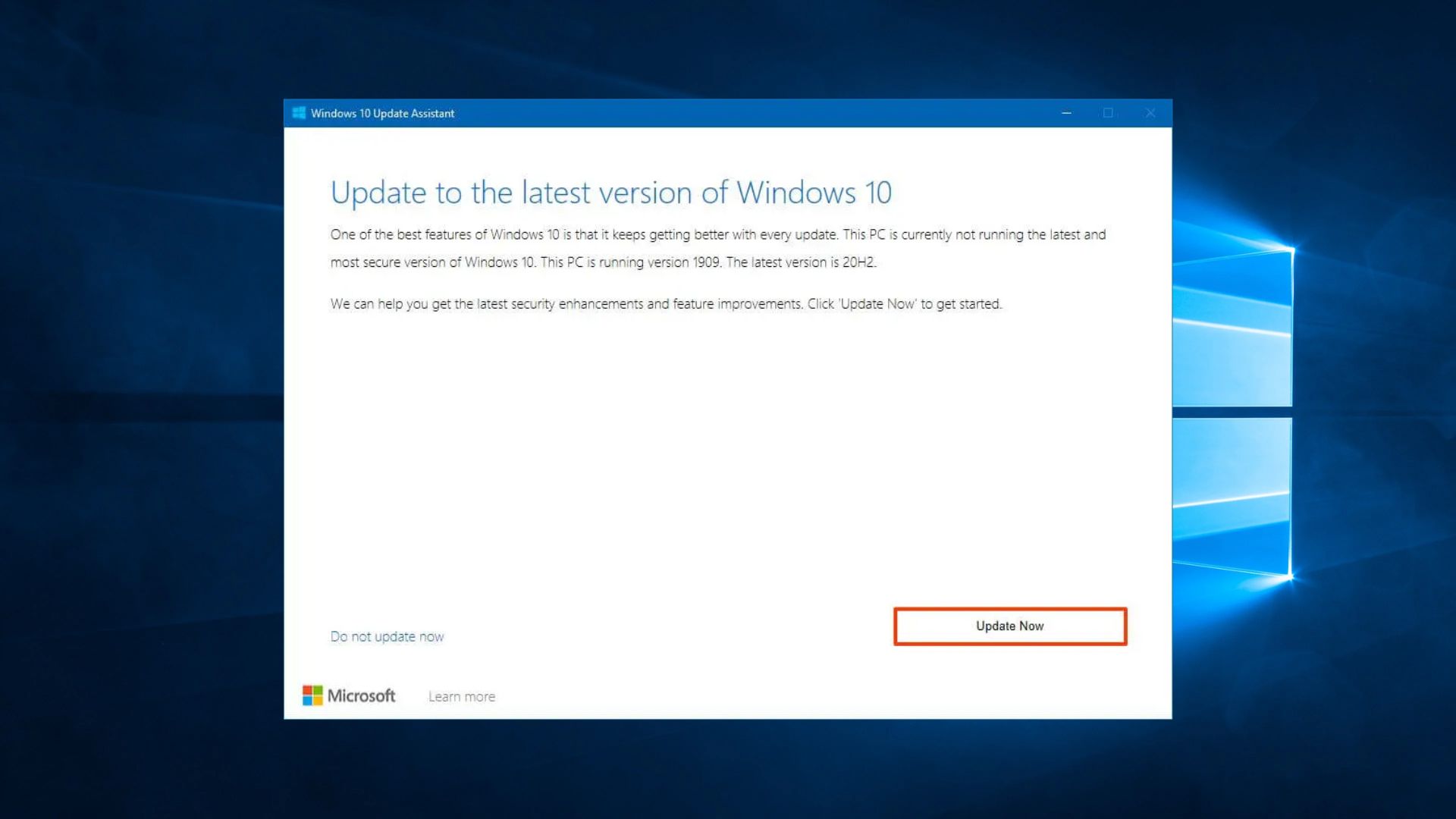
- Detects current Windows 10 version and update status.
- Confirms system compatibility before proceeding.
- Downloads Windows 10 version 22H2 feature update files.
- Installs the update without deleting files or apps.
- Restarts the device to complete installation.
Why Some PCs Do Not Update Automatically
Windows Update may not deliver 22H2 for several reasons:
- Hardware limitations or incompatibilities.
- Local update errors or corrupted components.
- Settings that delay feature updates.
- Devices stuck on older builds not eligible for auto rollout.
Manual update with the Assistant addresses these scenarios by forcing the upgrade through a tool outside the standard Windows Update pipeline.
Step-by-Step: Use Update Assistant to Install 22H2
- Visit Microsoft’s Update Site
Go to the official Windows 10 download page and click Update now to download the Update Assistant. - Run the Tool
Double-click the downloaded file to start the Update Assistant. It checks your current version and system requirements. - Start Update
Click Update now in the tool interface. The assistant begins downloading the 22H2 files. - Restart and Finish
The tool restarts your PC multiple times to complete installation. When done, you will be on Windows 10 version 22H2 with your data preserved.
Comparison: Update Methods
| Method | Works if Windows Update Fails | Preserves Files | Requires Manual Download |
|---|---|---|---|
| Update Assistant | Yes | Yes | Yes |
| Windows Update | No (fails sometimes) | Yes | No |
| Media Creation Tool | Yes | Yes | Yes |
| Clean Install | Yes | No (unless backed up) | Yes |
Requirements Before You Start
Check these before running the Update Assistant:
- Administrator access on the device.
- Enough free disk space (at least 10–12 GB).
- A stable internet connection.
- Backup of important files (recommended best practice).
Troubleshooting Tips
- If the assistant fails, temporarily disable third-party antivirus during install.
- Run Windows Update Troubleshooter before retrying.
- If a device shows errors, use the Media Creation Tool as an alternative.
- Ensure you have the latest cumulative updates from Windows Update before running the tool.
FAQs
It installs the latest supported Windows 10 feature update, here version 22H2, even when Windows Update does not show it.
No. The Update Assistant upgrades in place and keeps files, apps and settings intact.
Yes. Microsoft provides the tool free from its official download page.
Yes. After upgrading with the Assistant, Windows Update continues to deliver future updates.
Try the Windows Update Troubleshooter or use the Media Creation Tool as an alternative path.
The Update Assistant gives users a straightforward path to install Windows 10 22H2 when automatic updates do not work. It checks compatibility, downloads the update and installs it while keeping your setup intact. For devices stuck on older builds, it is often the most reliable method.
Discussion (0)
Be the first to comment.