




Roku adds a simple interface and reliable app support to Samsung Smart TVs. Many Samsung owners use Roku to fix missing apps, improve streaming stability, or get a cleaner experience than Tizen OS. This guide shows the best Roku models for Samsung TVs and explains how to pick one confidently.
Table of contents
- Why Samsung smart TV owners consider adding Roku
- Best Roku for Samsung smart TV: Quick answer
- How Roku works with Samsung smart TVs
- Top Roku models compared for Samsung TVs
- Compatibility factors that matter on Samsung TVs
- Best Roku pick based on your Samsung TV type
- Setup tips to improve Roku performance on Samsung TVs
- Troubleshooting common Samsung and Roku issues
- FAQs
- Summary
Why Samsung smart TV owners consider adding Roku
Samsung’s Tizen OS supports popular apps, but updates often arrive late. Some users also notice stuttering, missing features, or region-locked apps. Roku offers a stable platform with faster updates and a consistent layout across all models.
Best Roku for Samsung smart TV: Quick answer
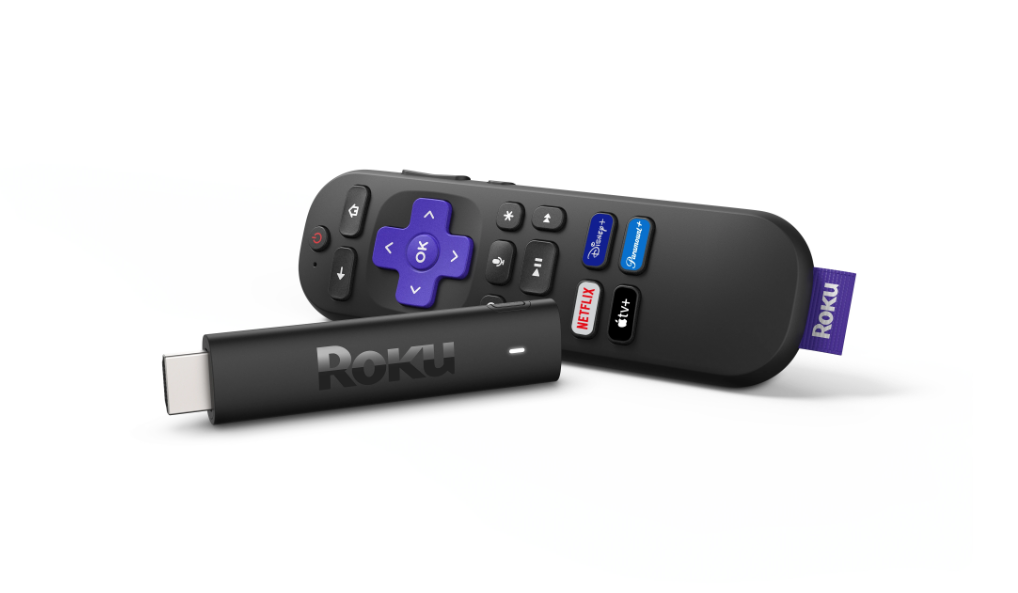
Roku Ultra works best for most Samsung TVs thanks to its fast processor, Ethernet port, and strong HDR performance. Roku Streaming Stick 4K suits wall-mounted TVs and delivers excellent Wi-Fi. Roku Express 4K+ offers the best budget value. Roku Express fits older 1080p Samsung TVs.
How Roku works with Samsung smart TVs
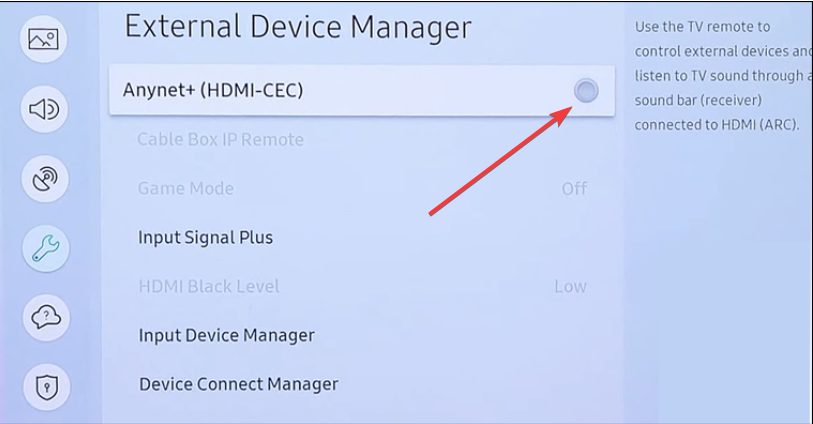
Roku works with Samsung smart TVs via an HDMI connection. You connect Roku to any Samsung TV through an HDMI port. Samsung’s Anynet+ (CEC) controls how the TV responds to the Roku remote.
All modern Roku devices work on Samsung TVs, but performance varies based on Wi-Fi strength, HDMI port quality, and your TV’s age.
Top Roku models compared for Samsung TVs
Each Roku model behaves differently on Samsung hardware. Focus on speed, Wi-Fi reception, HDR handling, and ease of setup.
Roku Ultra
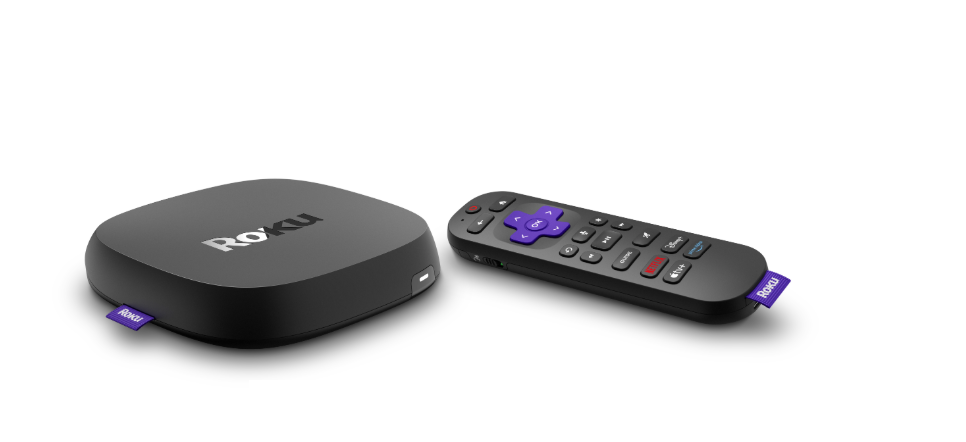
Roku Ultra loads apps quickly and handles 4K HDR streams with fewer drops. It works best on large Samsung 4K or QLED TVs. The Ethernet port improves stability if your TV sits far from the router.
Roku Streaming Stick 4K
Streaming Stick 4K offers strong Wi-Fi and hides behind the TV. It works well with wall-mounted Samsung TVs and keeps cables minimal. Its fast interface feels responsive on most Samsung models.
Roku Express 4K+
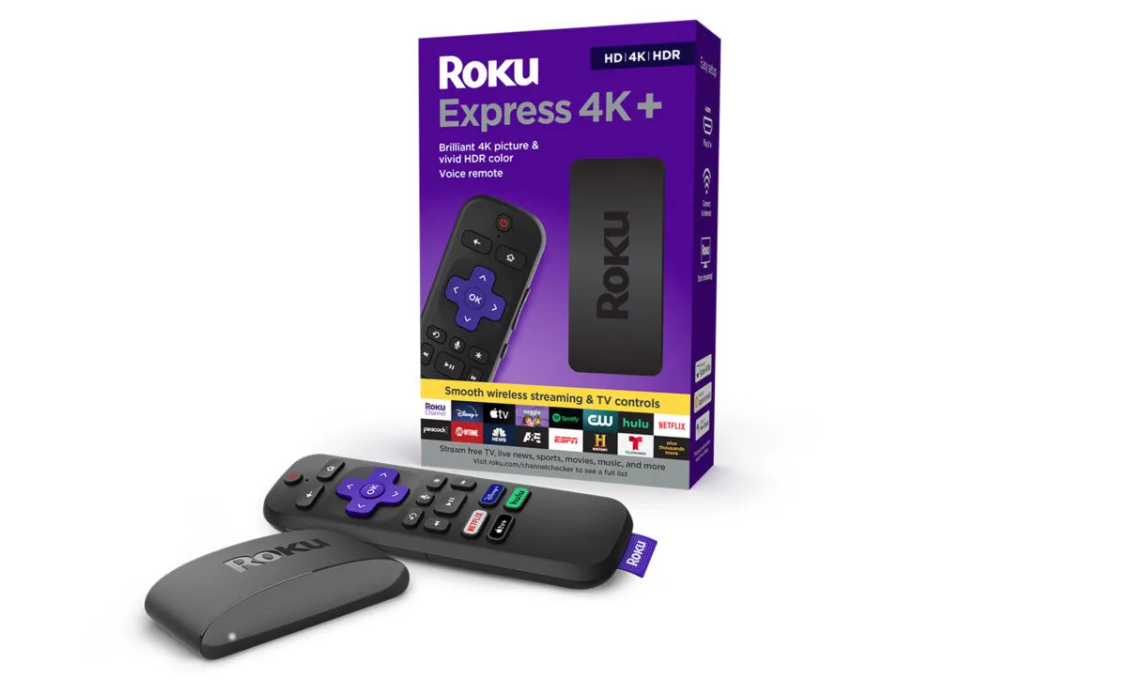
Express 4K+ delivers smooth 4K playback at an affordable price. It works on older and newer Samsung TVs and offers solid Wi-Fi for most homes. It avoids complex setup steps and suits everyday users.
Roku Express (HD)
Roku Express suits older Samsung 1080p TVs that do not need 4K. It loads slower than other models but keeps costs low. Use it when you want a simple upgrade without extra features.
Compatibility factors that matter on Samsung TVs
Samsung TVs vary by year and model. HDMI ports, HDR support, and motion settings affect how Roku performs.
HDMI port selection on Samsung models
Older Samsung TVs deliver better stability on HDMI 1 or 2. Newer Samsung sets reserve specific ports for 4K and HDR performance. Pick the port labeled UHD, HDR, or 4K when possible.
Wi-Fi vs Ethernet on Samsung TVs
Wi-Fi works well for most Samsung TVs, but Ethernet improves 4K quality on larger screens. Roku Ultra remains the best pick when you want wired reliability.
Picture and HDR behavior differences
Samsung TVs adjust color tone or brightness when switching sources. HDR from Roku may look dim or overly bright until you tweak picture mode. Each Roku handles HDR10 differently, and Samsung QLED sets benefit most from the Ultra.
Best Roku pick based on your Samsung TV type
Match your Roku choice to your TV generation for smoother performance.
Older Samsung 1080p TVs (2012–2016)
Pick Roku Express or Express 4K+. These models avoid overloading slow HDMI processors and keep navigation simple.
Mid-range Samsung 4K TVs (2016–2020)
Use Roku Streaming Stick 4K or Express 4K+. Both models handle 4K streaming well and avoid Wi-Fi congestion issues common to Tizen-based apps.

High-end Samsung QLED and Neo QLED (2018–present)
Choose Roku Ultra for the fastest interface and the best HDR stability. Ethernet improves playback on large screens.
Setup tips to improve Roku performance on Samsung TVs
Small adjustments help Roku run smoothly on Samsung TVs.
Enable or disable Samsung’s Anynet+ (CEC)
Anynet+ sometimes conflicts with Roku remote shortcuts. Disable it if the TV switches inputs unexpectedly. Enable it if you want volume control through the Roku remote.
Choose the right power method for Roku
Power Roku from the wall adapter, not the TV USB port. This avoids slow boot times and random restarts.
Adjust Samsung picture modes for Roku
Set your TV to Standard or Movie mode for the most accurate color. Turn off motion smoothing when you watch sports or play games.
Troubleshooting common Samsung and Roku issues
- Roku not showing on Samsung HDMI input: Reseat the HDMI cable and switch to another HDMI port. Confirm the TV detects the source and disable input blockers in the settings.
- HDR appears washed out: Change the Samsung picture mode or disable HDR on Roku temporarily. Some Samsung TVs brighten HDR content too aggressively.
- Wi-Fi drops or buffers frequently: Move the router closer or switch Roku models. Stick 4K and Ultra hold stronger Wi-Fi signals, especially in larger rooms.
FAQs
Does every Roku work on Samsung TVs? Yes. Any Roku with HDMI output works on modern Samsung TVs.
Do Samsung TVs need a specific HDMI port for Roku? Use any HDMI port, but ports labeled UHD or HDR work best for 4K models.
Is Roku better than Samsung’s built-in apps? Roku updates apps faster and offers a simpler interface, so many users prefer it.
Can I control Samsung TV volume with the Roku remote? Yes, as long as Anynet+ (CEC) stays enabled.
Summary
- Pick Roku Ultra for fast performance and Ethernet stability.
- Use Roku Streaming Stick 4K for wall-mounted Samsung TVs.
- Choose Roku Express 4K+ for the best budget 4K value.
- Use Roku Express for older 1080p TVs.
- Adjust Samsung inputs, picture modes, and CEC for the best results.
You get the best Roku experience on Samsung TVs when you match the model to your TV’s generation and setup. Roku improves app reliability, streaming quality, and everyday navigation. The right model cuts buffering, boosts HDR performance, and gives Samsung owners a more consistent streaming platform.


Discussion (0)
Be the first to comment.