




Roku works smoothly with most Samsung Smart TVs and gives users quick access to a familiar streaming interface. You can use a built-in Roku Channel app on supported Samsung TVs or connect an external Roku device through HDMI. Both methods deliver different strengths depending on how much control and flexibility you want.
Using Roku with Samsung TVs improves app availability and navigation. The external devices usually update more often, while the built-in Roku Channel app provides fast access to free content. However, not all Samsung TVs support the app.
Only some of the models made from the mid-2010s onward include the Roku Channel in the App Store. So, before proceeding to the steps in the ensuing sections, check availability by opening Smart Hub and search for Roku Channel.
1) How to connect a Roku device to a Samsung Smart TV
This is the ideal option if your Samsung TV does not support the Roku Channel app or you just prefer to use the device. Start by plugging your Roku streaming device into an open HDMI port on your Samsung TV.

Next, connect the Roku’s power cable and turn on the TV. Now, press the Home or Source button on the Samsung remote and select the HDMI input used. Finally, complete the Roku onscreen setup by joining your Wi-Fi network and activating the device.

Tip: If the video does not appear, switch between ports until you locate the active one. This usually resolves display issues quickly.
2) How to install and use the Roku Channel app on Samsung TVs
The Roku Channel app works well for users who only want free content. It installs directly from the App Store.
To install the app, open Smart Hub, select Apps, and search for Roku Channel. Install it, then launch the app from your home screen.
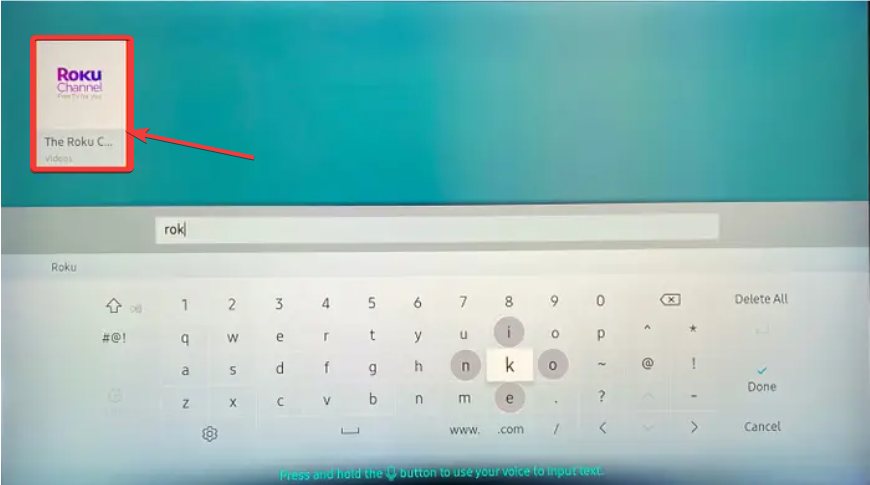
Note that some features may require signing in to a Roku account. So, create an account and sign in.
Navigating the Roku Channel app on Samsung TVs
The layout differs slightly from external Roku devices. You browse content through simple categories and watch with quick-start playback.
Advanced features like deep app support require external Roku hardware.
3) Samsung-specific Roku troubleshooting
- Fixing HDMI and signal problems: Check your HDMI cable, confirm the device sits fully in the port, and try switching to a different HDMI input. If you see a blank screen, restart both the TV and the Roku device. This resolves handshake issues most of the time.
- Updating Samsung TV firmware for Roku compatibility: Open Settings, choose Support, and select Software update. Now, install any available updates, then restart the TV.
- Audio, remote, and input switching issues: If audio drops, switch to a different HDMI port or disable HDMI-ARC temporarily. CEC settings also control remote behavior, so enable Anynet+ (HDMI-CEC) when needed. If your TV keeps switching inputs, disable auto-detect options in Samsung settings.
FAQs about using Roku with Samsung Smart TVs
Can you use Roku without an HDMI port? Roku devices need HDMI. If your Samsung TV lacks an HDMI port, you must use an adapter, but results vary and often create compatibility issues.
Does the Samsung remote control the Roku? Samsung’s Anynet+ (HDMI-CEC) lets you control basic Roku actions using the TV remote. Some functions still require the Roku remote.
Why does the Roku Channel app not appear on my TV? Unsupported models, older OS versions, and regional restrictions can hide the app. Searching Smart Hub or updating firmware usually helps.
Summary
- Roku works with Samsung TVs through the Roku Channel app or through external Roku hardware.
- External Roku devices provide the full Roku OS and stronger performance.
- The Roku Channel app offers quick access to free streaming without extra hardware.
- Samsung TV model year and OS version influence app compatibility.
- Setup requires plugging the Roku device into an HDMI port and selecting the right input.
Conclusion
Roku gives Samsung Smart TV owners a simple way to expand their streaming options. You can use the built-in Roku Channel app for quick access or choose an external Roku device for the complete platform. With the right setup and a few Samsung-specific adjustments, Roku delivers a reliable and flexible streaming upgrade.
Aside from Roku, you can also watch Showtime Anytime on Samsung Smart TV and other top channels. We have some excellent guides on this. So, do well to check them out.


Discussion (0)
Be the first to comment.