




Showtime merged its standalone Showtime Anytime platform into Paramount+ with Showtime. Samsung Smart TVs now use this updated app to stream the full Showtime catalog. Older Samsung TVs may show legacy Showtime Anytime branding, but the app redirects to the new experience.
If your TV does not support the app, you can still stream Showtime through casting or a streaming device. This guide shows how to install, activate, and watch Showtime on most Samsung Smart TVs, step by step.
But before you start, ensure you have a Samsung TV released after 2017, as they usually support the Paramount+ with Showtime app through Smart Hub. Also, keep your TV firmware updated so the app installs and runs correctly. Lastly, have a valid subscription to view the Paramount+ with Showtime content.
1) Install the Paramount+ With Showtime app
Press Home on your Samsung remote and open the Apps section. Use the search bar to look for Paramount+ or Paramount+ with Showtime. Next, select the app and choose Install, then wait for the download to finish. When the button changes, select Open to launch it.

Now, sign in and activate with the code. Some TVs display a one-time activation code when the app opens. In that case, you go to the activation site on your phone or laptop and enter the code.
If your TV shows an on-screen login box instead, enter your subscription email and password with the remote. After signing in, the app syncs your Showtime profile and watchlist.
2) Watch through the Legacy Showtime Anytime path
On old Samsung TVs, open Apps or the list of installed apps and look for Showtime Anytime. If you see it, select the icon to open the app. Now, sign in with the same details you used on Showtime Anytime or the Showtime website.
Once the account syncs, you see the Showtime catalog along with other content in the main app screen.
3) Alternative ways to watch Showtime on old Samsung TVs
Use a streaming device
Devices like Roku, Amazon Fire TV, Apple TV, and Chromecast run the newest Paramount+ app. Connect one through HDMI, follow the on-screen setup, and download the Paramount+ app from that device's app store.

Streaming devices often support 4K, HDR, and more frequent app updates. That setup keeps Showtime stable even on older Samsung TVs.
Cast or mirror from Android, iPhone, or desktop
Phones and laptops can send video directly to your Samsung TV. You can use built-in casting like Smart View from your Samsung phone, screen mirroring, or AirPlay on supported models.
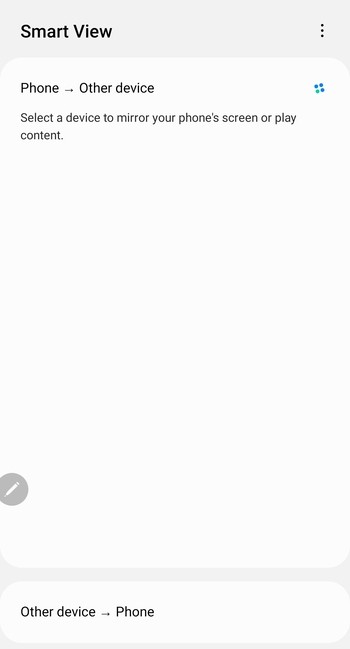
This option works well when you cannot install the app on the TV. It also helps if you mainly watch Showtime on mobile but want a bigger screen sometimes.
Troubleshooting common Showtime installation issues
- App not found in Samsung Smart Hub: If the Paramount+ app does not appear in search results, your TV model may not support it. First, open Settings - Support - Software Update and install any pending updates. After the update, restart the TV and search again in the Apps section. If the app still does not show, your TV likely needs a streaming device to access Showtime.
- Showtime content not appearing after login: If you only see standard Paramount+ titles, your plan may not include Showtime access. Log out of the app, restart the TV, and sign in again to refresh your account data.
- Playback issues: If streaming stutters or stops, turn the TV off and back on to clear cached data. Then restart your router and modem to refresh the network connection.
Optimization tips for better Showtime streaming
- Check for firmware and app updates: Open Settings > Support > Software Update and select Update Now. Let the TV restart if it downloads a new version.
- Boost your internet connection: Place your router close to the TV, avoid walls between them, and use the 5 GHz band when you can. For the most stable experience, run an Ethernet cable from the router to the TV.
- Adjust picture settings for best video quality: Open your Samsung picture settings and switch to Movie or Filmmaker Mode. These modes reduce harsh processing and give a more cinematic look.
FAQs about Watching Showtime on Samsung Smart TVs
Can I watch Showtime without Paramount+? On Samsung Smart TVs, Showtime access runs through the Paramount+ with Showtime plan. You need a subscription that includes Showtime to watch its shows and movies on TV.
Why does the app show Paramount+ instead of Showtime? Showtime merged into Paramount+, so the app brand focuses on Paramount+. The Showtime catalog appears inside the Paramount+ interface as part of your plan.
What Samsung TV models no longer support the app? Most Samsung TVs released before 2017 do not support the current Paramount+ app. For those models, you need a streaming device or casting solution to watch Showtime.
Summary
- Install the Paramount+ with Showtime app from the Samsung Smart Hub.
- Sign in or activate the app using the on-screen code.
- Legacy Showtime Anytime icons redirect to the new merged platform.
- Use a streaming device or casting if your TV doesn’t support the app.
Conclusion
Install the Paramount+ with Showtime app from Smart Hub, sign in, and start streaming. Older TVs may still show the legacy Showtime Anytime icon, but the service redirects to the merged platform.
If your TV does not support the app, a streaming stick or casting from your phone still gives you access to the full Showtime catalog.


Discussion (0)
Be the first to comment.