




Programming a universal remote to control your Roku TV offers the convenience of using just one remote for all your devices. If you’re tired of juggling multiple remotes, this guide will help you quickly set up your universal remote to control your Roku TV, simplifying your entertainment setup.
Prerequisites for Programming Your Universal Remote
Before you start programming your universal remote, ensure you have the following:
- Compatible Universal Remote: Verify that your universal remote is compatible with Roku TVs. Check the manufacturer’s specifications or remote packaging for compatibility.
- Fresh Batteries: Insert new batteries to ensure the remote functions correctly during programming.
- Roku TV Documentation: Keep the Roku TV manual or remote codes handy. You can also find these codes online or via the Roku website.
- Pen and Paper: Have something to write down remote codes or troubleshooting steps, if needed.
Step 1: Find the Remote Code for Your Roku TV
To program your universal remote, you'll need to find the correct remote code for your Roku TV. This code allows the remote to communicate with your TV. Here’s how you can find it:
- Check the User Manual: Look in the Roku TV manual for a list of remote codes specific to your TV model.
- Visit the Manufacturer’s Website: Many TV manufacturers offer downloadable remote code lists on their support pages.
- Use Online Databases: Search online forums and databases that provide remote codes for different devices, including Roku TVs.
- Trial and Error: If you can't find the code, you can try entering several codes from your TV's model list until you find the one that works.
Step 2: Prepare Your Universal Remote
Now that you have the remote code for your Roku TV, it’s time to prepare your universal remote. Follow these steps:
- Insert Fresh Batteries: Make sure the batteries are correctly installed in the remote.
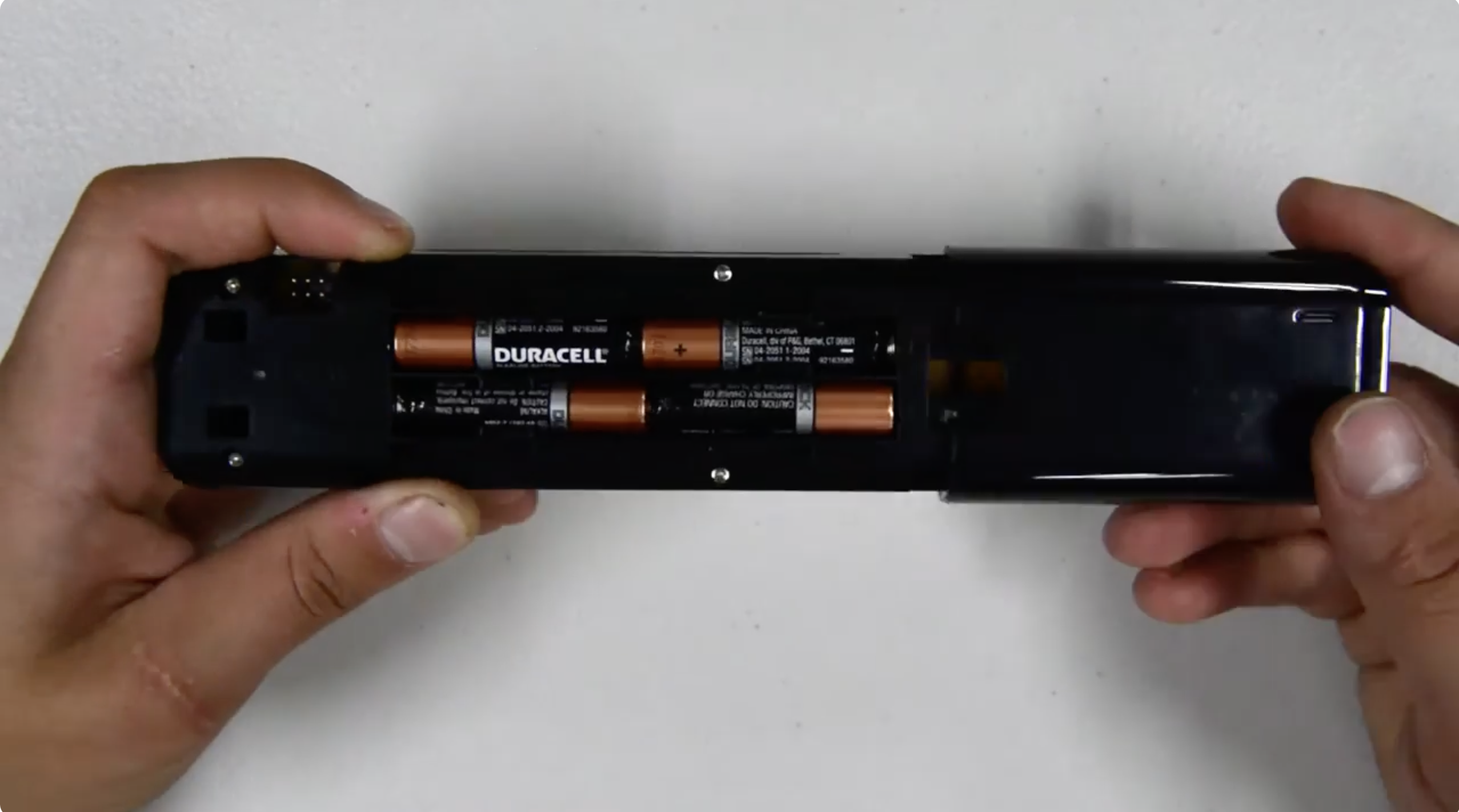
- Turn on Your Roku TV: Power on your Roku TV using the original remote or the power button on the TV.
- Locate the Programming Button: Find the setup or programming button on your universal remote. This is often labeled as “Setup” or “Program.”
- Enter Programming Mode: Press and hold the programming button until the indicator light on the remote turns on. This means the remote is ready to accept the programming code.
Step 3: Program the Remote Code Into Your Universal Remote
With the remote in programming mode, it’s time to enter the remote code. Here's how:
- Enter the Code: Using the number pad on your universal remote, enter the Roku TV remote code you found earlier.

- Test the Remote: After entering the code, press the power button on your remote to see if the TV turns off. If it does, the remote is successfully programmed.
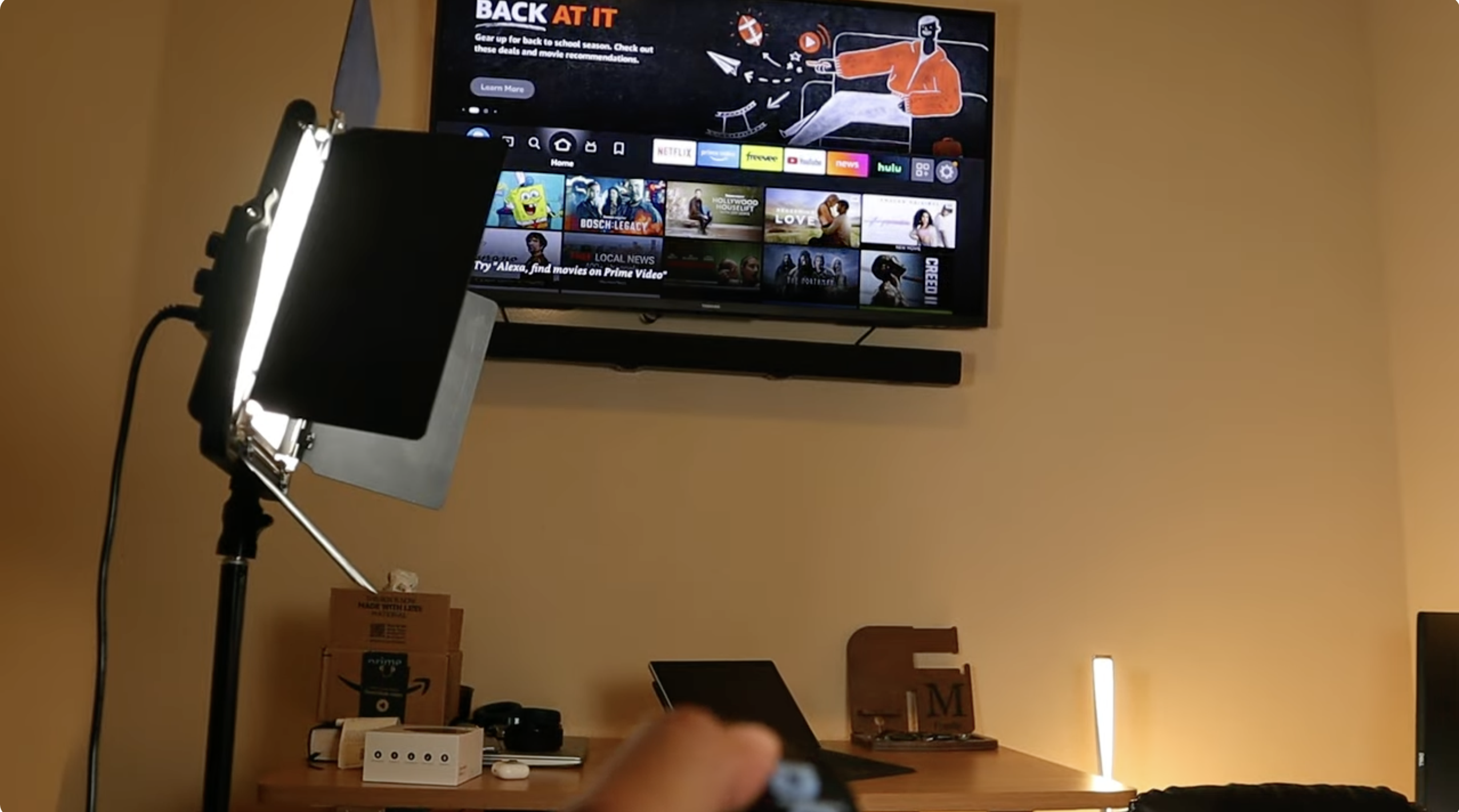
- Program Additional Functions: If your remote allows, program additional functions like volume control or menu navigation using the remote’s instructions.
Step 4: Test the Universal Remote
Now that you’ve programmed your universal remote, it’s important to test its functionality:
- Test Basic Commands: Use the remote to change channels, adjust the volume, and navigate through the Roku TV’s menu.
- Check Responsiveness: Ensure that the remote is responding promptly without any lag or delay.
- Test Additional Features: If you programmed additional buttons, such as volume control or menu navigation, verify that they work as expected.
Troubleshooting Common Issues
If your universal remote is not working as expected, here are some troubleshooting tips:
- Incorrect Code: Double-check the code you entered. If it didn’t work, try re-entering the correct code.
- Weak Batteries: Replace the batteries in your universal remote to ensure it has enough power.
- Interference: Ensure no other devices are interfering with the remote’s signal.
- Compatibility Issues: Verify that your universal remote is compatible with Roku TVs.
Conclusion
By following these steps, you should be able to program your universal remote to control your Roku TV seamlessly. With just one remote, you can manage all your entertainment devices, making your setup more streamlined and convenient. If you encounter any issues, refer to the troubleshooting section or consult your remote’s user manual for further assistance.


Discussion (0)
Be the first to comment.