




Roku devices are known for their simplicity and performance, but they don’t include a built-in internet browser. If you want to surf the web, check email, or open online tools on your Roku TV, you’ll need to use a workaround. Here’s how to get a web browser on Roku safely and effectively.
1) Use screen mirroring from your smartphone or tablet
Screen mirroring is the fastest and most flexible way to get a browser on Roku. It works with both Android and iOS devices, letting you project your mobile browser directly to your TV screen.
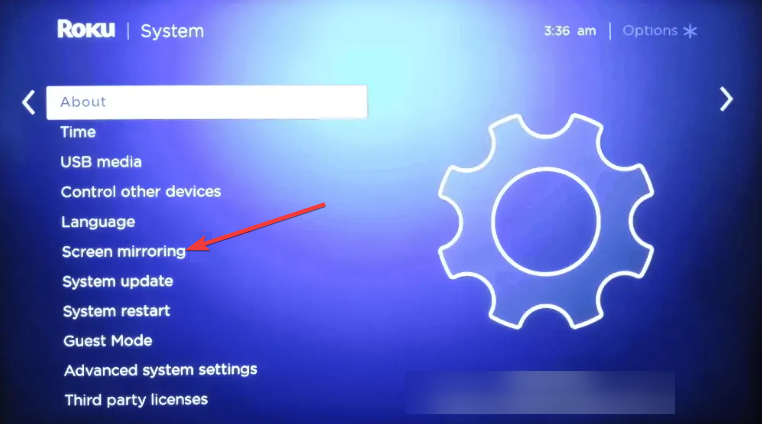
To get started, press the Home button on your Roku remote and go to Settings > System > Screen mirroring. Next, select Prompt or Always allow to enable mirroring. Your Roku is now ready to accept mirrored content from other devices.
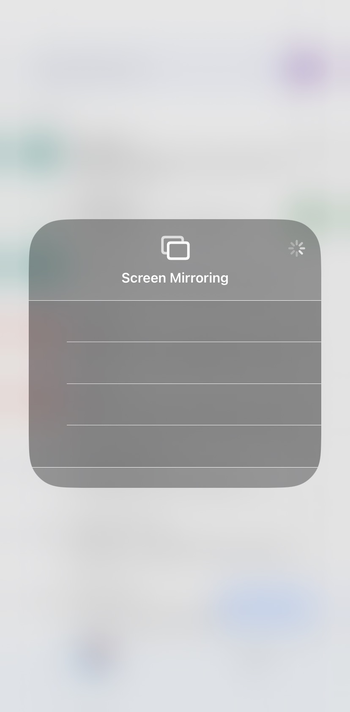
Now, on Android, swipe down and tap Smart View or Cast, then select your Roku device. If you are using an iPhone or iPad, open Control Center, tap Screen Mirroring, and choose Roku from the list. Once connected, open Chrome or Safari on your phone and browse normally.

To mirror on Windows 10 or 11, press Windows + K and choose your Roku device from the connection panel. For Mac users, enable AirPlay from the top bar, then select their Roku TV. Your desktop will appear on the screen, allowing you to use any browser you prefer.
2) Install a third-party Roku browser
While Roku doesn’t have an official browser, a few third-party options are available in the Roku Channel Store. To get one of these browsers, select Streaming Channels from the Roku Home screen. Then, choose Search Channels and type browser.
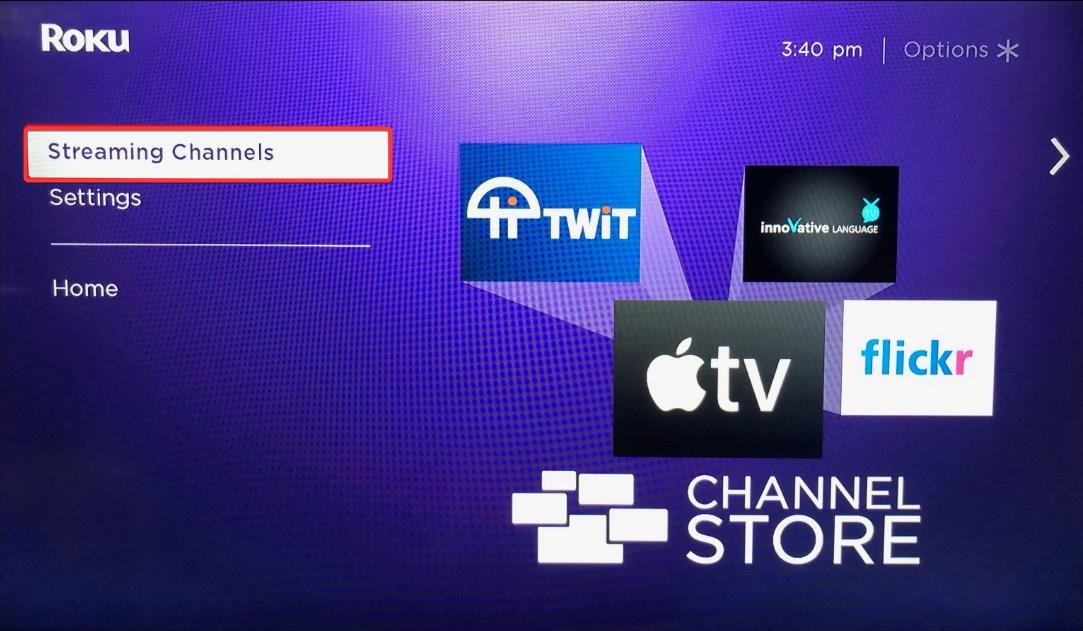
From here, browse available options like Web Browser X or Poprism and select Add Channel and confirm installation.
Tip: Most Roku browsers only support basic HTML pages. They don’t stream video or handle modern web layouts. If you need a full browsing experience, mirroring or casting remains the better option.
3) Use a companion device with a browser
Another option is to connect a separate streaming stick or gaming console with a built-in browser to your Roku TV via HDMI. This lets you use Chrome, Edge, or Opera directly on your television.
To get going, plug your companion device into an open HDMI port and press the Input button on your Roku remote. From here, select the connected device from the list and you will be able to use that device’s browser for a full web experience.
4) Use the Roku mobile app as a remote browser
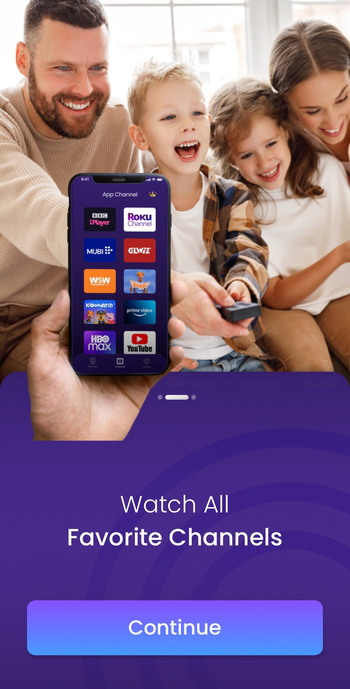
The Roku mobile app lets you control playback and type using your phone’s keyboard. While it doesn’t host a browser itself, it’s a convenient way to enter URLs and search terms when using web-based channels.
5) Best browsers for casting or mirroring to Roku
For the smoothest experience, use the following browsers when casting or mirroring:
- Chrome – Best for Android and Windows users.
- Safari – Optimized for Apple devices with AirPlay.
- Microsoft Edge – Reliable on Windows for office and media sites.
- Firefox – Lightweight and stable for simple browsing sessions.
6) Troubleshooting common browser issues
- Screen mirroring not working: Ensure both your phone and Roku are on the same Wi-Fi network. If issues persist, restart your Roku or check for system updates under Settings > System > Software Update.
- Browser app crashes or freezes: Uninstall the channel from the home screen, restart Roku, and reinstall it. If the problem continues, use mirroring instead of a built-in browser.
- Websites won’t load properly: Many browser channels can’t handle modern web scripts. Try loading simpler sites or cast from your smartphone for full functionality.
Tips for better web browsing on Roku
- Pair a Bluetooth keyboard: Makes typing and navigation easier when browsing or searching online.
- Adjust display settings: Switch your TV to “Game Mode” or optimize display type for clearer text.
- Keep devices on the same Wi-Fi: Prevents lag or disconnection during screen mirroring.
FAQs about browsing on Roku
Can I install Chrome directly on Roku? No. Roku OS doesn’t support Chrome or any major desktop browser installations.
Is there a private browser for Roku? No official private browser exists. However, you can open incognito tabs from a mirrored device.
Can I watch YouTube through a Roku browser? It’s better to use the YouTube channel available on Roku for smoother playback and full account access.
Summary
- Roku doesn’t have a built-in browser, but you can still browse using other methods.
- Screen mirroring from Android, iPhone, Windows, or macOS gives full web access.
- Third-party browser apps like Web Browser X allow basic text browsing on Roku.
- External devices such as Fire Stick or gaming consoles offer complete browser support.
- The Roku mobile app can help with typing and navigation on browser channels.
- For best performance, keep devices on the same Wi-Fi and use a Bluetooth keyboard.
Conclusion
If you just need quick access to the web, screen mirroring from your phone or laptop is the best option. For full browsing power, plug in a companion device like a Firestick or game console. Third-party Roku browsers work for basic text sites but have limitations.
With the right method, you can turn your Roku into a simple, TV-friendly web browsing setup in minutes.


Discussion (0)
Be the first to comment.