




Cinema HD is one of the most popular streaming apps for Firestick users who want access to free movies and TV shows. However, it’s not available on the Amazon Appstore, so you’ll need to sideload it manually. The good news is that this process is simple and only takes a few minutes.
This guide walks you through every step to safely download and install Cinema HD on your Firestick. But before you begin the installation, make sure your Firestick is connected to the internet and linked to your Amazon account. You’ll also need the Downloader app, which allows you to sideload APK files directly onto your device.
Step 1: Enable apps from unknown sources
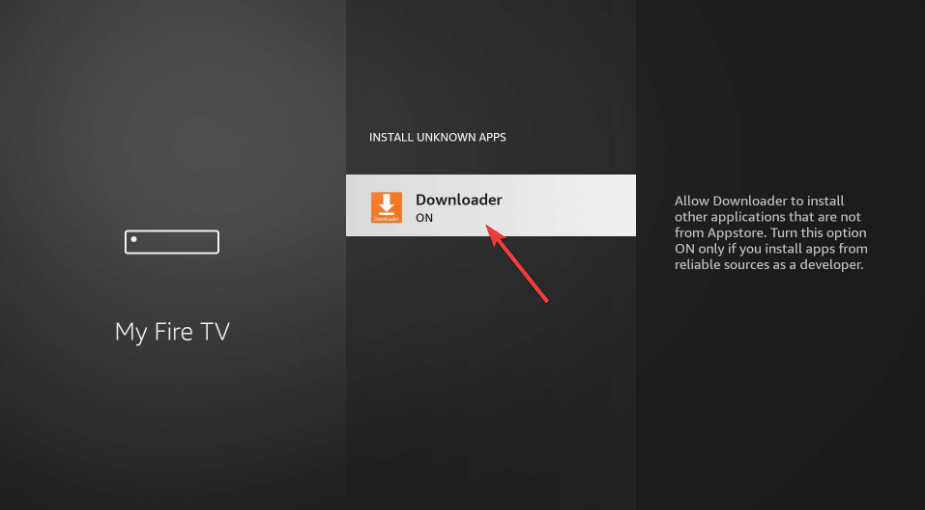
Firestick blocks third-party apps by default for security reasons. To allow Cinema HD to install, you’ll need to enable sideloading. From the Firestick home screen, select Settings > My Fire TV > Developer Options. Now, choose Install Unknown Apps and toggle the switch next to Downloader to turn it ON.
Step 2: Install the Downloader app on your Firestick
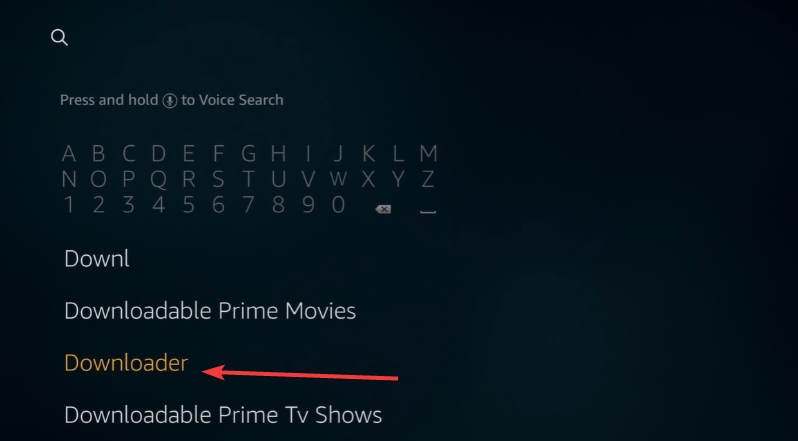
Go to the Firestick home screen and select Find → Search. Next, type Downloader and choose it from the results. Finally, select Get or Download to install the app. Once installed, open the Downloader app.
Step 3: Download Cinema HD APK using Downloader
In Downloader, go to the home tab and click the URL field. Type the verified Cinema HD download link and press Go. Wait for the APK file to download completely. Make sure the link is from a trusted site.

Once the file finishes downloading, you’ll see an installation prompt. Click Install, then wait a few seconds for the setup to complete. Finally, choose Done and delete the APK file to save space when the installation is complete.
Tips: Only use APK links from trusted sources. Avoid sites with pop-ups or multiple redirects. You can verify downloads by checking the file size or date before installation.
Step 4: Launch and use Cinema HD
To open the app, go to Your Apps & Channels → See All and find Cinema HD. Press the Menu button on your remote and select Move to Front to add it to your home screen.

When you open Cinema HD for the first time, grant the necessary permissions. From there, you can browse movies, TV shows, and access playback settings easily using your remote.
Troubleshooting Common Problems
- Parsing error or app not installed: This usually happens when the APK file is outdated or corrupted. Re-download the latest version and try again.
- Cinema HD keeps buffering: Clear the cache under Settings → Applications → Manage Installed Applications → Cinema HD → Clear Cache. You can also lower stream quality or use Real-Debrid links for faster speeds.
- No links found: If Cinema HD shows no playable links, open the app settings and refresh providers. You can also clear data to reset the app and try again.
Tips for better Firestick apps performance
- Clear cache and app data regularly.
- Uninstall unused apps to free up storage.
- Restart your Firestick weekly.
- Use a 5 GHz Wi-Fi network for smoother playback.
- For a smoother experience, connect your Real-Debrid or Trakt account from the app settings
- Check for Cinema HD updates manually. When a new version becomes available, download and install it using Downloader following the same steps above.
FAQs
Is Cinema HD free to use? Yes. Cinema HD is free, though it includes ads. Optional upgrades like Real-Debrid improve streaming quality.
Do I need a VPN? A VPN isn’t mandatory, but it can enhance privacy and bypass region-based restrictions on some streams.
Can I install Cinema HD on older Fire TV models? Yes. The same steps apply, though older Firesticks may perform more slowly or require more storage management.
How do I remove Cinema HD? Go to Settings → Applications → Manage Installed Applications → Cinema HD → Uninstall to delete the app completely.
Summary
- Enable Unknown Sources on your Firestick.
- Install the Downloader app.
- Use Downloader to download the Cinema HD APK.
- Install the app and delete the APK to save space.
- Launch Cinema HD and enjoy streaming.
Conclusion
Installing Cinema HD on your Firestick is quick, safe, and straightforward when you follow the right steps. By enabling unknown sources, using the Downloader app, and choosing trusted APK sources, you can start streaming your favorite movies and shows within minutes.
Keep the app updated, clear cache regularly, and maintain enough storage space for smooth playback. For privacy and region access, consider pairing your Firestick with a reliable VPN. Once set up, Cinema HD turns your Fire TV into a complete home theater experience - simple, fast, and convenient.


Discussion (1)
Thanks a bunch for the tips with the fire stick!