




SO Player is a media playback app that lets you stream IPTV channels and on-demand content directly on your FireStick or Fire TV. Because it’s not listed in the Amazon Appstore, you’ll need to sideload it safely using a trusted method.
This step-by-step guide walks you through installing, setting up, and troubleshooting SO Player on any FireStick model - including Lite, 4K, 4K Max, or Fire TV Cube.
Step 1: Enable installation from unknown sources
By default, FireStick blocks any app not downloaded from the Amazon Appstore. To allow SO Player to install properly, press Home → Settings → My Fire TV. Next, open Developer Options → Install Unknown Apps.

Finally, turn Downloader to ON. With this one-time setting, you can safely add third-party apps like SO Player.
Step 2: Install the Downloader app
Downloader is the official tool for getting external APKs onto FireStick. To install it, go to the Find menu on your FireStick home screen, choose Search, and type Downloader. Now, select it under Apps & Games, then click Download or Get.
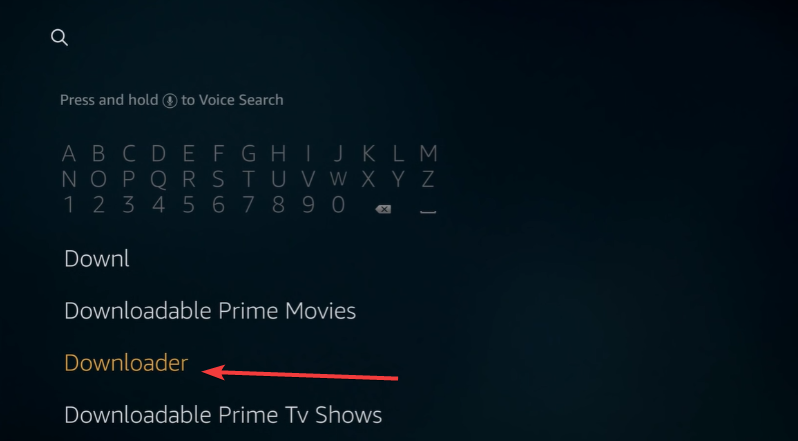
Once installed, allow storage and media permissions and click the Open button.
Step 3: Download and Install SO Player APK
Launch the Downloader app. In the address field, type the trusted SO Player APK URL (this should come from a verified source) and select Go to begin downloading. When the file finishes, choose Install.
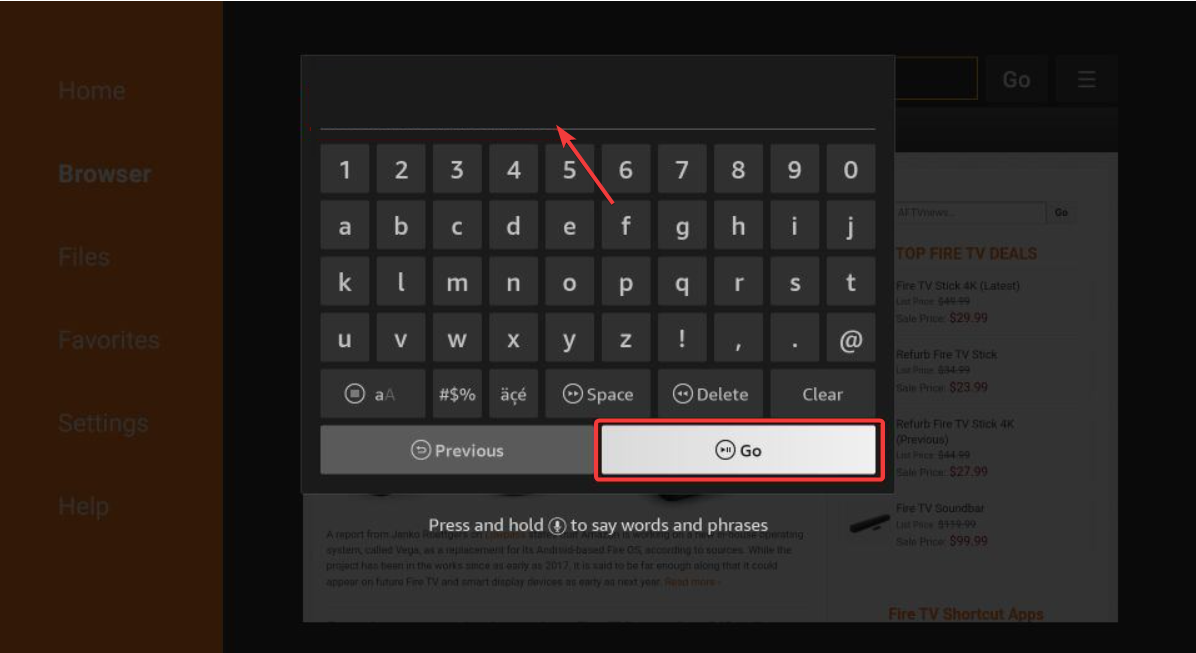
After installation, click Done, then delete the APK file to free up space. Fire OS will confirm the installation once the process completes.
Step 4: Launch SO Player and Complete Setup
To open SO Player, hold the Home button and choose Apps & Channels → See All. Highlight SO Player, press the Menu button, and select Move to Front if you want it on the main row.
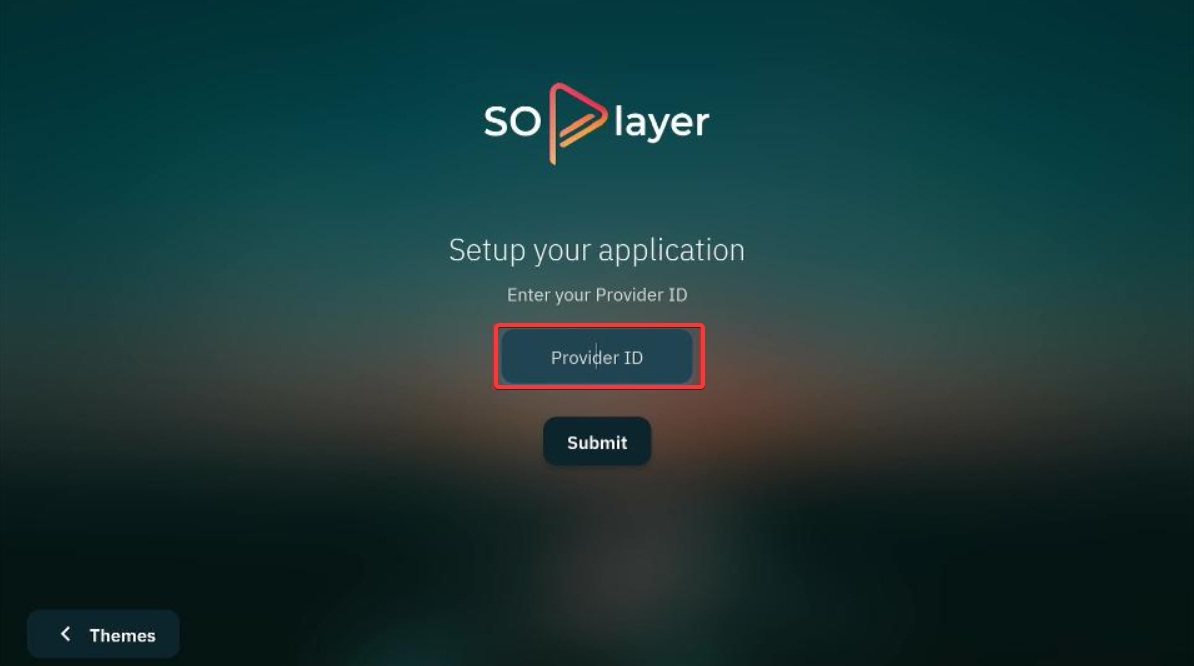
When you first launch it, you’ll be asked for credentials. These come from your IPTV provider - not SO Player itself. Enter your Username, Password, or Pin Code, then confirm to start streaming.
Step 5: How to Update SO Player on FireStick
SO Player doesn’t update automatically because it’s sideloaded. To update manually, re-open Downloader, enter the new APK link, and install over the current version. If that fails, uninstall the old app first.
Troubleshooting common SO Player errors
- App won’t install or Parse Error appears: Update your Fire OS or redownload a newer APK.
- Black screen or crash: Go to Settings → Applications → Manage Installed Apps → SO Player → Clear Cache / Clear Data.
- Login failure: Confirm your IPTV credentials are active.
- Audio or video lag: Reboot your FireStick and check Wi-Fi stability.
- App won’t load: Uninstall and reinstall it using the latest version.
- Region-restricted or not working: If the download page or streams won’t load, regional restrictions may be the cause. Install a reputable VPN app from the Amazon Appstore, open it, and connect to a U.S. server.
Tips to improve SO player performance
- SO Player needs around 150–200 MB of free storage. So, clear enough space to prevent lag and improve video playback quality.
- Restart the FireStick occasionally to keep it fast.
- Only use official or paid IPTV services
- Verify any APK with an antivirus scan
- Avoid installing from random file-sharing sites.
FAQs
Is SO Player free? Yes, but you’ll need valid IPTV credentials to access content.
Can I use it on Fire TV Cube or FireStick Lite? Yes - the interface and installation steps are nearly identical.
Why does the app keep buffering? Weak Wi-Fi or overloaded IPTV servers are common causes. Try restarting your router or FireStick.
Do I need a VPN for SO Player? Not required, but recommended for privacy and smoother streaming.
Summary: Install SO Player on FireStick in minutes
- Enable Install Unknown Apps.
- Install Downloader.
- Enter the SO Player APK URL.
- Install and log in with your IPTV credentials.
- Clear cache or update if errors appear.
Conclusion
Installing SO Player on your FireStick is simple once you understand how sideloading works. By using the Downloader app and enabling unknown sources, you can get the latest version of SO Player running in minutes.
Keep your app updated, clear the cache when playback slows, and consider using a VPN to avoid regional restrictions. These small steps help ensure stable performance and secure streaming across all your Fire TV devices. If SO Player ever stops working, the most reliable fixes are reinstalling the app or updating to a new APK build.



Discussion (0)
Be the first to comment.