



If you’re searching how to watch Showbox on Roku, here’s the short answer: you can’t install Showbox directly on Roku, but you can mirror your phone or PC screen to a Roku TV or streaming stick. At the time of writing, Showbox isn’t a Roku channel and Roku OS doesn’t support APK files. The safe workaround is screen mirroring or casting from Android, iPhone/iPad, or Windows.
Can You Install Showbox on Roku?
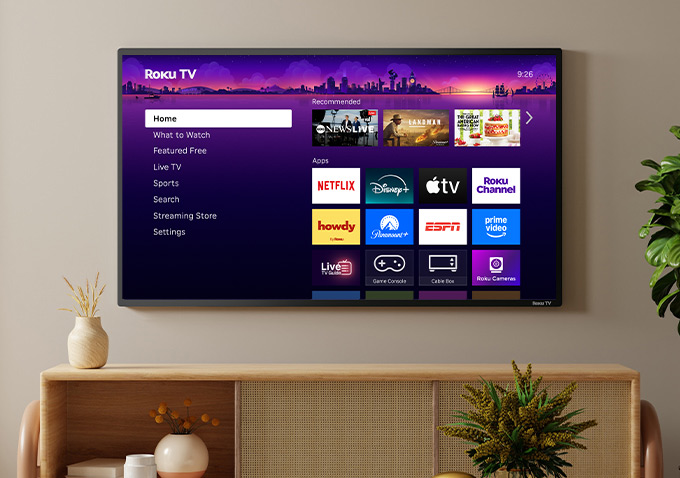
No. There’s no official Roku channel, and Roku can’t sideload Android APKs. If you want to watch Showbox on Roku, your only practical path is to mirror the app from another device to your Roku over the same Wi-Fi network.
Before You Start
- Ensure your Roku and phone/PC are on the same Wi-Fi network.
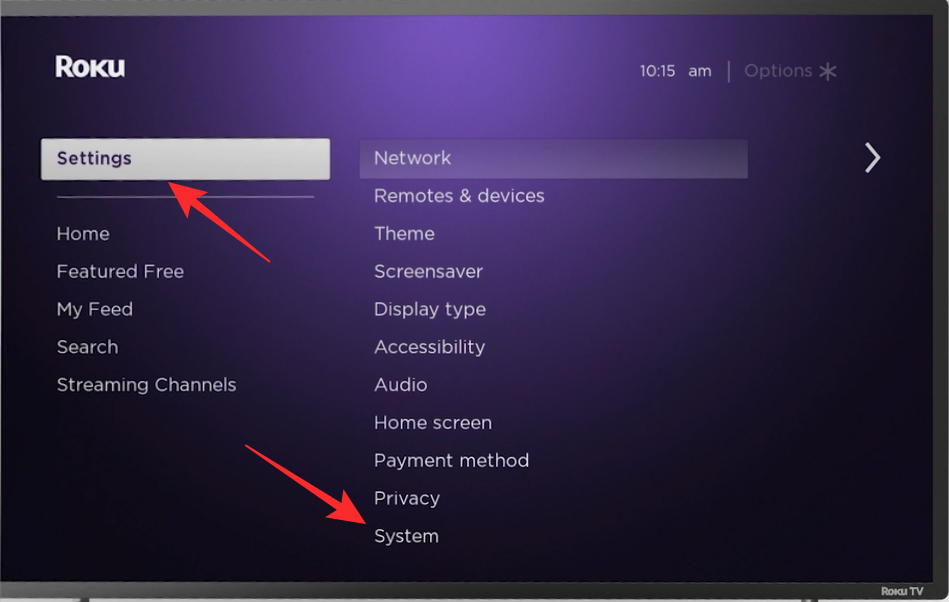
- Update Roku: Settings > System > System update.
- Enable mirroring: Settings > System > Screen mirroring (or AirPlay & HomeKit).
- Showbox isn’t available in the Roku Channel Store and may no longer receive official updates; use legal streaming options when possible.
Method 1: Mirror From Android to Roku (Smart View)
This is the most common method to watch Showbox on Roku. You’ll mirror your Android phone’s screen so everything (video, sound, and controls) appears on your Roku TV. Samsung, LG, and Huawei phones each have built-in casting features that make this easy.
- On Roku, go to Settings > System > Screen mirroring and set Prompt or Always allow.
- Make sure your Roku and Android device are connected to the same Wi-Fi network.
- On your Android phone, swipe down from the top of the screen to open the Notification panel.
- If you have a Samsung device, tap Smart View (Samsung’s version of Screen Mirroring) to enable it.
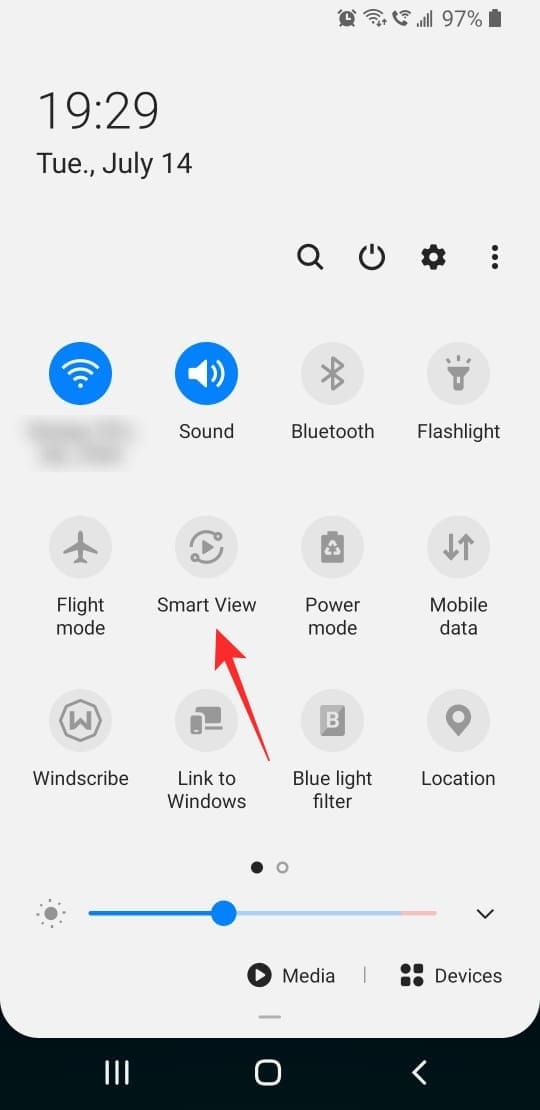
- Your phone will search for nearby devices; select your Roku device from the list.
- When a prompt appears on your TV, hit Accept to confirm the connection.
- You should now see your Android screen mirrored on your Roku TV.
- Open the Showbox app on your Android phone, choose a movie or show, and hit Play. Smart View will stream both audio and video directly to your Roku.
- If you use LG or Huawei, look for the Cast option instead. Go to Settings > Connected devices > Cast, then select your Roku from the list to start mirroring.
Once connected, you can enjoy Showbox content on the big screen. If playback stutters, switch to a 5 GHz Wi-Fi band and close background apps for smoother streaming.
Method 2: Mirror From iPhone/iPad Using AirPlay
Apple users can watch Showbox on Roku by mirroring through AirPlay. Roku TVs and streaming devices released after 2020 typically support this feature.
- On Roku, go to Settings > Apple AirPlay and HomeKit and turn AirPlay On.
- On iPhone or iPad, open Control Center and tap Screen Mirroring.
- Select your Roku device from the list and enter the on-screen code if prompted.
- Once mirrored, open your streaming app and play content—it will display on your Roku TV.
Method 3: Cast From Windows 10/11 (Miracast)
If you use a Windows PC, you can still watch Showbox on Roku by casting your screen via Miracast. This lets you project browser playback or app windows directly onto the TV.
- On Roku, verify Settings > System > Screen mirroring is enabled.
- On Windows, press Windows + K to open the casting sidebar.
- Select your Roku device from the list.
- Choose Duplicate to mirror your entire desktop.
- Open your video content in a browser or media player—it will appear on your Roku screen.
Improve Mirroring Quality
- Use a 5 GHz Wi-Fi band for higher streaming stability.
- Keep your phone or PC close to the router to avoid lag.
- Close background apps using bandwidth.
- Reduce the video quality from 1080p to 720p if playback stutters.
- Update both your Roku firmware and your phone or PC OS.
Is It Legal to Watch Showbox on Roku?
Showbox isn’t officially supported on Roku and has faced shutdowns in several regions for copyright concerns. To avoid issues, use verified Roku channels such as Tubi, Pluto TV, or Plex, which offer free, legal streaming content.
FAQs
Is there a Showbox app for Roku?
No, Roku does not support Android APK files. The only way to watch Showbox on Roku is through screen mirroring or casting.
Can I mirror Showbox without Wi-Fi?
No. Both Roku and your phone or PC must be connected to the same Wi-Fi network for screen mirroring or AirPlay to work.
Does Roku support Android casting?
Yes, but not through APKs. Roku supports Miracast, Smart View (Samsung), and general Android Cast functions for real-time mirroring.
Why is my phone not finding Roku?
Check if both devices are using the same Wi-Fi band (2.4 GHz or 5 GHz). Restart your Roku and re-enable Cast or Smart View on your phone to refresh discovery.
Summary
- You can’t install Showbox on Roku, but you can mirror it via Android, iPhone, or Windows.
- Use Smart View (Samsung) or Cast (LG, Huawei) for Android devices.
- Keep both devices on the same Wi-Fi and use 5 GHz for smoother performance.
- Stick to verified, legal streaming apps on Roku for better reliability and security.


Discussion (0)
Be the first to comment.