




Cinema HD is one of the most popular third-party streaming apps for watching movies and TV shows for free. However, Smart TVs don’t natively support it, so you’ll need to sideload it or mirror it from another device. This guide walks you through every safe and working method.
Before diving into the installation process, however, you need to ensure that your Smart TV is connected to Wi-Fi, has at least 500 MB of free space, and that you can access either a USB drive or the Downloader app from the app store. Enabling app installation from unknown sources is also required for sideloading.
1) Install Cinema HD on Android TV or Google TV
Android TV users have the easiest path to install Cinema HD because these devices allow APK files to run directly. You can install it using the Downloader app or a USB drive.
Method 1: Install via Downloader app
First you need to enable installation from unknown sources by going to Settings > Apps > Special Access > Install Unknown Apps. Choose the Downloader or File Manager app and toggle the permission on. This allows you to install apps that aren’t from the Play Store.
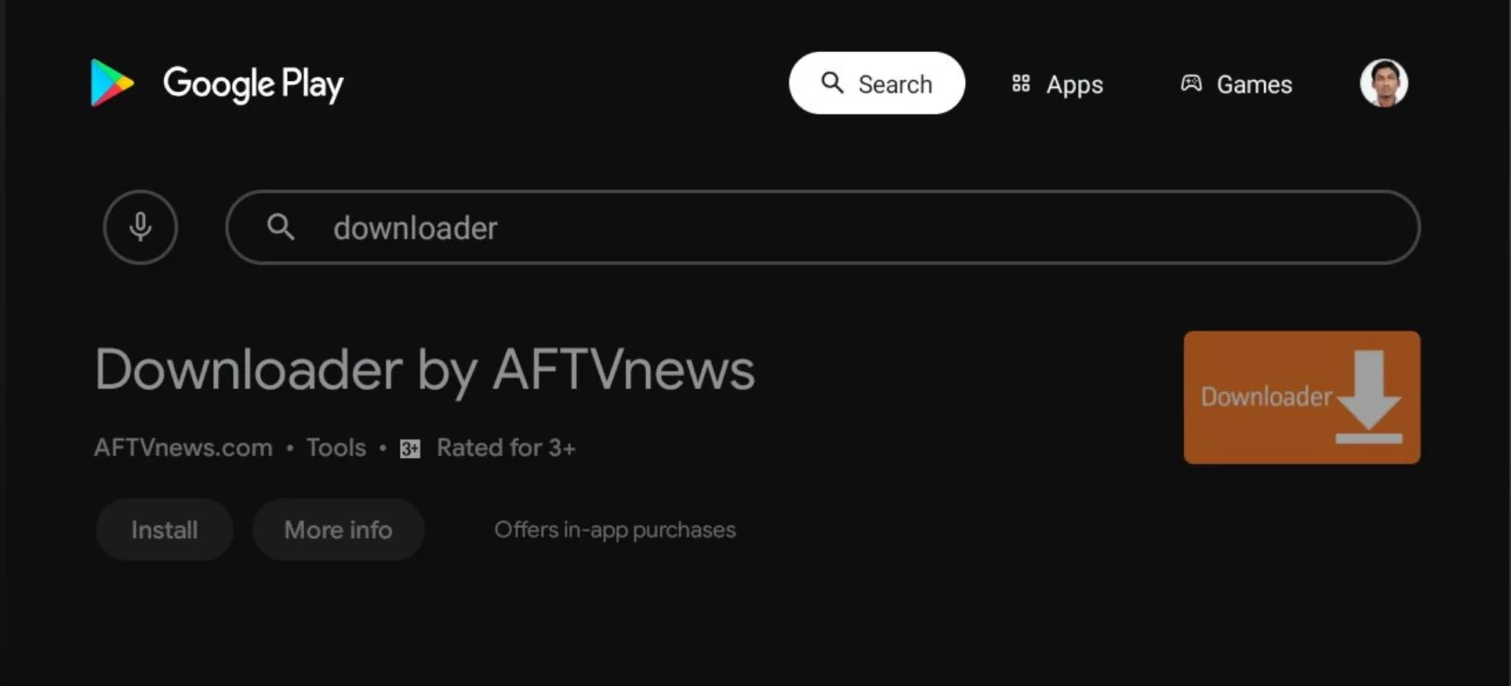
Open the Play Store, search for downloader, and install the Downloader app. Next, launch Downloader, type the verified Cinema HD download link, and select Go.
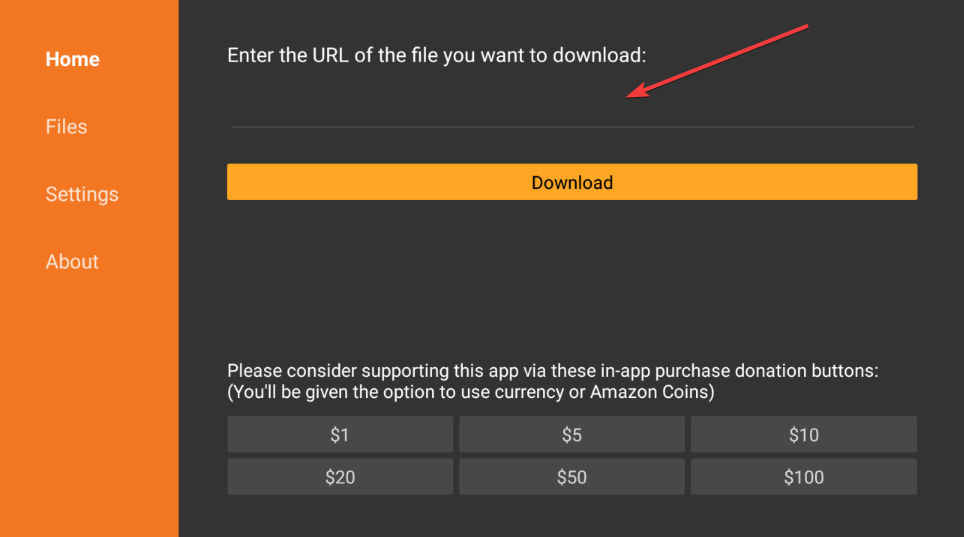
Wait for the APK to download and when prompted, choose Install. Finally, wait for the installation process to complete and open Cinema HD from your Apps list.
Method 2: Install via USB drive
Download the latest Cinema HD APK on your PC and copy it to a formatted USB drive. Then, insert the drive into your Smart TV’s USB port, open your File Manager app, and select the APK file. Finally, click Install and allow the process to finish.
2) Install Cinema HD on Samsung Smart TV (Tizen OS)
Samsung Smart TVs use Tizen OS, which blocks third-party APKs. The easiest option is to cast or mirror Cinema HD from your Android phone. To do this, install Cinema HD on your Android phone.
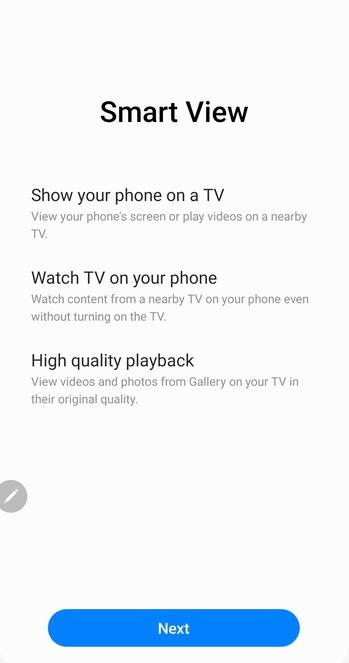
Now, connect the phone and TV to the same Wi-Fi network. Next, swipe down on your and tap Smart View or Cast. Finally, select your Samsung TV and start casting.
Alternatively, you can plug a Fire Stick or Chromecast into your Samsung TV’s HDMI port. Install Cinema HD directly on that device for smoother playback and updates.
3) Install Cinema HD on other TV types
LG Smart TV (WebOS) doesn’t support APKs either. You can still stream by casting from your Android phone using Screen Share or by attaching a Fire Stick or Android TV box.
Also, Roku TVs restrict side-loading, but you can cast Cinema HD from your mobile device or connect a compatible streaming stick. Once linked, you’ll access the same Cinema HD interface found on Android TV.
4) Troubleshooting Cinema HD installation issues
- App not installed error: This error usually appears when your TV’s storage is full or when an older APK conflicts with the new one. Uninstall previous versions, clear cache, and reinstall the app.
- No links or buffering: If you can’t load any sources, check your internet speed and consider resetting your router. Adjust the Cinema HD settings to lower quality or clear providers to refresh links.
- App crashes or freezes: Crashes often stem from corrupt cache or insufficient memory. Go to Settings > Apps > Cinema HD > Clear Cache, then reopen the app. If issues persist, reinstall it.
Tips for installing Cinema HD on Smart TV
- Always download the Cinema HD APK from a verified source to avoid malware.
- Use a VPN to protect your streaming activity and bypass geo-restrictions.
- Check that your TV OS supports APK installation before proceeding.
- Free up storage space and clear cache if you face “App not installed” errors.
- For Samsung or LG TVs, casting from an Android phone is usually faster than using a USB stick.
- Keep your Cinema HD app updated for better link availability and fewer buffering issues.
FAQs
Can I install Cinema HD on any Smart TV? Only Android-based TVs allow direct APK installation. Others require casting or a streaming device.
Do I need a VPN to stream? Yes, a VPN helps protect privacy and access more sources safely.
Why isn’t Cinema HD in the Play Store? It’s a third-party app not approved by Google Play because of unverified content links.
What’s the latest Cinema HD version for 2025? Version v2.6.1 is the most stable release compatible with current Android TVs.
Summary
- Enable Unknown Sources in your TV settings to allow third-party apps.
- Use the Downloader app on Android or Google TV to get the latest Cinema HD APK.
- Install via USB drive if you can’t access Downloader or have limited internet.
- Cast from your Android phone to Samsung, LG, or Roku TVs if APKs aren’t supported.
- Attach a Fire Stick or Chromecast for universal compatibility and smoother playback.
Conclusion
Cinema HD can run on nearly any Smart TV when installed correctly. Android TV users can sideload it easily, while Samsung, LG, and Roku owners can mirror or attach a streaming stick. Always download from trusted sources, use a VPN for privacy, and enjoy smooth streaming at home.


Discussion (0)
Be the first to comment.