




If you are a Roku user, you may need to find your device's IP address at times. Whether you’re troubleshooting network issues, accessing your Roku remotely, or optimizing your streaming experience, knowing your Roku IP address is essential. In this guide, we’ll explore why knowing your IP address is important and how to find it using different methods easily.
What Is an IP Address?
An IP address, short for Internet Protocol address, is a unique identifier assigned to every device connected to the internet or a local network. Just like your home address directs a letter to your doorstep, an IP address helps direct data to the correct device on a network. Each device, including your Roku, has its own IP address that allows it to communicate with other devices and access online content.
Knowing your Roku's IP address can help with a variety of tasks, from troubleshooting network issues to configuring your router settings for a smoother streaming experience. Let's look at how you can find this important piece of information.
Why Do I Need to Find My Roku IP Address?
Finding your Roku IP address is useful for several reasons. First, it can help resolve network connectivity problems. If your Roku is experiencing issues like slow streaming or frequent buffering, knowing the IP address allows you to check network settings and make adjustments. Additionally, you may need the IP address for troubleshooting purposes or when accessing your Roku remotely through third-party apps.
Another reason to know your Roku IP address is for customizing your router settings. Some routers allow you to prioritize specific devices for faster streaming speeds. By identifying your Roku’s IP address, you can adjust settings like Quality of Service (QoS) to ensure your streaming experience remains uninterrupted.
How to Find Your Roku IP Address
There are multiple ways to find the IP address of your Roku device. Whether you prefer using the Roku device itself, the Roku mobile app, or router settings, we’ll walk you through the best options.
Method 1: Find Roku IP Address Using the Roku Device
The easiest way to find the IP address of your Roku device is directly from the device itself. Here's how:
- Turn on your Roku and press the “Home” button on your remote.
- Navigate to the “Settings” menu.
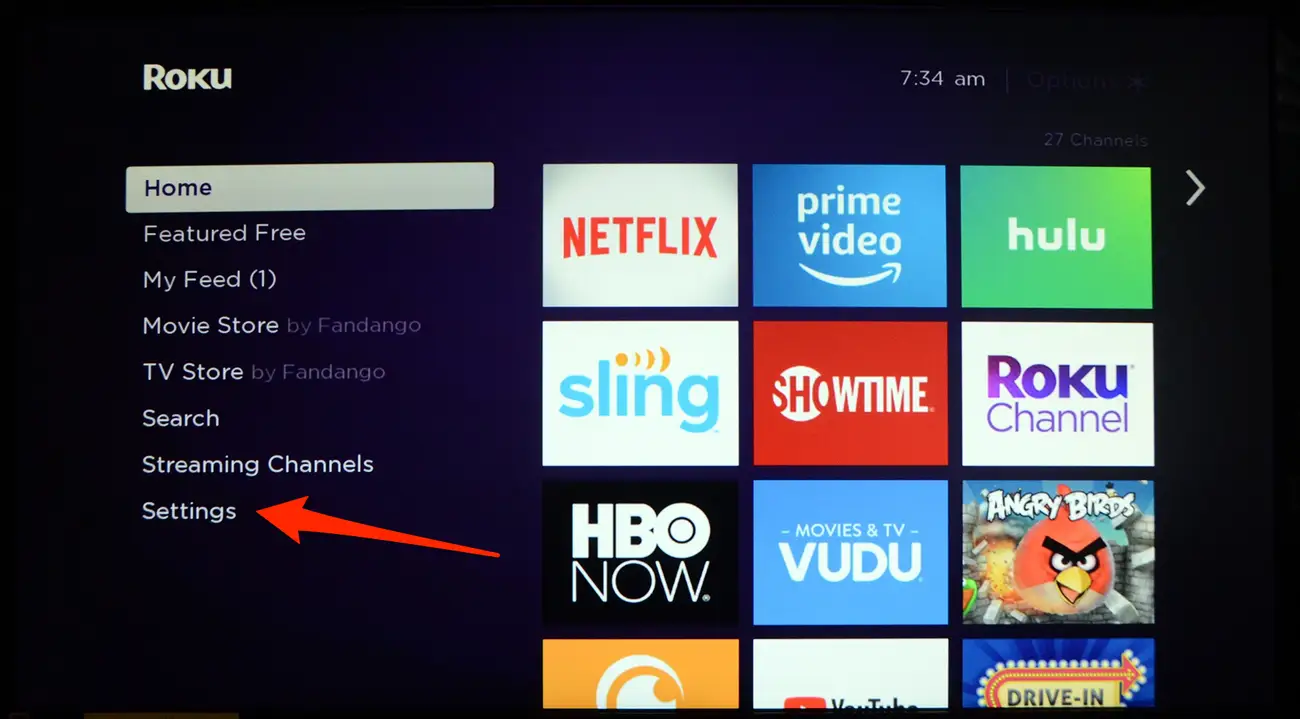
- Select “Network.”
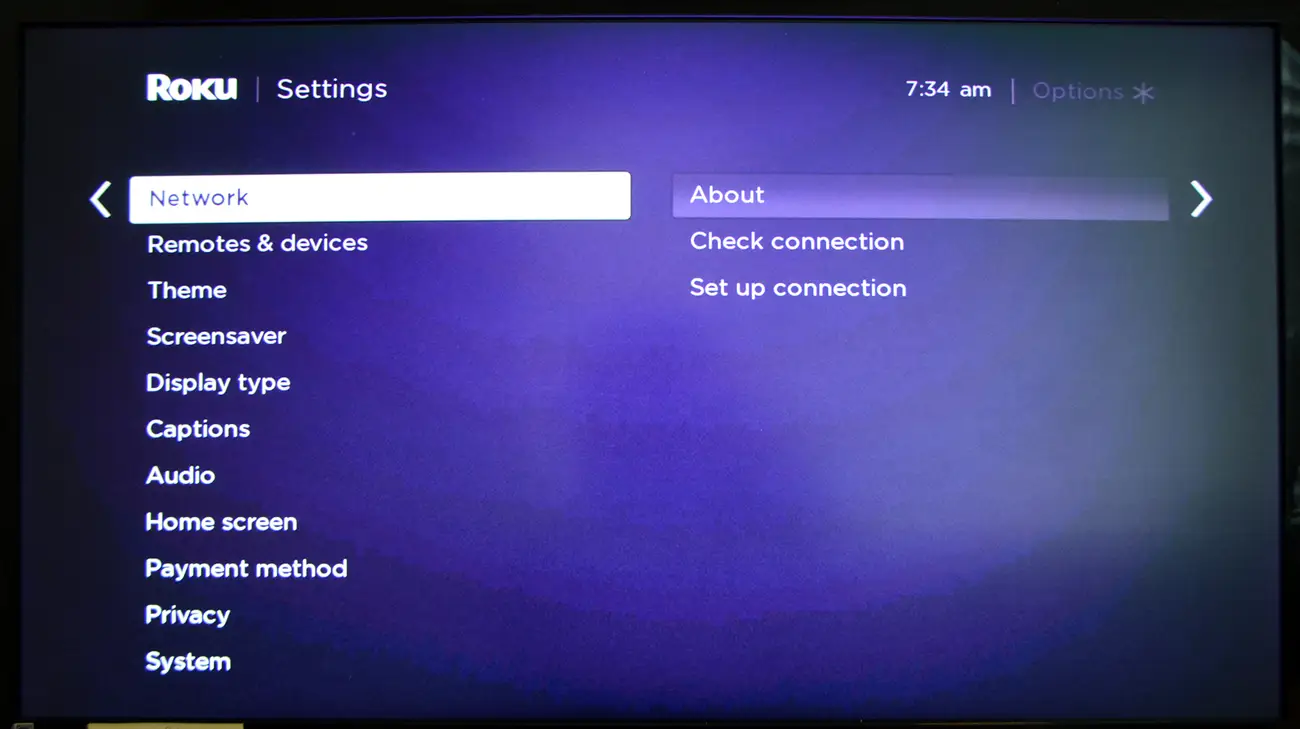
- Choose “About,” and look for the “IP Address” field. The value shown is your Roku’s IP address.
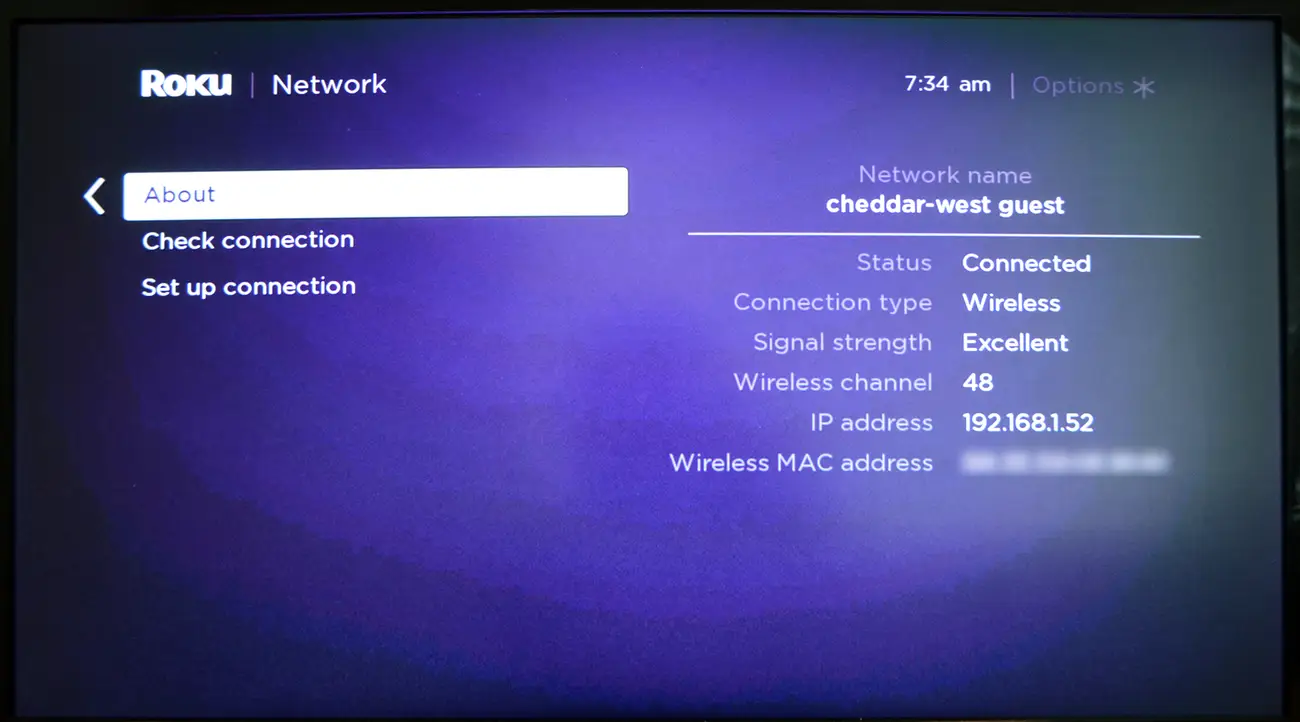
If your Roku device uses a dynamic IP address (assigned by your router), it might change periodically. For a consistent IP address, consider setting a static IP via your router.
Method 2: Find Roku IP Address Using the Roku Mobile App
If you have the Roku mobile app installed, you can also find the IP address of your Roku device directly from your smartphone. Here's how:
- Ensure both your Roku device and mobile device are connected to the same network.
- Open the Roku app and tap on the “Devices” tab at the bottom of the screen.
- Select your Roku device from the list and tap on the settings icon (three dots).
- In the settings menu, tap “About,” and look for the “IP address” field.
This method is convenient for users who prefer managing their Roku settings through a mobile device.
Method 3: Find Roku IP Address Using Your Router
If you have access to your router’s settings, you can find your Roku IP address by checking the list of connected devices:
- Open a web browser and enter your router's IP address into the address bar.
- Log in with your router’s username and password.
- Navigate to the “Connected Devices” or “DHCP Clients” section.
- Look for your Roku device in the list of connected devices, and the associated IP address will be shown.
This method is useful if you're unable to access the Roku device or mobile app, as long as you have access to the router.
Method 4: Use an Online IP Address Lookup Tool
For a more indirect method, you can use an online IP address lookup tool. Here’s how:
- Search for “Roku IP address lookup tool” in your browser.
- Visit a reliable IP address lookup site.
- The tool will display the IP address of your computer or mobile device, which is typically in the same range as your Roku device's IP address.
This method gives you an approximate idea of your Roku's IP address, though it may not be precise.
Troubleshooting Common Problems
- Roku IP Address Is Not Showing: Ensure your Roku device is powered on and connected to the network.
- IP Address Keeps Changing: Set a static IP through your router if you need a consistent address.
- Roku Device Not Listed In Router: Make sure your Roku is connected to the same Wi-Fi network as your router.
Tips
- Always set up a static IP for your Roku if you frequently need to access it remotely.
- Make sure your router firmware is updated to avoid connection issues.
- Consider using the Roku mobile app for easier access to settings when troubleshooting.
FAQ
- What is an IP address? An IP address is a unique identifier that allows devices to communicate on a network.
- How do I find my Roku IP address without a remote? Use the Roku mobile app or check your router’s connected devices list.
- Can I set a static IP for Roku? Yes, you can configure your router to assign a fixed IP to your Roku device.
Summary
- Roku IP address is essential for troubleshooting, remote access, and network optimization.
- You can find your Roku IP address using the Roku device, mobile app, router settings, or an online tool.
- Setting a static IP address can help ensure a consistent connection to your Roku device.
Conclusion
Knowing your Roku IP address is a valuable tool for troubleshooting network issues, accessing your device remotely, and optimizing your streaming experience. With the methods provided in this guide, you can easily locate your Roku’s IP address whenever necessary. Whether through the Roku device, mobile app, router settings, or a lookup tool, these steps will ensure you can manage your Roku device efficiently and enjoy a seamless streaming experience.


Discussion (0)
Be the first to comment.