



If you’re asking, “where are my downloads on iPhone?” you likely downloaded a file, and it seemingly vanished. Unlike a computer, iOS does not use a single Downloads folder, so files end up in different places depending on the app and file type.
Once you know which app handled the download, finding your files becomes quick and predictable. The steps below show exactly where iPhone downloads go and how to locate them every time.
Table of contents
- The quick answer: Where iPhone downloads actually go
- Find downloads from Safari
- Where downloads from other apps are stored
- Where photos, videos, and music downloads go
- Use search to find missing downloads faster
- Why downloads sometimes disappear on iPhone
- How to move, organize, or delete downloaded files
- Tips for managing downloads on iPhone
- FAQs about iPhone downloads
- Summary
The quick answer: Where iPhone downloads actually go
Your downloads are saved based on the app you used. Safari and email apps usually save files to the Files app, while media and streaming apps keep downloads inside the app itself.
Find downloads from Safari
Check the Downloads folder in the Files app
Follow these steps to locate Safari downloads:
- Open the Files app.
- Tap Browse in the bottom-right corner.
- Open On My iPhone or iCloud Drive.


- Tap the Downloads folder.


Safari saves all completed downloads here by default unless you change the location.
Change or confirm Safari’s download location
If you cannot find your downloads, confirm where Safari saves them:
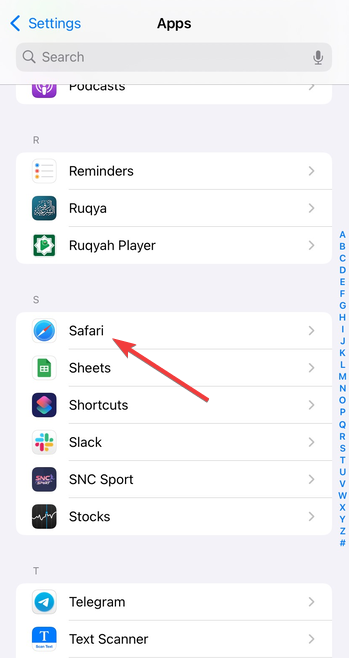
- Open Settings.
- Scroll down, select Apps, and tap Safari.

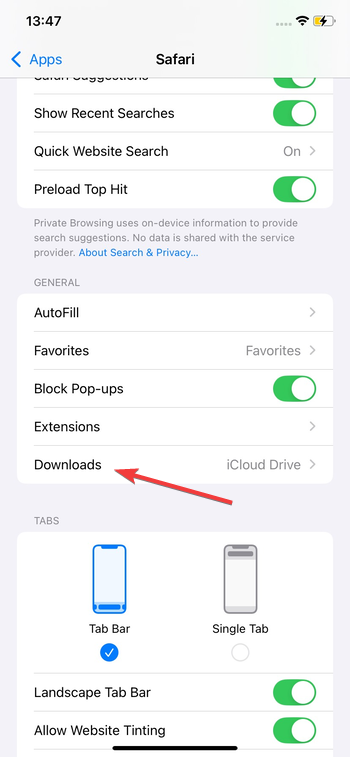
- Tap Downloads.

- Select On My iPhone or iCloud Drive.
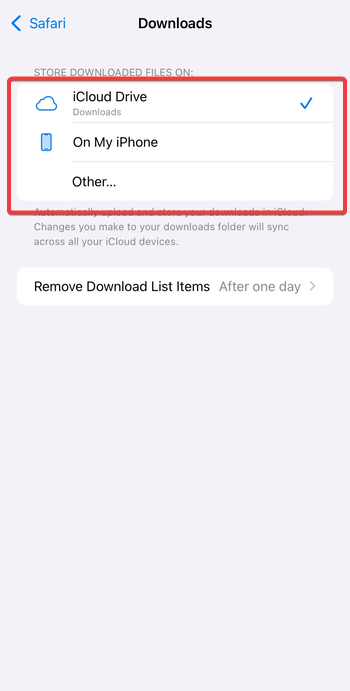

- Tap Other if you want to choose a custom folder.
This setting controls every future Safari download.
Where downloads from other apps are stored
iOS isolates apps, so each app manages its own downloaded files.
Files app supported apps (Chrome, Firefox, Mail)
To find downloads from supported apps:
- Open the Files app.
- Tap Browse.
- Check On My iPhone and iCloud Drive.
- Look for folders named after the app or use search.
Chrome and Firefox usually prompt you to choose a save location during the download.
Apps that keep downloads internally
Apps like WhatsApp, Netflix, Spotify, and YouTube do not export downloads.
- Open the app that downloaded the content.
- Go to its Downloads or Offline section.
- Play or view the file directly from the app.
These files never appear in the Files app and cannot be moved.
Where photos, videos, and music downloads go
Media files follow different rules than documents.
Photos and videos saved from apps or Safari
To check saved images or videos:
- Open the Photos app.
- Tap Library.
- Scroll to the most recent items.
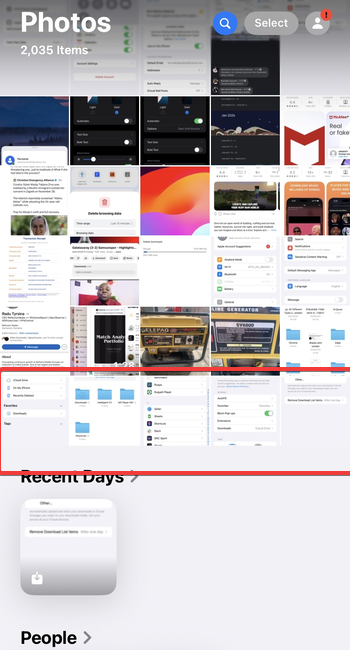

- Check the Recents album.
If you chose Save to Files instead, the media stays inside the Files app as a regular file.
Music and offline audio downloads
Music downloads stay locked inside their apps.
- Open the music or streaming app.
- Go to Library or Downloads.
- Play the content directly from there.
You cannot access these files from the Files app. Also, if you download apps like Walmart on iPhone from the App Store, you can't access them from the Downloads folder. Instead, they will be among your app list.
Use search to find missing downloads faster
Search tools help when you forget the download location.
Search inside the Files app
Use search to locate files quickly:
- Open the Files app.
- Tap the search bar at the top.
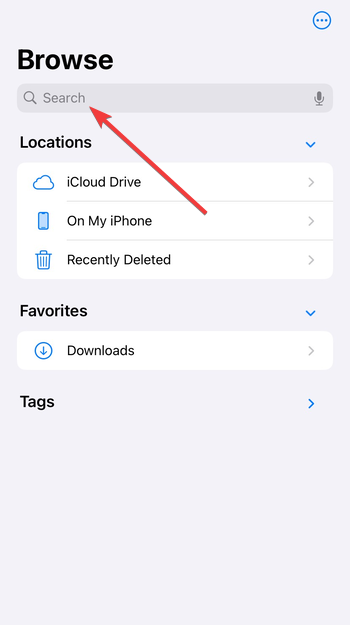

- Enter part of the file name or extension.
- Tap Recents to focus on your latest files.
This method works even if you saved the file to an unexpected folder.
Check iCloud Drive sync status
If files do not appear immediately:
- Open the Files app.
- Navigate to iCloud Drive.
- Look for a cloud icon next to the file.
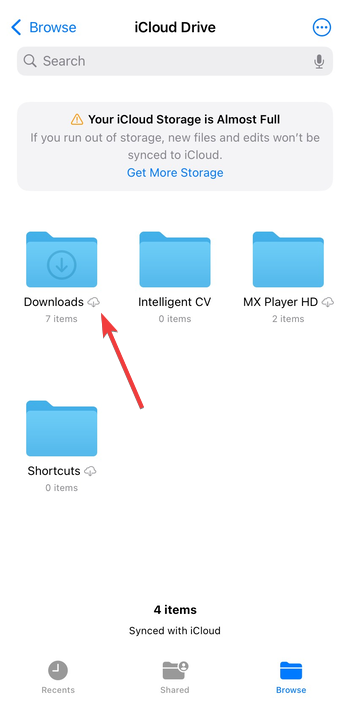

- Tap the file to download it locally.
Sync delays often cause downloads to seem missing.
Why downloads sometimes disappear on iPhone
Several issues prevent files from saving correctly.
Storage, permissions, and app cleanup
Fix storage-related issues:
- Open Settings.
- Tap General.
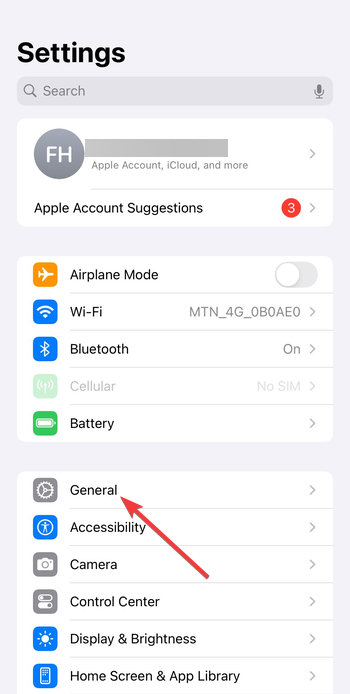

- Tap iPhone Storage.


- Check available space.
- Delete unused apps or large files if storage is low.
- Re-download the file afterward.
Low storage often cancels downloads silently.
Download failed or never completed
Confirm the download finished:
- Open Safari.
- Tap the Downloads button next to the address bar.
- Check for failed or paused downloads.
- Tap the file again to restart it.
Interrupted downloads do not save partial files.
How to move, organize, or delete downloaded files
Proper organization prevents repeat confusion.
Move downloads to folders you can remember
To move files:
- Open the Files app.
- Long-press the file.
- Tap Move.


- Select or create a folder.
- Tap Move again.
Create folders like Work, Personal, or Receipts to stay organized.
Delete downloads safely to free space
- Open the Files app.
- Long-press the file.
- Tap Delete.


- Open Recently Deleted and delete again to free space fully.
Deleting Files app downloads does not break apps.
Tips for managing downloads on iPhone
- Save important files to On My iPhone for offline access.
- Rename files immediately after downloading.
- Pin the Downloads folder in Files.
- Avoid downloading the same file multiple times.
FAQs about iPhone downloads
Where do PDF downloads go on iPhone? Safari saves PDFs to the Downloads folder in the Files app.
Why can’t I see my downloads in Photos? Photos only shows media saved directly to the Photos app.
Can I create a permanent Downloads folder? Yes, you can create and pin any folder in the Files app.
Do iPhone downloads delete automatically? Files app downloads stay until you delete them manually, but some apps remove offline files to save space.
Summary
- iPhone stores downloads by app, not in one global folder.
- Safari downloads save to the Files app by default.
- Media downloads stay inside Photos or the app itself.
- Search and Recents help locate missing files quickly.
Once you know which app handled the download, finding your files becomes straightforward. Start with the Files app, confirm Safari’s download setting, then check the app that downloaded the content.


Discussion (0)
Be the first to comment.