The Windows 10 Tablet mode was designed to help you take advantage of your touchscreen device. However, if you enjoy the full-screen Tablet mode environment more than the classic windowed one, you can also use it on your desktop computer. This tutorial explains what the Windows 10 Tablet mode is and how to activate it. See how to configure Tablet mode, and use it to make the most out of your touchscreen device:
Tablet mode is Windows 10's designated touchscreen interface, but you can also choose to activate it on a desktop PC with a mouse and keyboard. With its full-screen Start Menu and apps, it resembles the controversial interface that Microsoft enforced on all Windows 8 users.
Tablet mode in Windows 10
However, Windows 10 brings an elegant compromise, letting you switch between the full-screen interface of Tablet mode and the traditional way of controlling your computer or device. In fact, Windows 10 actively mentions Tablet mode only when you run it on a device with touch.
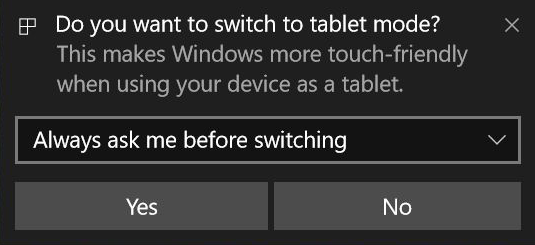
Tablet mode is part of the Continuum experience, which allows Windows 10 to adapt to the way a device is being used at a certain moment. If you have a hybrid device like the Surface Pro, the Dell XPS 13 2-in-1, or the HP Spectre Folio, you are prompted to switch to Tablet mode when you put it in its tablet position. Depending on your device, the prompt can appear when you fold your tablet or detach it from its base, dock, or keyboard.
Windows 10 prompt about Tablet mode
But, as you're about to see, that's not the only way to toggle Tablet mode.
Start Tablet mode in Windows 10
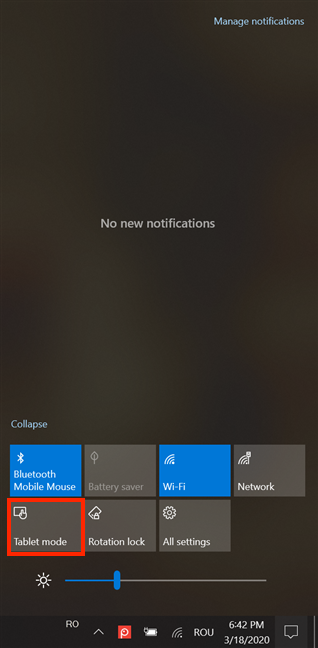
You can enable the Windows 10 Tablet mode manually at any time from Quick actions, even on a device without a touchscreen. Open the Action Center by pressing Windows + A on your keyboard or by swiping left from the right side of the screen. Your Quick actions should be displayed at the bottom of the pane. Click or tap on the Tablet mode button to enable the feature.
Press the button to turn Tablet mode on
If you can't find Tablet mode among the available Quick actions, learn how to add the corresponding button to the Action Center by reading The Quick actions in Windows 10: access them, use them, customize them!.
You can also configure the Windows 10 Tablet mode to switch on automatically from the Settings app. Keep reading to see how.
How to use the Rotation lock in Tablet mode
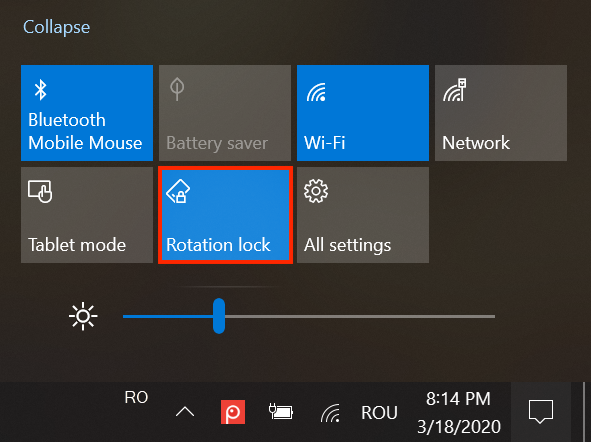
If you're using a tablet with Windows 10, there is one important Quick action you might want to use: the Rotation lock. To access it, open the Action Center, and click or tap the Rotation lock.
Turn on Rotation lock
The Rotation lock controls the rotation of the screen, which matters in Tablet mode. Turn it on, and your screen is locked in the current orientation mode. Disable it, and your screen automatically changes from portrait to landscape mode when you rotate your Windows 10 device.
Rotation lock controls the orientation of your screen
Tablet mode settings in Windows 10
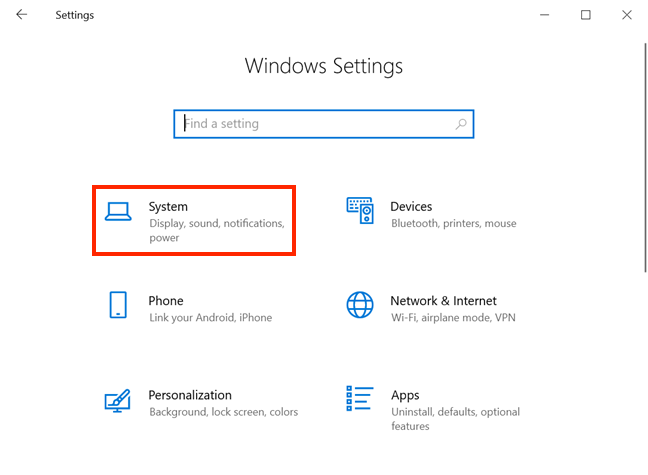
As is the case for Windows 10 features, you can configure Tablet mode from the Settings app. To access all the options for the Windows 10 Tablet mode, open the Settings app and click or tap on System.
Press System in the Settings app
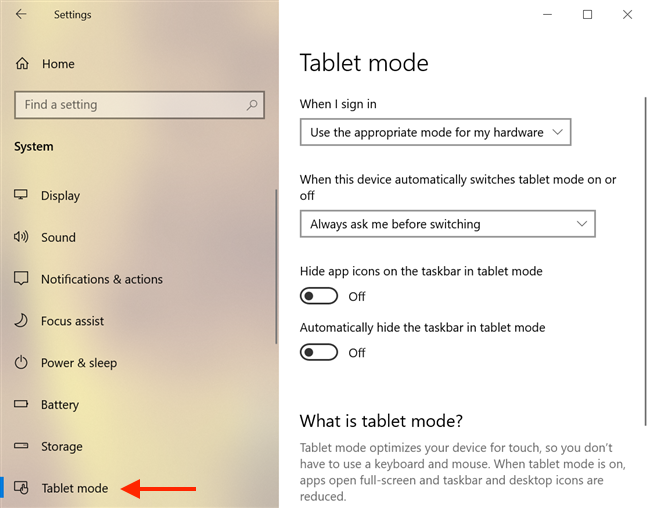
When the SystemSettings open, access the Tablet mode in the column on the left. You see the settings related to this feature displayed on the right-hand side of the window.
The Tablet mode settings
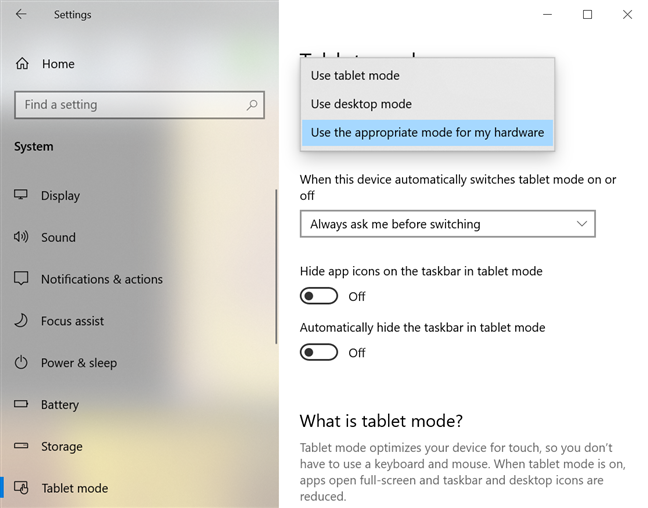
Click or tap on the field under the first option, "When I sign in" to reveal a menu. From it, you can select one of the following options:
"Use tablet mode" - Windows 10 uses Tablet Mode each time you sign in, even if you are using a mouse and keyboard at that time.
"Use desktop mode" - Windows 10 goes to the traditional desktop each time you sign in, even if you are using a touchscreen. This option is intended for users without touchscreen devices.
"Use the appropriate mode for my hardware" - Windows 10 checks whether you have a mouse and keyboard available on your device. If you do, then it goes to the desktop when you sign in. Otherwise, it starts Tablet Mode. We recommend using this setting for hybrid devices like the Surface Pro.
Choose your device's mode when you sign in
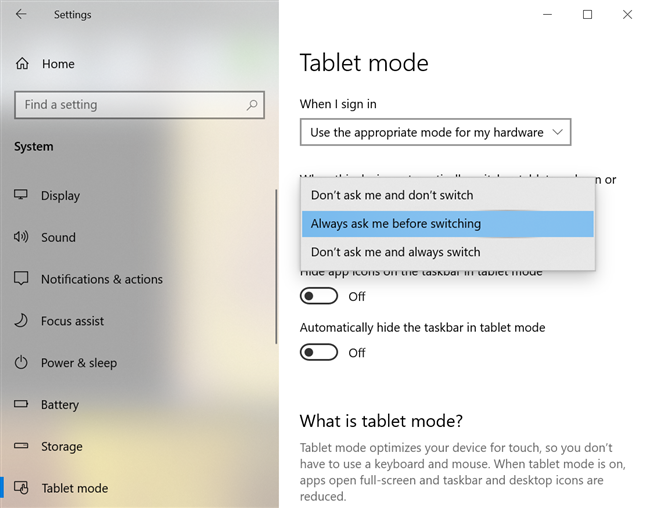
The "When this device automatically switches tablet mode on or off" option is made possible because of Continuum. Clicking or tapping on the field also reveals three options you can choose from:
"Don't ask me and don't switch" - Windows 10 never changes the current mode unless you manually change it using the instructions from the previous section of this tutorial.
"Always ask me before switching" - Windows 10 prompts you whenever it detects that you put or take the device out of its tablet position (you attach or detach it from its base, dock, or keyboard or you fold or unfold the tablet). This is the best setting, in our opinion, and we both recommend and use it.
"Don't ask me and always switch" - Windows 10 automatically starts and exits Tablet Mode when it detects changes in the tablet position of your hybrid device. This is meant to offer a seamless transition between the two modes.
Choose your device's Continuum behavior
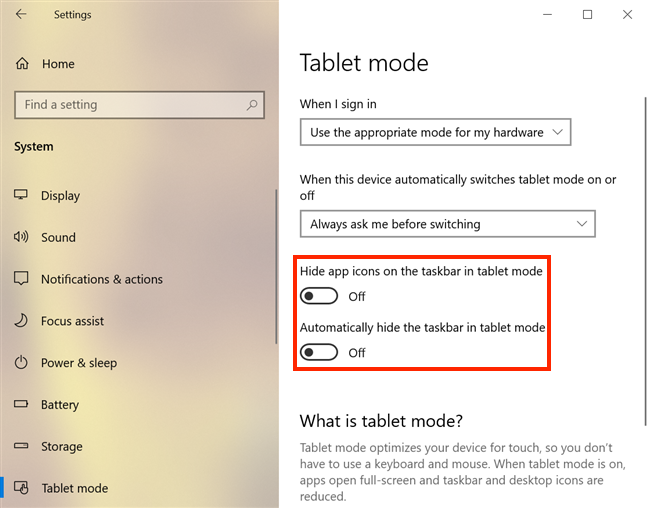
There are two more settings you can either enable or disable on this page, and they are pretty self-explanatory. If you activate the "Hide app icons on the taskbar in tablet mode" switch, no app icons are shown on the taskbar. Enabling the "Automatically hide the taskbar in tablet mode" option hides the taskbar altogether when Windows 10 is in Tablet mode, but you can still access it if you either hover your cursor or swipe up from the bottom of the screen. We like the familiar taskbar with its icons while in Tablet mode, so we prefer setting both switches to Off.
Taskbar settings while in Tablet mode
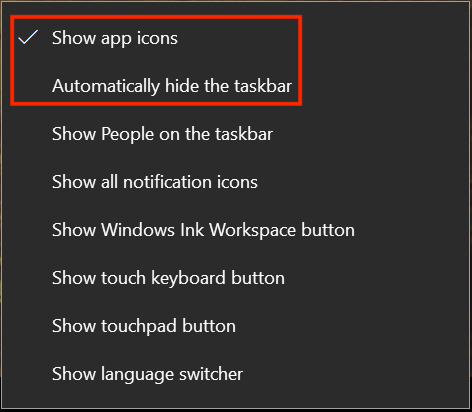
You can enable and disable the same two options by activating Tablet mode and right-clicking or pressing-and-holding on an empty space on the taskbar.
A contextual menu opens, and you can use the first two options in it - "Show app icons" and "Automatically hide the taskbar" - to toggle the same taskbar settings.
Change taskbar settings from its contextual menu
How to use Tablet mode in Windows 10
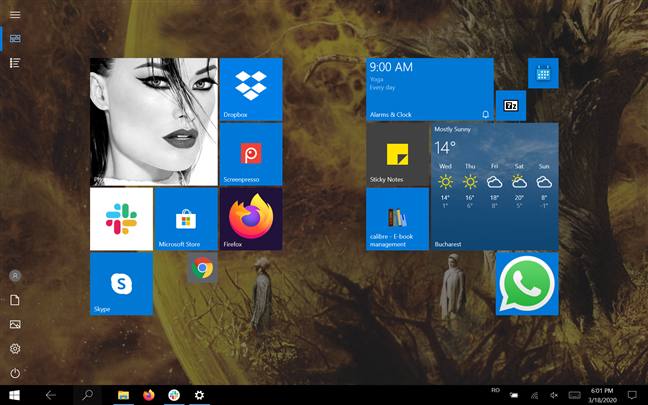
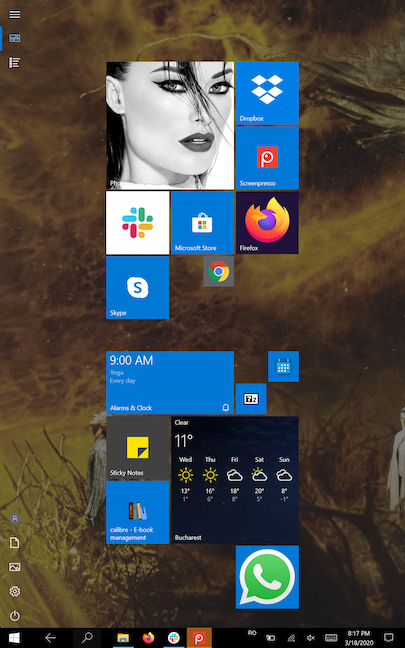
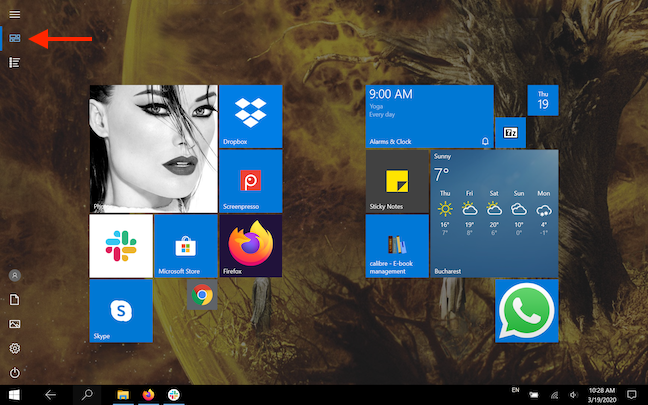
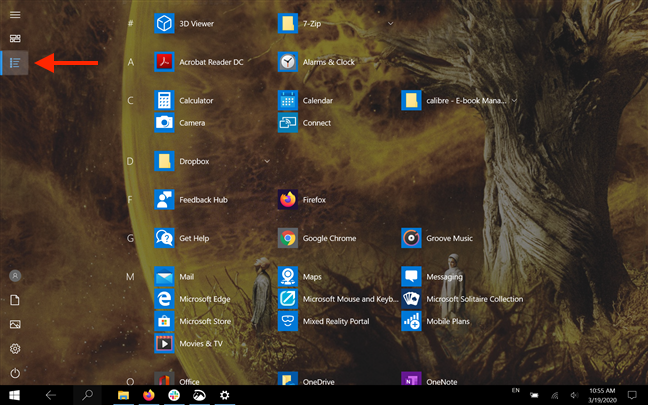
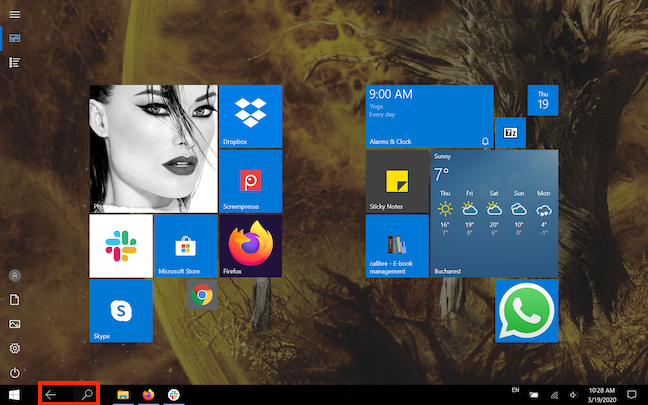
The Windows 10 Tablet mode offers a more touch-friendly experience. When you enter Tablet mode, your desktop fades away, and all apps are displayed in full-screen mode. The Start Menu appears to be missing, but it actually becomes a Start screen that shows all your tiles. The buttons on the Start Menu's left side are still there, and two more are added on the top side: Pinned tiles and All apps. By default, the Start Menu is shown as tiles, as seen in the screenshot.
The Pinned tiles button displays the tiles in the Start Menu
Press the All apps button to see the apps installed on your Windows 10 computer or device.
Show All apps
If you set up your taskbar according to our recommendations from the previous section, you should still see your icons on it. The Search field is hidden, and you now have a Back button that lets you navigate to the previous screen. Most of the icons are hidden from the Notification area of the taskbar, with the exception of system icons, that you can customize to show or hide as you like, by reading The Windows 10 system tray - How to show or hide icons!.
The Back and Search buttons on the taskbar in Tablet mode
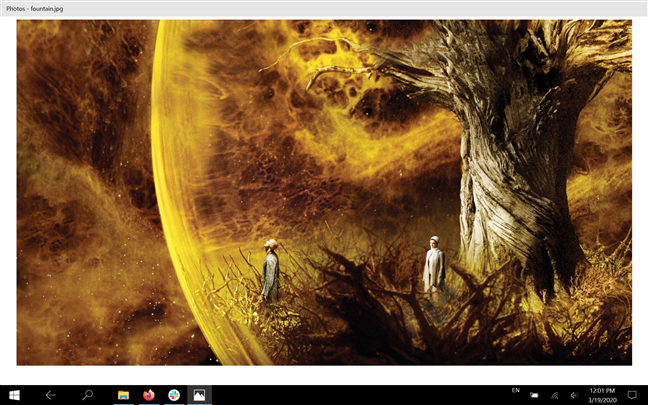
Apps launch and remain completely expanded, so the standard Minimize, Maximize, and Close buttons are not shown for some of them.
The Photos app no longer displays the usual buttons in the upper-right corner
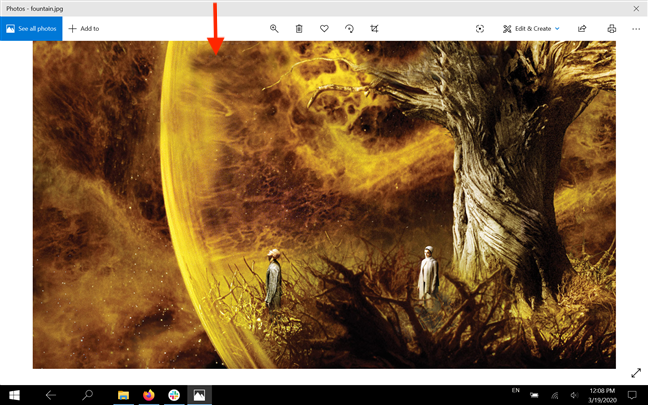
However, you can swipe downwards or move the mouse cursor to the top of the screen to reveal more options for an app while in Tablet Mode.
Swipe downwards from the top to access more options
You can also tap or click on an app's title bar to grab it, and then drag it to the bottom of the screen to close it.
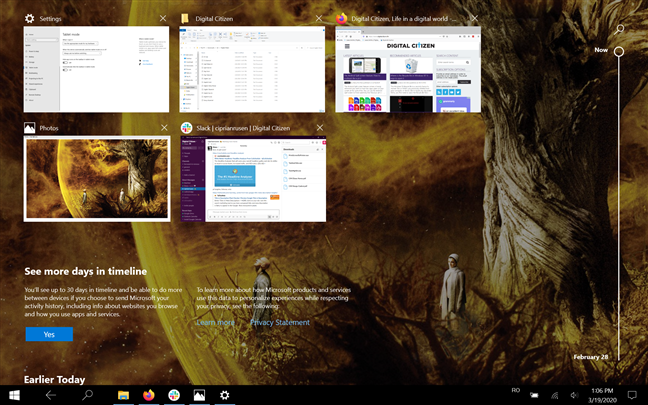
If your app icons are hidden from your taskbar, which is the default setting, you can swipe in from the left side of your screen to see your open apps. Access them by clicking or tapping on them.
NOTE: You can also enable Timeline from this screen. To learn more about it, read What is the Timeline in Windows 10 and how to use it to resume past activities.
Swipe from the left edge inwards to see all open apps
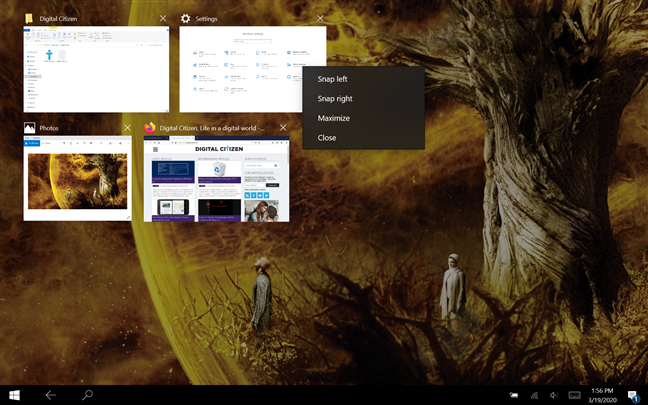
Press-and-hold on any open app on this screen to start using Snap Assist.
Press-and-hold on an app to Snap it left or right
Turn off Tablet mode in Windows 10
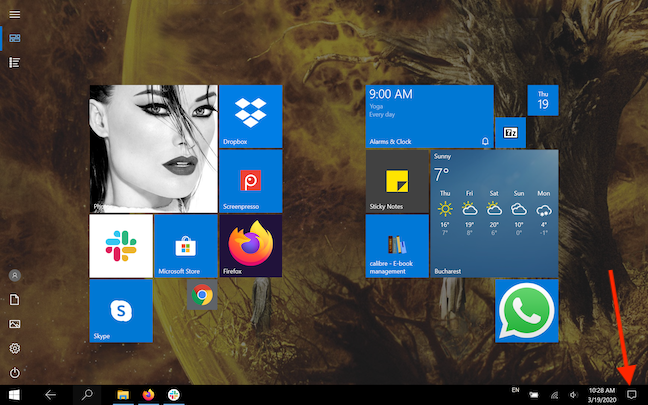
If you're wondering how to get out of Tablet mode in Windows 10, you can do so from the Action Center. On a touchscreen device, you can open it easily by swiping in from the right edge of the screen, or by tapping on the icon that looks like a chat bubble, from the bottom-right corner of the taskbar.
Tap the chat bubble to access the Action Center
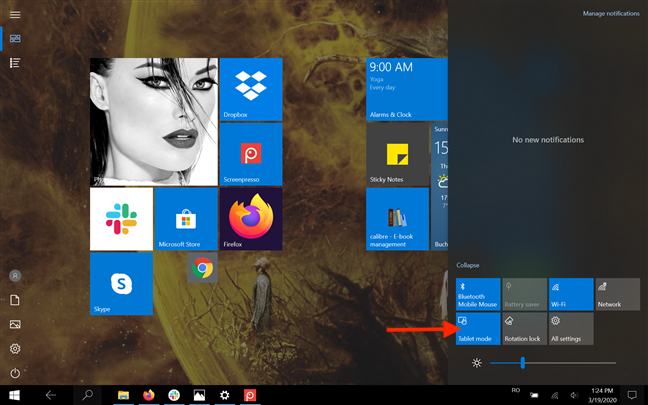
The Quick actions are displayed at the bottom of the Action Center. Find a highlighted button called Tablet mode. Tap on it to disable Tablet mode in Windows 10.
TIP: If the Tablet mode button is not among the available Quick actions, you can add it to the Action Center by reading The Quick actions in Windows 10: access them, use them, customize them!.
Press the Tablet mode button
Do you often use Tablet mode on your Windows 10 device?
The Windows 10 Tablet mode can make a touchscreen device easier to use because it offers big targets for our fingers. Although we sometimes use it on our hybrid devices, we still find it uncomfortable at times, which is why we prefer to enable it ourselves. What about you? How often do you use Tablet mode in Windows 10? Is there any way you would improve it? Let us know in the comment section.












Discussion (0)
Comments are closed.