




If you use a Windows keyboard with a Mac or follow macOS shortcut guides, you may wonder where the Option key sits on a PC keyboard. The answer is simple: the Option key maps to the Alt key on Windows. Knowing this helps you use macOS shortcuts correctly, especially when you switch between both systems.
Table of contents
Understanding the option key
The Option key works as a modifier key on macOS. It unlocks alternate characters, hidden menus, and extra shortcut behaviors. When you use a Windows keyboard, knowing its equivalent ensures your shortcuts work as expected.

What the option key does in macOS
The Option key adds extra actions to standard shortcuts. You use it to reveal hidden menus, insert special characters, or modify how apps respond to clicks and drags. It plays an essential role in most macOS workflows.
Which Windows key matches the option key
Most Windows keyboards do not label the Option key. Instead, macOS maps it to an existing modifier key when the keyboard connects. This section explains the direct match.
Option key equals the Alt key
The Windows Alt key works as the Option key on macOS. macOS recognizes both left and right Alt keys, so you can use either. Some commands behave slightly differently, but Alt remains the correct substitute.

When Command and Windows keys swap roles
The Windows key acts as Command on macOS. Many shortcuts rely on both keys, such as Command-Option-Esc or Command-Option-P-R. Understanding the swap helps you trigger shortcuts correctly without confusion.
Keyboard layouts and where to find the option key
Keyboard layout differences can make it harder to locate the Option equivalent. Knowing where Alt sits across devices makes things easier.
Standard Windows keyboard layout
Most PC keyboards place the Alt key next to the space bar on both sides. macOS reads the left Alt key as Option, and the right Alt key often works as Option as well.

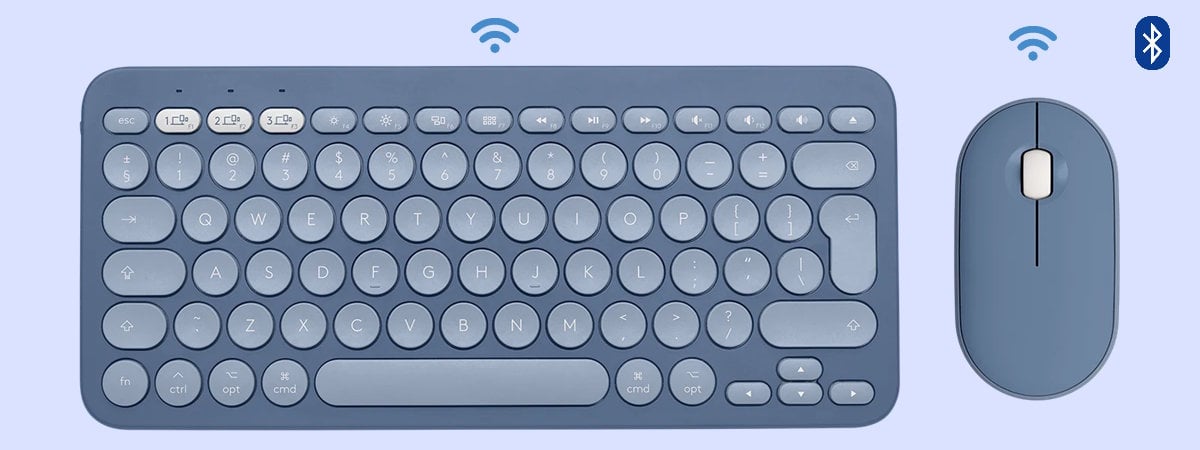
Mac-style Windows keyboards (Logitech, Keychron)
Some brands ship keyboards with dual labeling, such as Alt/Option or Windows/Command. These models make the layout more familiar when you switch between Windows and macOS.
Mac and Windows shortcut differences
Shortcut differences can be confusing when you move from one system to another. A quick comparison helps you translate shortcuts effectively.
Common macOS option shortcuts
Option + Click opens hidden menus in Finder and many apps. Option + key combinations type accented characters, symbols, and alternative commands. Power users rely on the Option for fast navigation and control.
Windows equivalents for common macOS shortcuts
Most of the best Windows shortcuts often rely on Alt, Ctrl, and the Windows key. While some macOS Option shortcuts lack Windows equivalents, many actions map cleanly. For example, Option + Arrow maps closely to Ctrl + Arrow for text navigation in Windows apps.

Using option (Alt) key on external keyboards with a Mac
You can connect almost any Windows keyboard to a Mac. macOS automatically maps modifiers to match macOS expectations.
How macOS handles modifier keys automatically
macOS detects external keyboards and assigns Alt to Option, Windows to Command, and Ctrl to Control. This lets you use shortcuts without additional setup.
When you might need to remap keys
If Alt and Windows keys feel reversed for your workflow, you can remap them. Some users prefer having Command next to the space bar, just like on native Mac keyboards.

How to remap the option key in macOS
Remapping makes your Windows keyboard match the feel of a Mac keyboard. You can do this quickly in system settings.
Change modifier keys in macOS settings
You can adjust modifier assignments in macOS settings. This ensures the keys sit in the place you expect when using macOS shortcuts.
Using third-party remapping apps
Advanced users often install tools such as Karabiner to build complex custom layouts. These tools provide deeper control than macOS settings alone.
Option key limitations on Windows
Windows does not support a dedicated Option key. The Alt key works only within Windows shortcuts, so you cannot trigger macOS-specific functions unless you connect the keyboard to a Mac.
When option-based shortcuts won’t work
Shortcuts such as Option + Command + R or Option during startup apply only to macOS. A Windows PC cannot use these functions, even if the keyboard has an Option label.
Summary
- The Option key on a Windows keyboard maps to the Alt key.
- macOS assigns the Windows key as Command.
- Standard Windows keyboards place Alt next to the space bar.
- You can remap modifier keys in macOS for comfort.
- Option shortcuts work only inside macOS, not in Windows.
The Option key plays a key role in macOS, and the Windows Alt key fills that role when you use a PC keyboard. Understanding the key mapping helps you use shortcuts confidently and avoid confusion when switching systems. With simple remapping options and clear layout behavior, Windows keyboards work smoothly with macOS workflows.


Discussion (0)
Be the first to comment.