




Many gaming keyboards support RGB lighting with millions of color options. You can switch colors using built-in shortcuts, official software, or advanced per-key tools depending on your keyboard model. This guide explains every method so you can customize lighting on almost any wired or wireless gaming keyboard.
1) Check what RGB features your keyboard supports
Your keyboard’s lighting capabilities determine which methods work. Some models support single-color lighting, while others offer per-key RGB or multi-zone effects.
Identify the keyboard model
Check the label under the keyboard or look inside your device settings. This helps you download the correct software for full lighting control.
Understand lighting limitations
Cheaper keyboards usually use fixed lighting modes. Mid-range and premium models offer full per-key customization and advanced effects.
2) Change colors using built-in keyboard shortcuts
Many gaming keyboards include FN shortcuts for instant color changes. This works even when you do not install any software.
Common FN shortcuts for RGB keyboards
Most generic keyboards use FN plus arrow keys to cycle colors, adjust brightness, or switch effects like wave or breathing.
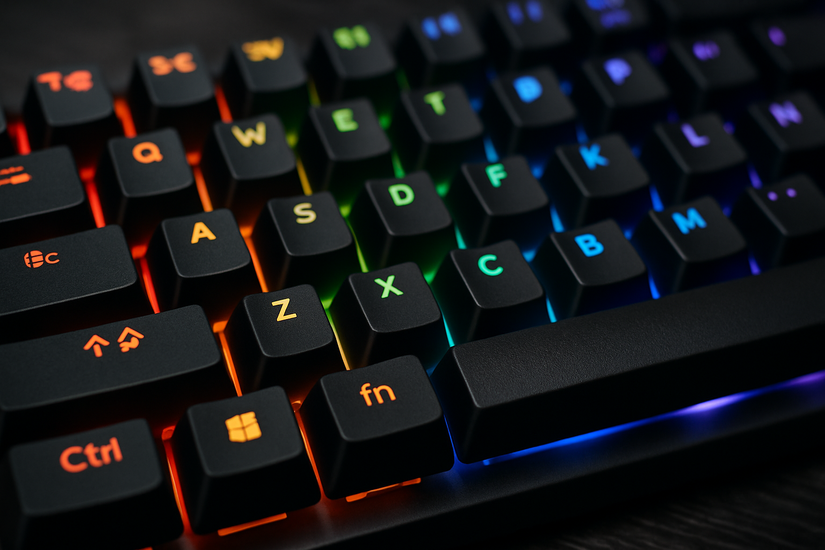
Brand-specific shortcut examples
Redragon, HyperX, and MSI often map lighting changes to FN plus the F1–F12 keys. ASUS TUF and some Corsair budget lines use FN plus number keys to switch lighting zones.
3) Change colors using manufacturer software (Windows/macOS)
Official software gives full control over color, effects, and per-key lighting. This is the best option if your keyboard supports advanced customization.
Corsair iCUE
iCUE lets you adjust per-key color, create custom effects, and switch between hardware and software lighting profiles.
Razer Synapse
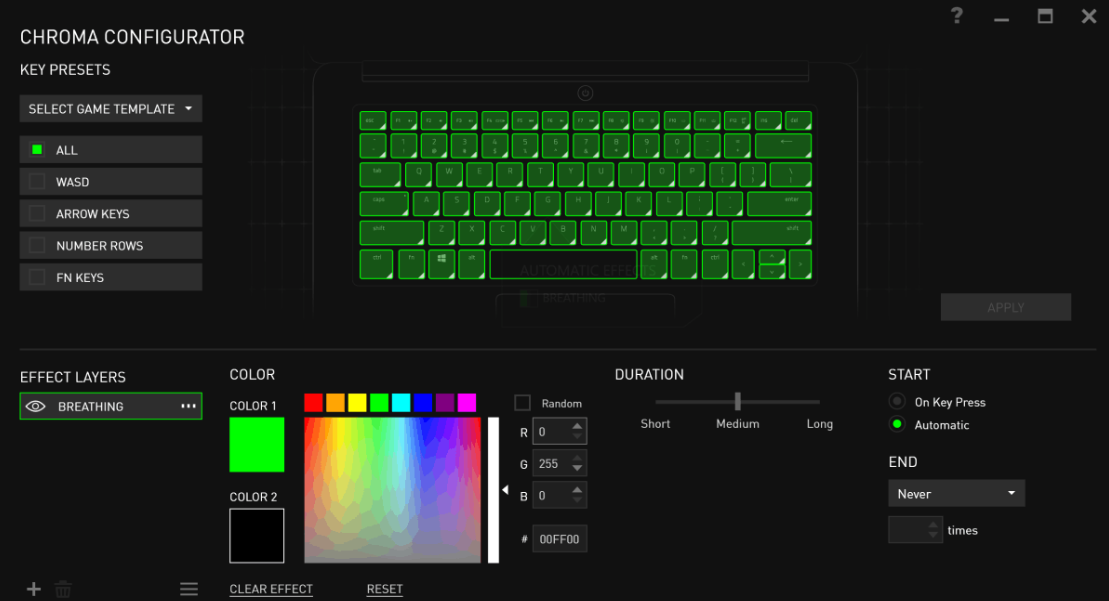
Synapse supports Chroma Studio, which includes reactive effects, game-linked animations, and multi-layer color designs.
ASUS Armoury Crate / Aura Sync
Armoury Crate controls RGB zones and syncs color changes across compatible ASUS components for a unified setup.
Logitech G Hub
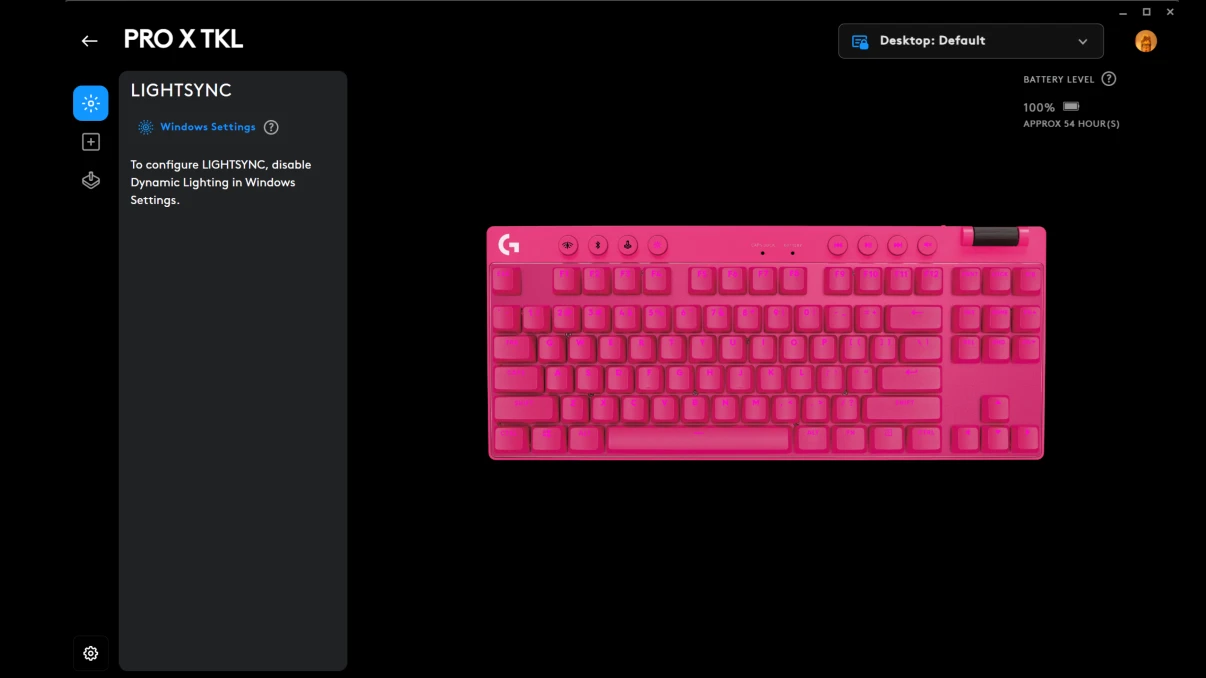
G Hub offers preset effects, custom animations, and game integrations that adjust lighting based on in-game events.
HyperX NGENUITY / SteelSeries GG
These tools support onboard profiles and let you configure simple color cycles or detailed per-key patterns.
4) Change colors on generic or unbranded RGB keyboards
Generic RGB keyboards typically lack official software, but you can still change colors using universal shortcuts or open-source tools.
Use universal FN shortcuts
Many low-cost keyboards rely entirely on FN-based modes such as static, wave, fade, or rainbow. Some also allow you to change RGB settings directly from Windows settings.
Try OpenRGB on Windows, macOS, or Linux
Some generic keyboards work with OpenRGB’s basic controller, allowing simple color or effect changes.
Check for preset color modes only
Many budget models cannot set specific RGB values. They often support a fixed set of colors such as red, blue, green, white, or rainbow.
5) Advanced RGB customization options
If your keyboard supports per-key lighting, you can create highly customized profiles for gaming or work.
Per-key lighting design
Highlight WASD, macros, or tool shortcuts with distinct colors for faster recognition during gameplay.
Layered lighting effects
Combine static colors with reactive effects for a more dynamic look.
Sync lighting with games or other devices
Platforms such as Chroma Connect, Aura Sync, or G Hub let you match your keyboard effects with your mouse, headset, or PC case components.
6) Troubleshoot the RGB keyboard color not changing
- Software not detecting the keyboard: Reconnect the keyboard, try another USB port, or reinstall the driver. Some models require USB 3.0 ports for proper detection.
- RGB stuck on rainbow mode: Reset the keyboard, toggle hardware lighting modes, or disable Windows Dynamic Lighting, which may override brand software.
- Firmware, BIOS, or OS conflicts: Updating firmware often restores lighting control. Some laptops also include BIOS backlight settings that override OS lighting.
- Reset lighting to factory defaults: Most RGB keyboards support FN-based reset shortcuts that restore original colors and effects.
Tips for better RGB control
- Save profiles to onboard memory
- Disable software conflicts
- Keep firmware and software updated
FAQs
Why won’t my keyboard change color? Driver conflicts, incorrect shortcuts, or unsupported lighting modes cause most issues.
Can I change RGB on a non-RGB keyboard? No. If the hardware does not support RGB, lighting cannot be added through software.
How do I sync keyboard lights with my mouse or PC case? Use brand ecosystems such as Aura Sync, Synapse, or G Hub for unified effects across devices.
Do RGB keyboards drain a laptop battery faster? Yes, bright backlighting uses more power, especially on high-brightness or animation modes.
Summary
- Identify your keyboard’s RGB features.
- Try built-in FN shortcuts for quick changes.
- Use brand software for full customization.
- Test OpenRGB on generic keyboards.
- Create game-specific lighting profiles.
Conclusion
You can change your gaming keyboard color using shortcuts, official software, or open-source tools, depending on your device. Advanced models allow per-key control and layered effects, while budget models rely on simple color cycles. With the right steps and troubleshooting methods, you can customize lighting that matches your setup and gaming style.


Discussion (0)
Be the first to comment.