




If you wonder how to change color of iBuyPower RGB Gaming Keyboard, you are not alone. Many prebuilt iBuyPower systems ship with bright RGB lighting that does not match the rest of your setup out of the box. The good news is that you can usually tweak everything from color and brightness to full animated effects in just a few clicks.
Depending on your exact model, you can change RGB with simple keyboard shortcuts, dedicated iBuyPower RGB software, or even a small RGB controller or remote included in the box. In this guide, you will learn how to change RGB on an iBUYPOWER keyboard using all three methods, plus a few quick fixes when the lights refuse to cooperate.
By the end, you will control every key’s glow and build a gaming desk that actually matches your PC, mouse, and monitor instead of fighting against them.
Before You Change IBuyPower Keyboard Colors
Most iBuyPower systems use rebranded mechanical or membrane keyboards built by other vendors. That means the exact shortcuts and iBUYPOWER RGB software can differ. Before you start mashing keys, check a few basics.
Make sure you have:
- An iBuyPower RGB Gaming Keyboard connected directly to a USB port, not through a low-power hub.
- Windows 10 or Windows 11 installed and fully updated on your gaming PC.
- Any iBUYPOWER RGB software or lighting app that came preinstalled still present on the system, if applicable.
- Access to the original accessories box in case your system shipped with an RGB controller or remote.
If you still have the printed quick start guide or a model number on the keyboard’s underside, keep that handy as well. It can help you find the correct Hera, Polychrome RGB, or RGB Fusion 2.0 download if the default app is missing.
Use Keyboard Shortcuts To Change RGB Colors
On many entry-level iBuyPower keyboards, you can change colors directly with function key combinations. This is the fastest way to cycle effects if you do not want to install extra software.
Common shortcuts that users report on iBuyPower forums and Reddit include:
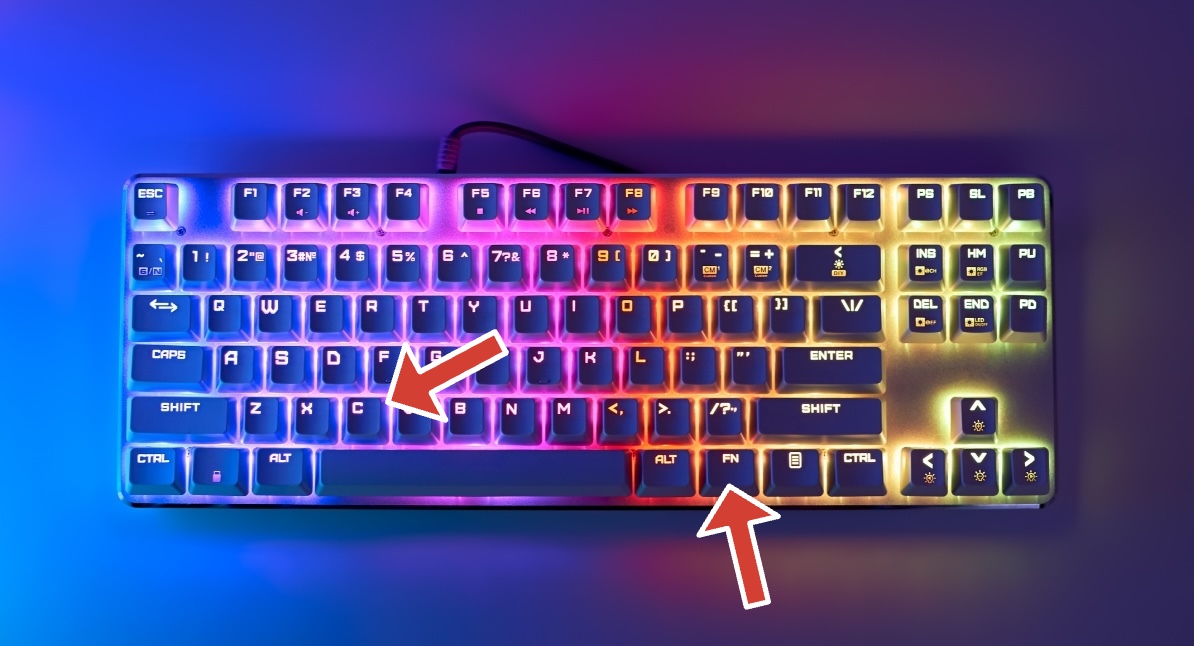
- Fn + C to cycle through solid colors or lighting modes.
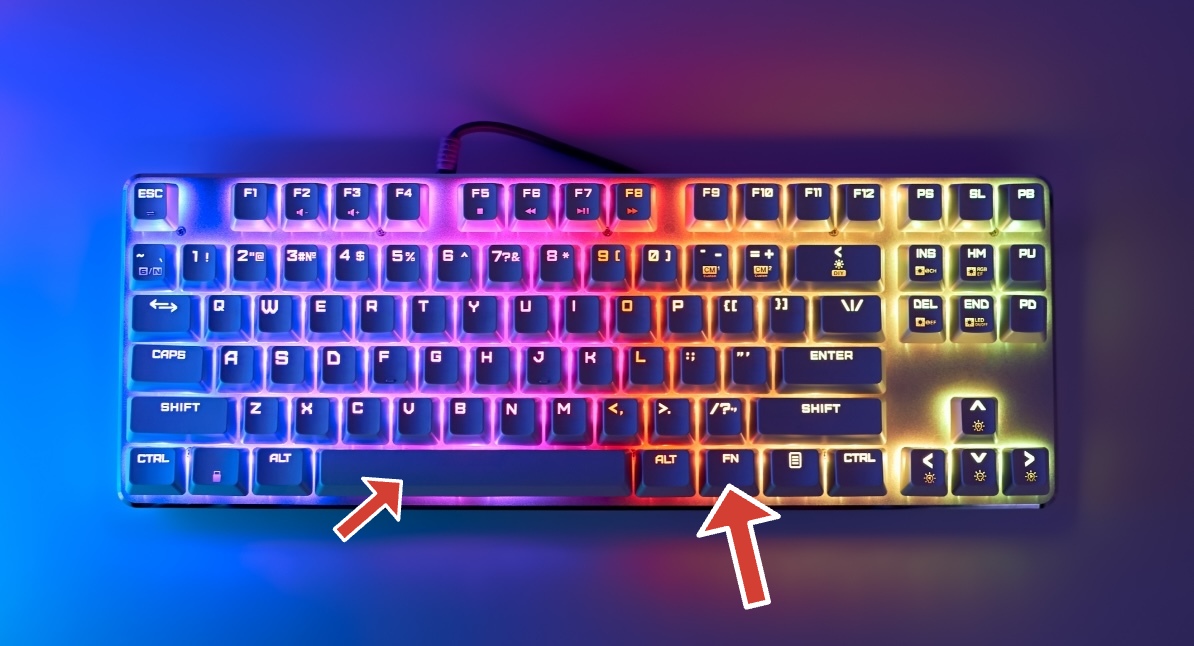
- Fn + Spacebar to toggle different RGB effects such as wave, breathing, or static.
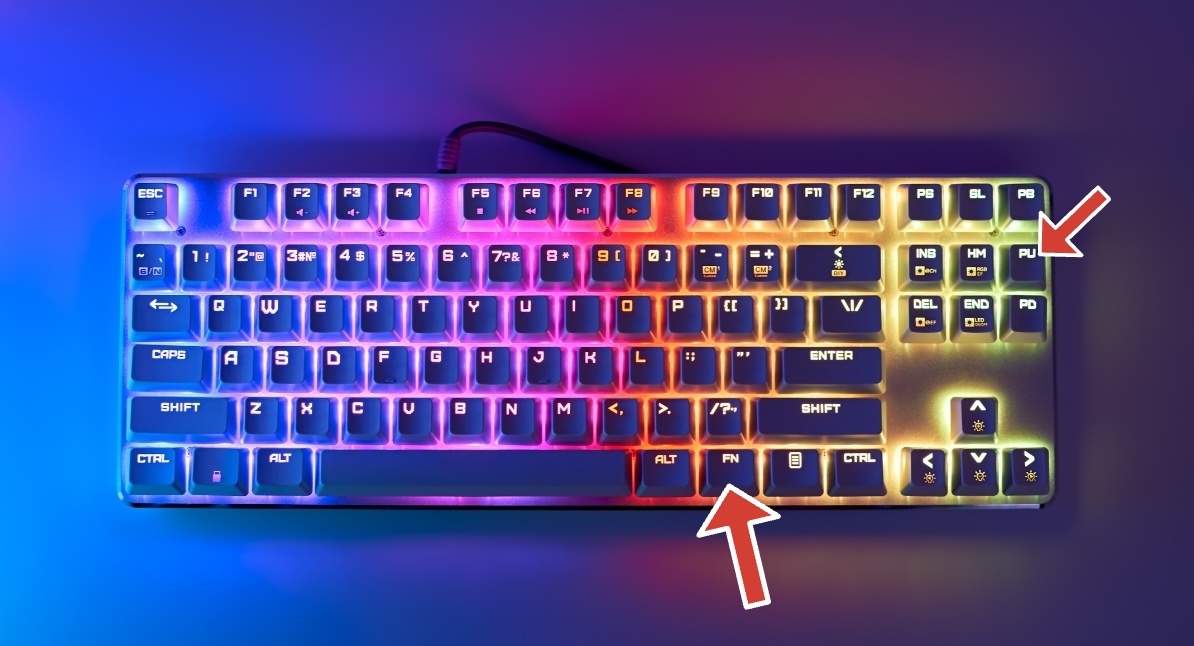
- Fn + Page Up to increase brightness.
- Fn + Page Down to decrease brightness or turn lights off completely.
- Fn + Scroll Lock or Fn + Ctrl + Scroll Lock on some older models to change overall keyboard lighting layouts.
Because layouts vary, you should try these combinations while looking closely at the keys for any small printed icons that show a light bulb, sun, or RGB waves. Those icons usually sit on the keys that work with the Fn modifier.
If nothing happens after testing these shortcuts, your keyboard probably relies on dedicated iBUYPOWER RGB software instead of onboard lighting controls, so move on to the software section next.
Change Colors With IBuyPower RGB Software
Mid-range and higher-end boards often ship with companion apps that offer deeper control than keyboard shortcuts alone. Some systems use iBuyPower-branded utilities, while others depend on motherboard lighting suites like RGB Fusion 2.0 or Polychrome RGB.
Find And Download The Correct RGB App
To get full control over lighting zones, start by identifying which iBUYPOWER RGB software your system supports.
- Check your desktop and Start menu for existing apps such as “iBUYPOWER RGB,” “Hera,” “RGB Fusion,” or “Polychrome RGB.”
- If nothing stands out, press Windows + R, type msinfo32, and note the BaseBoard Manufacturer and BaseBoard Product. That tells you whether you need ASUS Aura, ASRock Polychrome RGB, or Gigabyte RGB Fusion 2.0.
- Visit the official iBuyPower support page or your motherboard maker’s support page and download the latest RGB utility compatible with your model and Windows version.
- Install the app, then restart your PC if the installer asks you to do so.
If the official software fails or feels too heavy, many gamers experiment with OpenRGB or SignalRGB for centralized lighting control across multiple brands. Compatibility can vary, so treat those as optional power tools rather than guaranteed solutions.
Customize RGB Effects In The Software
Once the app detects your iBuyPower RGB Gaming Keyboard, you can start tuning colors and effects in detail.
- Open the RGB utility and select your keyboard from the list of connected devices.
- Choose a lighting mode such as static, breathing, color cycle, wave, ripple, or reactive typing effects.
- Pick your preferred color from a wheel, presets, or RGB value sliders. Many apps let you select multiple colors for gradients or waves.
- Adjust speed and brightness sliders until the animation matches your setup and room lighting.
- Save your configuration as a profile so you can quickly switch looks for different games or moods.
Most suites let you sync the keyboard with your case fans, strips, and mouse, so your whole rig shares one lighting theme. This is where learning how to change RGB on an iBUYPOWER keyboard really makes your desk feel like a single system instead of a cluster of random colors.
Fix Problems When RGB Software Does Not Detect The Keyboard
Sometimes the app opens but cannot see the keyboard, or it refuses to apply presets. Try these quick fixes before you give up.
- Move the keyboard USB plug directly into a rear motherboard USB port instead of the front panel or a hub.
- Close any other lighting tools such as Corsair iCUE, Razer Synapse, or MSI Center that might fight over RGB control.
- Update your chipset drivers and the RGB app to the latest versions from official sites.
- Uninstall and reinstall the RGB utility, rebooting between steps for a clean start.
- Test the keyboard on another PC to confirm the lighting hardware itself still works at default settings.
If nothing fixes the issue, you can fall back to keyboard shortcuts or a physical RGB controller if your bundle includes one.
Use A Physical RGB Controller Or Remote
A small but important group of iBuyPower systems include a tiny in-line RGB controller or an infrared remote in the accessory bag. These usually control the keyboard backlight together with any included case strips.
To check for this option, look for a card-style remote that has color buttons and mode icons, or trace the cable from the keyboard to see if it passes through a small plastic control box before reaching the PC.
Once you locate the controller or remote, use it like this:
- Remove any plastic pull tab from the remote battery compartment so the coin cell can make contact.
- Point the remote at the PC case window or the small IR receiver eye on the controller, then press different color buttons to confirm they change the keyboard lighting.
- Use dedicated mode buttons to switch between static, flashing, breathing, or color cycle effects.
- Use brightness or speed buttons to fine-tune the look until it matches your monitor glow and room lighting.
This hardware control method does not offer per-key customization, but it works independently of Windows and iBUYPOWER RGB software, which can be useful if you prefer a simple, set-and-forget setup.
Troubleshooting IBuyPower RGB Keyboard Not Changing Color
If your keyboard refuses to change color or stays dark, a few quick checks usually bring the lights back.
- Confirm that RGB lighting did not get disabled with a shortcut such as Fn plus a brightness key.
- Try another USB port, preferably on the back of the motherboard, to rule out power issues.
- Test the keyboard on a different PC to see whether any lighting appears at power-on.
- Disable Windows power saving on USB devices so the system does not cut power to the keyboard LEDs while idle.
- Check Device Manager for warning icons on USB or keyboard entries and reinstall any problematic drivers.
- Unplug the keyboard for thirty seconds, then plug it back in while the PC is running to force a fresh handshake.
If the backlight never turns on even at boot, the internal LED controller might have failed. In that case, you can still use the keyboard as a normal device, but you will need a replacement if RGB lighting is essential to your setup.
Frequently Asked Questions About IBuyPower RGB Colors
Does IBuyPower Have Dedicated RGB Software?
Most current builds use motherboard vendor suites such as RGB Fusion 2.0 or Polychrome RGB instead of a single universal iBUYPOWER RGB software package. Some branded keyboards use Hera or a simple in-house utility. You should always download lighting apps from the iBuyPower support page or the motherboard manufacturer to avoid unsafe third-party tools.
Can I Turn Off The Lights Without Unplugging The Keyboard?
Yes. Many iBuyPower boards support Fn shortcuts that dim or disable the LEDs. A common tip is to hold the Fn key and tap Page Down repeatedly until the lights go out. On software-controlled boards, you can also set a “Lights Off” or “Black” preset inside the app and assign it to a profile hotkey.
Why Do My RGB Colors Not Match Across PC, Mouse, And Keyboard?
Different brands use different color profiles and timing for animations, so a red wave on one device may not sync perfectly with another. To get them closer, run a single RGB control suite where possible and set the same effect, speed, and base color on each component. If that fails, turn off per-device animations and use a simple static color on everything for a clean, unified look.
Is It Safe To Use OpenRGB Or SignalRGB?
At the time of writing, many enthusiasts use OpenRGB and SignalRGB to control mixed-brand setups, but neither tool has official support from all manufacturers. Always download them from their official websites, back up any existing profiles first, and understand that they might conflict with vendor suites or fail to recognize some devices.
Final Thoughts
When you know how to change color of iBuyPower RGB Gaming Keyboard, your system instantly feels more personal and coordinated. Whether you prefer quick Fn shortcuts, deep control through lighting apps, or the simplicity of an RGB controller, you now have several ways to tune your setup to match your games and your desk.
Experiment with different modes, build a few profiles for work and play, and do not hesitate to keep things simple with one or two signature colors. Your keyboard is not just a tool for typing commands; it is a key piece of your gaming atmosphere.
Discussion (0)
Be the first to comment.