




If you're looking to personalize your Skytech gaming keyboard, changing its RGB lighting color can add a unique touch to your gaming setup. Whether you prefer a static color or dynamic lighting effects, adjusting the color settings on your Skytech gaming keyboard is an easy and fun way to enhance your gaming experience.
Step 1: Accessing the RGB Settings
Before you start customizing the color settings, you need to access the RGB controls. You can do this either through keyboard shortcuts or using the Skytech RGB software. Here's how to get started:
- Keyboard Shortcuts: You can quickly change the lighting effects by pressing
FN + Kto cycle through preset color modes.

- Using Skytech RGB Software: For more control over the color and lighting effects, download the Skytech RGB software. Open it and select your keyboard model from the dropdown to start customizing the colors.
Step 2: Selecting Your Desired Color
Once you've accessed the color settings, it’s time to choose the color that matches your gaming setup. Here’s how to do it:
- Using the Color Palette: Within the software, use the color wheel or sliders to pick a color. You can experiment with different hues to match your theme or mood.
- Single Color Mode: If you want a simple, solid color, you can select a color and apply it directly using the
FN + Mshortcut, which will set your keyboard to a single hue.
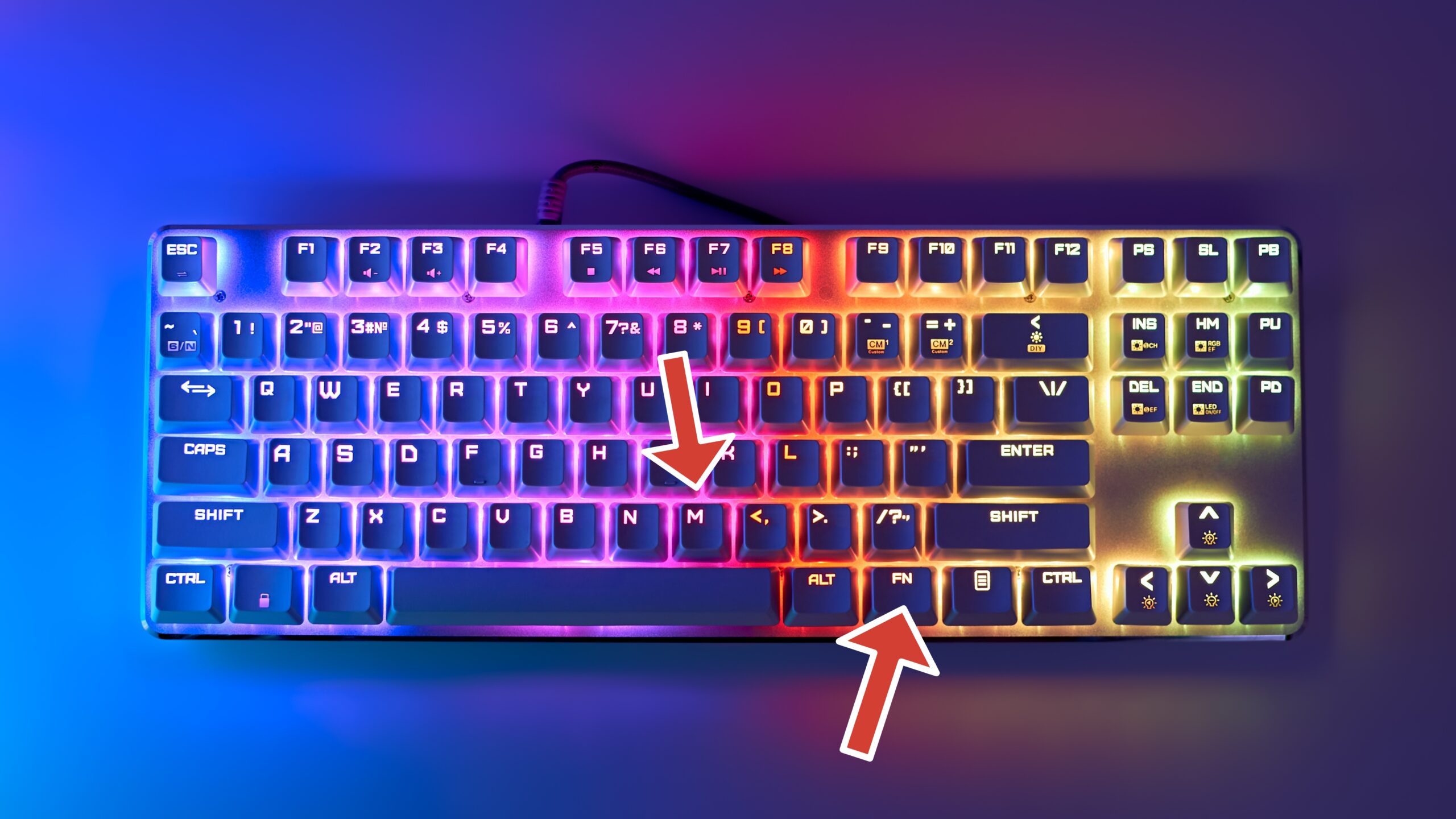
- Adjusting Brightness: You can also fine-tune the brightness of the color to prevent glare or to set a more ambient lighting effect. Use the
FN + Page UpandFN + Page Downkeys to adjust brightness levels.

Step 3: Customizing Dynamic Lighting Effects
Skytech gaming keyboards offer more than just static colors; you can also choose dynamic lighting patterns to make your gaming setup truly unique. Follow these steps to add some extra flair:
- Pre-set Lighting Effects: The Skytech RGB software offers various preset patterns like “breathing,” “wave,” and “ripple” effects. These add movement and a visual dynamic to your keyboard.
- Custom Patterns: If you want more control, you can create your own patterns by adjusting the speed and transitions between colors. This allows you to craft an experience that fits your style perfectly.
- Adjusting Speed: Many of the lighting effects allow you to adjust the speed at which the colors change. Use the software or keyboard shortcuts to control the pace of transitions and brightness.
Step 4: Saving Your Custom Color Settings
Once you've set your preferred color and effects, it’s time to save your configuration. This ensures that your custom settings remain intact, even after a restart. Here’s how to do it:
- Saving within the Software: The Skytech RGB software allows you to save your custom settings into a profile. This makes it easy to switch between different lighting schemes at any time.
- Using Keyboard Shortcuts: For quick changes, use the keyboard shortcut
FN + Kto toggle between your custom colors or effects, if saved in the software.
Troubleshooting RGB Issues
If your Skytech gaming keyboard’s RGB lighting isn’t working as expected, follow these troubleshooting tips:
- Reconnect Your Keyboard: Disconnect and reconnect your keyboard to ensure the USB port is functional. If it’s a wireless model, check the battery or connection.
- Update the RGB Software: Ensure the Skytech RGB software is up to date. Sometimes, outdated software can cause issues with color settings.
- Reset RGB Settings: If the RGB settings don’t work after reconnecting the keyboard, reset the RGB settings using the
FN + Lightbulbkey. - Hardware Reset: If your keyboard is still unresponsive, consider performing a hardware reset or contact Skytech support for assistance.
Conclusion
Customizing the color on your Skytech gaming keyboard is a simple yet effective way to personalize your gaming environment. Whether you prefer a static color, dynamic effects, or custom patterns, Skytech offers a variety of options to enhance your experience. By following these steps, you can easily change your keyboard’s lighting to match your style and mood, taking your gaming setup to the next level.
Discussion (0)
Be the first to comment.