




If you prefer writing with a pen instead of typing, you might be wondering what Microsoft Journal is and how to use it. Microsoft Journal is a note-taking app designed for digital inking, allowing you to write, draw, and organize notes naturally using a stylus or touchscreen.
It is especially useful for students, professionals, and anyone who likes handwritten notes but wants the flexibility of digital tools.
What Is Microsoft Journal?
Microsoft Journal is a digital note-taking app developed by Microsoft that focuses on handwriting. It is optimized for touch devices and stylus input, making it feel similar to writing on paper.
Instead of typing notes like in traditional apps, you can:
- Write by hand using a stylus
- Draw diagrams and sketches
- Annotate documents and PDFs
- Organize notes into notebooks
It combines the feel of a notebook with digital convenience.
How Microsoft Journal Works
Microsoft Journal uses digital ink technology to capture your handwriting in real time.
The basic workflow is simple:
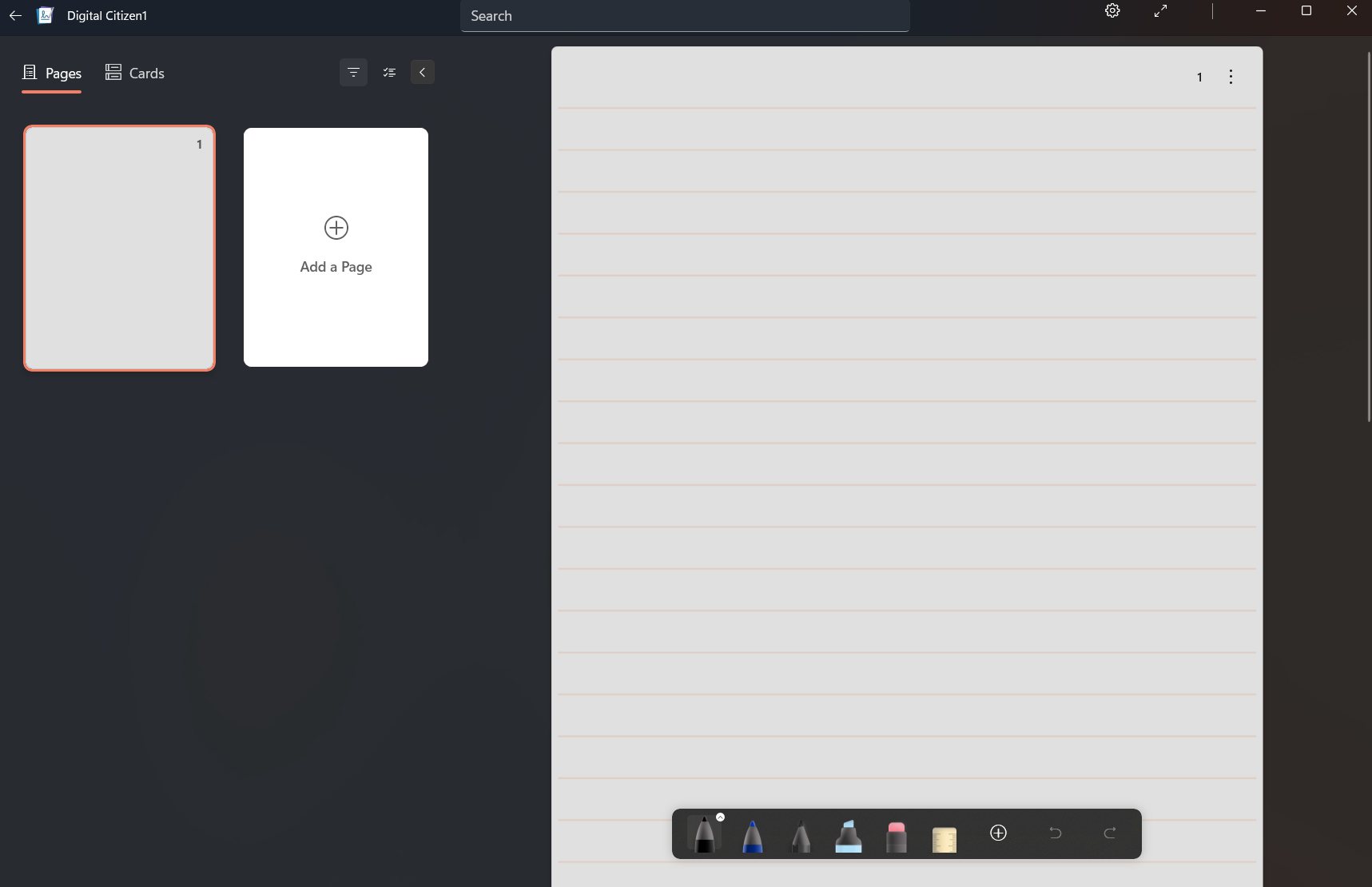
- Open a new journal page
- Write or draw using a stylus or mouse
- Use tools to highlight or erase
- Save and organize your notes
It also includes features like ink recognition and gesture-based controls.
Key Features of Microsoft Journal
Microsoft Journal includes several features designed for handwritten note-taking.
Some important features include:
- Natural handwriting support
- Pen and highlighter tools
- PDF annotation
- Gesture-based editing
- Notebook-style organization
- Ink-to-text recognition (in some cases)
These features make it ideal for handwritten workflows.
Why Use Microsoft Journal?
Microsoft Journal is useful if you prefer writing over typing.
Some benefits include:
- More natural note-taking experience
- Better for diagrams and visual thinking
- Easy annotation of documents
- Cleaner organization compared to paper notes
- Sync with Microsoft account
It bridges the gap between paper and digital notes.
How to Use Microsoft Journal
Getting started with Microsoft Journal is simple.
1: Install Microsoft Journal
- Open the Microsoft Store
- Search for Microsoft Journal
- Click Install
2: Open the App
- Launch Microsoft Journal
- Sign in with your Microsoft account if required
3: Create a New Journal
- Click New Journal
- Choose a template or blank page
4: Start Writing
Use your stylus or mouse to:
- Write notes
- Draw diagrams
- Highlight important points
Best Use Cases of Microsoft Journal
There are many practical Microsoft Journal use cases.
Student Notes
Students can write notes, draw diagrams, and annotate lecture materials.
Meeting Notes
Professionals can quickly jot down ideas during meetings.
Brainstorming
It is useful for mind maps, sketches, and creative thinking.
PDF Annotation
You can mark up documents, sign files, or highlight content.
Limitations of Microsoft Journal
While useful, there are a few limitations:
- Works best with a stylus device
- Limited compared to full note apps like OneNote
- Not ideal for heavy typing tasks
It is designed mainly for handwriting.
Final Thoughts
Understanding what Microsoft Journal is and how to use it helps you decide if it fits your workflow. It is a simple but effective tool for users who prefer writing by hand while still enjoying digital organization.
If you use a stylus or touchscreen device, Microsoft Journal can feel like a natural extension of pen and paper, but with added flexibility.
FAQs
What is Microsoft Journal used for?
It is used for handwritten note-taking, drawing, and annotating documents.
Is Microsoft Journal free?
Yes. It is available for free on the Microsoft Store.
Do I need a stylus to use it?
No, but a stylus provides the best experience.
Can Microsoft Journal convert handwriting to text?
Some features support ink recognition, but it is mainly focused on handwriting.

Discussion (0)
Be the first to comment.