




Need a clear, jargon-light answer to “what is a ddr4 ram”? In short, DDR4 is the fourth generation of PC memory that delivers higher speeds, better efficiency, and larger capacities than DDR3, making everyday tasks and gaming feel smoother.
This guide explains what DDR4 does, how it compares to DDR3, which speeds and capacities matter, and how to install it safely. You’ll also learn when DDR4 is still the right pick versus newer standards, at the time of writing.
Quick Answer: What Is DDR4 RAM?
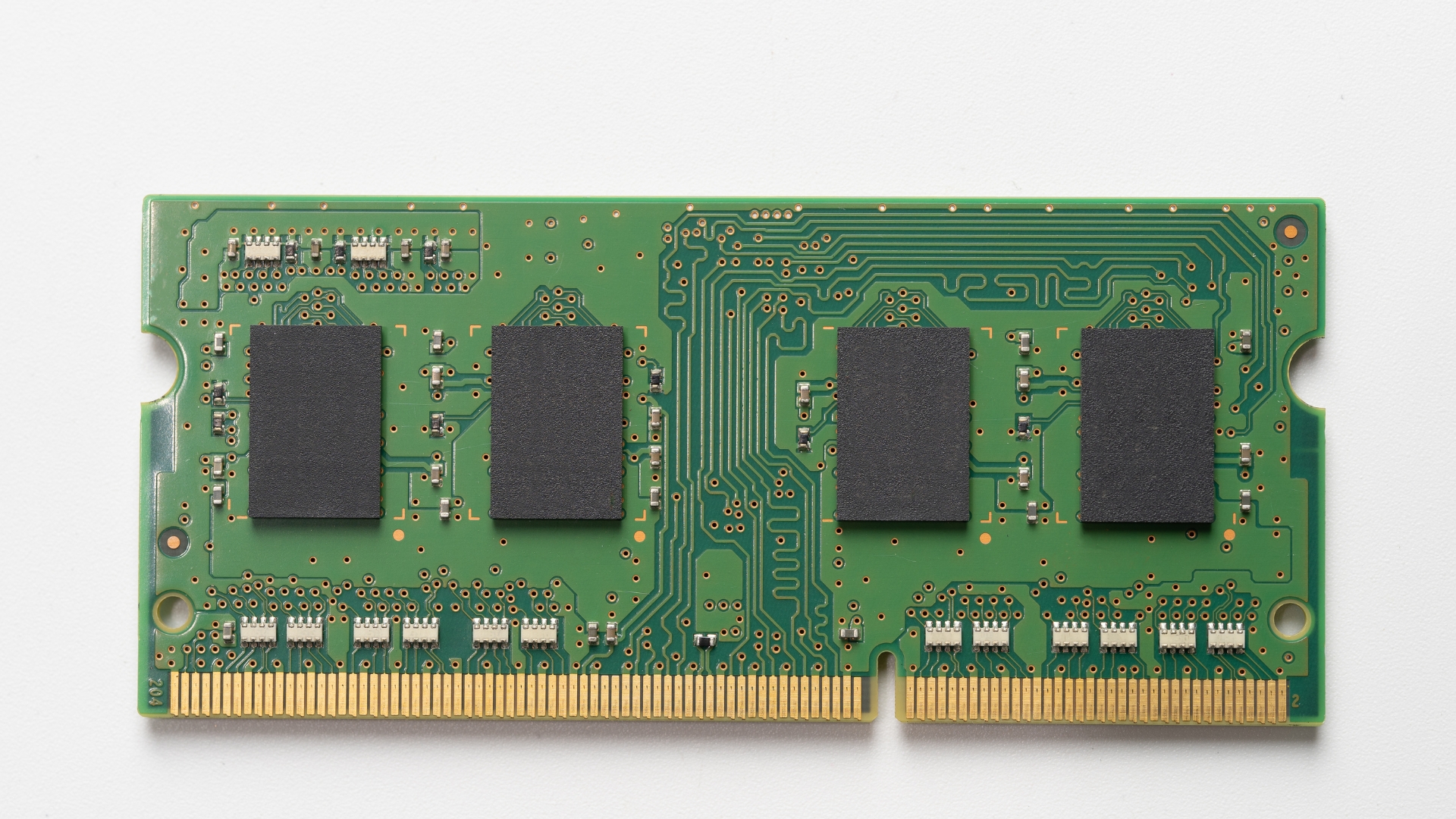
DDR4 RAM (Double Data Rate 4) is a type of volatile memory your PC uses to hold data that apps and games need right now. It improves bandwidth and lowers power draw compared to DDR3, so programs load faster and multitasking is snappier.
If you run multiple browser tabs, edit photos or videos, or play modern games, DDR4 helps your system stay responsive by feeding the CPU data at higher transfer rates.
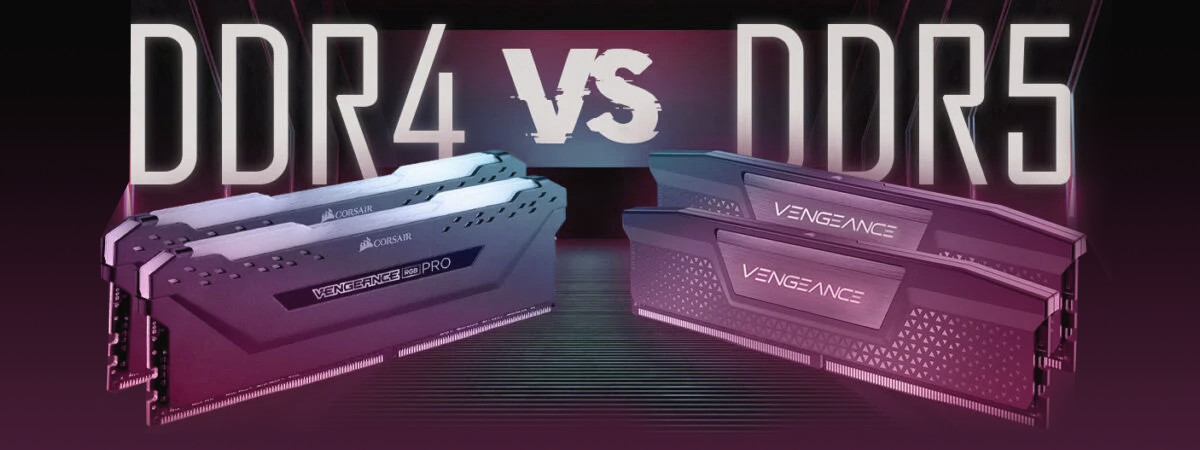
DDR4 vs DDR3: The Practical Differences
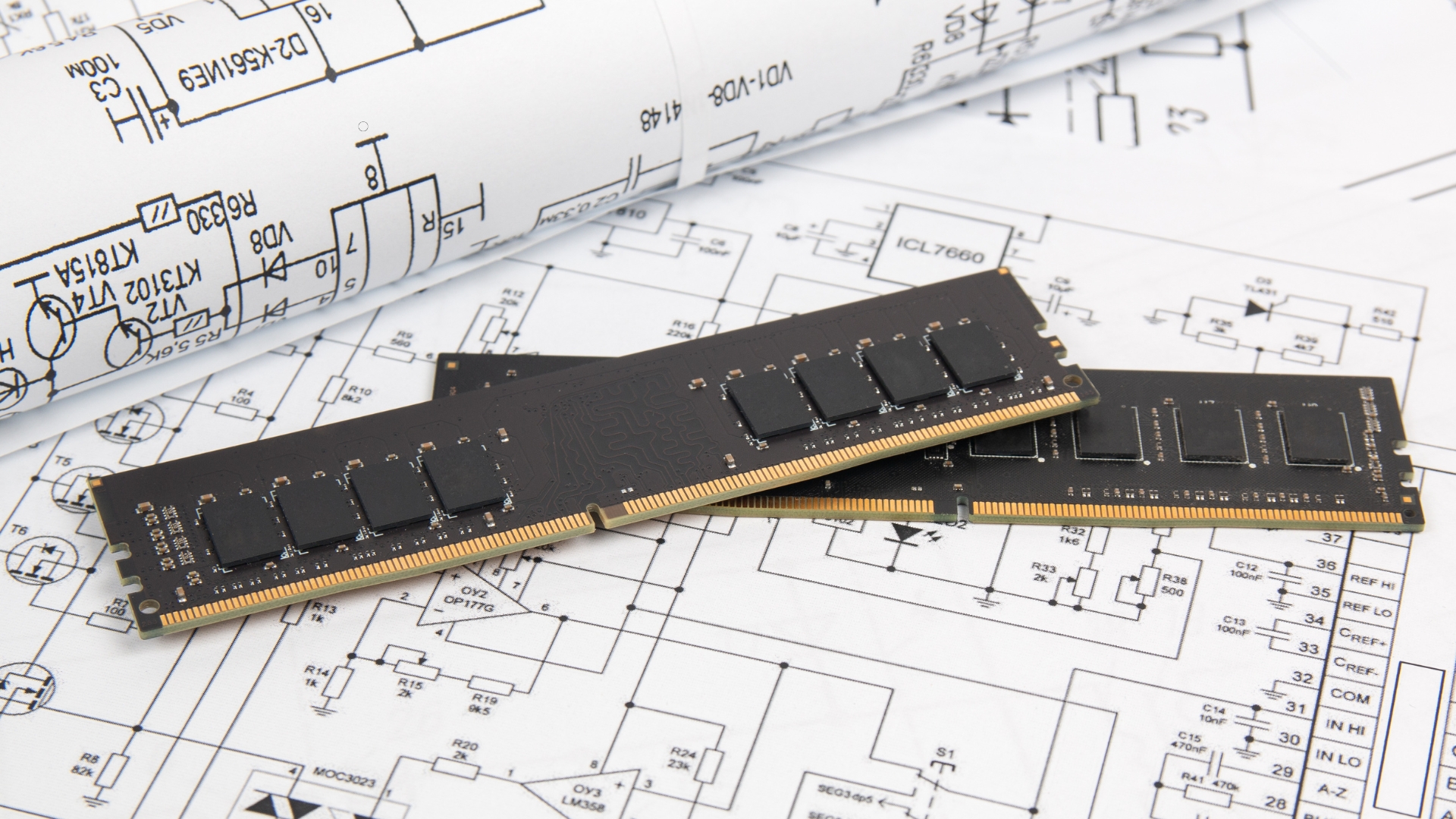
- Speed and bandwidth. Typical DDR4 kits start at 2133–2666 MT/s and commonly range to 3200+ MT/s, while mainstream DDR3 tops out much lower. More bandwidth reduces stutter in heavy workloads and improves load times.
- Efficiency. DDR4 runs at a lower operating voltage than DDR3, which reduces power consumption and heat. That helps laptops last longer on battery and desktops run cooler.
- Capacity. DDR4 modules are available in higher densities, so 32 GB or 64 GB builds are straightforward for creators and power users.
- Compatibility note. You cannot mix DDR3 and DDR4. The slots and electrical standards are different, and modules are keyed to prevent cross-insertion.
Key Features of DDR4 RAM

- Higher transfer rates: Faster data movement between CPU and memory for better app responsiveness.
- Lower voltage: Less power draw and reduced heat output compared to DDR3.
- Higher module densities: Easier to configure 32–128 GB systems for heavy multitasking and pro workloads.
- Improved signal integrity: Design changes enhance stability at higher speeds.
Is DDR4 RAM Worth It Today?
For most mainstream desktops and laptops, DDR4 remains a smart, cost-effective choice. You get strong performance for gaming, office work, and content creation without paying a premium for bleeding-edge platforms.
If you’re building on a platform that supports only DDR5, choose DDR5. Otherwise, a well-specced DDR4 build still delivers excellent value at the time of writing.
DDR4 Speeds and Capacities Explained
Common speeds. You’ll see labels like DDR4-2666, DDR4-3000, or DDR4-3200. Higher numbers indicate higher data rates, which can improve minimum frame rates and shorten heavy project loads.
Typical capacities. 8 GB is entry level, 16 GB is the mainstream sweet spot, and 32 GB or more is ideal for creators, virtual machines, and large spreadsheets.
Latency vs speed. Real-world gains depend on both frequency and timings. For most users, moving from very low speed (e.g., 2133) to 3000–3600 class kits gives the clearest uplift.
Compatibility: Motherboards and CPUs
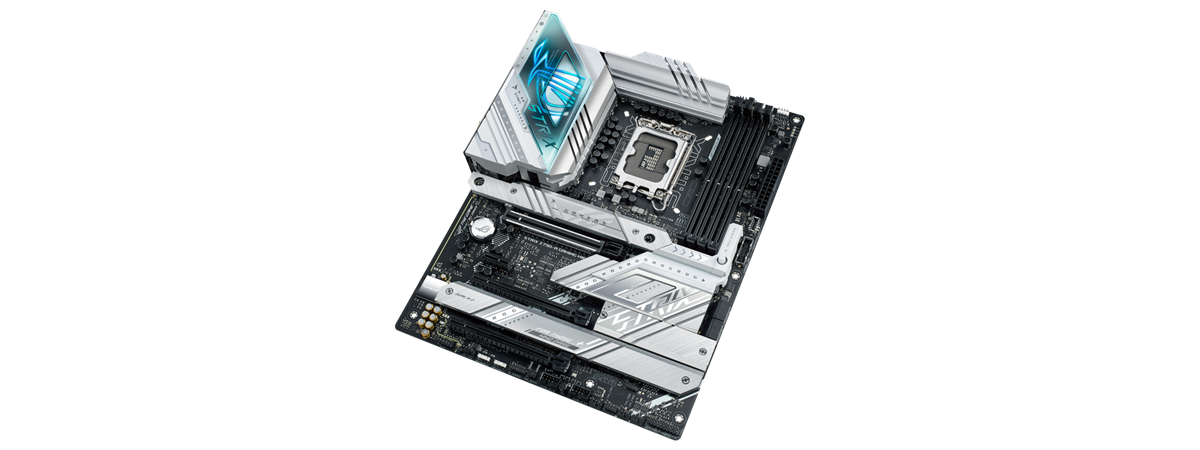
Only boards with DDR4 slots can use DDR4 RAM. Check your motherboard model’s memory QVL for supported speeds and module types.
CPUs include a memory controller that sets the top officially supported speed. Faster XMP/EXPO profiles can work, but stability varies by board, BIOS, and kit quality.
Upgrading an older DDR3 platform requires a new motherboard (and often a new CPU). You cannot drop DDR4 sticks into DDR3 slots.
How to Install DDR4 RAM (Step-by-Step)
Before you start: Shut down the PC, switch the PSU off, and hold the power button for 5–10 seconds to discharge. Ground yourself to avoid static.
- Open the case and locate the DDR4 slots. Consult your board manual for the preferred slot order (often A2/B2 for two sticks).
- Unlock the slot latches. Align the notch on the DDR4 module with the key in the slot—there’s only one correct orientation.
- Press straight down firmly until both latches click. Do not rock the stick side-to-side.
- Boot into BIOS/UEFI and enable XMP/EXPO to run the kit at its rated speed. Save and restart.
- Verify in the OS that capacity and speed are correct. Use a trusted utility if needed.
Tips for Stable DDR4 Performance
Match kits. Use a single matched kit for best stability. Mixing brands, speeds, or capacities can cause boot loops or downclocking.
Keep BIOS current. Memory compatibility improves with BIOS updates. Update carefully and avoid interrupting the process.
Mind clearance. Tall heat spreaders can interfere with large CPU coolers. Check dimensions before you buy.
Test after installation. Run a memory test if you experience random freezes or crashes. Reseating modules often resolves intermittent issues.
FAQs
What is DDR4 RAM used for? It temporarily stores active data so the CPU can access it quickly, improving load times, game performance, and multitasking.
What does 16 GB DDR4 RAM mean? You have 16 GB of DDR4 memory available. That’s a solid baseline for gaming and productivity.
Is DDR4 RAM better than regular RAM? DDR4 is a generation of “regular” RAM. Compared to DDR3, it’s faster, more efficient, and supports larger capacities.
Is 8 GB DDR4 better than 16 GB? Capacity matters. 16 GB outperforms 8 GB in heavy multitasking and modern games, even if both run at the same speed.
Summary
- DDR4 RAM increases bandwidth and lowers power draw versus DDR3.
- Choose 16 GB for mainstream builds; 32 GB+ for creation and VMs.
- Speeds around 3000–3600 MT/s offer a good value-to-performance mix.
- DDR4 is not physically compatible with DDR3 motherboards.
- Enable XMP/EXPO in BIOS to get rated speed and stability.
Conclusion
DDR4 remains a fast, efficient memory standard that fits most mainstream and enthusiast PCs. If your platform supports it, a balanced DDR4 kit delivers responsive everyday performance, smoother gaming, and ample headroom for creative work, without overspending. When you’re ready, follow the simple installation steps above and verify settings to get the full benefit from your new memory.
Discussion (0)
Be the first to comment.